Your computer restarted for an update, and the report you’d been typing for two hours is gone. Half an hour is enough to recover an unsaved document, usually back to within ten minutes of your last keystroke. The fork is one question: did your program write a recovery copy, or did it never get the chance? Step two answers it, and every other step either feeds that answer or checks it.
The figures belong to an invented report of 1,850 words, saved by hand at 2:10 and lost when the restart came at 4:05. Replace them with your own times. No program or menu gets named below, because each one labels its recovery tools differently.
Three things to settle before you start
Your first move decides whether anything can be saved, so read this part before you touch the keyboard. Anything you open or save now can write over the very copies you’re after, because the recovery files sit in a few fixed places and a new file reuses them.
Don’t start a fresh document in the same program yet. Leave any cleaning tool alone as well, since it deletes the temporary files that hold your lost text. Next, look at the room left on the drive, since a recovered copy needs a place to land. A report of 38 KB needs almost none, yet a completely full drive stops the save halfway.
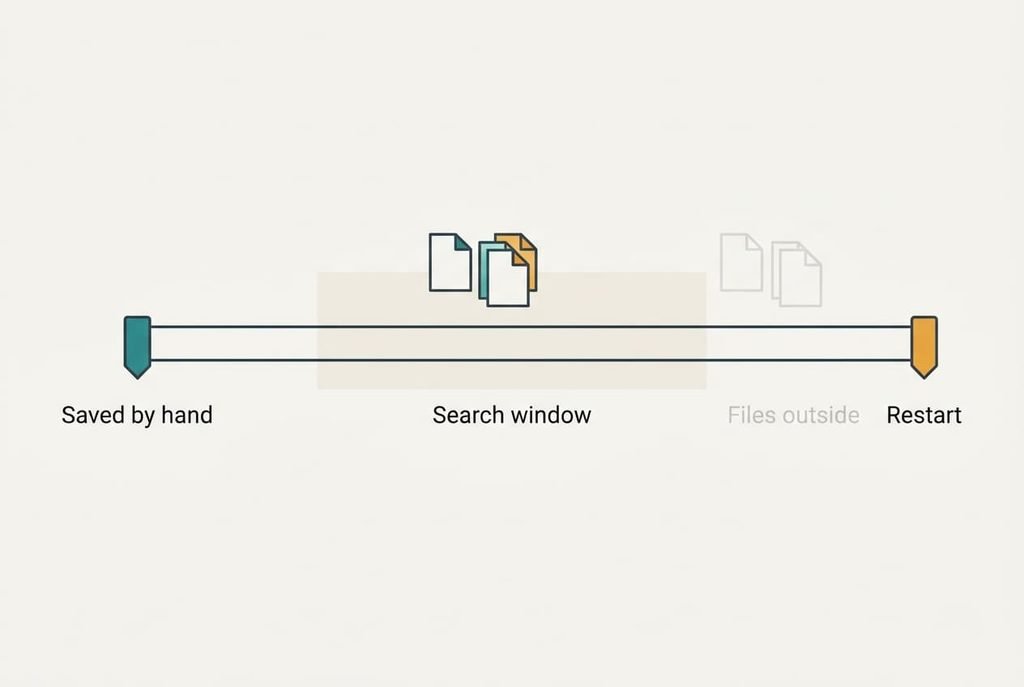
What gets skipped is writing down when you last saved by hand and when the restart happened, and it decides how you recover an unsaved document. Those two times give you a window of 115 minutes here, and every search later runs inside it. Without them you’d wade through hundreds of files from other tasks.
Add the title or first line of the document beside those times, because step one asks for all three.
Six steps to recover an unsaved document after a restart
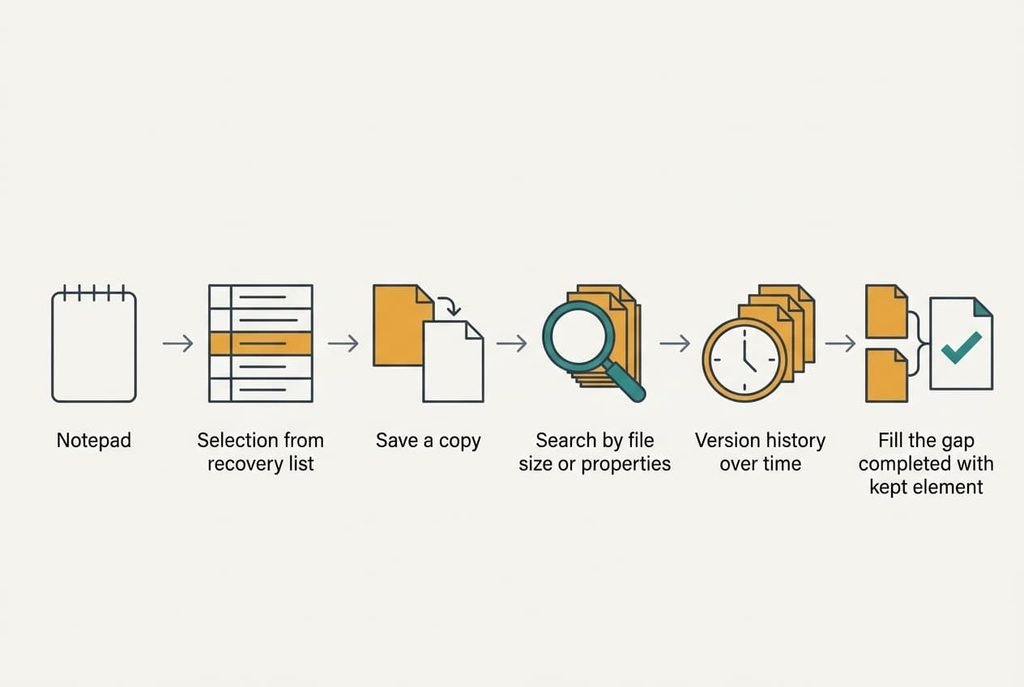
1. Note the three facts on paper: the program you wrote in, the first line of the document and the two times. You’re looking for anything that narrows the search, because the 115-minute window rules out most files on the drive. The check is three lines on paper and a window that matches your memory of the evening.
2. Reopen the same program and wait for a recovery list. Programs offer their saved copies on the first launch after a crash, and closing that list unanswered often discards the copies for good. Look at the time stamps on each entry. The newest one here reads 3:58, which is seven minutes before the restart and fits a ten-minute save cycle. The check is an entry whose time falls inside your window.
3. Open the newest entry and save it under a new name before you change a word. Close the window and the recovery entry itself may vanish, while a copy under your own name stays put. Here the recovered text holds 1,790 words, 97% of the 1,850 you’d typed. The step worked once the saved file’s word count lands within 5% of what you remember
.4. If no list appeared, search the drive for files changed inside your window. Sort the results by the time they were changed and look for names that start with a tilde or end in a backup or temporary tag. Open the biggest candidate first, because a real draft of your report weighs about as much as your last manual save. Ours is 36 KB against 38 KB. The check is a file within 20% of that size whose first line matches yours.
5. Look at the version history if the folder syncs online or the system keeps older copies. This route works apart from the program’s own saves, so it catches a report that never reached the first list. Pick the newest version before the restart. The check is a version stamped inside your window, and one stamped 3:30 beats none.
6. Compare the recovered text against your notes and fill the gap. Paste back what’s missing from the older manual save, then retype the last minutes while they’re fresh. The gap here is 60 words, about three minutes at your usual pace. The check is a final paragraph that matches the ending you remember.
Recovering the unsaved document: how to know it’s complete
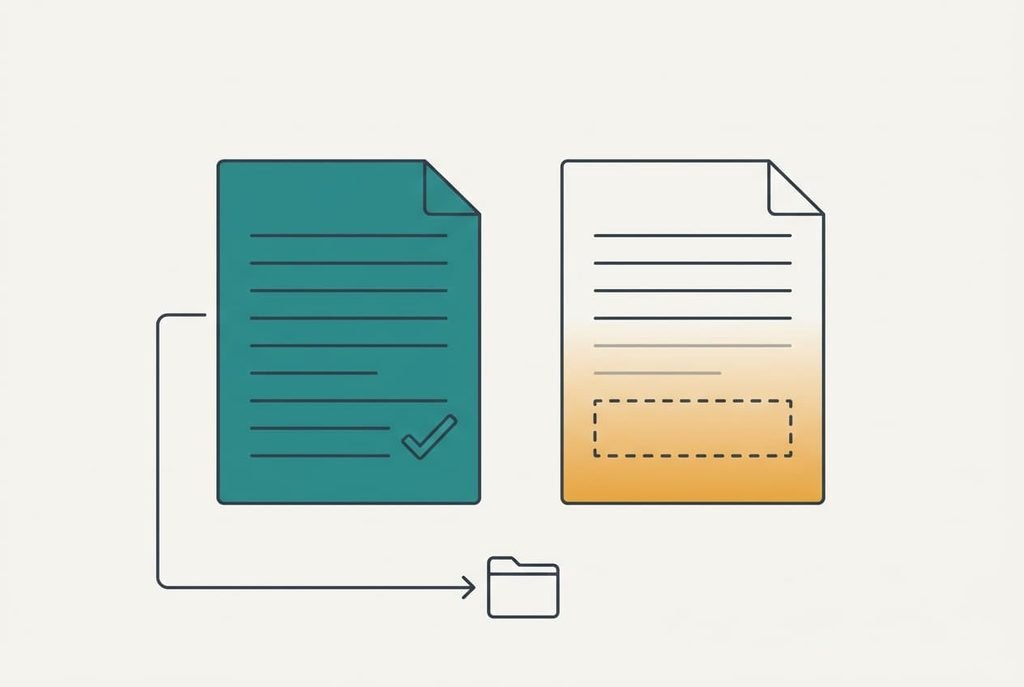
A recovered file isn’t finished until it survives a clean reopen, so close the saved copy, open it again from its new name and count the words in the last paragraph. That order matters, since a file can look whole in the window where you recovered it and still be damaged on the disk.
Once you recover an unsaved document this way, you pass when the count lands within 5% of the original and the last paragraph is yours. Headings and numbering should match your memory too, as should any table. A count within 10% is a partial pass, so repeat step six with the older manual save open beside it. A blank page or a count under 70% is a fail. Go back to step four and take the next candidate, which is safe because every earlier file is still untouched.
When a step goes wrong
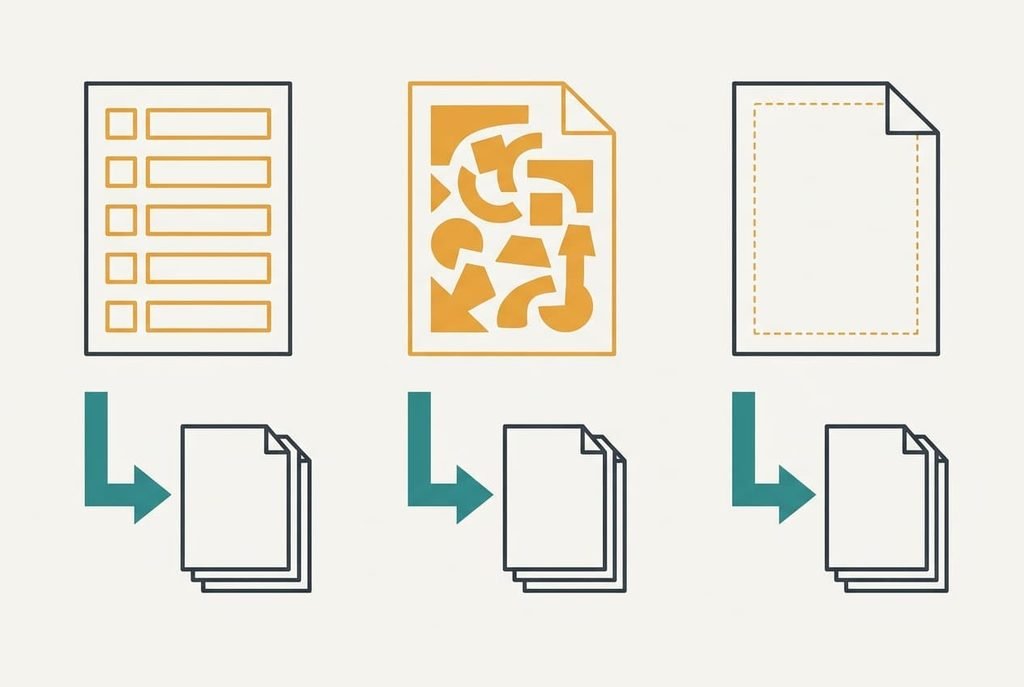
The commonest stall is an empty recovery list. Some programs only keep copies when autosave was switched on, and the list shows nothing when it was off. Step four then carries the whole search, so give it the full hour instead of a quick glance. Many programs keep their drafts in a folder named after the program, which is where a copy most often turns up. Sort by the time of change, and keep the window from your notes open beside the results.
Another stall is a recovered file that opens as garbled symbols. The program began writing a copy at the instant of the restart, and the write was cut off halfway. Try the next-newest candidate, usually the copy from ten minutes earlier, which holds nearly everything.
A file of 0 KB under the right name is the third stall. The program made it as a placeholder when saving began, and it holds nothing.
Leave it where it is and move to the next entry, since deleting it gains you nothing.
The deep scan that’s not worth running
Many guides send you straight to a deep scan of the whole drive, and it’s the one step to skip. A restart doesn’t delete your files, so a tool built to find deleted ones searches in the wrong place. On a 500 GB drive at about 150 MB/s the scan runs close to 55 minutes. It writes its own results to the same drive while it works, which can overwrite the copies you wanted. It also returns tens of thousands of fragments with no names.
Steps two to five cover the places where a copy can actually sit. Keep the scan for a file you deleted on purpose, and use it only after those places come up empty, because a restart leaves your files in place and the scan can’t tell a draft from debris. Finding the right one among fragments costs far more effort than steps two to five.
Once your report is back, shorten the save cycle in the program’s settings from ten minutes to two. The next time you have to recover an unsaved document, the most you can lose is about two minutes of typing, which is roughly 40 words instead of 190. That one change makes the other steps rare, and you’ll make it faster than you finished step one. Test the new interval on a scrap file, then let it run quietly while you work.
Questions readers keep asking
How long after a restart can I still recover a file?
Often for days, because recovery copies stay until the program overwrites or clears them. The first launch is the safest moment, since the list appears once. After that you rely on steps four and five, and each new save you make narrows the chance that an old copy is still there.
Will opening the recovered copy change the original?
Not if you save it under a new name first. The program treats the recovered entry as a temporary item and may drop it when you close the window. A copy under your own name is an ordinary file that nothing clears, which makes it a steady base for further edits.
Does the same method work for a spreadsheet or a slide deck?
Yes. Those programs keep a recovery list and temporary copies much as a word processor does, so every step applies. The size check changes, since a spreadsheet with many sheets weighs more than its text suggests. Compare the sheet count and the last row you remember instead of the word count.