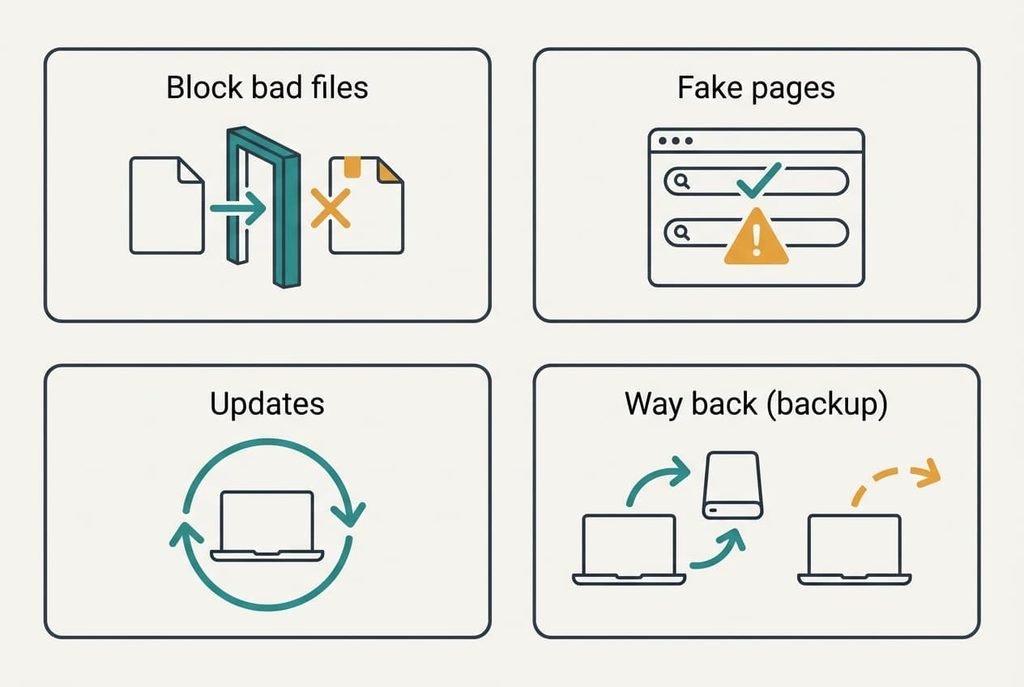
A paid antivirus subscription for a home laptop does one job out of four, and the operating system already covers most of that job for free. The four jobs are blocking bad files and steering you away from fake pages. The other two are keeping software updated and giving you a way back from a mistake. This guide shows what you keep and what you lose by skipping the subscription. It sets out three alternatives and names the trade-off that appears in month three. It closes with what to export before you cancel. All sums assume one laptop shared by a family of four.
What survives when you skip a paid antivirus subscription for a home laptop
The payload is a laptop that stops known bad files and can be rolled back after a mistake, and the subscription is just one of its carriers. Remove it, and the four jobs remain. Blocking and updating fall to what ships with the operating system, which scans files as they arrive and updates itself in the background. Warnings about fake pages come from the browser, which checks addresses against a list before it loads them.
The fourth job is where the subscription never really helped. A way back from a mistake means a recent copy of your files, and no scanner can supply that. With no backup, the subscription was selling a feeling of cover and not the real thing.
Assume your household installs 8 programs a year and meets about 3 risky prompts a month, such as an unexpected installer or a pushy pop-up. That makes 36 moments a year. One careless click out of 36 is enough, so the pause before each click matters more than the logo on the shield.
The files and that pause are what’s worth defending.
What to use instead of a paid antivirus subscription for home
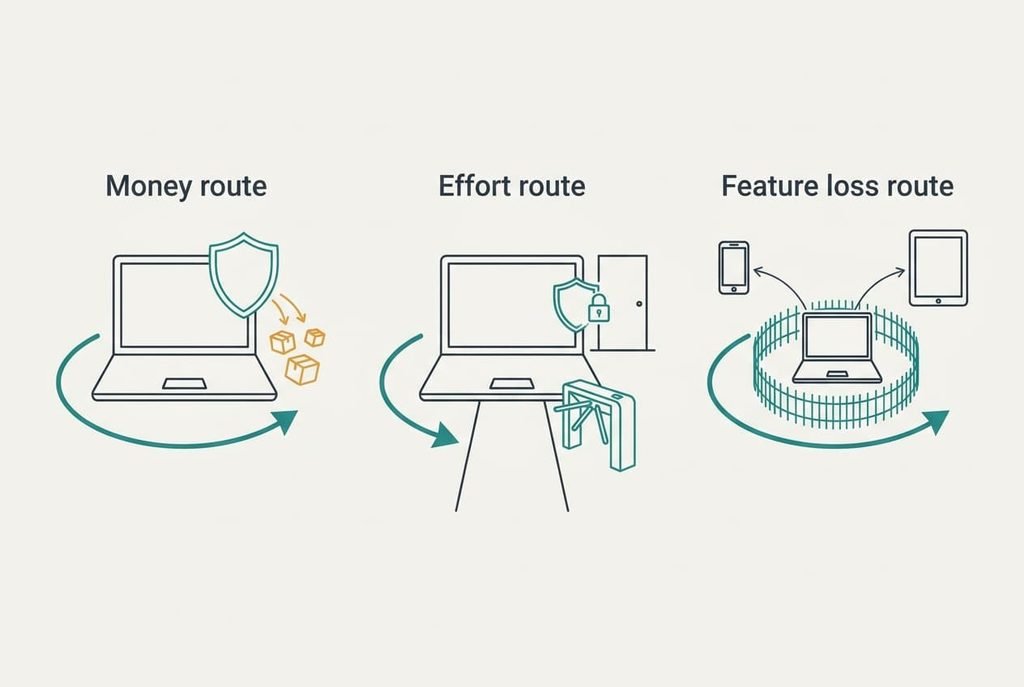
Each route gives up something different, so pick the loss you can live with.
1. Money: rely on the protection built into the operating system and add nothing. Choose it if you mostly browse and write documents. You pay nothing, and there’s nothing to renew. Its definitions refresh in the background, so there’s nothing to open. You lose the extras a suite bundles. A password vault goes. So do web filters for children and a support line you can ring. Protection lands as automatic file scanning plus automatic updates, so the payload survives whole. Where it breaks: a pre-installed trial program quietly switches the built-in shield off when the trial ends, so the laptop runs with no cover at all.
2. Effort: add a routine to the built-in protection. Use a standard account for daily work and keep the administrator account for installs, so each of the 8 yearly installs asks for a password. Install only from the official store, or from a maker’s site that you type in yourself. Spend five minutes a month checking that updates have run, which is an hour a year. Protection lands as a pause before each risky click. A password prompt is a pause long enough to ask whether you really started that install. Where it breaks: the routine itself, which fades once nothing bad happens for a few months. Nobody enjoys a chore whose reward is that nothing happened.
3. Feature loss: shrink what the laptop does. Keep it for documents and video. Neither needs new installs, so little changes day to day. Do banking and downloads on a phone or tablet that installs only from its own store. You give up the freedom to try any program on the laptop that you fancy. The payload lands as a smaller attack surface, since a laptop that installs almost nothing has little to catch. Where it breaks: a family member installs something anyway, using the administrator password that’s written on a sticky note.
What month three does to the routine
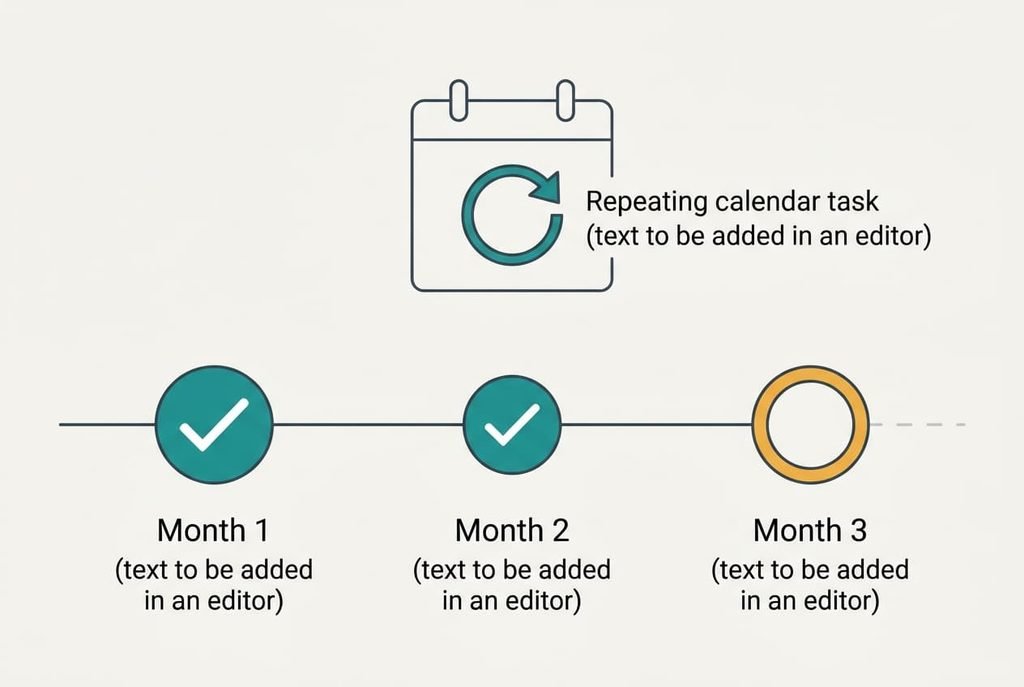
By month three, the novelty of the new setup has worn off and the monthly check has run only three times, so the habit either holds or it doesn’t. With a subscription, a banner reminded you every day. Without one, nothing nags you. The first skipped check feels harmless.
One step helps whichever route you pick. Put the five-minute check in your calendar as a repeating task, and give it to the person who owns the laptop. An hour a year is small, but it only counts if it happens.
A less obvious trade-off sits in the money. A subscription renews once a year, so over five years you make five buying decisions and carry five renewal risks. The free routes make none of those, though they ask for about five hours of attention across the same stretch. You swap money for minutes, and the right answer depends on which one is scarcer in your house.
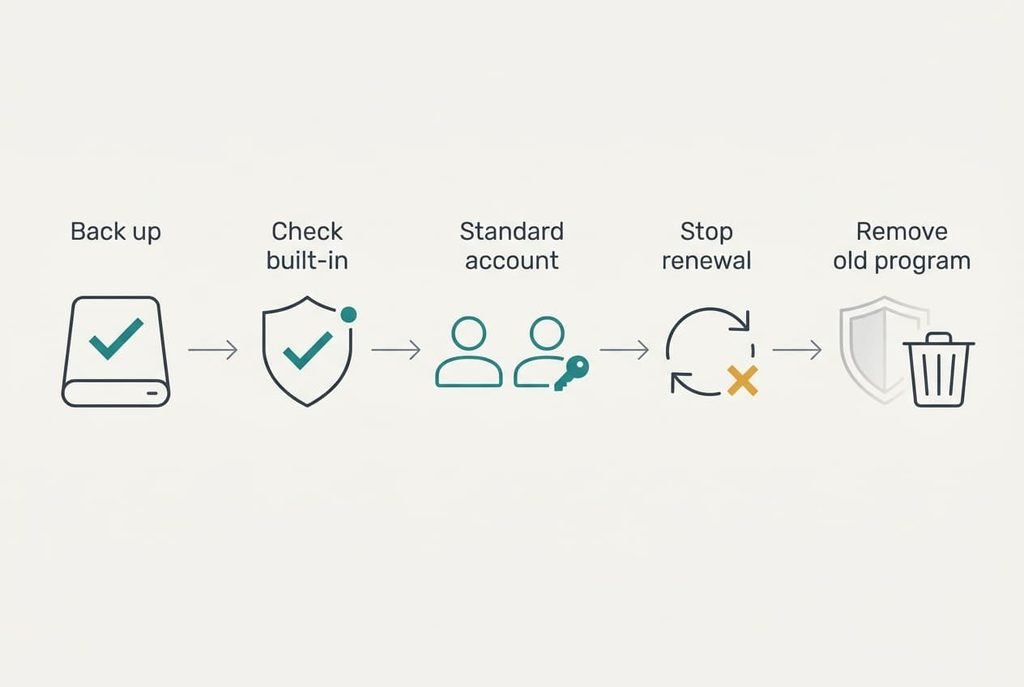
A sensible order for moving across
Begin with the backup and leave the cancellation for later. Copy your documents onto a spare drive and open a few of them to confirm they work. That copy is your way back, and every route relies on it.
Next, open the status page of the built-in protection and check that it shows as active and up to date. Run a full scan once and read the result before you touch the paid program. Then create a standard account for daily use, and keep the administrator one for installs.
Only then should you turn off the auto-renewal, and uninstall the paid program once the built-in shield is confirmed. Two shields running together can slow the laptop and fight over files. Your paid antivirus subscription for a home laptop can run to the end of its term meanwhile, so you can still back out until that date.
When staying with the paid route is the better call
Stay with the subscription when someone in the household clicks on everything and you can’t change that. A teenager’s laptop or an older relative’s machine may need the extra filtering and the phone support more than any habit can offer. The paid route also wins where one dashboard manages several laptops, or where an employer requires a named product.
A paid antivirus subscription for a home laptop also wins when you value a human on the end of a phone. If a scan finds something you don’t understand, a call beats a search result. And if the laptop is old and no longer gets operating system updates, the built-in protection stops updating too, so the paid route may be the only cover left. In that case a replacement laptop is the real fix, and the subscription only buys time while you save for it.
The export to run before you cancel
Before you uninstall, export every password stored in the suite’s own vault. Many suites keep a private copy, and the login for a bank or an email account may exist nowhere else. Save the export to a file, import it into your browser or a separate manager, and test three logins to be sure they work. Then delete the file straight away, because it holds your passwords in plain text. Note any parental-control settings too, so you can rebuild them somewhere else. Do all of this while the suite is still installed and licensed, because some vaults lock once the term ends. Also save the list of files you told the suite to trust, since it shows what you chose to let through.
The right alternative to a paid antivirus subscription for a home laptop will be the one you’re still following in month three. That habit decides everything else, since the best tool fails in a house that never opens it. Back up first, pick the route that fits and keep the export until you’re sure.
Questions readers keep asking
Will my saved passwords and settings carry over?
Passwords can, if you export them from the suite’s vault before you uninstall. Settings mostly can’t, because they belong to the suite and don’t travel. Write down your parental-control rules and any exceptions you set, then rebuild them by hand in the new setup once it’s running.
Is the free route really cheaper over five years?
In money, yes, because you skip five renewals. In time it costs about five hours of checks across the same period. The route only stays cheaper if the checks happen. One skipped update that lets something through might outweigh a year of renewals.
Is it worth the disruption of switching mid-subscription?
Usually not. Let the paid term run out, and use the remaining months to set up the backup and the standard account. Turn off auto-renewal before it triggers, then switch on the date the term ends, when nothing is lost by moving.