Your photos land in the wrong order because the computer is sorting by the moment it made each copy, and the usual cure is to sort the folder by “date taken” instead of by file date. This guide explains where the two dates come from and how three short tests point at the cause. It then gives four repairs, from free to permanent, plus what to gather if none of them works. None of the repairs needs special software, and the first takes under a minute. The sums assume a week-long trip with 1,200 pictures from a phone and a camera.
Why your photos land in the wrong order: the mechanism
Every picture carries two separate dates. The first is the capture time, which the camera writes inside the file at the moment you press the shutter. The second belongs to the computer’s file system, and it records when that particular file was created or last changed on that particular disk. Copying makes a new file, so the file date becomes the copy time and the capture time stays hidden inside.
Here’s the arithmetic. Copying 1,200 pictures takes about six minutes, so every file date falls inside a six-minute window. A folder sorted by file date has no real order to show, and it falls back on whatever sequence the copy followed. Sorted by capture time, the same folder spans seven days. Some copy tools carry the old modified date across and some don’t, so the fault shows up on one transfer and not the next.
A second route adds a different fault. Two devices keep two clocks. If the camera runs 38 minutes behind the phone, a dinner shot on each interleaves wrongly by 38 minutes, even when every date is read correctly.
The dates are intact, and the sort is reading the wrong one.
How the photos land in the new folder in the wrong sequence: three tests
Run these on a single folder and write the result of each in a line. Keep its view open as you go.
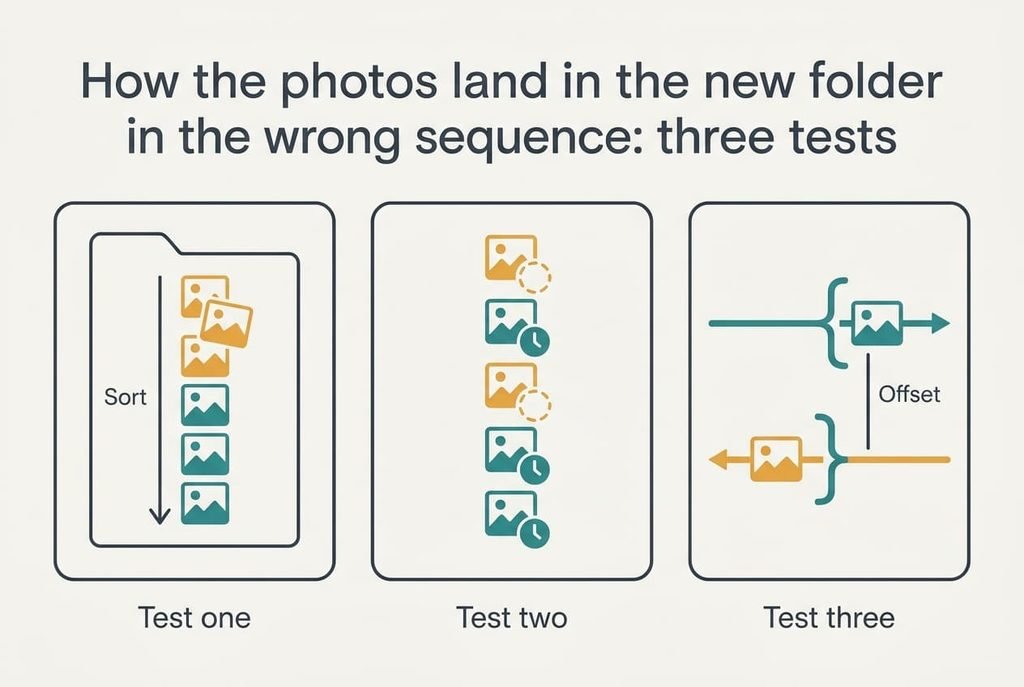
Test one: add the “date taken” column and sort by it. If the folder snaps into the right order, the file-date sort was the cause. Test two: look for pictures with an empty “date taken” cell. These came through a messaging app or an editing export, which strips the capture time, and they cluster at the start or the end of the list. Test three: pick one scene shot on both devices and compare the two capture times. Any difference beyond a minute means a clock offset, and the difference is the offset itself.
If test one fixes everything, stop there. If it fails and test three shows a difference, the clocks are the cause. A folder where only some pictures misbehave points to test two. Names matter as well. A camera counter that rolls from 9999 back to 0001 puts new pictures before old ones when the list is sorted by name, and that happens after roughly 10,000 shots.
Write each answer down before you try any repair.
Four repairs, from free to permanent
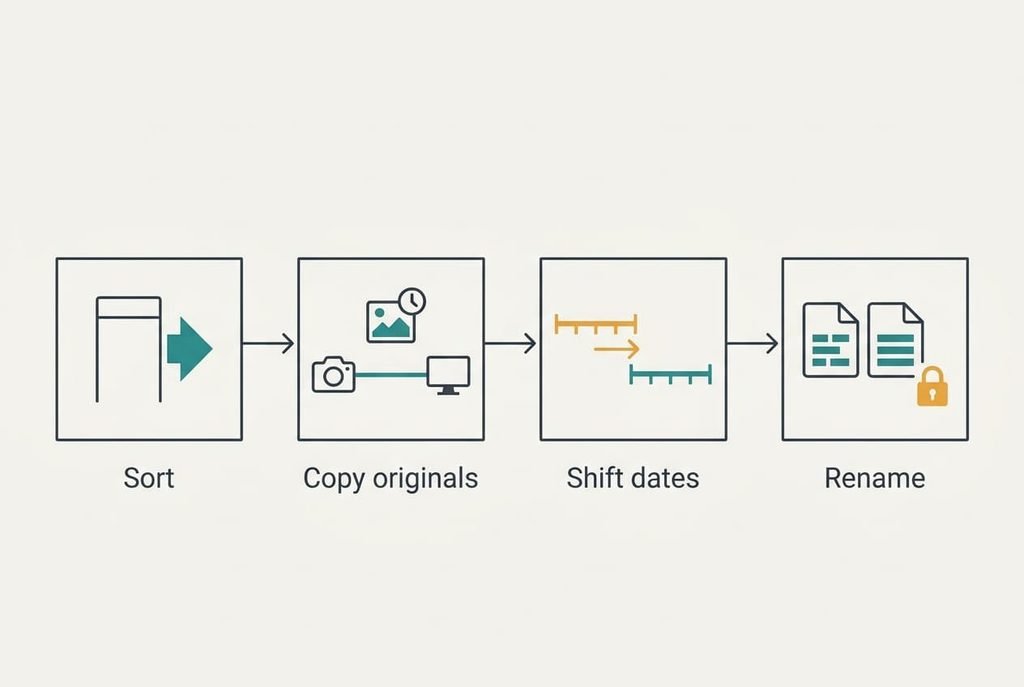
Sorting on capture time. Add the “date taken” column to the folder view and sort on it. It suits the first test and takes under a minute. It’s free and touches no file. A second view helps too: group the list by day, which shows quickly whether any day holds too few or too many pictures. If your photos land in the wrong order only in one folder, this step often shows why. What you lose is the pictures without a capture time, which drop into an empty group at one end, so you’ll place those by hand.
Copying originals only. Where your photo app offers a choice between original and reduced copies, choose the original before you transfer. It addresses the second test, because a reduced copy often drops the capture time. The cost is storage: a 4 MB original that shrinks to 1 MB takes four times the space, so 1,200 pictures need about 4.8 GB in place of 1.2 GB. You also lose the speed of a small batch, since the transfer runs several times longer. Cables and card readers usually keep the capture time. Messaging and cloud links often don’t, so the route matters more than the device.
Shifting one device’s dates. Use a bulk date tool to add 38 minutes to every picture from the slower camera. That addresses the third test. Expect an hour for the first batch, because the offset has to be measured on a matching scene and then checked on a second one. What you lose is the camera’s original capture times, since the tool overwrites them, so keep an untouched copy of the folder before you begin. Check the result on a third scene, because a trip that crossed a time zone needs a different shift for each location.
Renaming files by capture time. Use a batch renamer to turn names such as IMG_0412 into 2026-10-23_1432, so a plain name sort gives the right order in any program. It answers the counter rollover and works everywhere. The step can’t be reversed once the old names are gone. Albums or links that point at the old names will break. Keep a text list of old and new names, so a broken link can still be traced to the file it meant. Do it last, and do it on a copy.
If none of the repairs worked
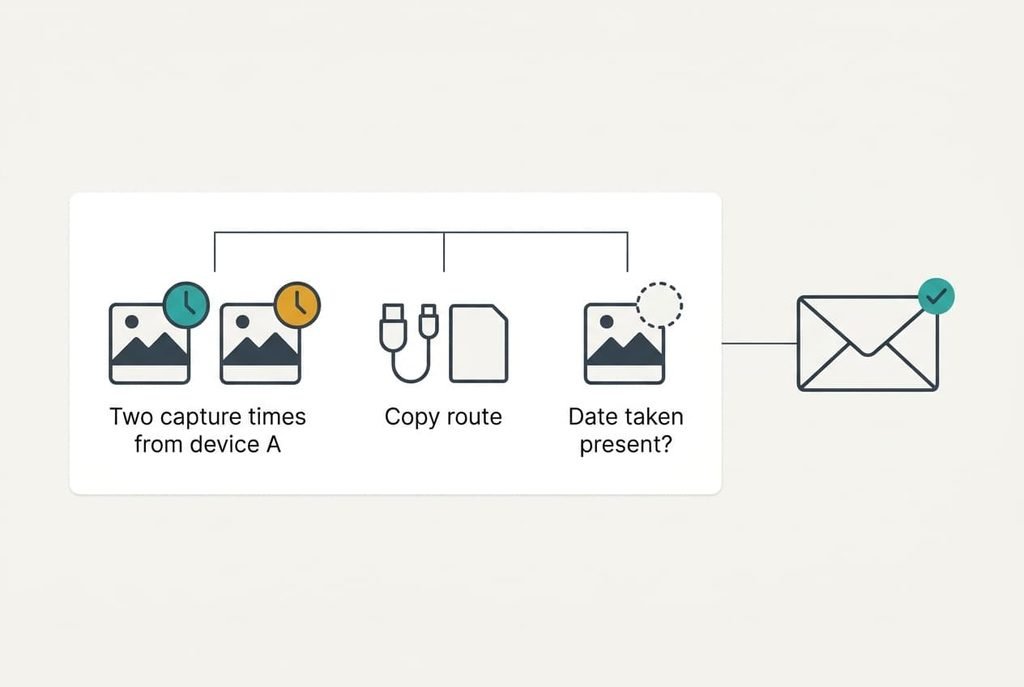
Gather three facts before you contact anyone. If your photos land in the wrong order even after sorting by capture time, these are the details that matter: the capture time of one picture from each device for the same scene, the name of the app or cable you used to copy, and whether the picture shows a “date taken” at all. Those three details separate a clock fault from a transfer fault in a minute.
Then send them to the maker of the photo app, or to the forum for it, as three plain lines. A question with numbers in it gets a specific answer, and a vague one gets a generic reply.
Don’t factory-reset the phone or camera to fix a sort order. A reset clears the clock too, so the next batch lands out of order again. It also erases settings you would have to rebuild, and none of them caused this.
The fix that isn’t worth doing
Opening every picture in an editor and saving it again is a fix that makes the problem permanent. Saving writes a new file with the save time as its date, and many editors drop the capture time during the export. Re-saving 1,200 pictures would take most of an afternoon, and you’d finish with no capture times anywhere.
Sorting is the cheaper tool. The pictures already hold the right information, and you only need a view that reads it.
Another tempting shortcut is to convert every picture to another format to tidy things up. Conversion makes new files as well, so each one gets a fresh date and may lose its capture time. It also changes the quality of the picture, which no sort order is worth. Re-saving also doubles the storage while it runs, because the editor keeps the old file beside the new one until the job finishes.
When your photos land in the wrong order, the evidence in the file is almost never lost. Ask the folder to read the capture time first, then check the clocks. Touch the files themselves only if sorting alone can’t solve it. Keep one untouched copy of the originals throughout, because that copy lets you undo any experiment and try a different repair later.
Questions readers keep asking
Can I fix the order without editing the pictures?
Usually yes. Sorting by the capture time in the folder view needs no change to any file. It works for every picture that carries a capture time, which covers nearly everything shot on a phone or camera and copied with the original settings.
What causes pictures from two devices to interleave wrongly?
The clocks disagree. A camera set once and never checked can drift or sit in another time zone. Compare one scene shot on both and measure the gap. Adding that gap to the slower device’s pictures with a bulk tool puts them back in step.
Does a wrong order mean the pictures are damaged?
No. The order is a display choice and says little about the files themselves, which are intact. Damage shows up as pictures that won’t open or that show grey blocks. If every picture opens, you’re looking at a sorting problem and not a failing card or drive.