Phone text too small is a common complaint, and one afternoon’s work fixes most of it. A single fork decides the route. The system text size reaches only the apps that obey it, whereas the display zoom reaches every app and costs you screen space. This walkthrough follows one 6.1-inch phone and the five apps its owner reads daily. Three of them followed the system setting and two needed their own. You’ll learn which setting to move first and how to spot the apps that ignore it. Allow about 20 minutes. Every number here is made up for one phone, so take your own readings first.
What to Settle Before Fixing Phone Text Too Small
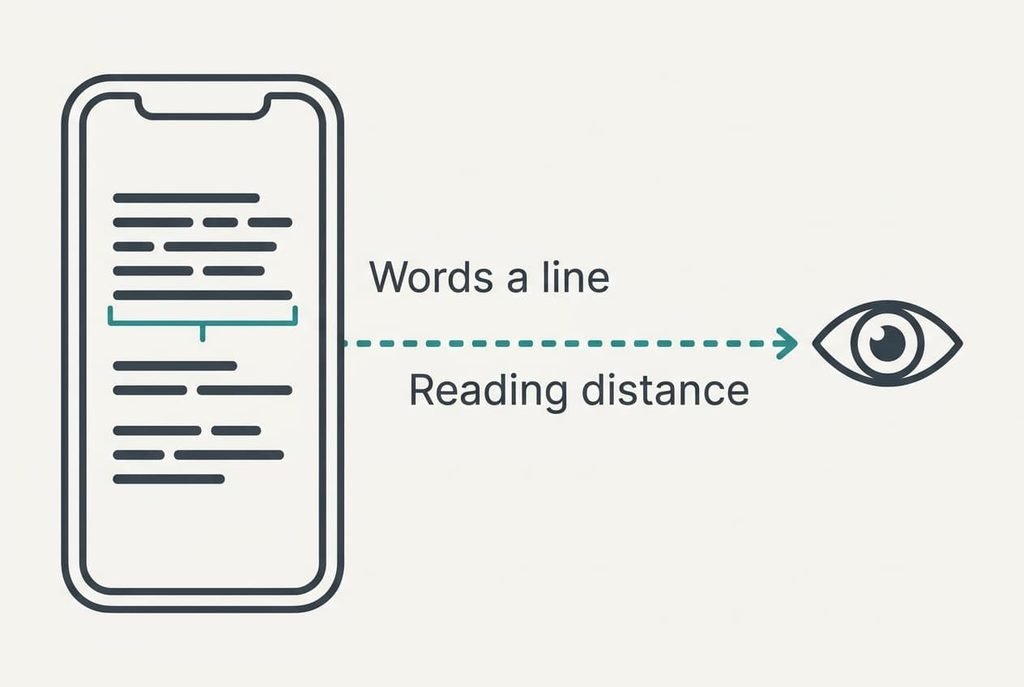
Start with a reading test, because without a baseline every change feels like a guess. Open a long message and hold the phone at your normal reading distance, which for most people is about 35 cm. Count the words on one line and note whether you lean in. Our phone showed 8 words a line at the default size, and its owner leaned in on every third message.
Decide how many words a line you’ll accept before you touch a slider, since larger text always costs width. Six words a line still reads as sentences. Four starts to read like a list, and you’ll scroll twice as far for the same message.
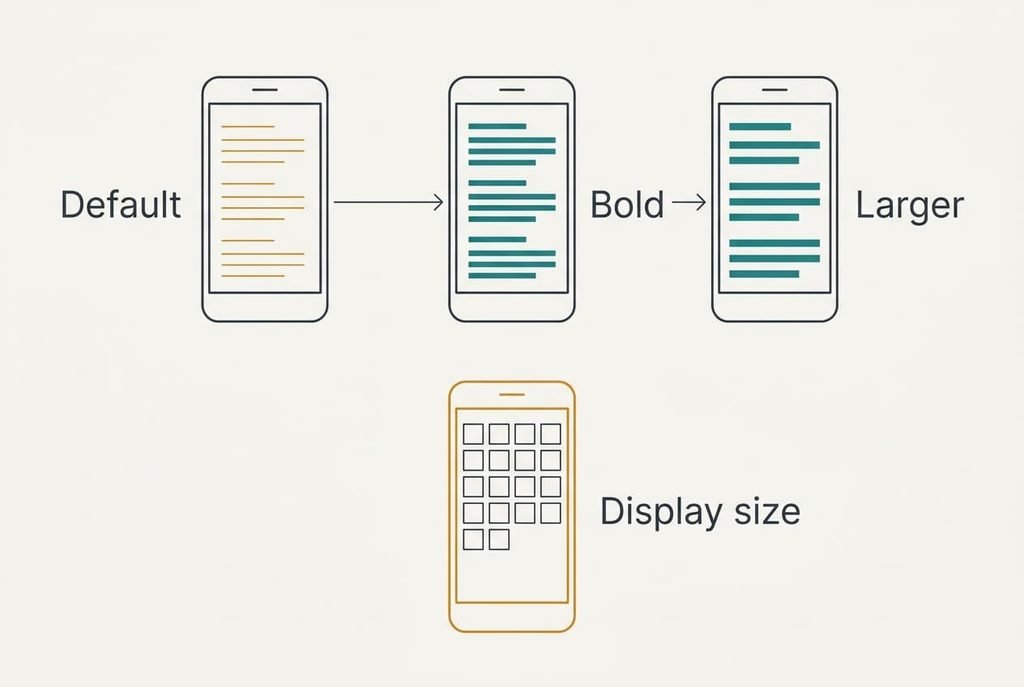
Know the controls you’ll meet. Text size changes the letters inside apps that follow it. Display size scales the buttons and the icons as well as the letters, and some phones call it zoom, so a grid of 4 by 6 icons can become 4 by 5. Many phones add a switch for bold text as well. Charge the phone and keep one long message open for comparison.
Six Steps to Make Small Phone Text Readable
Each step closes with a quick proof, so you can quit the list once the text reads well.
1. Read your test message and mark the distance at which letters blur. Look for the point where you start leaning in. For our owner it was 35 cm, with 8 words on a line. That measurement is the baseline against which every later step gets judged. You’ll know it’s done when you can state both numbers from memory.
2. Raise the system text size by one notch and reread. Look for the setting where you can read at 35 cm without leaning, which on our phone came at 130% instead of 100%. Stop there, because each notch narrows the line, and words per line fell from 8 to 6. The step is complete when the same message reads easily and still fills the screen sensibly.
3. Switch on bold text before you add another notch. Look for a setting called bold text or heavier text, which thickens each stroke without widening the line much. Thin strokes blur first on a small screen, so heavier ones often help as much as a bigger size. Some phones restart to apply it. The proof is that a notch you needed before now feels optional.
4. Leave display size alone until a button gives you trouble. Zooming the display enlarges everything, and icons per screen dropped from 24 to 20 when our owner tried it. Move it up only when you keep missing small targets, and go one notch at a time. A good sign is that your home screen still holds the apps you use daily on its first page.
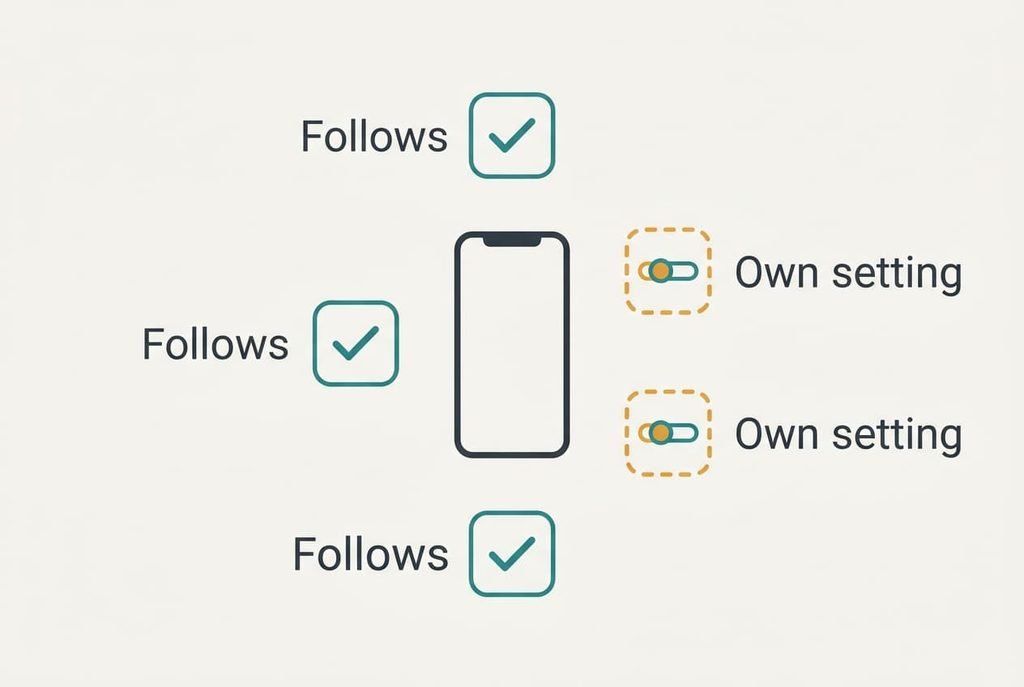
5. Open the five apps you read most and check each against your setting. Look for text that stayed small after step 2. Two of our five did. One was the browser and the other a news reader. Those apps keep their own size, so open that app’s settings and set its text size to the percentage you chose. You’ve finished when all five read like your test message.
6. Use reader view for long web pages that still look cramped. Look for a reader view entry in the browser, which sets the page again in your chosen size and drops the sidebar. Pages that fix their own text size ignore the phone’s setting, so this is the quickest cure. It costs you the page’s pictures and layout, which for an article hardly matters. Test it on a page that was hard to read an hour ago.
Testing That the Larger Text Held
Read the original test message again at 35 cm without leaning, then open the other four apps one after another and read a paragraph in each. If every one reads easily, phone text too small is no longer your problem. On our phone, three apps passed at once and the two others passed after step 5. Count how many pass, because that number gives you a baseline for next time.
Then run a second test that people forget. Take the phone to a train seat or a sofa, where you really do your reading. If you still lean, go back to step 2 and raise the size one notch, then retest. Check the lock screen and notifications as well, which often keep their own size and may need a separate setting. Write the settings you chose on a note, so a later update that resets them is quick to undo.
Where the Check Usually Stalls
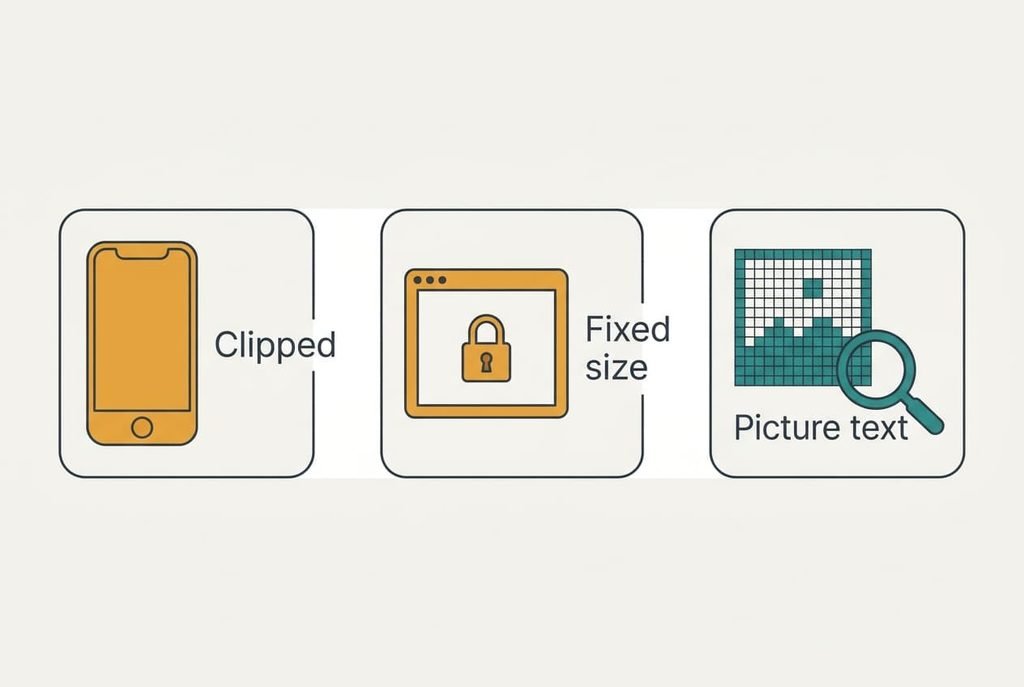
Most often the layout breaks once the size rises. Buttons clip and a menu runs off the bottom of the screen. The keyboard and the settings menu clip first, so check those two first. Drop one notch and the layout returns, which tells you the phone can’t give you more at this display size.
Next comes an app that ignores every setting.
Banking and ticket apps often fix their own sizes. Pinch-zoom still works inside them, and the developer’s feedback form is worth a line. Until the app changes, one notch more of display size is all you can do for it.
The third stall is text inside pictures. Screenshots and posters carry their letters as pixels, so no text setting changes them. If phone text too small is your complaint about those, pinch the picture larger. Saving it and opening it at full width helps too, and it works on a shared poster.
The Step Not Worth Taking
Setting text and display size to the largest value on offer looks tempting and delivers less than it promises. At the top setting our phone showed 3 words a line, so a message that fit on one screen needed three. Menus clipped and the owner stopped reading long messages at all. The gain over 130% was small, because the letters were already clear at 35 cm. You can test this yourself by living with the top setting for one evening, counting the screens a long message takes and comparing the count with your 130% figure.
Maximum size also hides the cause. The letters blurred because strokes were thin and the default sat one notch low, and both are fixed by far less. A moderate size plus bold text gives you the clarity without the scrolling. Keep the largest setting for bright sunlight, and switch it back when you’re indoors.
A tidy result is one where phone text too small stops being the daily complaint. Revisit the settings after a major update, since updates sometimes reset them, and again if your reading distance changes. Show the method to a relative who borrows your phone, because each person’s settings live on a separate device. Set a reminder for six months from today, then read your test message once and see whether the numbers still hold. A thirty-second look is enough to tell you whether anything drifted.
Questions Readers Keep Asking
How long does the whole job take?
About 20 minutes the first time, with roughly four minutes for each of the five apps. Later checks run shorter, since you reread one message and any app that looked different. Do it with the phone charged and a long message open, to compare like with like.
Will I lose anything by changing the sizes?
Nothing is deleted, and you can undo each switch. The price is width. Fewer words fit on a line, so you scroll more. A few screens may clip. Screenshots and photos you’ve already saved keep their old size, because their letters are fixed pixels.
Does a tablet or a relative’s phone need the same steps?
Yes, a tablet keeps settings separate from the phone. A tablet has more room, so you can often stay at 115% where a phone needs 130%. A relative’s phone follows the same order, but sit with them for the reading test, since their reading distance differs from yours.