HDMI cable features matter only as far as they match the picture your box sends. Start there and not with the packaging. One figure on the label, the rated bandwidth, settles whether the format fits. Our example is Tom, who rents a flat in Glasgow with a 140 cm television mounted on the wall and a streaming box on a shelf 2.6 m away. He wants 4K pictures with rich colour at 60 frames a second. Four checks come first, ranked by weight. The packaging claims that mislead follow after them. Tom’s room is made up, so measure yours before you spend.
Which HDMI Cable Features Matter Most for Picture Format
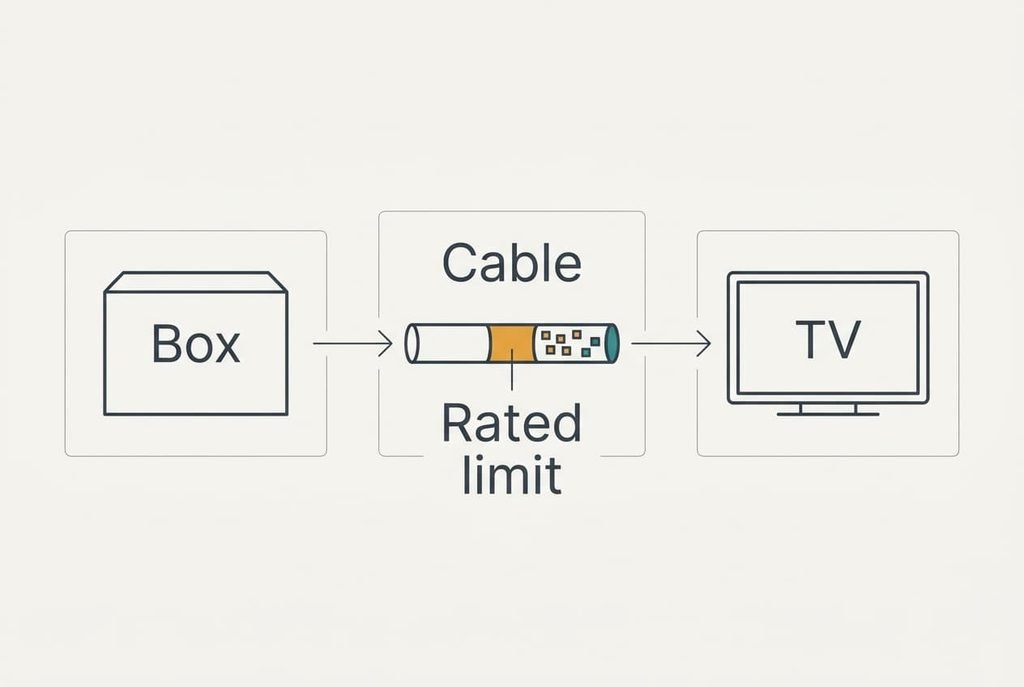
A digital cable doesn’t fade a picture gradually. It carries the signal cleanly, or it drops out in sparkles and blank flashes. Which one you get depends on whether the cable can carry the amount of data your picture needs each second.
Tom’s picture can be counted. Each frame holds 3840 × 2160 pixels at 30 bits each for rich colour, and the box sends 60 frames a second. The data comes to 3840 × 2160 × 60 × 30 = 14.9 gigabits a second, before any overhead. A plain 1080p picture at 60 frames and 24 bits needs only 3.0. The rated bandwidth on the label must clear the data your picture needs with room to spare, because no setting on the television can add capacity the cable lacks.
The label shows the rating in gigabits a second, or a name for a speed class. Tom’s candidate cable says 18. That clears 14.9, though not by a wide margin, and a console at 4K and 120 frames would need twice his figure.
Count your own picture first, then let the rating answer to it.
Four Checks on the Features of an HDMI Cable That Matter
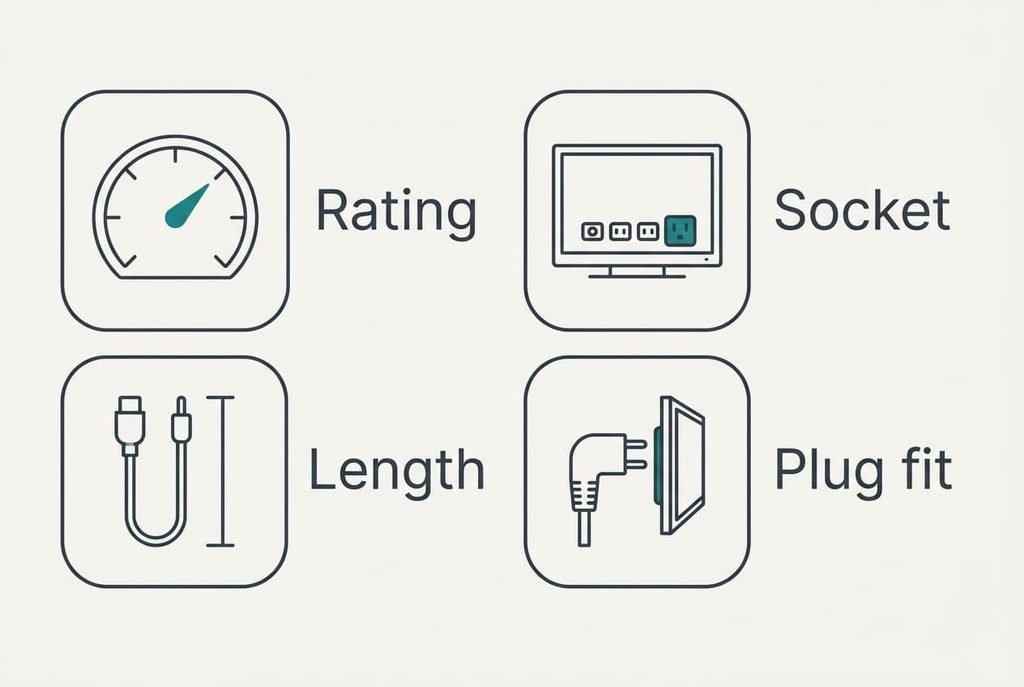
1. The rated bandwidth against your picture. The cable should state its rating in gigabits a second, and the figure should exceed what your box sends. Tom’s 14.9 needs a rating above that, and a label reading 18 passes. The daily change is silent: nothing happens when it fits. If it doesn’t, the picture falls back to a lower mode, or sparkles appear in bright scenes. Look for the rating printed on the box, then on the plug sleeve if one is printed there. The box for your streaming device lists the highest mode it sends, so compare the two numbers directly.
2. Whether the television’s input accepts the format. This is the check nearly everyone skips. Many sets let only some of their sockets take the top mode. The manual says which, and so does a printed label near the socket. Tom’s television has four inputs, and only the one marked for the full signal will show his 14.9. If he plugs the box into the wrong socket, a perfect cable still delivers a reduced picture. Look at the labels beside the sockets before you plug in.
3. The length of the route. Measure with string along the path the cable will take, including the corners. Tom’s route runs 2.6 m, so a 3 m cable fits with a little slack. A longer cable leaves less margin in the signal, and a coil of surplus length behind a wall mount adds strain. If the cable is too long, bright scenes may flicker. Pick the next common length up and no further, and fix the slack with a clip so it never hangs from the socket.
4. How the plug fits behind the set. A wall-mounted television leaves a gap, and Tom’s is 8 cm. That stiff cable with a straight plug pushes sideways on the socket, and a loose contact then causes dropouts that look like a faulty cable. Fit a right-angle plug or choose a flexible sleeve to solve it. Take the depth of the gap with a ruler before ordering, and note which way the socket faces.
Packaging Claims That Promise More Than They Deliver
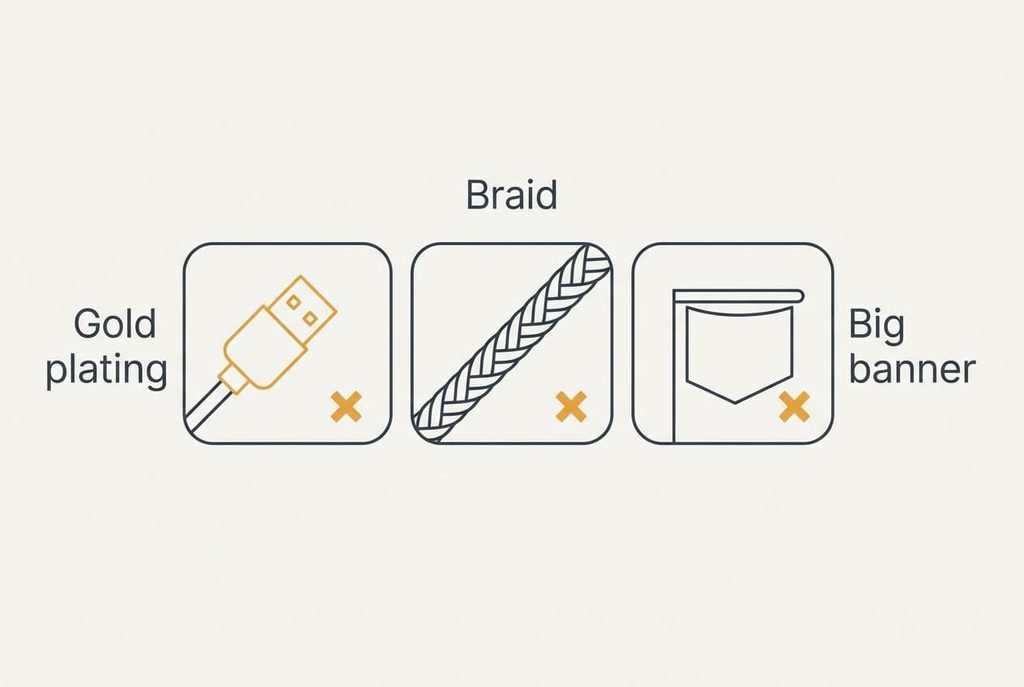
The feature printed largest is often gold-plated connectors, and it earns less than it claims. Gold resists corrosion, which has a small value in a damp kitchen or on a seaside coast. It doesn’t sharpen a picture. A digital signal either arrives whole or fails, and plating can’t influence which one happens. Makers promote it because it looks premium and photographs well. When HDMI cable features matter, the contact metal rarely ranks among them.
A braided jacket gets oversold too. It resists tangling and looks neat on a shelf, though it has no bearing on the data inside. An “8K-ready” banner is a third lure. A rating built for larger pictures adds nothing Tom can see on his 4K set.
Let your own room decide. Plug the cable in and watch a fast scene for ten minutes, and if the picture stays whole, you’ve lost nothing by ignoring the banner.
How Three Households Weigh the Four Checks
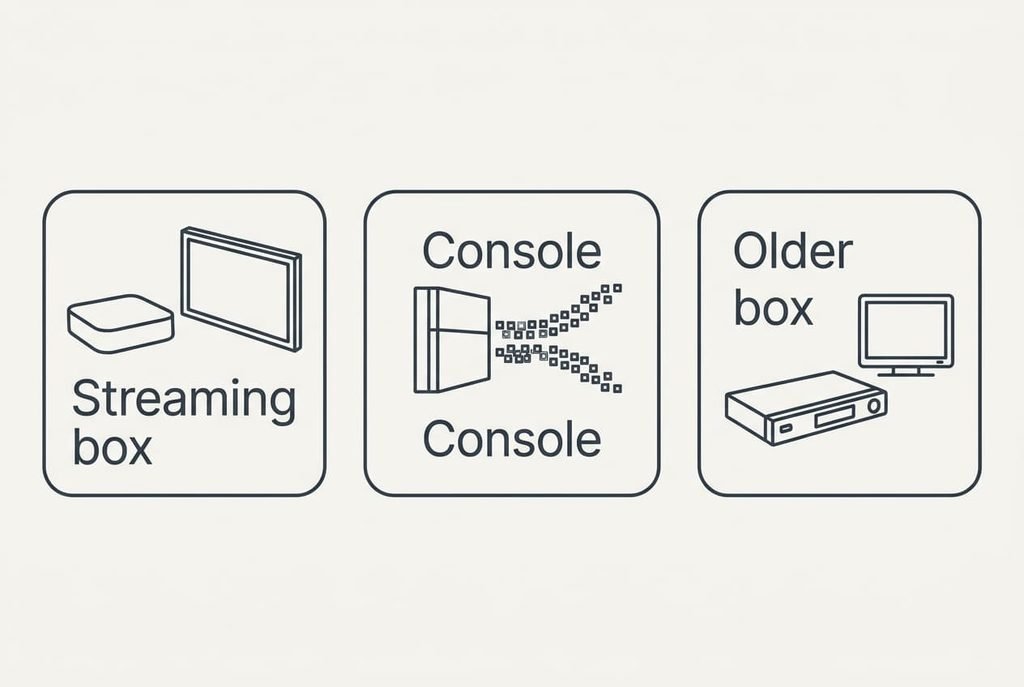
Tom has a wall mount and a 4K box, so the rating rises to the top. The socket and plug fit follow. His label clears the figure, and a right-angle plug matters because of the 8 cm gap.
Aisha plays games on a console at 4K and 120 frames. Her data need is double Tom’s, so the rating dominates her decision, and the socket check matters just as much. Only one of her television’s inputs may take that mode, and the label beside it will say.
Mark has a 1080p television and an older set-top box. Any certified cable works for him. Length and plug fit decide, and a short flat cable will do.
A cable is only right for its own room.
Cables to Walk Away From
Pass on a cable that names a speed or a version but carries no certification label. A claim with no label behind it can’t be checked, and HDMI cable features matter only when someone can verify them. If the packaging is silent about the rating, put the question to the seller, and walk away from silence. Anyone who may move soon should be firmer, because a cable bought for one wall may not suit the next.
A cable far longer than the route deserves suspicion too. So does a bundle of five lengths when you need one. Each spare cable adds a drawer of tangles and a chance of grabbing the wrong one. A bundle also hides a weak link, since just one of them may match your picture.
Skip any cable you can’t return. A fault may show only with your box and your television, and a return window is how you find out.
A Ten-Minute Test Before the Returns Window Closes
Connect the box to the television with the new cable and set the box to its highest picture mode. Watch ten minutes of fast-moving picture, such as football, and look for sparkles or short blanks. Then open the television’s input information and read the format it reports. Write down whether it matches the mode you chose. If it falls short, move the plug to the input marked for the full signal and run the ten minutes again.
If the picture still drops out, drop the box one mode and test again. A cable that passes only at the lower mode belongs in the return bag.
Repeat the check whenever you change the box or the television. A new device can raise the demand, and a cable that suited the old one may not suit the new. When HDMI cable features matter again, you’ll have the numbers to hand. Keep the box and the receipt in one drawer, with the note of the result.
Questions Readers Keep Asking
What rating do I need for 4K at 60 frames?
Work out the data your picture needs and choose a rating above it. Pixels × frames × bits per pixel gives the figure. For 4K at 60 frames with rich colour that is about 14.9 gigabits a second, so a label showing 18 clears it, though not by much. A console at higher frame rates needs more.
How much should I spend?
Spend to match the picture and no more. A short certified cable that clears your figure does better than a costly one that has a banner and no label. Put any extra money towards the right length and a right-angle plug if your set is on the wall. Price doesn’t raise the data a cable can carry.
Will I need to replace it when I upgrade the television?
Only if the new set or box asks for more data than the rating gives. A cable rated well above today’s figure often survives an upgrade. Keep the packaging, because the printed rating is how you will check it later. If you upgrade to a higher frame rate, run the check again.