By the end, your printer will sit at one network address after every restart. Anything that points at it will keep working. The job takes about 15 minutes on the first device and 5 on each one after that. You can give a home device a permanent address in two places. One is the router, which holds the number back for it. The other is the device itself. This guide settles the fork in favour of the router. A few details, starting with the hardware ID, decide whether the result sticks. Our example is a printer at 192.168.1.87 behind a home router in the UK.
Before you give a home device a permanent address
Every device on a home network borrows its address from the router for a set time, called a lease. A lease is a loan, not a gift, and the router can reclaim it. Ours lasts 24 hours, and the device asks to renew once half of it has passed, after 12 hours. A printer left off all weekend outlives its lease, and the router may lend its number to a visitor’s phone. That is how the printer returns on Monday at 192.168.1.143 instead of 192.168.1.87. Every program aimed at the old number then reports an error.
The skipped step is the first one.
Before anything else, write down the device’s hardware ID and its current address, because the reservation depends on both. The hardware ID is six pairs of letters and digits. It’s the only detail that tells the router which device you mean. Load the router’s admin page on a computer joined to the same network, and leave the device switched on while you work. A device that’s off appears nowhere, and you’d be guessing at its details. Nothing later in this guide works without those two facts, so a minute spent here saves ten afterwards.
Six steps that give your home device a permanent address
1. Find the device in the router’s table of attached devices and copy two details from its row: the hardware ID and the current address. A reservation joins the two, so a copy from the wrong row would hold a number for a stranger. Proof you have the right row: switch the device off, and its entry vanishes within a minute. It returns when you switch the device back on.
2. Read the span of addresses the router hands out. Ours runs from 192.168.1.20 to 192.168.1.200, which is 181 numbers. The permanent address mustn’t clash with a number the router is still lending to visitors, and the span tells you where those numbers live. Confirmation: you can name the first number and the last number without guessing.
3. Choose a number just above that span, say 192.168.1.230, and scan the table for it. Nothing should be sitting there. Some routers refuse a number outside their span. In that case pick one inside it, and the router then holds it back from everyone else. The sign you’re clear: no row anywhere shows that number.
4. Create the reservation by pairing the hardware ID from step 1 with the number from step 3, then save it. From that moment the router sets the number aside for that one device. Look for a single new row in the reservation list holding your two values. A second row, or a blank field, means something was typed twice or skipped.
5. Make the device ask again by restarting it completely. Left alone, it clings to the old number until half its lease has gone, which can take 12 hours. A working reservation can look broken for most of a day. Evidence of success: the device’s own status page, or the router’s table, shows 192.168.1.230 and no longer shows 192.168.1.87.
6. Update everything that still points at the old number. A computer’s printer connection and a saved shortcut both hold 192.168.1.87 until you edit them, and a camera app does the same. Take each one in turn and run its simplest action, such as printing a test page. A page that comes out, or a picture that loads, shows that link is repaired.
How to test that the address has stuck
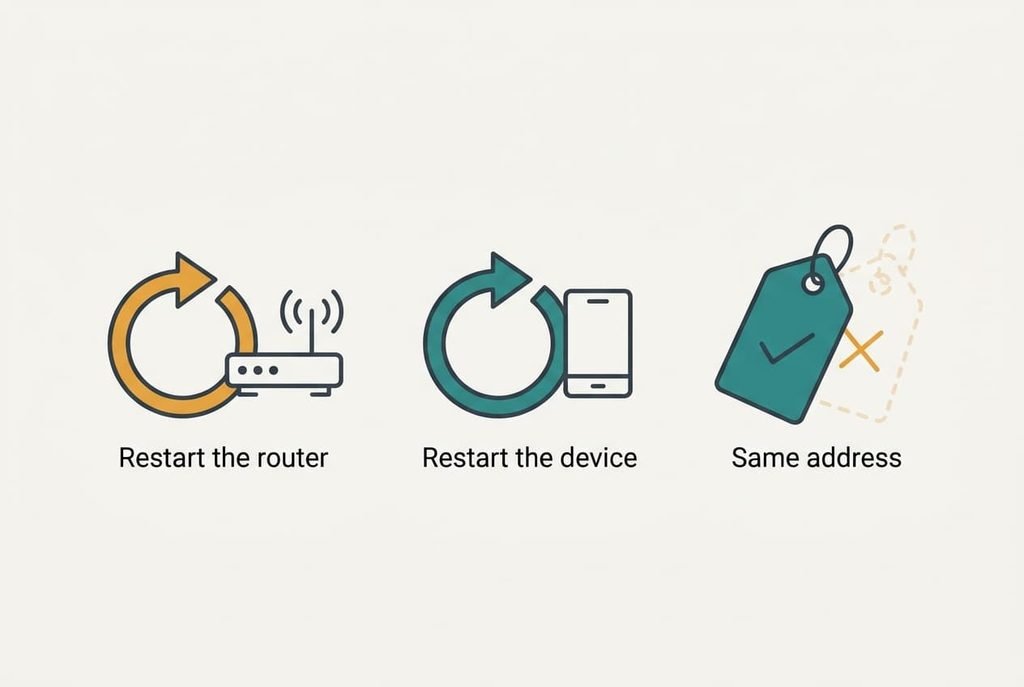
The proof is a double restart: restart the router, then the device. Afterwards confirm that the address still reads 192.168.1.230 and that the test action works. A router restart wipes the borrowed addresses but keeps every reservation, so the check shows whether yours survived. That’s roughly five minutes of work. It belongs to the job whenever you give a home device a permanent address, and it isn’t an extra.
Do it once on the day you finish. Look again a week later, because a lease that expired over a quiet weekend is the case this whole job was meant to fix. If the number has moved, the reservation never took hold. A typo in the hardware ID is the likeliest cause, so compare the row with the device’s own status page character by character. The stalls below cover the other causes.

Where the steps stall
Three snags account for most failed attempts to give a home device a permanent address. One is a router that ignores a reservation outside its span. Some models accept only numbers from inside the pool, so the device stays on 192.168.1.87 or drifts again. Pick a number inside the span, and the router will hold it back from everyone else.
The second is a clash with a device that someone set by hand years ago. Two devices claiming 192.168.1.230 each drop off the network every few minutes, and the only clue is a pair of table rows that quietly show the same number. Scan the table for two rows with that number, or switch the second device off and watch whether the first settles.
The third stall is quieter than the first two.
A device that merely slept hasn’t asked for a new address, so it keeps the old one. Switch it fully off and on, and give it a minute to rejoin before you judge the reservation.
The step that isn’t worth taking
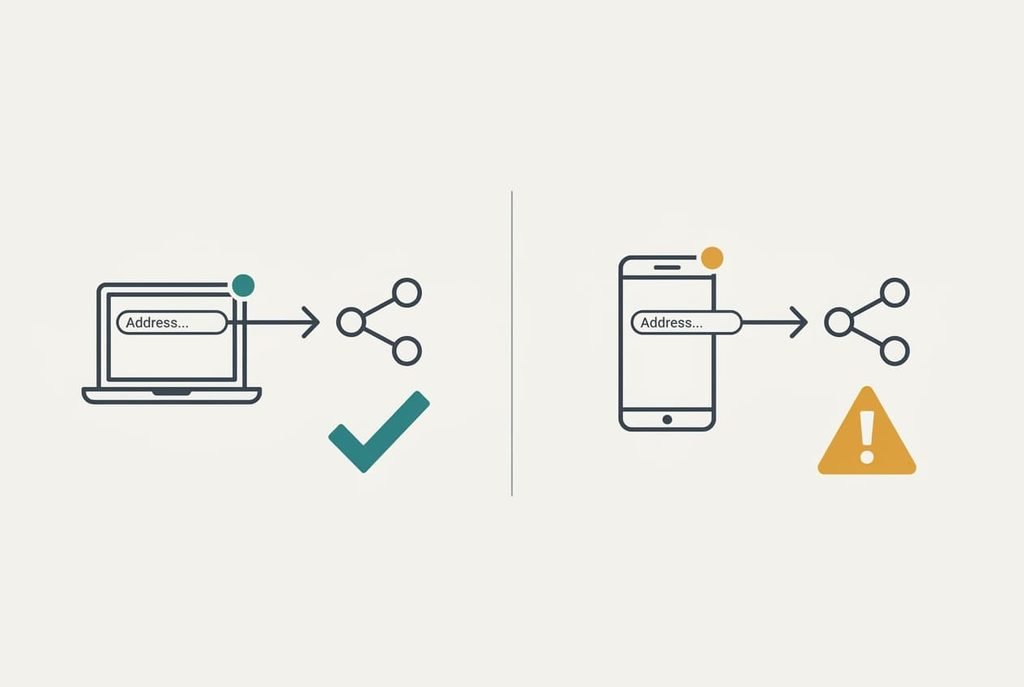
Plenty of guides advise typing a fixed address into the device itself, and that shortcut is rarely worth the trouble it brings later. It feels more certain, since the number lives on the device. The router never learns about it and may lend the same number to a phone. The device also carries that setting to every other network. Take a laptop or a portable printer to a friend’s house and it won’t connect until you undo the change. A typed number also survives nothing: reset the device and it forgets, while you’ve forgotten what you typed.
The reservation avoids both problems, because the router makes the decision and the device keeps its normal settings. One exception exists: a router with no reservation feature. There, fix the address on the device and choose a number above the span, such as 192.168.1.230, so the router can’t hand it out.
To give a home device a permanent address, reserve it in the router and restart both ends. One test afterwards confirms it. Jot the hardware ID and the chosen number on a card beside the device, since a future reset of the router wipes the list. A reservation is free and needs no extra equipment. It also eases later jobs, such as pointing a backup program at the storage box, because the target number no longer moves.
Questions readers keep asking
How long does it take?
The first device takes about 15 minutes, mostly spent finding the right page and copying the hardware ID without a typo. Each device after that takes about 5, since the span is already known and so is the method. The restart test adds a few minutes, though it pays off every time.
Does this erase anything on the device or router?
No. A reservation only adds a row to a list, and the device’s own settings stay as they were. A full factory reset of the router does wipe that list, so write down each hardware ID and number somewhere safe. Restoring a saved configuration file usually brings the rows back.
Does it work for a device on a cable?
Yes. The router lists wired devices beside wireless ones, and the steps are identical, and that includes the hardware ID and the restart. Cabled devices rarely drift, because they stay connected all weekend. A reservation still protects them if the router restarts and the numbers are reshuffled.