Reading a guide while writing notes about it usually means flicking between two apps and losing your place each time. Split screen on a phone ends that by showing both at once, one above the other. Setting it up takes about five minutes. Your one fork is whether your phone offers the feature at all, because support varies from model to model and from app to app. What follows assumes yours does. It uses a sample phone with a usable screen 13 cm tall and 6.5 cm wide. Substitute your own figures. You’ll end with a paragraph above and a note below, neither one moving.
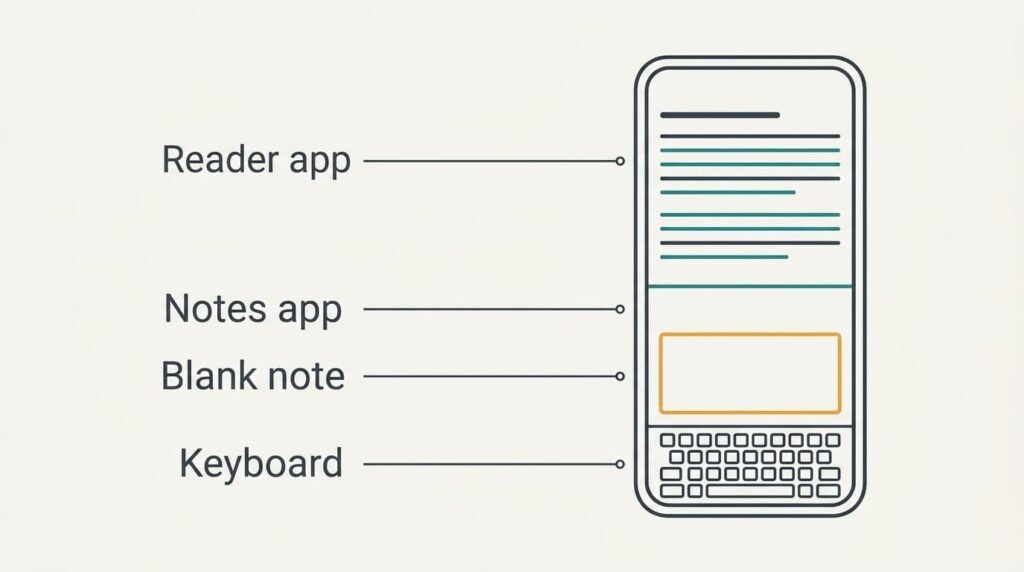
Before You Use Split Screen on a Phone
Settle which two apps you’ll pair. One app does the reading. The reader can be a browser or a document viewer, and the other app handles notes. Update both beforehand, since an out-of-date version often causes a window that refuses to resize. Keep a short article or a manual page open in the reader, because a real document exposes problems that a blank page hides.
Write down both app names before anything else.
The sums are short. Each half of the sample screen is 6.5 cm tall. Body text takes about 0.6 cm a line, which means each half holds around ten lines. A keyboard 5 cm tall covers most of whichever half sits low, and that matters in the steps ahead.
Then do the preparation that people skip: open a blank note in the notes app before you split the screen. Creating one afterwards squeezes the job into half a display, and the keyboard then hides the button you need.
Close every other app from the overview screen so the list stays short, and charge the phone above a third because the display stays lit throughout. Allow five minutes for the full run.
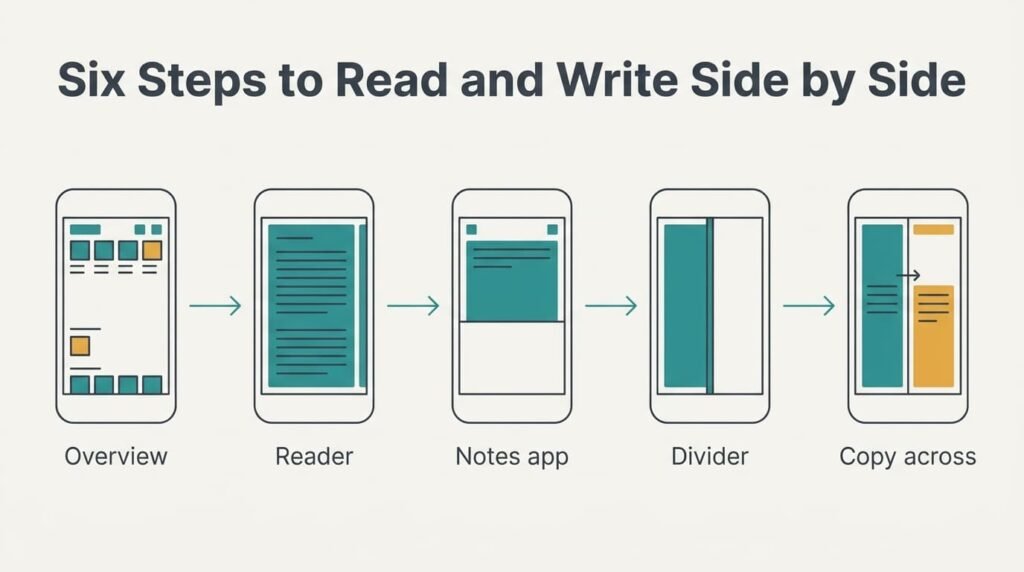
Six Steps to Read and Write Side by Side
1. Confirm that split screen on a phone like yours exists. Look at the top of an app card in the overview screen for a menu or icon that offers a split or two-pane choice. Phones differ, and a few apps block resizing outright. This check saves you a hunt through settings later. You can tell it exists when the choice appears and isn’t greyed out.
2. Open the reader and find your place. Scroll to the paragraph you’ll start from before touching anything else, and note the heading above it. The reader takes the top half, because the keyboard will later cover the lower half and the reader has to stay in view. The result is right when the upper screen shows text and no empty bar.
3. Add the notes app below it. Look for the second app’s card to drop into the lower half once you choose it. The blank note you prepared should open straight away. A list of notes means the preparation is unfinished. Back out and open the blank note first.
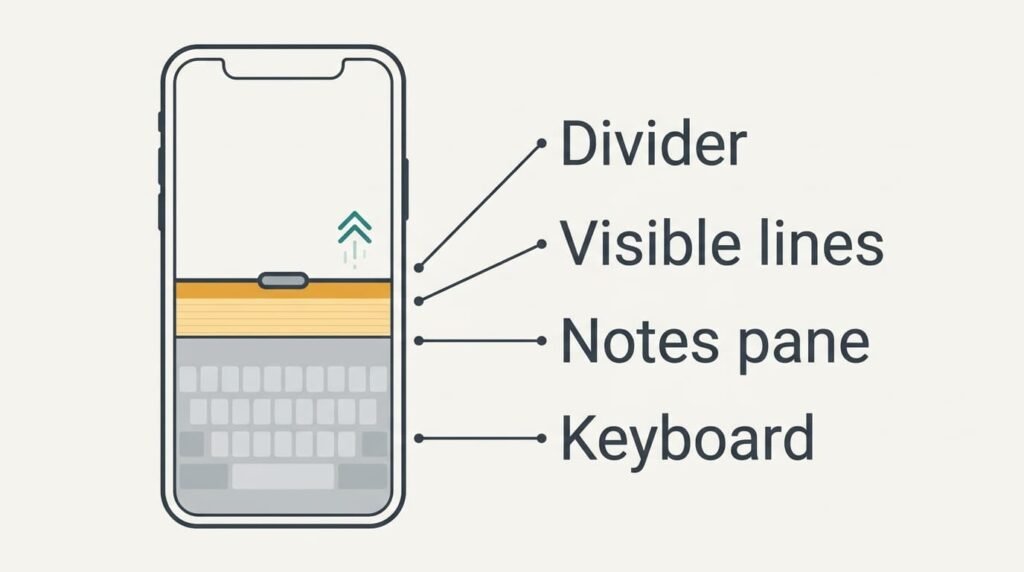
4. Set the divider. Look for the thin bar between the two panes and drag it. Give the notes pane 60% of the height, which is 7.8 cm, and the reader 5.2 cm. The keyboard decides this: 5 cm of it leaves 2.8 cm of notes in view, or about five lines. An even split leaves 1.5 cm, roughly three lines at best.
5. Move text across. Look for a selection handle on a word in the reader, then drag the selection into the notes pane or copy it and paste it. Dragging works in some apps only. Keep copying as the fallback. Paste a single line and not a whole page, because a short line is easy to check. The move has worked when the line lands where the cursor sat.
6. Leave and return. Look for the gesture that takes the phone back to a single app. Most notes apps save as you type, though a glance at the opening line confirms it. The reader keeps its place as well, which spares you from hunting for your paragraph. Reopen the pair later and both panes appear as you left them.
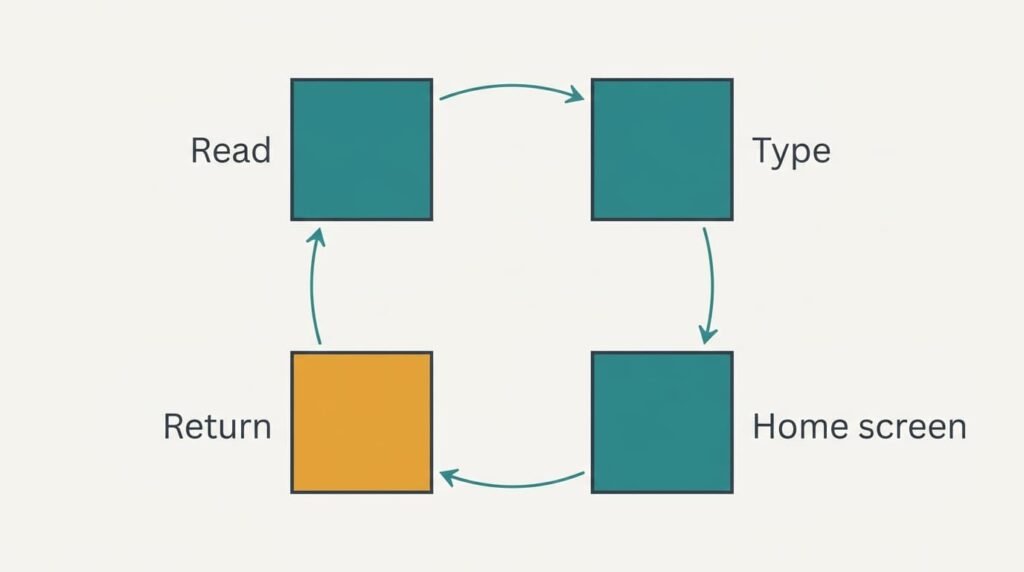
Test That the Split Screen Works on Your Phone
Run it once so you know split screen on a phone behaves before depending on it. The test is to read one paragraph, type one sentence of notes, then leave to the home screen and return. That short loop exercises every part of the setup. The reader should show the same paragraph on your return, and your sentence should sit in the note with no gap and no duplicate.
Next, turn the phone to landscape if you like wide panes. The pair should switch to a left-and-right layout and each app should keep its place. Turn the phone back and the stack should return.
Finally, copy one line from the reader into the note and compare the wording with the original. A line that arrives garbled, or with stray spaces, points at the reader app and not at your setup.
Tick each result as you go, and fix any failure before moving on.
Where Split Screen Stalls and What to Do
The option is missing or greyed out. Either the phone doesn’t offer the feature or the app blocks it. Try another reader, such as the browser, before you decide the phone can’t do it. A notes app that was updated recently is worth trying too.
The keyboard hides the notes. It is the usual culprit. If you see only a line or two while typing, the divider sits too high. Drag it up until about five lines show, which in the sample means a notes pane of 7.8 cm. Dictating a note takes the keyboard out of the picture altogether.
The pair collapses after a call or a rotation. An incoming call takes over the screen, and the layout sometimes fails to return. Reopen the reader, then add the notes app again. The blank note will be waiting, provided you didn’t close it.
The Step Not Worth Taking
Drafting long notes inside the narrow pane is the step to skip. Five visible lines suit a quote or a figure. They don’t suit a paragraph. A 120-word paragraph runs to about 22 lines at roughly 5.5 words a line, and you’d scroll more than four times just to reread it.
At full size the same keyboard leaves 8 cm of note, which is around 13 lines and nearly three times the view. Capture short notes in split mode and finish the real writing at full size. Switching takes moments, and the draft is waiting.
Pairing the apps into a saved shortcut is a smaller trap. It tidies a routine you may not keep, and the pairing may need rebuilding after a phone update. Wait a fortnight and see whether you repeat the setup daily before you save it. A routine you haven’t yet repeated rarely deserves a shortcut.
Use split screen on a phone for gathering material, since gathering is what it does well. The reader doesn’t need to stay in view while you polish your own sentences, and a fresh page gives you room to think. Treat the finishing as a separate job for the whole screen. Doing so keeps each tool in its proper role, and the notes you end up with read as if they had your full attention. Try the routine on one article this week and judge the saving for yourself.
Questions Readers Keep Asking
How long does it take to learn?
About five minutes for the first setup, and a few seconds afterwards. The divider is the only fiddly part. After one practice session most people open the pair without thinking. If the option is missing, no amount of practice will add it. Confirm that before anything else.
Can I lose my notes when the split ends?
Rarely. Most notes apps save every few seconds. Ending the split therefore keeps your text. A crash or a forced close during a call is the real risk. Glance at the top line of the note after each session, and copy anything important elsewhere before you close.
Does it work in landscape?
Usually, and the panes then sit side by side. Each pane is then about 6.5 cm square. The keyboard in landscape can cover most of that 6.5 cm height, which makes notes feel cramped. Portrait works better for typing, and landscape suits reading alone.