A laptop that suddenly starts running slow usually isn’t experiencing a single mysterious failure – it’s typically one of a small number of specific, checkable causes, each requiring a genuinely different fix. Understanding which category applies to your specific situation determines whether the fix takes minutes or requires a more involved change.
What is actually happening
Sudden slowdown, as distinct from a laptop that’s always been sluggish, points toward something specific having changed recently rather than the hardware itself simply being underpowered for your needs. This distinction matters because a genuinely recent change – a new program running in the background, storage filling up, an operating system update – has a specific, identifiable cause, while gradual sluggishness over a long period often points toward accumulated software or genuinely ageing hardware instead.
Confirm which pattern you have
Check whether the slowdown is constant regardless of what you’re doing, or specifically happens when running certain programs or having many browser tabs open – this distinguishes a general system-wide issue from a problem specific to particular software.
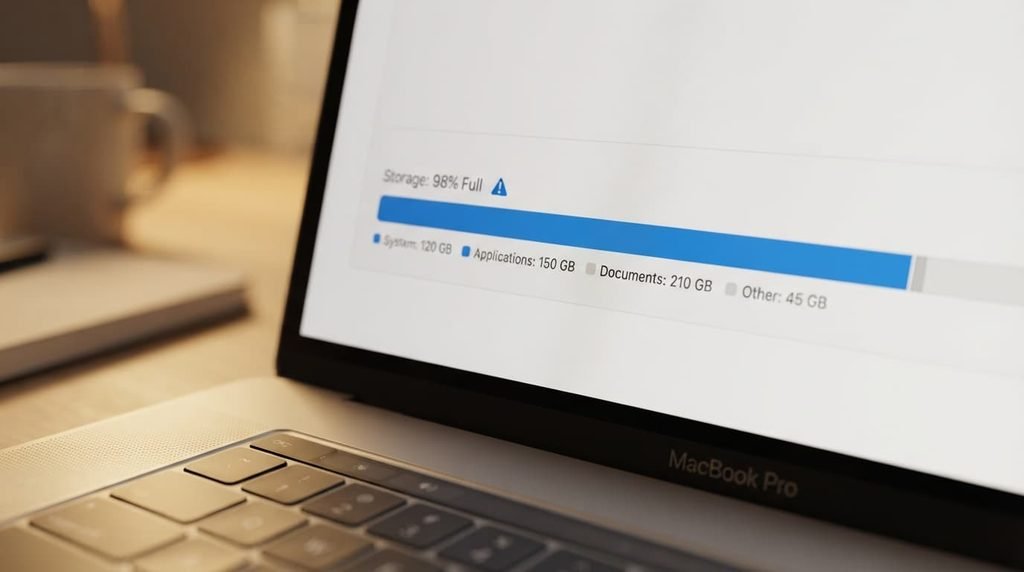
Check how much free storage space remains on your main drive specifically, since many operating systems slow down noticeably once storage runs low, well before the drive is actually completely full, due to reduced space for temporary system files.
The causes, diagnosed
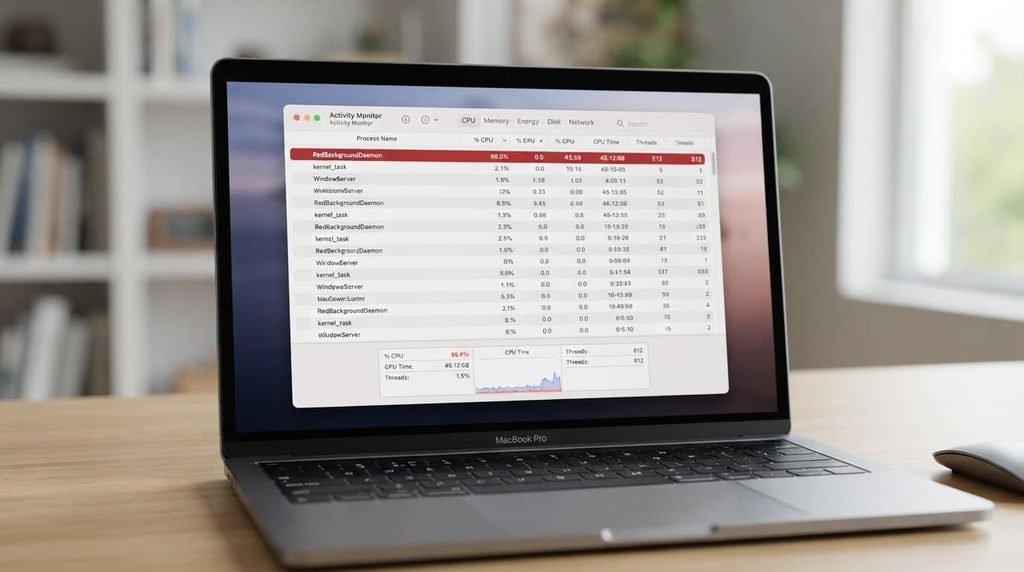
“My laptop is slow even when I’ve only got one or two programs open.” This points to background processes consuming resources without your active awareness, since programs and system services can continue running invisibly, using processing power that appears unaccounted for from what you can actually see on screen. The fix: check your task manager or activity monitor for unexpectedly high resource usage, and close or disable any recently installed program you don’t recognise or genuinely need running constantly.
“The slowdown started right after I installed a specific new program or update.” This points to that specific software directly, either through a genuine bug or because it’s running more background processes than expected. The fix: temporarily uninstall or disable that specific program to confirm it’s actually the cause, before deciding whether to keep it, find an alternative, or check for an available fix from the developer.
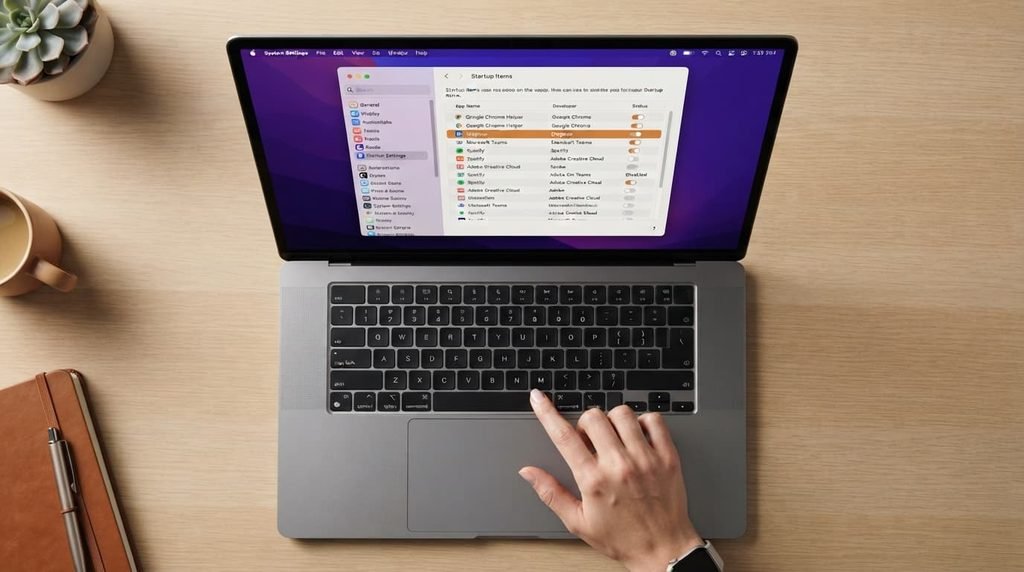
“My laptop takes considerably longer to start up than it used to, even though it runs reasonably fine once loaded.” This points to too many programs configured to launch automatically at startup, each adding to the total loading time before the system becomes genuinely usable. The fix: review your startup program list specifically and disable any programs that don’t genuinely need to launch immediately every time you turn the laptop on.
“My laptop is slow only in one specific browser or application, while everything else feels normal.” This points to something specific within that application itself – too many open tabs, an outdated version, a corrupted cache – rather than a system-wide problem affecting your laptop as a whole. The fix: close unnecessary tabs or restart that specific application first, and check whether an available update addresses the specific slowdown if the problem persists after that.
“The slowdown coincides with my laptop’s storage being nearly full.” This points directly to the storage-space issue mentioned earlier, where reduced available space limits your system’s ability to manage temporary files and virtual memory effectively. The fix: identify and remove genuinely unnecessary large files – old downloads, duplicate media, unused applications – to free up meaningful space, rather than assuming you need entirely new storage hardware to resolve this specific symptom.
What people get wrong about laptop slowdown
The most common misconception is assuming all slowdown stems from the laptop simply “getting old” and needing replacement, when a genuinely significant portion of sudden slowdown cases trace back to one of the specific, fixable software causes covered above instead. Replacing a laptop addresses only the scenario where hardware itself has genuinely become the limiting factor, and doing so without first diagnosing which specific cause actually applies risks spending considerably more than the actual problem required to fix.
Background update processes deserve specific mention here too, since operating systems and applications sometimes download and install updates silently in the background, consuming meaningful resources during that process without any obvious visible indication to you. A laptop that’s slow for a limited period after being turned on, but returns to normal performance later, may simply be completing one of these background update processes rather than experiencing any genuine ongoing problem.
What isn’t worth doing
Immediately reinstalling your entire operating system as a first troubleshooting step, hoping it resolves general slowdown, isn’t worth the time and disruption it causes without first identifying which specific cause above actually applies.
A full reinstall is genuinely disruptive, requiring you to reconfigure settings and reinstall programs afterward, and doing this without first diagnosing the actual cause risks losing time on a drastic step that may not even address the real underlying problem.
When this points to something more serious
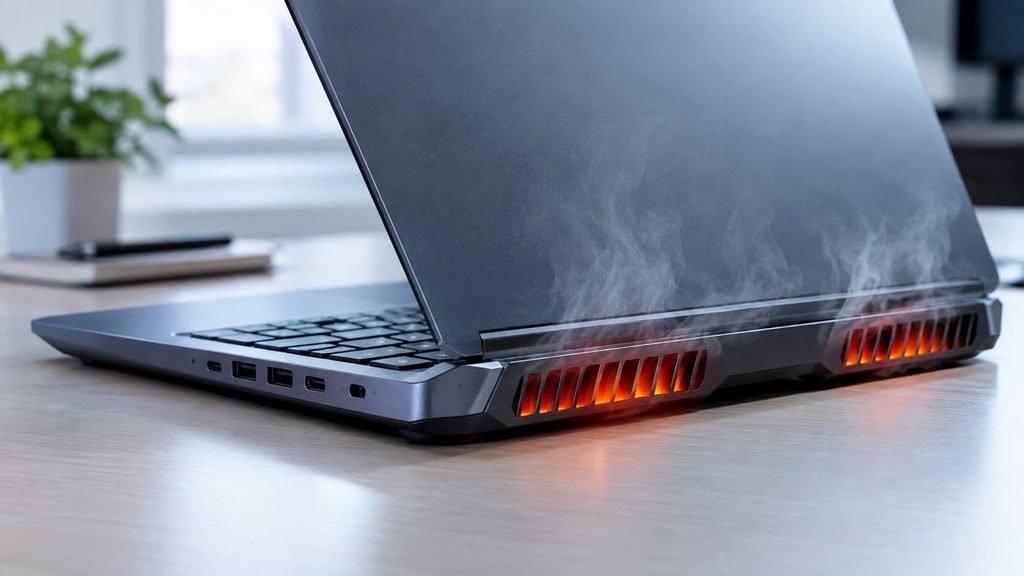
If your laptop’s fans run loudly and constantly even during light use, or the device feels unusually hot, this points toward a hardware cooling issue rather than any of the software causes above, and this specific combination is worth addressing directly rather than continuing to troubleshoot software alone.
This matters because sustained overheating can genuinely affect long-term hardware reliability, making it a priority to address specifically rather than simply working around the resulting slowdown indefinitely.
How to prevent sudden slowdown from recurring
Review your startup programs and installed software periodically, rather than only when a slowdown actually occurs, since catching an unnecessary background process early prevents it from ever becoming a noticeable problem in daily use. This modest, occasional maintenance habit costs little time but meaningfully reduces how often you encounter sudden slowdown in the first place.
Keep meaningful free storage space available on an ongoing basis, rather than only addressing it once you’ve already noticed performance issues, since maintaining reasonable headroom prevents the specific storage-related slowdown pattern covered above from developing in the first place.
Questions readers keep asking
Does having very little free storage space really slow down a laptop that much?
Yes, often meaningfully – many operating systems use available storage space for temporary files and virtual memory, and running low on that space specifically can noticeably affect performance even before the drive is technically full.
Should I be worried if my laptop was fine yesterday but slow today?
Not necessarily worried, but worth investigating specifically – a sudden change like this usually has an identifiable recent cause, such as a new background program or a pending update, rather than indicating a serious hardware problem has suddenly appeared overnight.
Can malware or viruses cause sudden laptop slowdown?
Yes, this is genuinely possible and worth checking, since malicious software often runs hidden background processes that consume system resources without your knowledge. Running a reputable security scan is a reasonable step if you’ve ruled out the more common causes above and the slowdown remains unexplained, particularly if it coincided with visiting an unfamiliar website or opening an unexpected file.
Is it worth buying more storage or memory to fix sudden slowdown?
Not as a first step – sudden slowdown usually has a specific, fixable software cause rather than being a hardware capacity problem, so diagnosing the actual cause first typically resolves the issue without requiring any hardware upgrade at all.