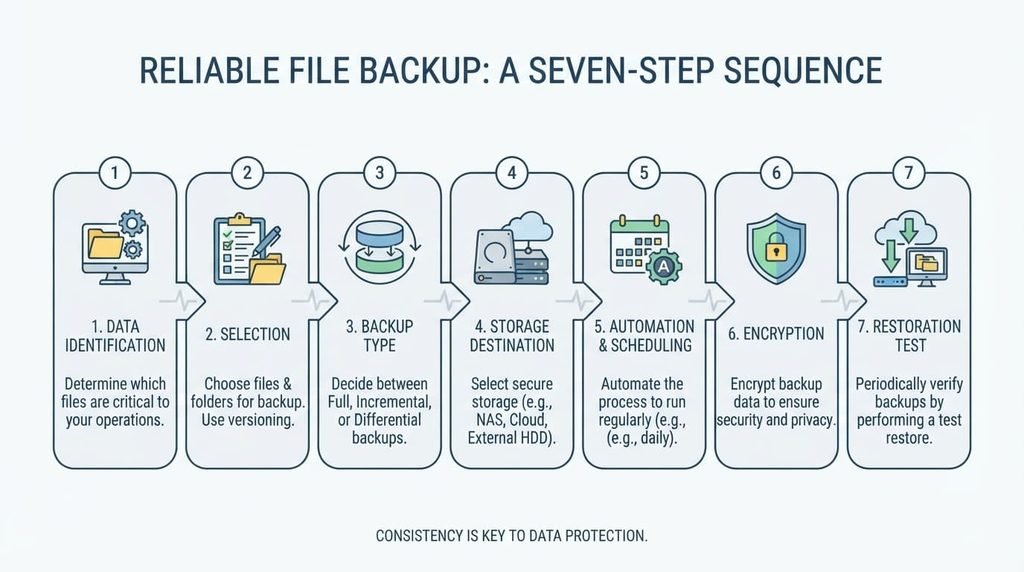
Backing up your files so you genuinely never lose anything important works best as a systematic approach following a specific, proven structure, rather than randomly copying files to a single external drive and hoping for the best. This guide covers the steps in the order that builds genuine, layered protection, addressing the specific failure points a single backup location simply can’t cover.
Before you start
Identify your actual genuinely important files specifically – documents, photos, anything genuinely irreplaceable – rather than assuming everything on your device needs equal backup priority, since this focus makes the entire process considerably more manageable than attempting to back up literally everything indiscriminately.
Choose your backup destinations before beginning the actual process, since having this decided in advance prevents the scattered, inconsistent backup habits that develop when each backup session involves reconsidering where things should actually go.

Step one: establish a genuine primary backup
Choose one genuinely reliable primary backup destination specifically – an external drive, a dedicated backup service – and commit to this as your main, consistent backup location, since consistency matters more here than finding the theoretically perfect solution.
Perform your first genuinely complete backup of your identified important files to this primary destination, confirming the process actually completed successfully rather than assuming it worked simply because you initiated it.
Step two: build in genuine redundancy beyond a single location
Establish a genuine second, independent backup location specifically – ideally in a physically separate place from your primary backup – since a single backup location remains vulnerable to the same physical risks, theft, or damage that could affect your original files simultaneously.
Consider the specific genuine risk your second backup location protects against – fire, theft, device failure – since understanding this helps confirm your second location genuinely provides meaningful additional protection rather than simply duplicating the same vulnerability your primary backup already carries.
Step three: automate the process genuinely
Set up automatic, scheduled backups specifically, rather than relying on remembering to manually back up regularly, since manual backup habits genuinely tend to lapse over time in ways automated systems simply don’t experience.
Confirm your automated backup schedule genuinely matches how frequently your important files actually change, since a backup schedule too infrequent for your actual usage pattern leaves a meaningful gap between your most recent backup and your current, actual file state.

Step four: verify your backups genuinely work
Periodically test restoring an actual file from your backup specifically, rather than assuming a backup that completed without error messages definitely contains genuinely usable, complete data.
Check your backup’s actual completion status regularly as an ongoing habit, since a backup process that silently fails partway through can create a false sense of security that only becomes apparent during an actual, genuine data-loss situation when it’s too late to address proactively.
Step five: keep your backup strategy genuinely current
Revisit your backup destinations and strategy periodically, since your actual important files, available storage technology, and genuine risk factors all change over time in ways that can make an initially solid backup strategy gradually become less adequate.
Update your list of genuinely important files periodically as your actual life and work genuinely change, since files that mattered considerably at one point may become less critical over time, while new genuinely important files emerge that your original backup identification didn’t account for.
Step six: organise your backups for genuine findability
Structure your backup’s folder organisation to genuinely mirror or logically relate to your original file structure, rather than dumping everything into one undifferentiated location, since a backup you genuinely can’t navigate efficiently during an actual restore situation provides less practical value than its mere existence might suggest.
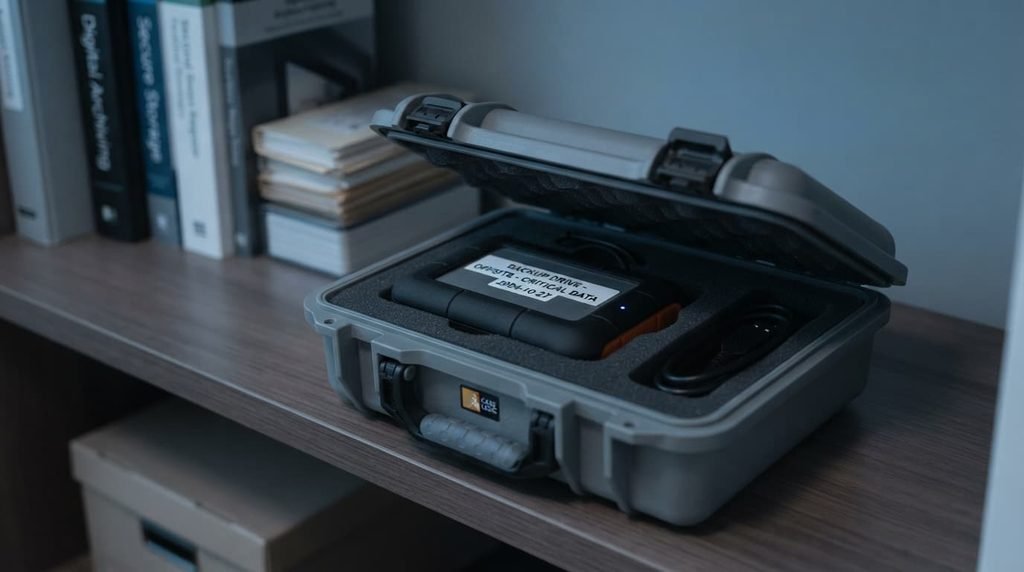
Label your backup drives or destinations clearly and specifically, particularly if you maintain multiple backup locations, since confusion about which backup is genuinely most current or complete during an actual urgent restore situation adds unnecessary stress to an already difficult moment.
Step seven: protect your backups themselves appropriately
Consider genuine encryption for backups containing particularly sensitive information specifically, since a backup drive itself can be lost or stolen, meaning the same privacy considerations that apply to your original files genuinely extend to wherever your backup copies actually live.
Store physical backup media in a genuinely appropriate environment specifically – away from extreme temperatures, humidity, or physical damage risk – since a backup drive itself needs reasonable physical protection to remain genuinely reliable when you actually need it most.
What isn’t worth doing
Relying entirely on a single backup location, regardless of how reliable that specific location seems, isn’t worth the risk this approach creates.
Even a genuinely reliable single backup location remains vulnerable to risks that could affect both your original files and that backup simultaneously – a house fire, a comprehensive device failure – meaning genuine protection requires the redundancy multiple independent locations specifically provide.
If you’ve only completed some of these steps
If you’ve established a primary backup and built in some redundancy but haven’t yet automated the process, this is genuinely solid progress worth continuing from, rather than needing every step perfectly implemented simultaneously before your backup strategy provides meaningful protection.

Making the verification habit genuinely stick
The verification step, covered in step four, is genuinely the most commonly skipped part of this entire sequence, precisely because a backup that appears to have completed successfully feels sufficient without actually confirming the data is genuinely usable and complete. Nearly every other step in this guide builds toward this moment, but only genuine verification actually confirms your accumulated effort has produced something reliably functional rather than simply appearing complete on the surface.
Pairing verification with an existing routine you already maintain – checking it alongside a regular device maintenance habit, for instance – makes this step considerably more likely to genuinely persist long-term than treating it as an entirely separate obligation requiring its own independent memory and motivation each time.
Questions readers keep asking
How many separate backup locations genuinely provide adequate protection?
Two genuinely independent locations – ideally including one physically separate from your primary location – typically provides meaningfully solid protection for most personal use, though genuinely critical professional data sometimes justifies additional redundancy beyond this baseline.
Is cloud backup genuinely as reliable as physical external drive backup?
Both approaches genuinely have their own specific strengths – cloud backup provides genuine protection against physical location risks, while physical backup doesn’t depend on internet connectivity, making a combination of both often more robust than relying exclusively on either single approach alone.
Is it worth setting a recurring calendar reminder specifically for testing my backups?
Yes, genuinely – relying purely on memory for periodic verification tasks tends to result in these checks being forgotten until an actual data-loss situation forces attention, so a simple recurring reminder removes this reliance on remembering unprompted, making the verification habit considerably more likely to actually happen.
How often should I actually test that my backups genuinely work by restoring a file?
Testing every few months as a reasonable routine habit, or specifically after any significant change to your backup setup, helps catch genuine failures before you’d actually need to rely on that backup during a real, urgent data-loss situation.