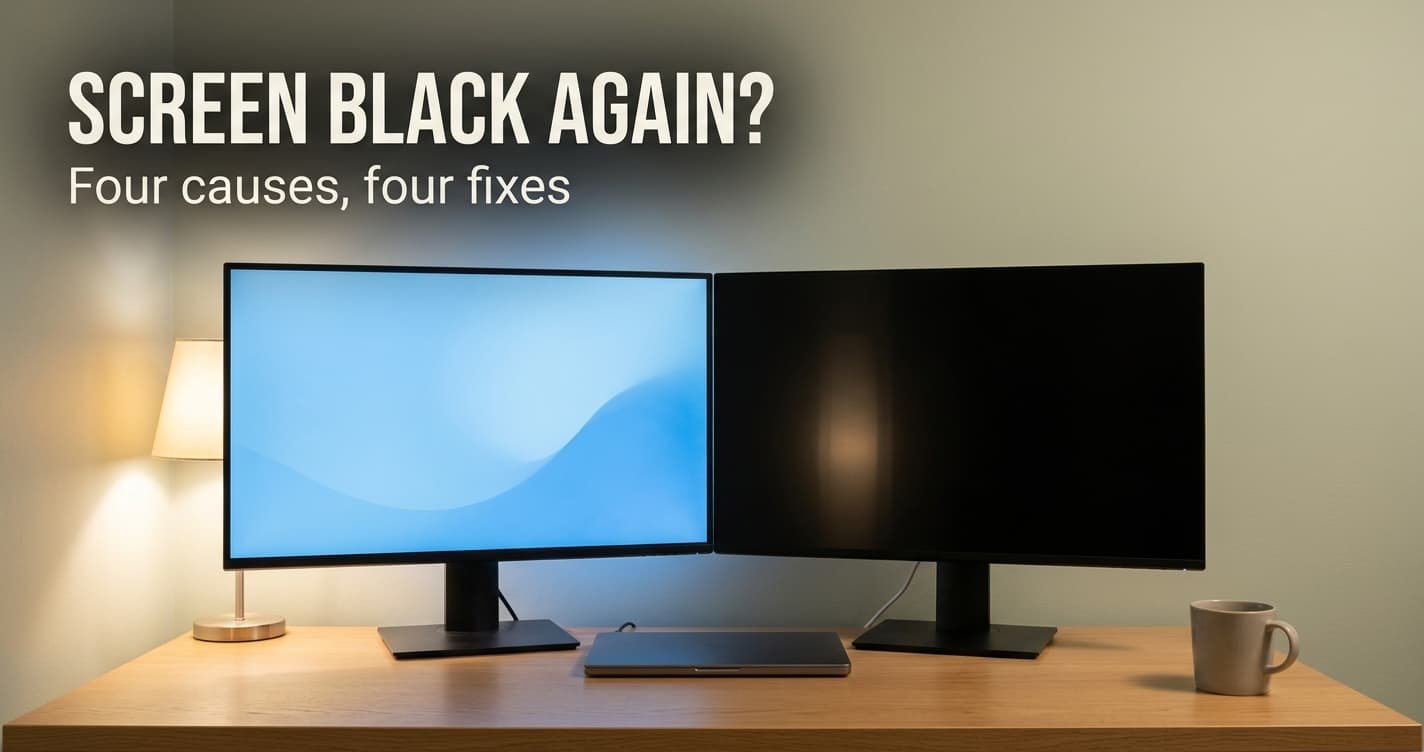
One thin cable, with a plug at each end, carries every pixel to your screen and a steady “I’m still here” signal besides. When a second monitor keeps going black for a few seconds and then returns, the signal has dropped. The link is rebuilding itself. The fix that settles it most often is to lower the monitor’s refresh rate by one step.
Four different faults produce the same dark screen. Two minutes of tests tell them apart. Fixes then run from free to costly, so you can stop the moment the picture holds. The guide assumes a laptop or desktop with two monitors and a United Kingdom home.
What is going wrong when a second monitor keeps going black
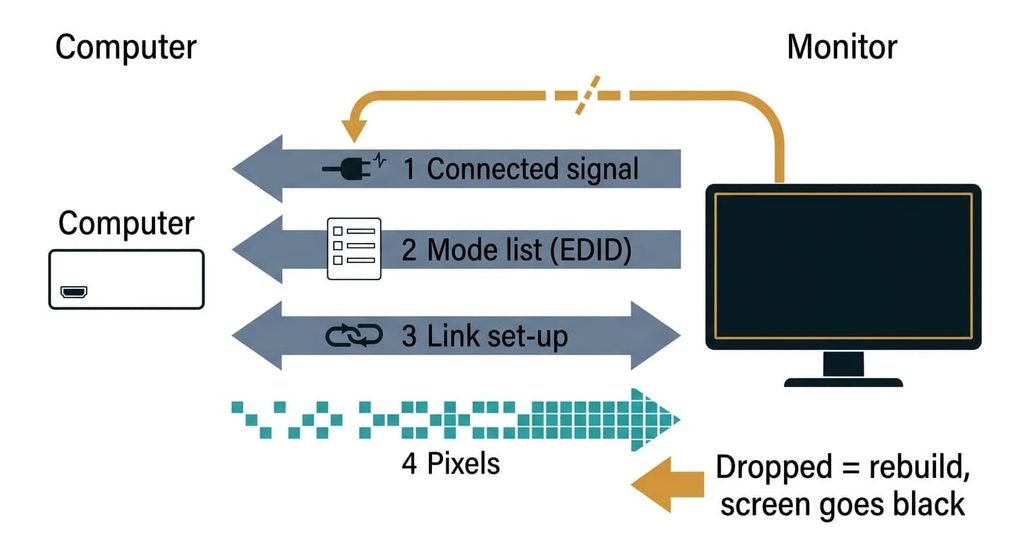
A monitor and a computer don’t just swap pixels. They keep a conversation going. First the monitor raises a hot-plug signal, a voltage on one wire that says “connected”. The computer then reads a small block of data from the monitor, called EDID, which lists the pictures it can show. The two ends agree on a data rate (DisplayPort names this step link training), and only then do pixels flow. A black second monitor is almost always a link that dropped and was rebuilt. The rebuild takes one to three seconds.
Four things break the link, each by a different route. The picture may need more data per second than the cable carries: 3840 by 2160 pixels at 60 frames a second in 24-bit colour is 11.9 gigabits per second before overhead, and a link that falls short drops out under load. The monitor may withdraw its hot-plug signal when it dozes or scans for another input, so the computer treats it as unplugged and moves your windows away. A dock or adapter may share its lanes between video and other jobs. And the cable may deliver bit errors, which forces a retrain.
Every fix below maps to one of those four.
Narrow it down in two minutes
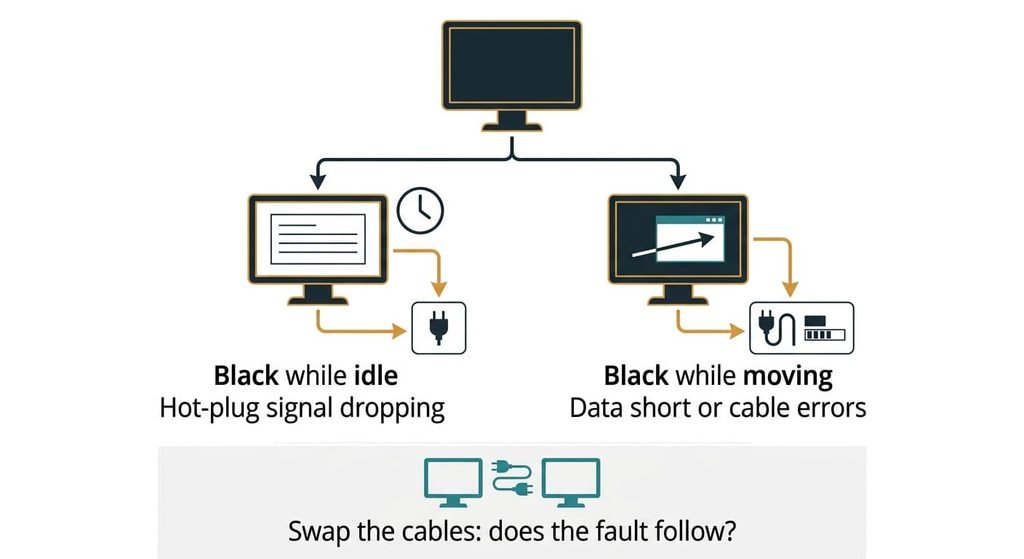
None of these tests costs money or changes a setting for good. First, leave the second screen showing a still page for ten minutes, then drag a window around on it. If it blacks out while idle and your windows jump to the other monitor, the hot-plug signal is dropping. If it blacks out only while things move, the link is short of data or collecting errors. Note the time of each blackout over a day: a regular interval points to a standby timer, while random gaps point to errors.
Second, run the monitor straight from a video port on the computer for ten minutes with no dock in the path. If it holds, the shared lanes were the cause. If it still blacks out, the dock is cleared.
Third, swap the cables between your two monitors. If the fault follows the cable, the cable is marginal. If it stays with the monitor, the fault is on the monitor side. Two matching answers settle the cause.
How to fix a second monitor going black, in order
The free fixes
Lower the refresh rate by one step. This answers the data shortfall. Halving the refresh rate halves the data, and dropping from 10-bit to 8-bit colour trims a fifth. For example, 3840 by 2160 pixels at 144 Hz needs 28.7 gigabits per second raw, while the same screen at 60 Hz needs 11.9. It costs nothing and you can undo it. You lose smoothness on fast motion, and gradients may show faint banding if you also drop the colour depth. Look for the setting that lists each monitor’s refresh rate separately, and pick the next rate below the current one. Once the blackouts stop at the lower rate, you’ve found the cause. Leave it there.
Pin the input and switch off auto-scan and deep standby. This answers the vanishing hot-plug signal. Some monitors drop the connected line in deep standby, then raise it again when a picture returns, and the computer reads that as an unplug and a replug. Look in the monitor’s own on-screen menu for the controls that choose the input source and the power-saving depth, since the names differ by maker [VERIFY: menu names for your model]. It costs a few minutes. You lose automatic switching between two computers, and the monitor may draw a little more power in standby.
The fixes that cost time or money
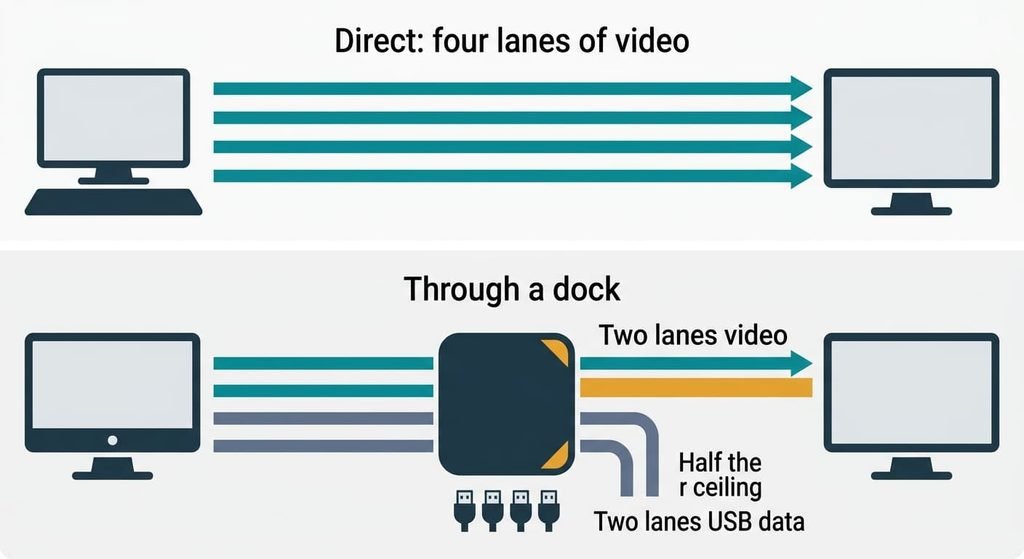
Take the dock out of the path for a day. This answers the shared lanes. In USB-C video, four high-speed lanes are split: two can carry video while the other two carry USB 3 data, and two lanes carry half the video data of four. A dock that drives two monitors from one port divides the same ceiling between them. It costs an hour of re-cabling and a day of watching, with the monitor plugged straight into the computer. You lose the single-cable convenience of charging and USB through one plug.
Replace the cable with one rated for your mode. This answers the bit errors. A longer passive cable leaves less signal margin, so buy the shortest that reaches [VERIFY: the rating your resolution and refresh rate need]. A passive adapter between two connector types counts as part of the cable. It costs a purchase. Nothing is lost except the money, and the old cable stays good for a lower mode.
If none of that worked
When a second monitor keeps going black after all four fixes, the fault is probably in the monitor’s input board or the computer’s port. Run the monitor on a different computer for an afternoon. Then run a different monitor on the same port.
Before you contact anyone, write down whether it blacks out idle or busy, and how long each gap lasts. Add the cable length and what sits between the cable and the computer. Ask the seller whether the model has a known standby fault and whether a firmware update exists.
Two warnings. Resetting the monitor to factory settings in its own menu wipes your picture presets, so photograph them first. Reinstalling a graphics driver can reset your display layout, so note the arrangement first. In the United Kingdom a fault within the first thirty days usually gives you the right to reject the goods [VERIFY: current consumer-rights wording].
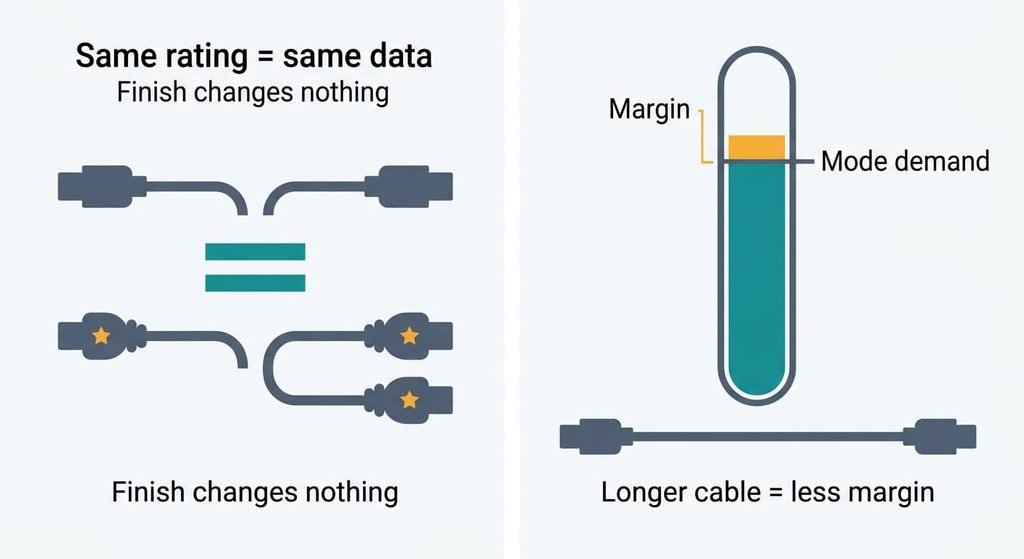
The fix that isn’t worth doing
Paying extra for a premium cable of the same rating won’t help, however shiny the plugs are. A digital link either arrives with enough margin for its mode or it doesn’t, and plating has no say in that. Length and the certified rating do. Two cables with the same rating carry the same data rate, so the dearer one adds a nicer plug and nothing else. I’d start with the settings before any cable. They cost nothing, while an unneeded cable costs a purchase and a day.
Reinstalling the graphics driver as a first move comes a close second. It targets none of the four faults. It takes an hour and clears your display layout. Keep it for the case where a second monitor keeps going black only after the computer wakes from sleep. A premium cable is easy to buy and hard to disprove, which is why that advice survives.
A rating beats a price tag.
Every blackout is a link that dropped and rebuilt. The quickest test to identify the cause is the idle check: a blackout on a still screen points to the hot-plug signal, and one under motion points to data or errors. Work down the four fixes in order and stop when the screen holds. If it never does, take the monitor to another computer.
Questions readers keep asking
Can a second monitor that keeps going black be fixed at home?
Usually, yes. A second monitor keeps going black because its link drops, and each of the four usual causes has a fix that needs no tools until the last step, the cable. Work through them in order and stop when the screen holds.
What makes a monitor go black for a few seconds and come back?
The link between the computer and the monitor has dropped and is being rebuilt. The monitor withdraws its connected signal, or the data rate overshoots what the cable carries, and the computer renegotiates. That renegotiation is the black gap, normally one to three seconds long.
Does a monitor that goes black mean it is failing?
Not by itself. Most blackouts come from the link around the monitor, and the monitor itself is rarely the culprit. If the same monitor goes black on a different computer with a different cable, the fault probably sits in its own input board.