Your webcam’s sensor reads the picture one row at a time, and an LED ceiling light brightens and dims 100 times every second while it does. That mismatch is the source of a webcam picture flicker with dark bands, and the most common cure is an exposure that lasts a whole number of 10-millisecond steps. You rarely see the pulsing with your own eyes because it’s far too quick. The sensor sees it because each row catches a different moment. The case below is a UK home office with a laptop camera filming 30 frames each second. Treat each number as a guess, and put your own in its place.
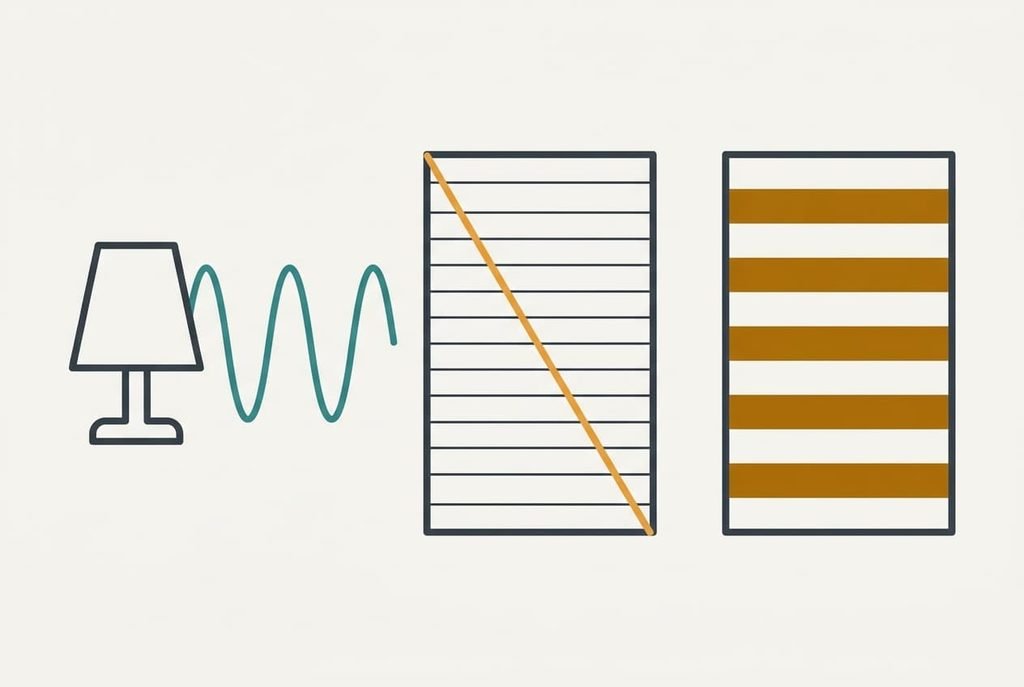
What makes a webcam picture flicker with dark bands under room lights
Mains electricity in the UK alternates 50 times a second, and a lamp that follows it brightens at both peaks of every cycle. That gives 100 pulses a second, one every 10 ms. A cheap or dimmed bulb smooths them least, so we’ll assume a swing of 50 percent either side of its average brightness.
The camera is the second party in this clash. Most webcam sensors expose the picture row by row from the top down. We’ll assume the sweep takes 25 ms. In 25 ms the lamp completes 2.5 pulses, so the frame holds two and a half bright-and-dark cycles in view. Each band sits about 40 percent of the picture’s height from the next. Every row is lit by a different moment of the lamp’s cycle, and the dark bands are the rows that caught the dim moments.
Exposure time sets how strong the bands look. A row exposed for exactly 10 ms collects one full pulse, so every row gets the same total light and the bands vanish. A row exposed for 4 ms collects only a slice of a pulse, and the ripple between rows reaches 38 percent. Short exposures in bright rooms make the strongest bands, so a sunny desk often looks worse than a dim one.

Four tests to run when a webcam picture shows flicker and dark bands
Point the camera at a plain wall and write down what each test shows. First, switch every lamp off in daylight and open the curtains. If the bands disappear, your lighting is guilty. If they stay, look inside the camera instead. Skip ahead to the section on hardware.
Second, turn the lamps back on one at a time. The lamp that brings the bands back is the culprit, and one on a dimmer is the usual suspect.
Third, watch how the bands move. With the camera set to 30 frames a second, each frame catches the lamp a third of a pulse later, so the bands crawl at roughly 10 times a second. At 25 frames per second they freeze, because four pulses fit exactly into each frame. Bands that crawl or freeze at those rates confirm mains light.
Fourth, hold a phone camera beside the laptop and film the same wall. If both show bands, blame the light. If only the webcam shows them, a camera setting is at fault. A webcam picture flicker with dark bands that appears on both devices is a lighting problem.
These checks are all free.
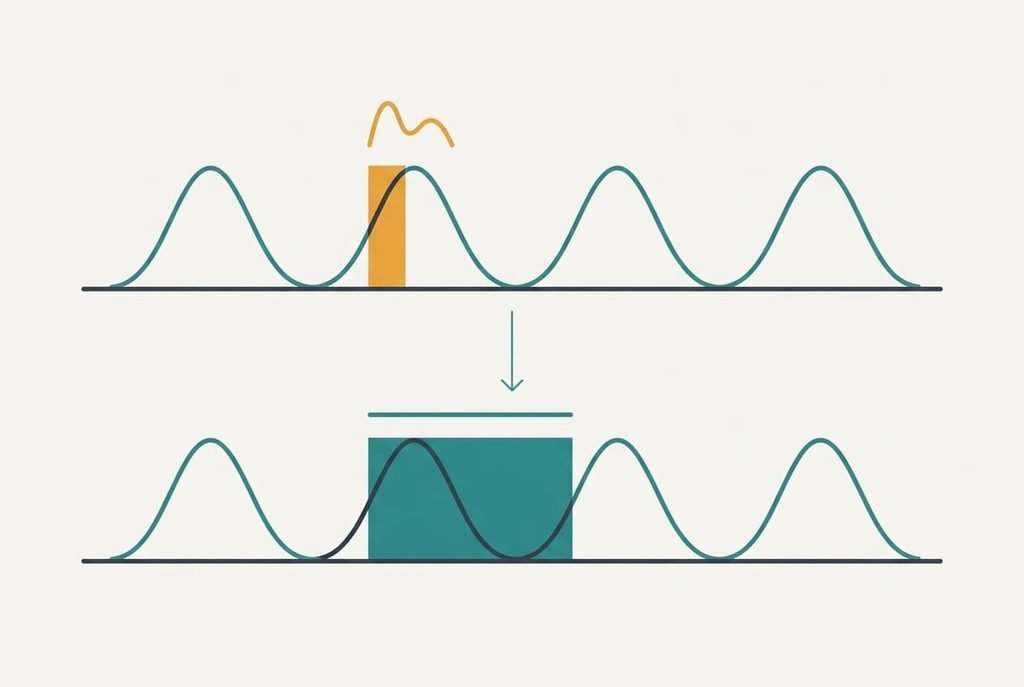
The four fixes, in order
Work down this list making a single change per step, and check the picture after each. Dimming a lamp can deepen a webcam picture flicker with dark bands, so test before you assume it helps.
Turn off the pulsing lamp and rely on daylight or a steadier bulb you already own is where to begin. Daylight swings by zero, so the 38 percent ripple falls to nothing. Sit facing the window if you can, and use the other lamps only for the room behind you. You lose control: the lamp may be the best light for your face, and daylight shifts through the afternoon. The picture you set up at noon looks different by four.
Choose the 50 Hz option in the camera’s anti-flicker control is a setting change. Some cameras call it power-line frequency instead. The camera then restricts its exposure to whole multiples of 10 ms, so each row collects complete pulses and the ripple drops to zero. Pick 50 in the UK and 60 in North America, because a wrong choice leaves bands of its own. It takes two minutes, and reversing it is just as quick. The loss is range, because the shortest exposure becomes 10 ms. That’s 2.5 times longer than 4 ms, so a bright window behind you can burn out.
Fix the exposure by hand at a multiple of 10 ms such as 20 ms takes about fifteen minutes of tuning. Use the camera’s own settings app if it has a manual mode, and turn automatic exposure off first. A 20 ms exposure is five times the 4 ms one. Lower the gain until faces look right. The loss is adaptation: the picture won’t adjust when clouds pass, and moving about leaves a slight smear at 20 ms. Recheck it whenever the daylight changes.
Replace or un-dim the bulbs costs money. Bulbs with smoother drive electronics might cut the swing from 50 percent to 10 percent. Even at a 4 ms exposure that leaves a 7.6 percent ripple, and at 16.7 ms only 1.6 percent. You lose the dimmer’s control and the cost of the bulbs, and a bulb that carries a flicker-free claim on its box is still worth testing in the room. Choose this last, because the first three fixes usually do the job.

If none of that worked
If the bands survive every change, collect your evidence before you contact anyone. Write down whether the bands stand still or crawl, then the frame rate you used and the lamps that were switched on. Add what the phone test showed. Keep a short clip of the bands for the support desk to watch. Note the app too, since a second app on the same camera separates a driver problem from a camera problem.
Bands that survive daylight with every lamp off implicate the camera and the code that drives it. A single steady line fixed at one height in every app suggests a damaged sensor, and the maker’s support desk can say whether it’s worth repairing. Before you reset the camera’s settings, write down the manual exposure you chose. A reset returns it to automatic and wipes the value.
The fix that is not worth doing
Pulling the brightness slider down to hide the bands is a common reaction, and it can’t work. The slider scales every row by the same factor. Bright rows and dark rows shrink together, and the 38 percent gap between them stays at 38 percent. All you get is a darker picture.
A darker picture still has bands.
A smoothing filter that blends neighbouring frames can swap the crawling for a slow pulse. That trades one distraction for another, and it adds a lag to your movements on the call. Dimming the lamp itself often makes things worse, since a dimmer on an LED may chop the current harder and push the swing from 50 percent towards 90 percent. The same goes for the exposure-compensation control, which shifts brightness after the light has already been collected unevenly.
Fixing a webcam picture flicker with dark bands rests on one number, 10 ms. Make each exposure a multiple of it and the ripple falls to zero. Start with daylight and then the anti-flicker control. Touch the lamps only after that, and keep the phone comparison handy for the next time the bands return after a bulb change or a move to a new desk.

Questions readers keep asking
Can I fix webcam flicker at home without buying anything?
Usually, yes. Turn on the camera’s anti-flicker control and choose 50 Hz in the UK, or set the exposure by hand to a multiple of 10 ms such as 20 ms. Either change removes the ripple for free. Buy new bulbs only when both controls are missing or the bands remain after you’ve tried them.
Why do the bands crawl on some days and stand still on others?
The speed follows your frame rate. At 30 frames per second the bands crawl about 10 times a second, and at 25 they freeze because four pulses fit into each frame. Many webcams drop their frame rate in a dim room, so the pattern changes with the time of day.
Does flicker in the picture mean my webcam is faulty?
Rarely. The camera records the lamp faithfully, so the bands are a mismatch with your lighting. Suspect the hardware only if the bands persist in daylight with every lamp off, or if a fixed line shows in every app. A second device pointed at the same wall settles the question quickly.