Giving everyone a separate login on a shared family laptop takes about 40 minutes of attention for four people, plus whatever time the file copying needs. At the end, each person opens a private desktop holding their own documents and browser history. Saved passwords stay private too, and one adult alone can install software. You face one early choice: full accounts, or extra profiles inside a single account. This guide picks full accounts, because profiles still share one set of folders. It fits an ordinary UK laptop of any make. Menu wording varies a lot between them, so match each step to its purpose instead of its label.
Before you start: what a login on a shared family laptop needs
Settle the decisions first, because the clicking is quick. Write down who uses the machine, what each person stores on it and who may install programs. Take a household of two parents and two teenagers, with about 18 GB of photos and homework sitting in the one account everybody has used so far.
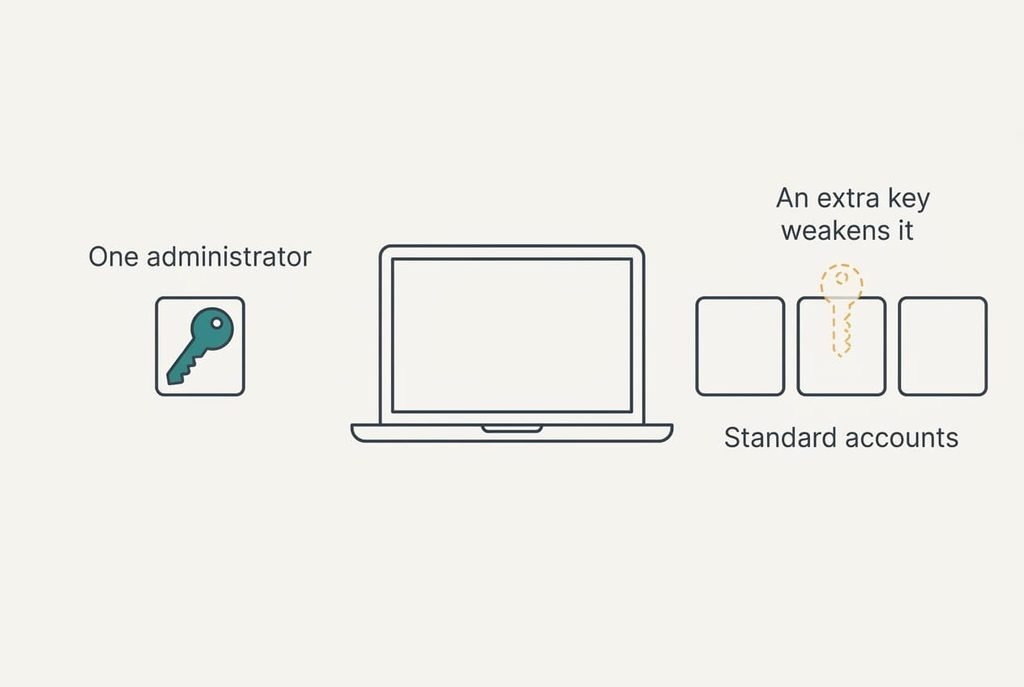
Nearly everyone skips a point here: that existing account is probably the administrator, so choose which adult keeps that power before you create anything. An administrator can alter every setting and open anyone’s folders. It can also install software that the others never see. If the old account stays in charge, the new walls protect nobody.
The previous arrangement needs a second look as well. When four people have been sharing one desktop for years, they’ve also been sharing every saved sign-in, so some of those will have to be re-entered by their owners afterwards.
Free space matters too. Copying 18 GB uses another 18 GB until the originals go, so check the drive has that much spare.
Plug the charger in, since a copy that stops half-way leaves two sets of incomplete folders.
Six steps to set a login on every shared family laptop user
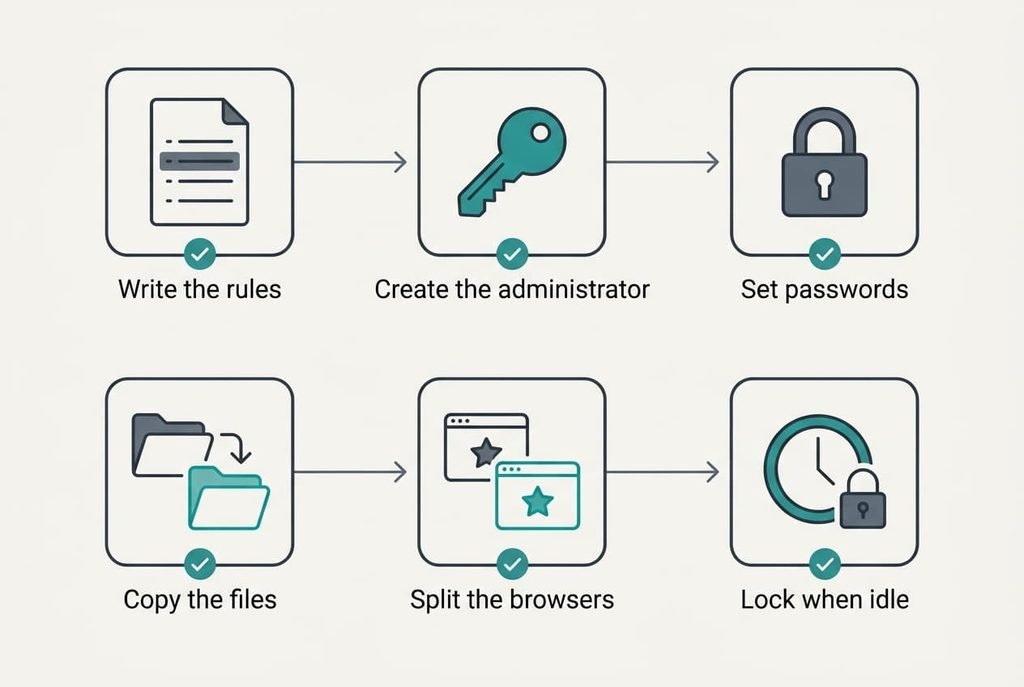
1. Write one rule per person on paper first, with no settings screen open. Aim for one administrator, with two as the upper limit, and standard access for the rest. Each extra administrator can undo any protection you add later, so the number stays small. The paper should show one adult with the power and three people without it.
2. Create the administrator’s account first, with a sign-in name that person won’t forget. The set-up screen offers a choice of account type, so pick the one on your paper. A wrong pick can be corrected later, though files made in the meantime stay where they were. A new name should now appear on the sign-in screen. Once it works, switch the old shared account down to standard access.
3. Give every account its own password of at least 12 characters, plus a recovery method that isn’t a note stuck to the lid. Without recovery, a forgotten password means an administrator must reset it, and files on an encrypted drive may be unreadable afterwards. Each person types theirs while the others look elsewhere. The sign-in screen should accept it on the second try as well as the first.
4. Copy each person’s files from the old account into their new one, and leave the originals where they are. Find their documents and photos in the old folders, then find the same items in the new account. A standard account can’t read another person’s folders, so a move that goes wrong strands the files with no way to fetch them. Sign in as that person and open the items to prove they arrived.
5. Give each person a separate browser profile signed in to their own online accounts. Open the saved logins in each one and check that nothing crosses over. The bookmarks deserve a look afterwards. One shared saved password can open someone else’s email, which makes this the commonest leak on a family laptop. In the second person’s browser, the first person’s bookmarks should be missing.
6. Switch on the sign-in screen after a short idle period such as 5 minutes, and teach everybody to sign out instead of just shutting the lid. A session left open keeps apps running in memory and shows the next person an open page. Walk away for 5 minutes and the screen should ask for a password when you return.
Testing the finished logins: one sign-in per person
To test it, sign in as each person in turn and try to open another person’s documents, then try to install a small program, and expect a standard account to refuse both. The administrator should be asked for a password before anything installs. For a login on a shared family laptop, that refusal is the proof that the walls exist. Put a tick beside each result, then look at the sign-in screen, which should list every name with its own picture or initials.
When one account passes and another fails, the second was probably made with the wrong type. Change it and repeat that person’s test. Leave the charger in, because four rounds of signing in and out drain the battery faster than you’d guess.
Every account behaves differently the first time, because each one builds its own desktop on first sign-in. That takes a minute and only happens once, so don’t mistake it for a fault.
If the setup stalls: three common snags
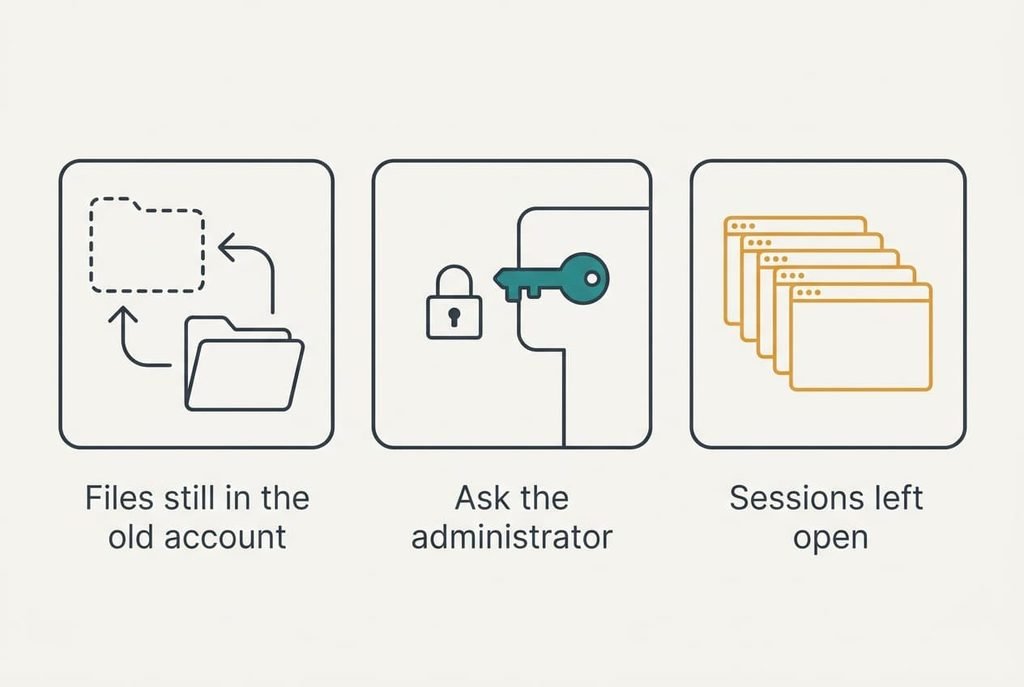
A person says their files have gone. They’re still in the old account, because a copy lands only where you point it. Sign in as that person and open the folder you copied into. If the items aren’t there, repeat step 4 for that person alone, and watch the copy finish this time before you close the window.
A child can’t install a game. That’s the rule working as planned. An adult types the administrator password, and the child can watch what the screen asks.
The laptop feels sluggish after several sign-ins. Earlier sessions are still running in the background, so sign out of each account properly and restart once. If it stays slow, check whether anyone leans on the switch-user option as a habit. A login on a shared family laptop works best when each person closes their session before the next one starts, since every open session holds its own share of memory until it ends.
The step that isn’t worth taking
Making every adult an administrator so that nobody needs to ask looks tidy but recreates the very problem you set out to fix. Any administrator can read the children’s folders and alter the settings that keep the accounts apart, so a teenager who learns one password gets the same reach as the adult who set it. Two administrators also mean two passwords able to change everything, where one would have done. The second adult can ask the first for a password twice a month, and that small friction is the point.
Deleting the old shared account on day one is also a mistake. It can’t be undone, and any file you forgot to copy goes with it. Four people copying their own folders will each forget some item, perhaps a download. A month is long enough for those omissions to surface.
Let the old account sit for four weeks, then remove it.
Run the sign-in test once a quarter, and add a login whenever someone new starts using the laptop. Refresh the paper list too, so whoever takes charge next knows who holds the administrator role and why. With one administrator and a checked copy of everyone’s files, each person gets a login on a shared family laptop that stays private from the rest. The old account can then go once nobody opens it. Before it does, sign in one last time and check its desktop and downloads for anything never copied.
Questions readers keep asking
How long does the whole job take?
Plan on about 40 minutes of attention for four people. Copying 18 GB runs in the background, so the clock time stretches while you do something else. Accounts and passwords take about five minutes each, and the final test needs ten, which makes the copy the slowest part by far.
Can I lose any files by doing this?
Only if you move files instead of copying them, or delete the old account too soon. Copy each person’s folders, sign in to confirm they arrived, and leave the old account standing for a month. During that month a missing file is still recoverable, because the original sits where it always did.
What if one person doesn’t want an account?
Offer a guest login with no saved data, so a visitor can browse without leaving history behind. Anything done there disappears at sign-out. A family member who wants to keep anything should still get a full account, since the guest option erases every trace once they leave.