You push the mouse across the desk and the pointer stutters or leaps a few millimetres, then freezes for a beat. The batteries are new, the receiver sits within easy reach, and the same mouse behaves perfectly on the office desk. That points at the desk itself. A wireless mouse reads the surface through a tiny camera, and a glossy white top gives that camera almost nothing to follow. What makes a mouse skip on a glossy white desk can be tested in one evening with a ruler and a sheet of paper. The figures are invented for a white laminate desk, 120 cm across, with the window on its left.
What Makes a Wireless Mouse Skip on a Glossy White Desk
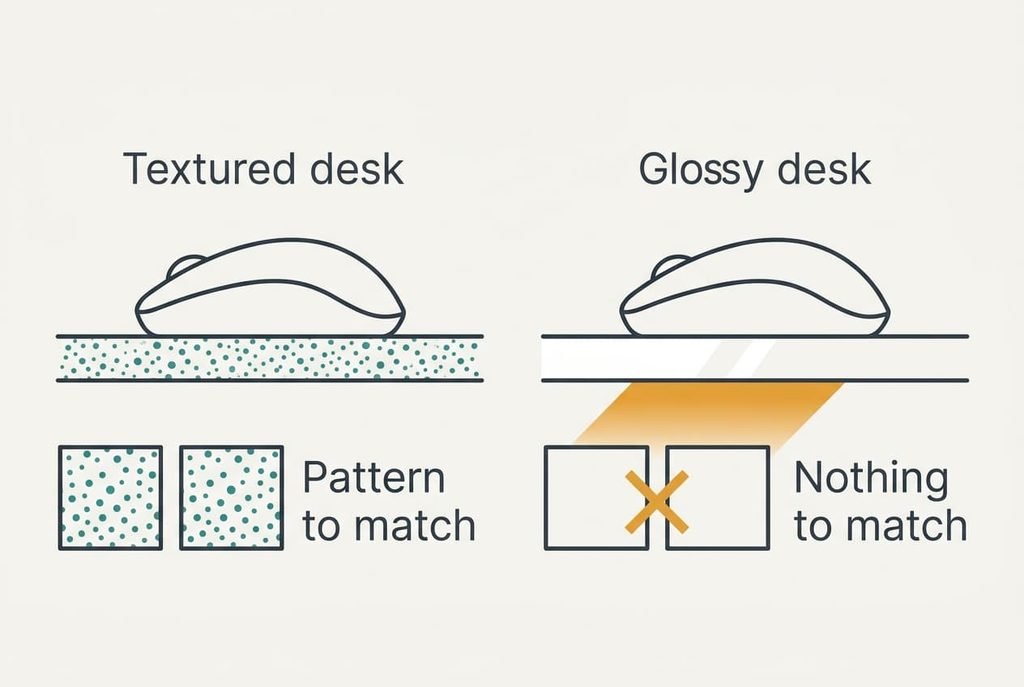
Inside the base sits a small camera and a light. The camera photographs the surface thousands of times each second. A chip compares each picture with the one before to work out how far you’ve moved. That comparison needs a patterned surface to lock onto. Suppose the sensor takes 4,000 pictures a second and your hand moves at 30 cm a second. Between two pictures the mouse travels 0.075 mm, so each picture must show almost the same patch of surface, shifted by a hair.
A glossy white top is close to a blank page. Its light returns as one smooth sheen. A window on the left turns that sheen into a bright patch where every pixel looks alike. With nothing to match, the chip guesses. A wrong guess appears on screen as a skip. A pale, polished surface under even light starves the sensor of the one thing it reads, so the same mouse tracks happily on a speckled desk elsewhere.
People blame the radio link first, because a skip looks like lag, and the tests below separate the two.
A Mouse That Skips on a Glossy Desk: Four Tests
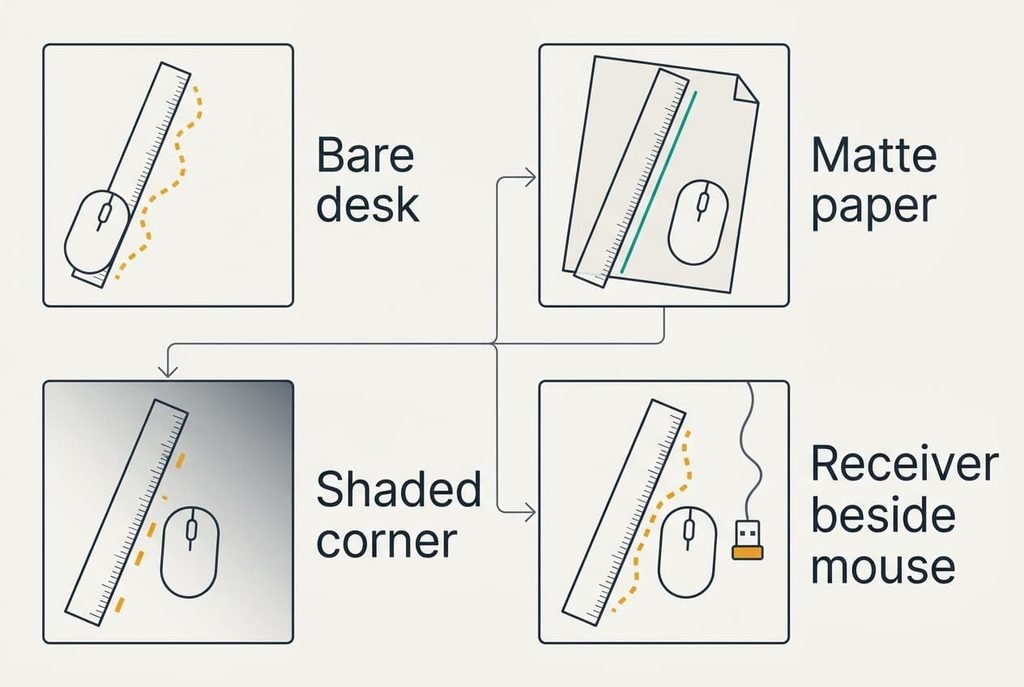
To learn what makes a mouse skip on a glossy white desk in your own room, count the jumps over a fixed sweep. Lay a ruler on the desk and slide the mouse 30 cm along it, five times per test.
1. Sweep on the bare desk, near the window. Ours averaged 5.4 jumps per sweep, and that figure is your baseline.
2. Repeat with a sheet of matte paper under the mouse. If the jumps fall to one or none, the surface is the cause. Ours dropped to 0.2 per sweep.
3. Return to the bare desk, but sweep in the shaded corner away from the window. If the count roughly halves, glare matters too. Ours fell to 2.6.
4. Plug the receiver into an extension lead and park it next to the mouse, then sweep on the bare desk once more. If the count stays near the baseline, the radio isn’t the cause.
Our results point at the surface, because the paper cured what the bare desk caused.
Four Ways Out, Cheapest First
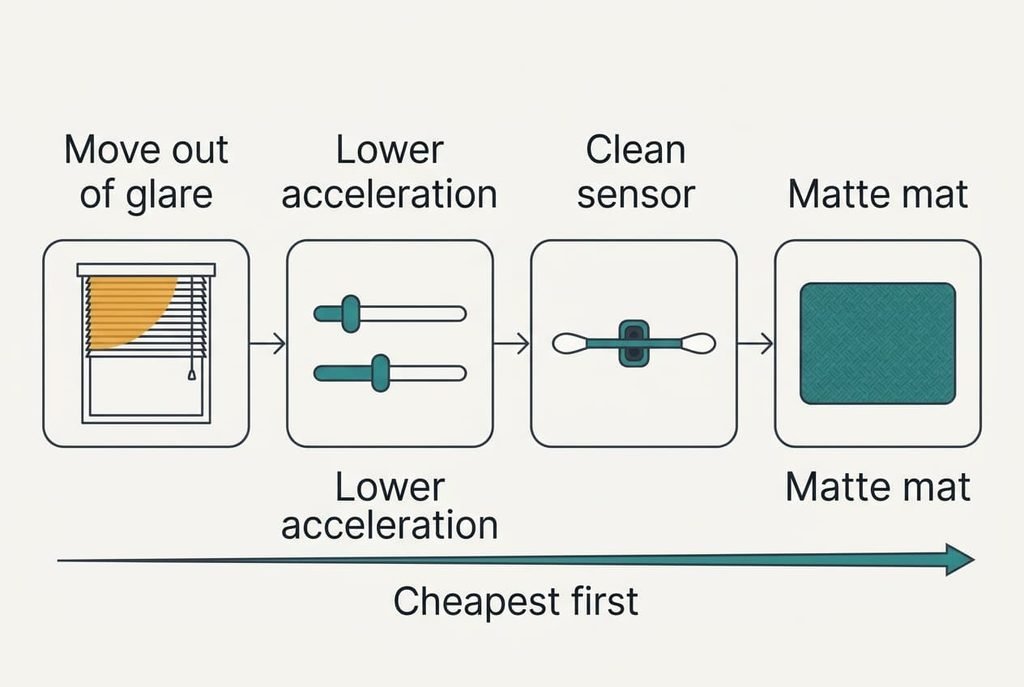
Move the mouse out of the bright patch, which answers the glare and costs nothing. Slide your work area 50 cm along from the window, or pull the blind halfway down in the afternoon. A bare bulb overhead makes its own highlight, so check that too. In our room the move alone cut the jumps from 5.4 to 2.6 per sweep. That’s a halving rather than a cure. The desk’s size sets the limit. Only the far 50 cm of a 120 cm top stays shaded, so a wide keyboard leaves you little spare room.
Turn off pointer acceleration and drop the resolution one step, a setting that hides the jumps without removing them. Open the mouse page in your system settings, switch off the option that enhances pointer precision, and lower the speed by one notch. Acceleration multiplies a wrong guess by your hand speed, so a 0.5 mm error becomes a visible leap. Stepping from 1600 to 800 counts per inch halves the size of each error on screen. The sensor still has nothing extra to read, so the skips continue, only smaller.
Spend ten minutes on the sensor window and the glides, because dust lowers contrast exactly where contrast is scarce. Wipe the window with a dry cotton bud, then with one barely damp. Leave it a minute before you test. Check that the glides under the mouse are flat, since a worn corner tilts the sensor away from the desk. Ours moved from 2.6 to 2.0 jumps per sweep, a small gain, because dust was never the main cause. A mouse used for years gains more from this step than a new one.
Buy a matte mouse mat of at least 32 × 27 cm, the only purchase in this list, which gives the sensor a woven texture to match. With the mat in place our count fell to 0.2, the same as the paper. Both offer a pattern that survives from one picture to the next. The size matters, because a 30 cm sweep must never reach the mat’s edge, where the sensor sees bare desk again. Choose a thin, flat mat, as a thick one lifts your wrist away from its resting height.
If the Skipping Carries On
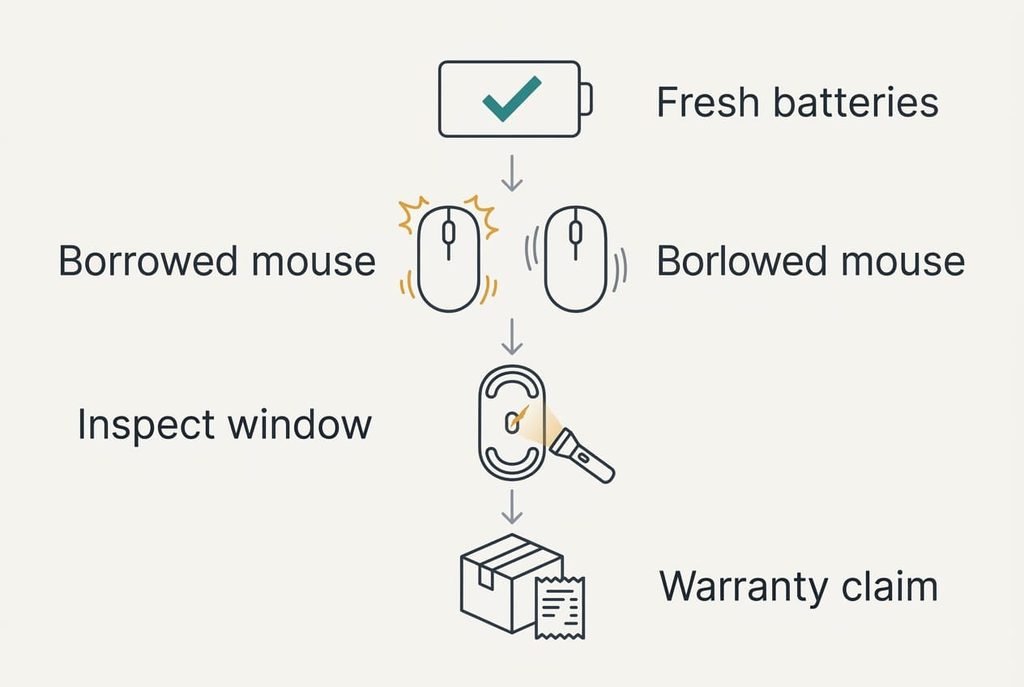
Work through the leftovers in this order. Fit fresh batteries first. A tired cell dims the sensor’s light, and tracking on a hard surface breaks long before the radio does. Then borrow another mouse and sweep it across the bare desk. If that one skips as well, the desk is to blame, and a mat is the remedy.
If your own mouse still skips on the mat while the borrowed one stays smooth, inspect the window under it. A torch held at a slant shows a scratch or a fixed speck. A mouse skip on a glossy white desk that survives the mat and fresh cells has become a hardware fault, and the maker’s warranty covers it. Keep the receipt, and note the sweep counts you recorded, since they show the fault clearly to whoever deals with the return.
The Upgrade Not Worth Buying
A gaming mouse with a higher resolution rating looks like the obvious purchase and fixes nothing here, because resolution only sets how many counts the pointer moves per centimetre. A sensor that sees a blank sheen at 1600 counts will see the same blank sheen at 16,000. The larger number on the box buys you a more sensitive error. The extra money also brings buttons and software you won’t use. Many of them weigh more as well. Sensors in this class are built for speed across a textured pad, and speed was never your problem. Spend the same sum on a good mat and you will have addressed the actual fault, with change to spare. The one case for a new mouse is a sensor that has failed, and the borrowed-mouse test already tells you that.
Each fix above works on its own part of the problem, from the glare at one end to the missing texture at the other. Test the surface first, since that costs one sheet of paper. If a mouse skip on a glossy white desk disappears on the paper, you already know the desk is the cause. A plain mat then finishes the job without a second purchase, and your budget stays untouched.
Questions Readers Keep Asking
Is it the wireless connection or the surface?
Usually the surface. A radio dropout freezes the pointer for a moment everywhere on the desk, and it doesn’t care what lies beneath. A surface problem shows up on some spots and disappears on paper. Sweep the same 30 cm in both places and compare the counts.
Will a mouse mat fix it for good?
On a matte, textured mat the sensor has plenty to follow, so skipping usually disappears. The mat has to be large enough that your sweep stays on it, and it should lie flat. Brush it off now and then, since crumbs on the weave cause small jumps of their own.
Does a skipping mouse mean it’s faulty?
Not necessarily. If a second mouse skips at the same place, the desk is at fault. Only a mouse that skips on a matte mat and on paper while others behave is faulty. Check the batteries and the sensor window before you claim the warranty.