An evening’s check can show you which apps track your location and trim the list to the few that need it. One fork decides most of the work. Nearly every app belongs on “while using”, and only a handful ever earn “always”. This walkthrough follows one phone carrying 64 apps. Nineteen of them could read its position, and five could do so while closed. Along the way you’ll learn what each level means and how to test that your changes held. Allow about 25 minutes. The numbers here are invented, so count your own before you change a single switch.
What to Settle Before Checking Which Apps Track Your Location
Begin by listing the few apps you want to know where you are. For most people that means a map and a ride app. A weather forecast and a family locator may earn a place too. Write the list down first, because without it every switch you flip feels like a gamble. Decide which few apps deserve your position before you open the list, since the list shows its worth only against a rule.
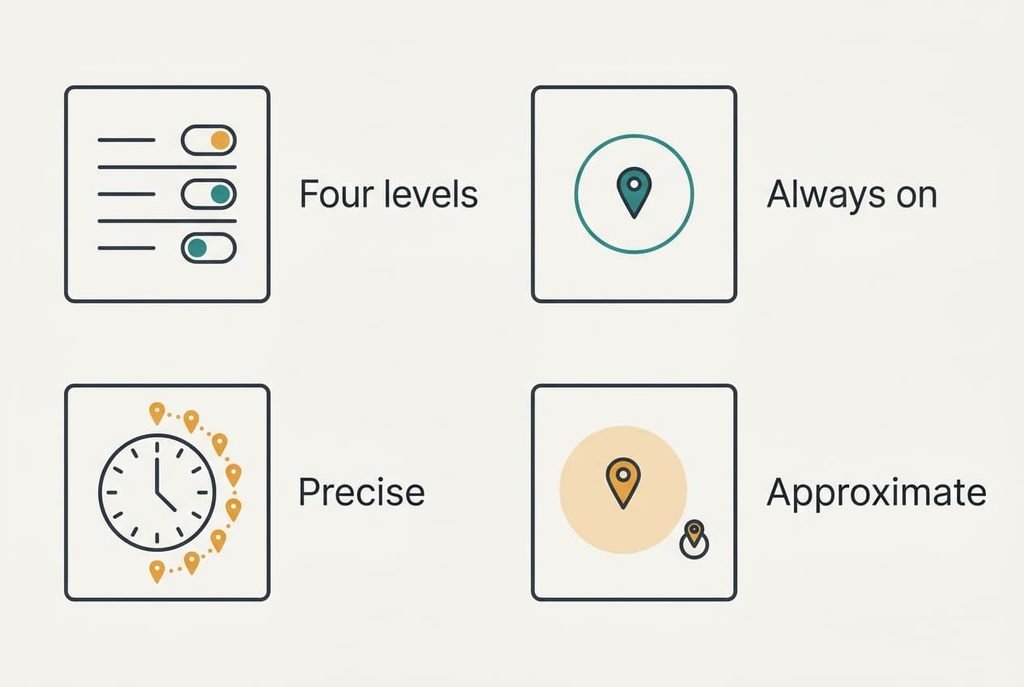
Learn the four levels you’ll meet. “Never” blocks the app. “Ask” makes it request permission each time. “While using” lets it read your position only when it’s on screen, and “always” lets it read in the background. Most phones also offer a second switch for precise or approximate. Precise puts you within about 10 metres. Approximate shows a district a few kilometres across.
The cost of “always” is easy to count. An app that checks every 5 minutes records 288 positions a day, which amounts to a diary of where you slept and where you worked.
Keep the phone charged and set aside half an hour.
Six Steps to Limit Apps That Track Your Location
The steps below find which apps track your location, then separate those that need it from those that merely ask. Each step ends with a way to confirm it.
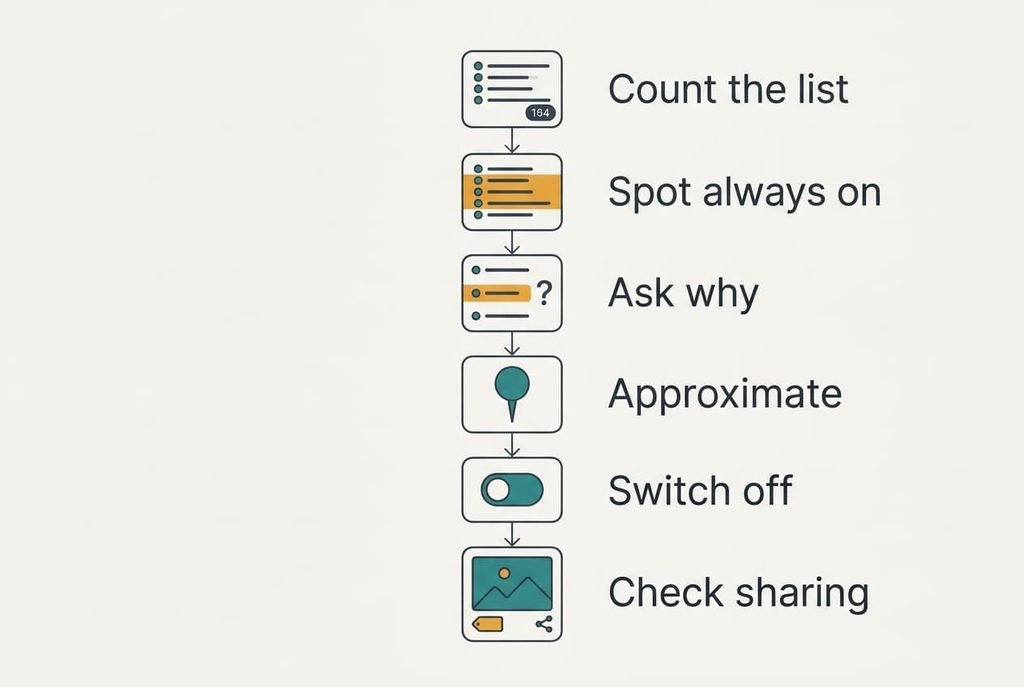
1. Find the list of apps that hold location access and count them. Look for a total and for the grouping by level. Our phone showed 19 apps out of 64, and that is over a quarter of everything installed. The count matters because you can’t trim what you haven’t seen. Proof comes when apps you rarely open appear in the list.
2. Pick out every app set to “always”. Look for the badge or heading that says so, and note the names. We found 5. Background access matters most because it runs while you aren’t looking. This step is done when you can name every app in that group from memory.
3. Question each “always” app with one test: does it need your position when it’s closed? A navigation app that records a run may say yes, and so may a family locator. A shop app won’t, and neither will a game. Move the rest to “while using”. The change is reversible, and an app that truly needs more will tell you so the next time it opens.
4. Switch apps that need only a town to approximate location. A weather forecast works with a district several kilometres across, and a shop needs only the nearest branch. Precise location tells an app which house you live in. It’s done once the forecast still names your area and the map pin turns into a circle.
5. Remove access altogether from apps with no reason to ask. Torches and calculators rarely need a position, and offline games don’t either. Setting them to “never” costs nothing, and each app should carry on working. If one stops, grant “ask” and see what it wanted, since a refusal that breaks a feature is useful evidence.
6. Check the places where position hides outside the list. Photos can carry a tag with where you took them, and sharing features may still send your position to a person you added years ago. Remove old contacts from sharing, and stop the camera tagging pictures you plan to post. You’ll see it worked when the sharing list names only people you’d tell by phone.
Testing That the Limits Held
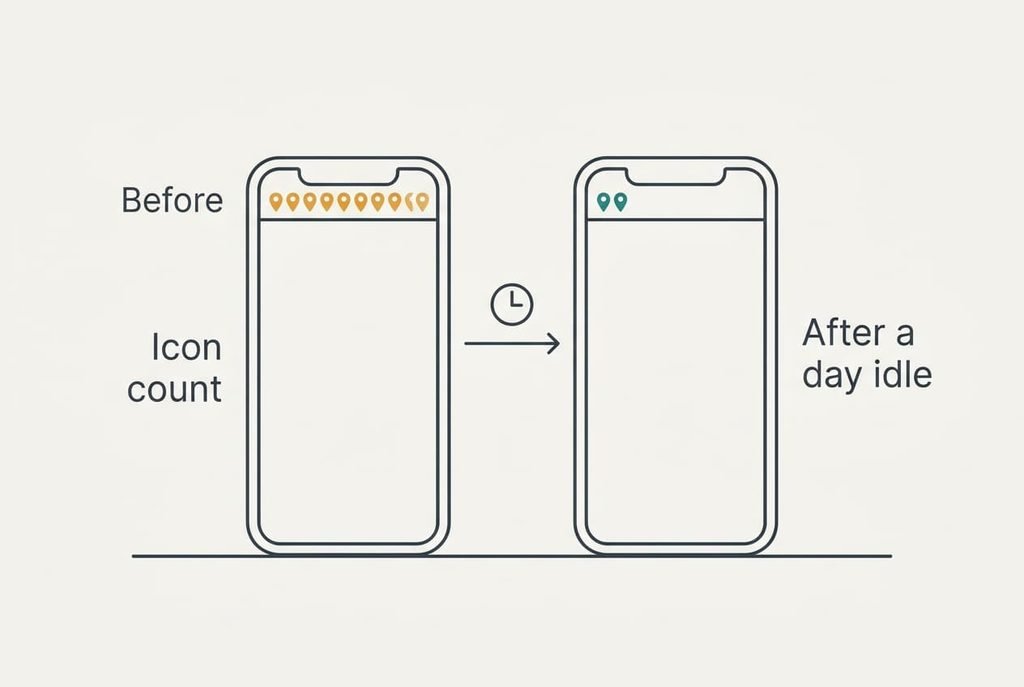
Your phone shows a small icon in the status bar whenever an app is reading your position. Leave the phone idle on a desk for a day and tally how often that icon appears, then compare with a normal day. A phone left alone is the cleanest test, since your own movements can’t explain the icon. On our phone it appeared 14 times before the changes and twice afterwards, both for the family locator. If it still shows up often, an “always” app remains. Open the list again and look for it.
Then open three limited apps and use them as you normally would. Each should work, perhaps asking for permission once, and the map should still find you. That tells you the limits haven’t broken anything you wanted.
Write the counts down, because a future check has a baseline to beat.
Where the Check Usually Stalls
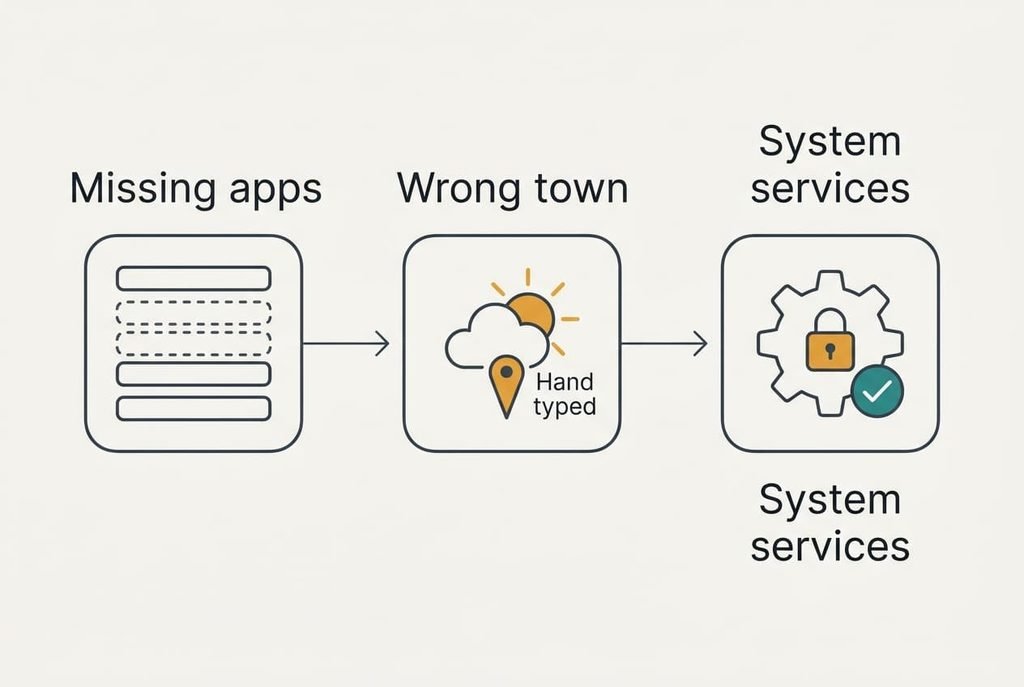
Some phones list fewer apps than you’d expect. An app that asked once and was told “allow once” may not appear until it asks again, so use the app again and recheck. When the list looks short and you can’t see which apps track your location, install dates will point to the missing names.
A second stall comes when a weather or news app shows the wrong town after you move it to approximate. Type your town into the app itself and the problem is solved, with no loss of accuracy that matters.
The third stall is a heading called system services. It holds features such as finding a lost phone and emergency calls, and some of it can’t be switched off. Leave those entries alone. Their effect on privacy is small beside a shop app reading your position every 5 minutes.
The Step Not Worth Taking
Switching location off for the whole phone looks like the safe answer and costs more than it returns. Maps stop finding you, a lost phone can’t be traced, and emergency calls lose the position that helps responders reach you. Nearly every privacy gain you’d get is already achieved by the six steps, which remove access one app at a time and keep the useful ones.
The master switch also hides a problem rather than fixing it. The apps keep their permissions and simply wait for you to switch it back on, which most people do within a week because navigation stops working. A day of working through the list gives you a lasting result, whereas the master switch gives you a temporary one that you’ll have to repeat. It also leaves you ignorant of which apps asked for too much.
Once you know which apps track your location, you can decide each on its merits. Repeat the check every few months, or whenever you install something new, since the list drifts back up quietly. An evening now spares you a great deal of background reading of your movements later. Treat the time as maintenance rather than rescue, like glancing at a tyre. Set a calendar reminder for three months from today, and show the family the method, since each person’s phone keeps a separate list.
Questions Readers Keep Asking
How long does the whole check take?
About 25 minutes in total for 19 apps, about 90 seconds an app. Most of that is the first pass. A repeat check takes five minutes, because you only look at new entries and anything marked “always”. Do it at a quiet moment with the phone charged.
Will I lose anything by limiting access?
Nothing is deleted, and every switch can be flipped back. What you lose is convenience: an app on “while using” can’t remind you of a place when it’s closed. Photos already tagged keep their tags, so remove those separately if you plan to share them.
Does a tablet or a second phone need the same check?
Yes, each device keeps its own list. A tablet on Wi-Fi only usually gives a rough position, while a work phone may be managed by your employer, in which case some switches are locked. Check the list on each, because the apps differ from device to device.