You can learn how to type accented letters in about 20 minutes, and you finish able to produce any accent you need on your phone and on your laptop in roughly a second each. Marta, a Bristol resident, needs about 40 of them a week for friends’ names and a few Spanish phrases. She used to copy each one from a web page, at about 8 seconds a time. The fork is how much you write in another language. This walkthrough takes the route for names and occasional phrases, since a full second-language keyboard is a different job. Marta’s numbers are invented for a single week, so count your own.
What to Settle Before You Learn How to Type Accented Letters
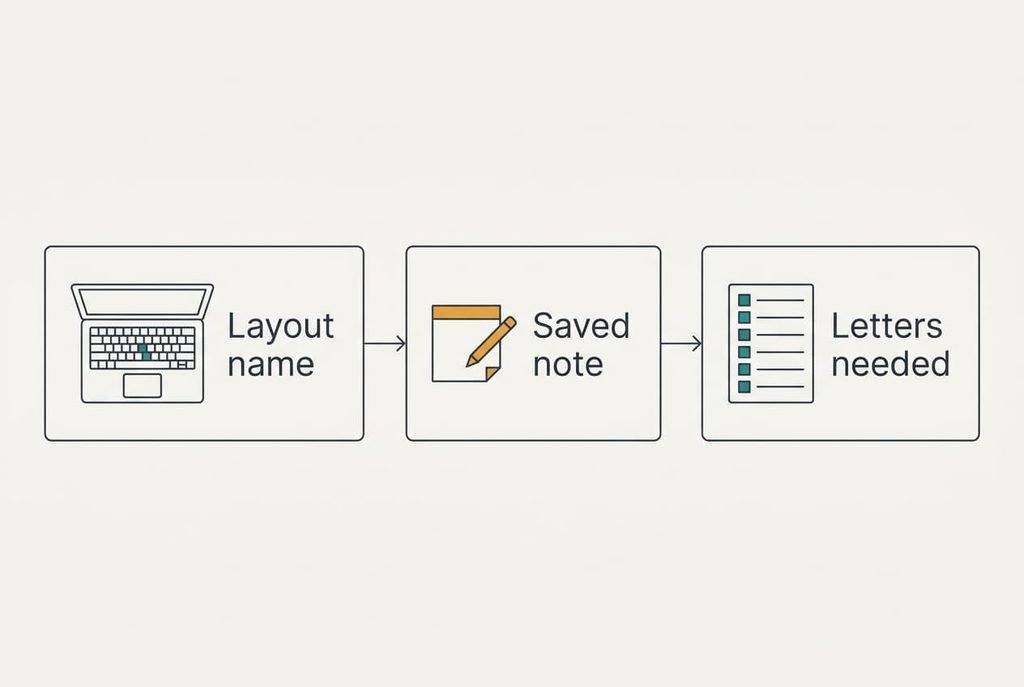
Start with the starting point. A laptop keyboard has a layout setting that decides what each key types, and most people have never looked at theirs. Marta’s reads UK, so the key beside Enter types a hash. Change the layout without noting that, and several symbols move, so a password that holds a hash suddenly fails.
Write down your current layout name before you add or change anything, since that’s the step nearly everyone skips until a quote key types something odd. With the name written down, you can switch back in seconds.
Next comes a count. Marta tallied her recent chats and counted 40 accented letters, 18 of them é. She typed 25 on her phone and 15 on her laptop. Copying each from a web page took about 8 seconds, so the 40 cost 320 seconds. A method pays only if you repeat the task, so the count decides. Six different letters and one layout name are all you need to hold in your head.
Six Steps to Type Accented Letters on Both Devices
Take these six steps in order. Each ends with a sign that it worked, and a missing sign means you repeat that step before the next.
1. Make a short list. Scan your recent chats for accented letters and write a count beside each. Marta found six different ones, led by é. That list shows which later steps will matter. Done means you hold six letters with a count each.
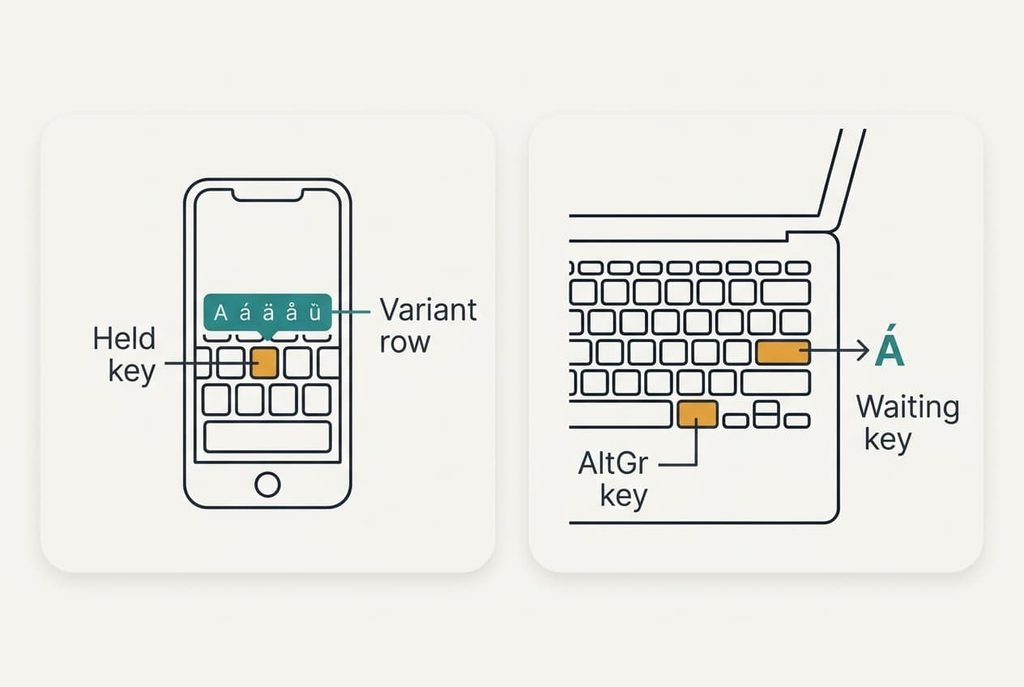
2. On the phone, find the held-key row. Look for a row of variants that appears above a letter after you hold it for about half a second, and hold e to see its accents. One held key stores every variant, so no second keyboard is needed. The sign is that sliding to the umlaut version types Zoë on screen.
3. Learn where the others hide. Look under the plain vowels and under n, where the other accents wait. Variants sit under the nearest plain letter, so the search takes seconds once. The sign is that four names with accents take you under 20 seconds to type.
4. On the laptop, look for the right-hand Alt key, often marked AltGr. On many UK layouts, holding it with a vowel types the acute form. This route adds one keypress and moves no other key. The sign is that AltGr with e types é. If nothing appears, your layout isn’t the UK one, and the name you wrote down tells you why.
5. Add one extended layout for the rest. Look in the keyboard settings for a layout described as extended or international, which uses waiting keys. A waiting key pauses until the next letter, then prints the accented version. On many such layouts the cost is that quote marks and apostrophes wait too, so an opening quote before a vowel needs an extra space. The sign is that the waiting key for the umlaut, followed by o, types ö.
6. Practise switching layouts. Look for the layout indicator near the clock and the key pair that changes layout. You need the old layout back for any password that contains a hash, because a password typed in the wrong layout fails without a warning. The sign is that you switch away and back twice and the same hash comes out each time.
Testing the Accents in a Real Message
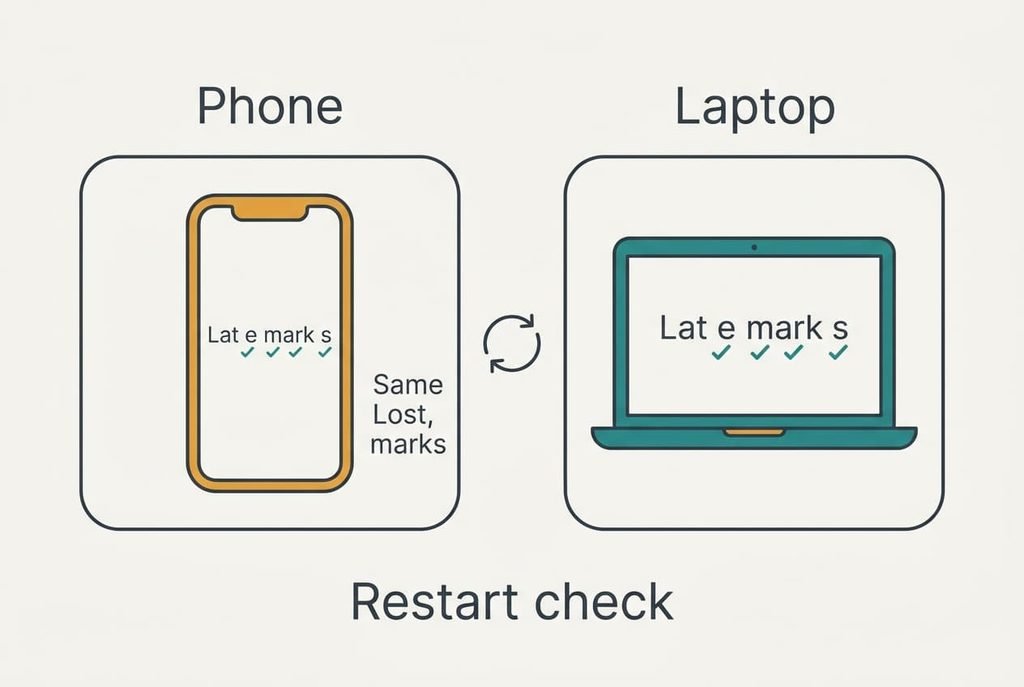
An ordinary message is the real test, and as a check on whether you know how to type accented letters a blank note is a poor guide. Send yourself one sentence on each device and read it back: “Zoë and Åsa met Józef at a café in Düsseldorf”. The sentence holds five accented letters, and at about a second each the typing takes five seconds. Every mark should arrive intact, with no plain letter in its place.
Restart the laptop afterwards and type the sentence again, because a layout that resets itself would undo step 5.
Now the numbers. Marta’s 25 phone letters at 1 second cost 25 seconds, and her 15 laptop letters at 0.6 seconds cost 9 seconds. That makes 34 seconds against 320, a saving of 286 seconds, or 4.8 minutes a week. Her 20 minutes of setup repays itself in 20 ÷ 4.8 = 4.2 weeks. Fewer accents stretch the payback.
Where Accented Letters Go Wrong
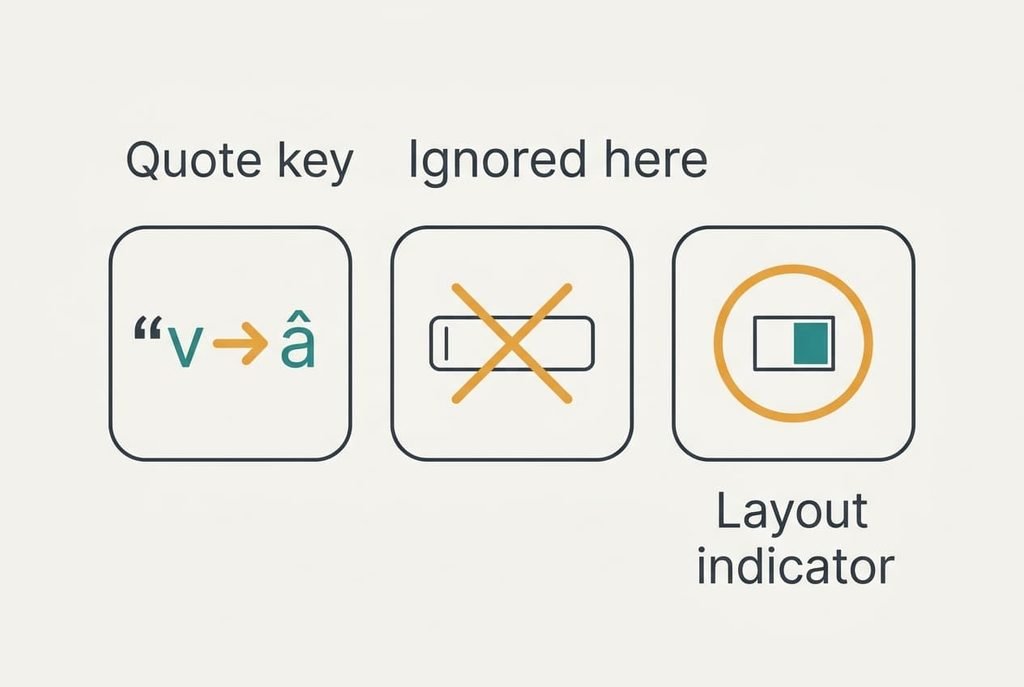
Anyone learning how to type accented letters meets snags of three kinds. One is a quote that turns the next vowel into an accent. In layouts of that kind, an opening quote before E can print Ë. Type the quote, then a space, then the letter. That costs one extra keystroke per quote, about 3 seconds a week for Marta’s ten quotes.
Another is that some apps ignore the held-key row. Some forms and remote sessions take over the keyboard, so try the letter in the real field, because a note proves little.
The last is that the layout can change by itself. A stray key pair may switch it mid-sentence, and the text suddenly looks wrong. Check the indicator, then use the switching keys from step 6. A wrong layout stays active until you change it, so glance at the indicator whenever a word looks odd.
Always test in the field where the letter is needed.
The Step Not Worth Taking
Resist memorising a numeric code for each letter, because it’s slower and the codes differ between systems. Six letters at four digits each means 24 digits to remember. Typing one takes about 3 seconds, against 0.6 for the waiting key, so Marta’s 15 laptop letters would cost 45 seconds a week instead of 9. Even after a month of practice the codes would still run five times slower, so the effort never pays back. Many laptops also lack the number pad that such codes need.
Symbol utilities that list hundreds of characters run into the same problem, since scrolling to one takes longer than the 8 seconds of copying it replaces. A numeric method is also easy to get wrong without noticing. One forgotten digit prints a different symbol, and the message has gone before you see it. The codes rarely help on the phone either, where the held-key row already covers every letter in a second.
Stay with the held-key row and the waiting key. The next time you want to know how to type accented letters on a new device, repeat only steps 2 to 4 and read the layout name first. Keep the note with that name where you will find it again, and a reset takes five minutes to repair. A short routine you have tested outlasts a clever one you can’t recall, and nobody has to learn how to type accented letters twice.
Questions Readers Keep Asking
How long does the whole job take?
Plan on 20 minutes, about 10 of them on the phone. Steps 2 and 3 take under five minutes together, since the held-key row needs no setup at all. The laptop takes longer because of the layout work, and later additions take a minute each once you’ve done it.
Will it change my passwords or settings?
It won’t change a password, and it won’t touch your files. The one risk is the layout: while the extended one is active, a few symbol keys type differently. A password entered in the wrong layout fails, so keep the old layout one switch away and check the indicator first.
What if I mostly write in another language?
Then add a full keyboard for that language on the phone, which brings its own predictions and autocorrect. The steps above still help for the laptop, but you’d replace steps 2 and 3. Use the full keyboard when more than a fifth of your writing is in that language.