Your slides look crisp on your own monitor, yet everyone on the call says the text is a smear. Few things make a shared screen look blurry faster than sharing the whole monitor, so sharing a single window is the quickest cure. The call squeezes your big desktop into a much smaller picture, and the writing shrinks with it, often to half its height. Below you’ll confirm that with three short tests, then choose among four remedies, cheapest first. We’ll use a 2560 by 1440 monitor in a Manchester flat, and each number is a sample for you to replace.
What Makes a Shared Screen Look Blurry on a Call
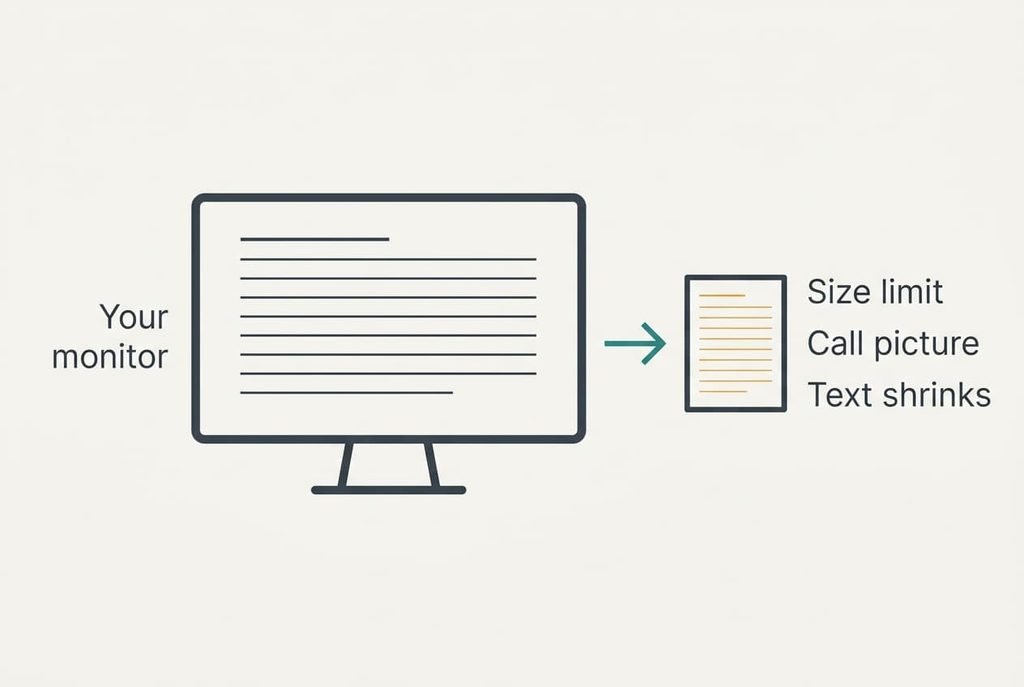
A call doesn’t send your monitor. It sends a video of your monitor, and that video has a size limit. In our sample the limit is 1280 by 720 pixels, which is 921,600 pixels against the monitor’s 3,686,400. The picture shrinks by a factor of 1280 ÷ 2560 = 0.5 along each edge, so a quarter of the pixels remain.
Text suffers most. A line of writing 16 pixels tall on your monitor arrives 8 pixels tall, and text under about 10 pixels tall stops being readable. That is a working rule and not a published standard.
Compression adds a second blur. The call has a fixed upload budget. While the pointer or the page moves, the compressor spends that budget on the motion and leaves letter edges soft. A still slide gets refined within a few seconds, which is why a deck often looks worse during a scroll than during a pause. Plain dark text on a white page is among the easiest pictures to compress, so slides recover quickly once they stop moving. The blur is rarely a fault in your computer. It comes from a size limit and a budget, and each remedy below attacks one of the two.
Three Tests to Run When Your Screen Looks Blurry
Ask one friendly viewer to stay on the call. Each test is quick and costs nothing.
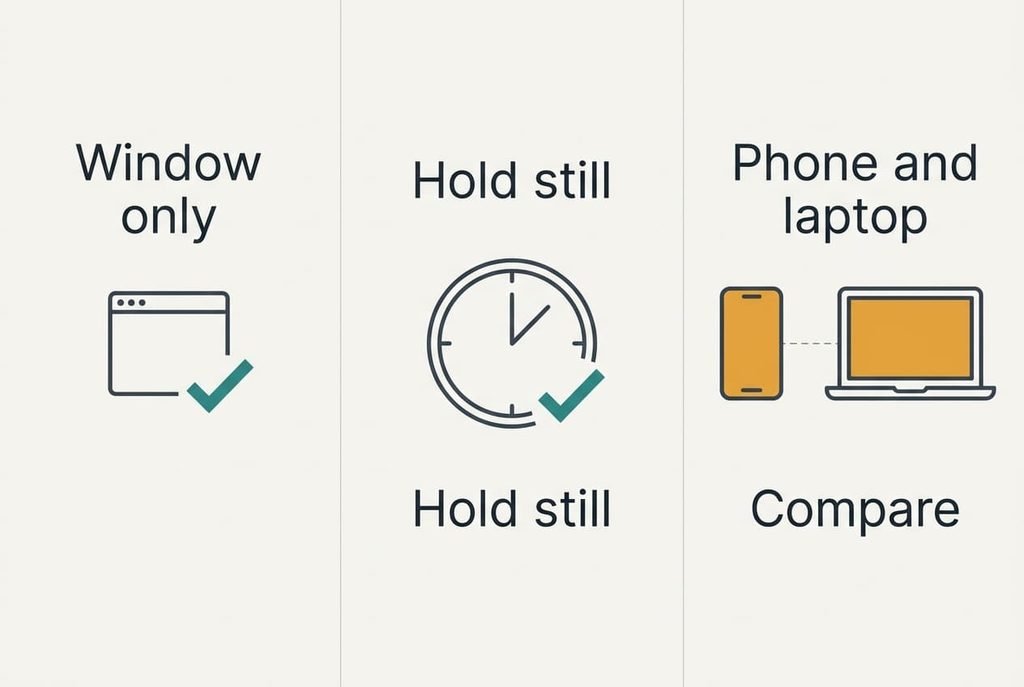
1. Share one small window, about 1280 pixels wide, rather than the whole screen. Sharp writing points to the size limit. Soft writing sends you to the second test.
2. Go back to sharing the whole screen. Then leave the mouse and the page alone for three seconds. Text that sharpens while you wait means the budget was going on motion. Text that never sharpens means the picture is being shrunk too hard.
3. Have the viewer rejoin from a phone and then from a laptop. Sharp on one and soft on the other points at their end, so you shouldn’t touch your settings yet.
Three causes can make a shared screen look blurry, and either end can be responsible, which is why the third test matters. Ours passed the first test and failed the second, so size is the chief cause, with motion adding to it.
Remedies for Blur, From Free to Permanent
Whatever makes a shared screen look blurry, one of these four remedies reaches it. They’re ordered by cost, and each says which cause it targets.
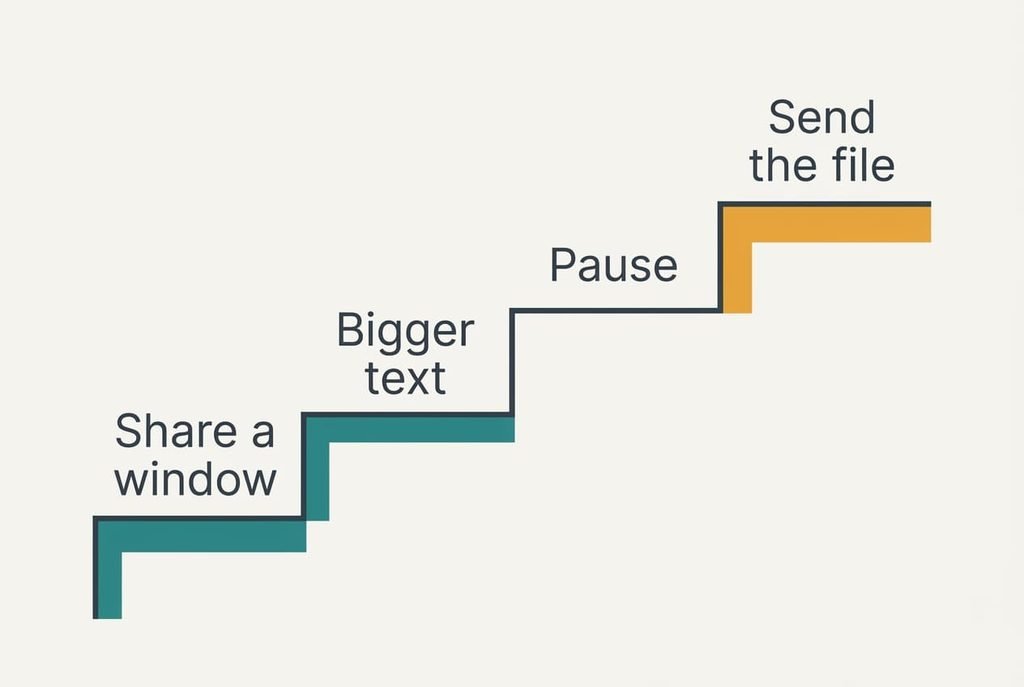
Share one window and not the whole screen, which removes the shrinking. A window 1280 pixels wide fits the limit exactly, so the scale is 1.0 and 16 pixel text stays 16 pixels. That answers the size cause directly. It’s free and quick. In return, viewers see only that window, and showing anything else means stopping and sharing again, which interrupts a long talk. Notes kept in a different window stay private, which many presenters like.
Enlarge the text before you share, which beats the shrink with size. This is a setting and not a purchase. Zoom the page to 150%, so 16 pixel text becomes 24, and the 0.5 shrink leaves it at 12 pixels, above the 10 pixel line. It answers the size cause from the other side. The price is room: only 1 ÷ 1.5² = 44% of the content fits in view, so a dense spreadsheet now needs scrolling, and scrolling is what the compressor handles worst. Keep the zoom for slides and short documents. Ask a viewer to read the smallest line aloud before you start.
Pause after every change, which gives the compressor time to refine. This answers the budget cause and spends minutes instead of money. Give each new slide three seconds before you speak over it, and keep the pointer still while you wait. A deck of 40 slides adds 40 × 3 = 120 seconds, about two minutes in all. Live scrolling and animated builds are the price, because they stay soft, so a demonstration of moving content gains nothing here. Keep your hands still on the mouse while the timer runs.
Send the file ahead and let people open it themselves, which avoids compression altogether. Each viewer reads the original at full sharpness, so both causes vanish. The move can’t be undone, though. Copies now sit on other devices. You lose control of the pace, and anything confidential has left your hands. Use it for documents you’re happy to circulate. Pick the first remedy that clears the blur and stay with it.
If None of Them Worked
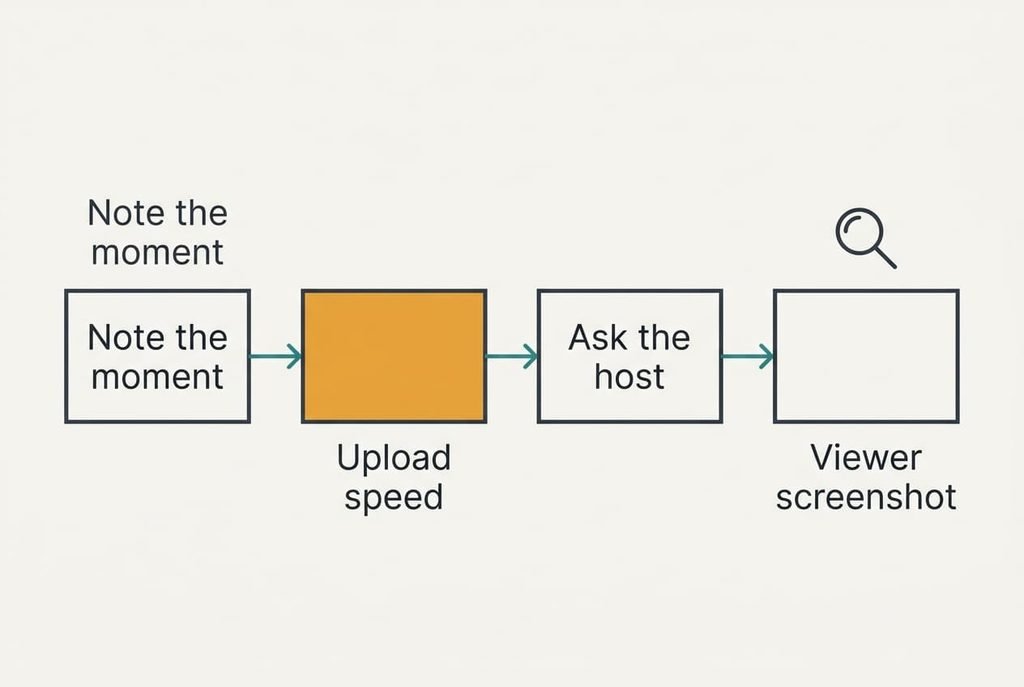
Collect these three facts before you alter anything else on the machine. Note the exact moment the blur starts, write down your upload speed at that point and ask a viewer for a screenshot of what they see. Then ask the host whether the meeting caps shared resolution, since a host can set a lower limit than your own app uses.
Be careful with sweeping resets. Resetting the network settings can erase saved wireless passwords, and resetting the display can undo scaling you chose on purpose. A cable from the laptop to the router is a gentler step, because it steadies the upload without touching a setting. Write the result of every test in a note. A host or support desk can then see what you’ve tried.
If one viewer sees sharp text and another sees soft text, you have a viewer problem, and nothing you change will reach it.
The Fix That Isn’t Worth Buying
A sharper monitor feels like the logical answer, yet it backfires badly. A 4K monitor is 3840 pixels wide, so the shrink to 1280 becomes 1280 ÷ 3840 = 0.33. Writing of 16 pixels then arrives about 5 pixels tall. Your own screen looks lovely and the call looks worse. Dropping the monitor to 1920 by 1080 before presenting is the sensible reverse, since 1280 ÷ 1920 = 0.67 and 16 pixel text then arrives near 11 pixels. That setting shrinks every window until you change it back, so use it only for the call.
A faster computer fares no better, because it sends the same limited picture more smoothly. A better webcam leaves the screen picture untouched, because the webcam feeds a different video from the shared one. Swapping the cable between the monitor and the computer changes nothing about what the call sends.
The limit sits in the call and not in your hardware.
Nothing else makes a shared screen look blurry as reliably as a shrink that drops text below about 10 pixels. Measure the factor before you shop: divide the call’s width by your screen’s width, then multiply your text height by the result. Share a window and zoom the text. Then wait three seconds. Only then think about spending anything, because the cheap steps clear most cases. Keep the three tests to hand for the next call.
Questions Readers Keep Asking
Can I fix this myself at home?
Almost always. Sharing one window or enlarging the text clears the common case within a minute at no charge. Only a limit set by the meeting host is out of your hands, and one message to the host settles that.
What is the most common cause?
The shrink. The call turns a large monitor into a smaller picture, so everything halves in size. At a factor of 0.5, 16 pixel text becomes 8 pixels, which falls below the readable line. A window of the right size avoids the shrink altogether.
Could blur mean my computer is failing?
Rarely. If your own screen looks sharp and only the call looks soft, the hardware is fine. A failing display shows faults on your side too, such as dead patches. Run the third test first, because the viewer’s end causes as many complaints as yours.