Alternatives to keeping dozens of browser tabs open begin with a practical question: what does each tab hold that a plain list couldn’t? A tab carries more than an address, and the extras decide how a switch goes. Callum, a project coordinator in Bristol, has 47 tabs spread across two windows, and he’ll be our test case. Three replacements are on the table, and each costs you something else. Month three brings a bill of its own. A short routine for the move follows, and a quick export at the end protects every address. The numbers belong to one browser and nothing more, so count your own.
What Alternatives to Keeping Dozens of Browser Tabs Open Must Carry Over
A tab bundles several small things, and a single one of them matters most. Your reason for opening each page deserves the most protection, because an address with no reason attached turns into clutter within weeks. Callum can name the reason for about 30 of his 47. The other 17 are pages he can’t explain any more.
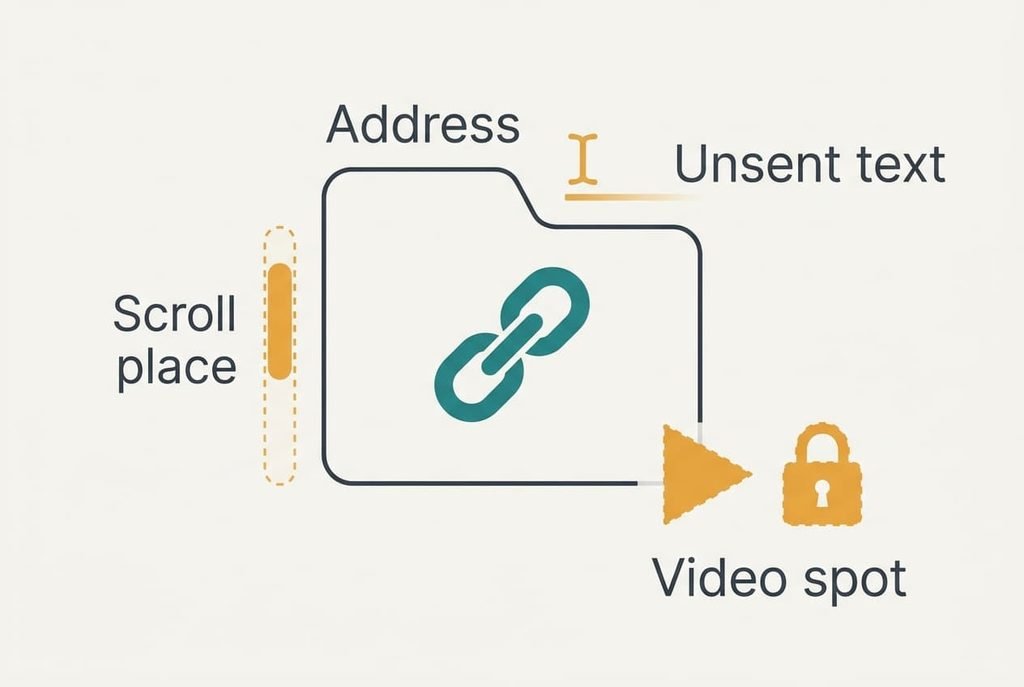
The address itself always survives. A list or a folder can hold it, so copying 47 of them is a short job. What often doesn’t survive is everything the live tab was quietly remembering. That covers the scroll position in a long article and text typed into a form but never sent. A video paused at minute twelve loses its place too, and so does the sign-in that keeps a page open.
Check which of your tabs hold something of that kind before you close any. Restart the browser and see which pages come back exactly as you left them. Those are the ones to leave open for now, because a list can’t hold what they remember.
Three Ways to Read Later Without Dozens of Browser Tabs Open
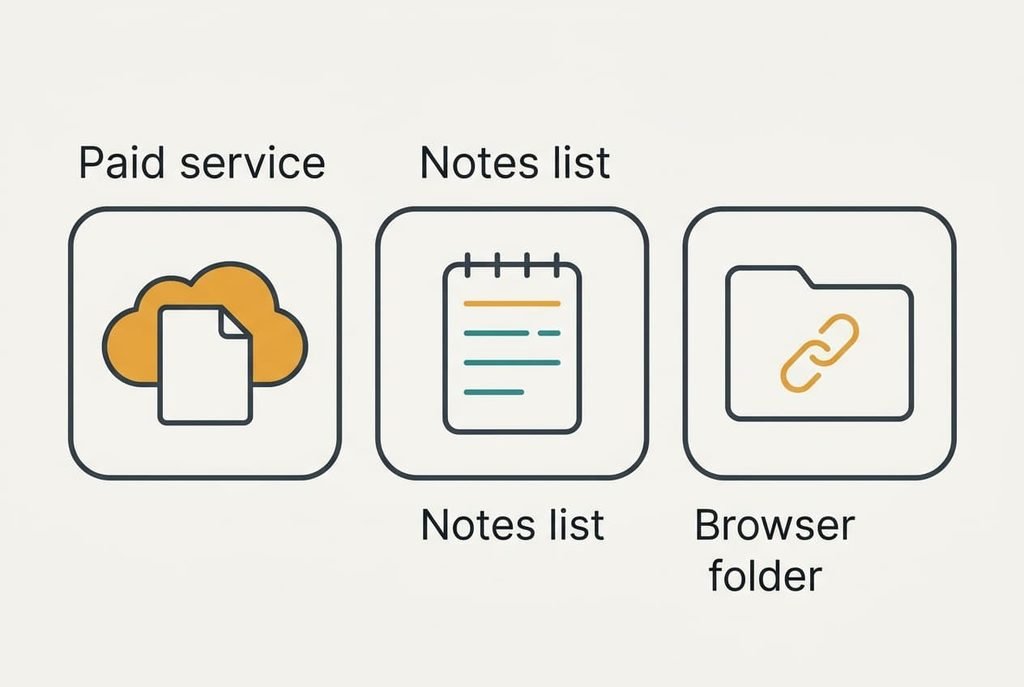
1. Money: a paid read-later service that stores a clean copy of each page. This suits a reader who saves a great deal and reads on trains or in queues. You pay each month, and the clean copy strips layout from some pages. Addresses and stored copies land together in one searchable place, and Callum’s 47 tabs would go in as a pasted batch. It fails if the service closes or changes its terms, since the copies sit on its machines. Confirm that it can export everything to a file before paying for a full year.
2. Effort: a plain notes list where each line holds an address plus a few words on why you saved it. This suits a reader who likes to decide. Typing the reason takes about 20 seconds a page, so Callum’s 47 would take about 16 minutes. Everything lands exactly as typed and stays readable in any app. It breaks down when the list only ever grows. Two hundred undated lines are as hard to face as the tabs were, and nobody scrolls that far.
3. Feature loss: the browser’s own saved-pages folder. It keeps bare addresses with their titles, and it appeals to a reader who wants no new tool at all. You give up the scroll position and the unsent text, and a paused video loses its place. The folder also belongs to that one browser, so a second device may not see it. The soft spot is a link that dies once a site removes the page, leaving a title with nothing behind it. Titles alone rarely remind you why you saved something.
Alternatives to keeping dozens of browser tabs open reward the reader who knows which of those losses is tolerable. Someone who forgets lists exist will do best with the second, because the reason sits right beside the address.
Month Three: What Going Without Costs You
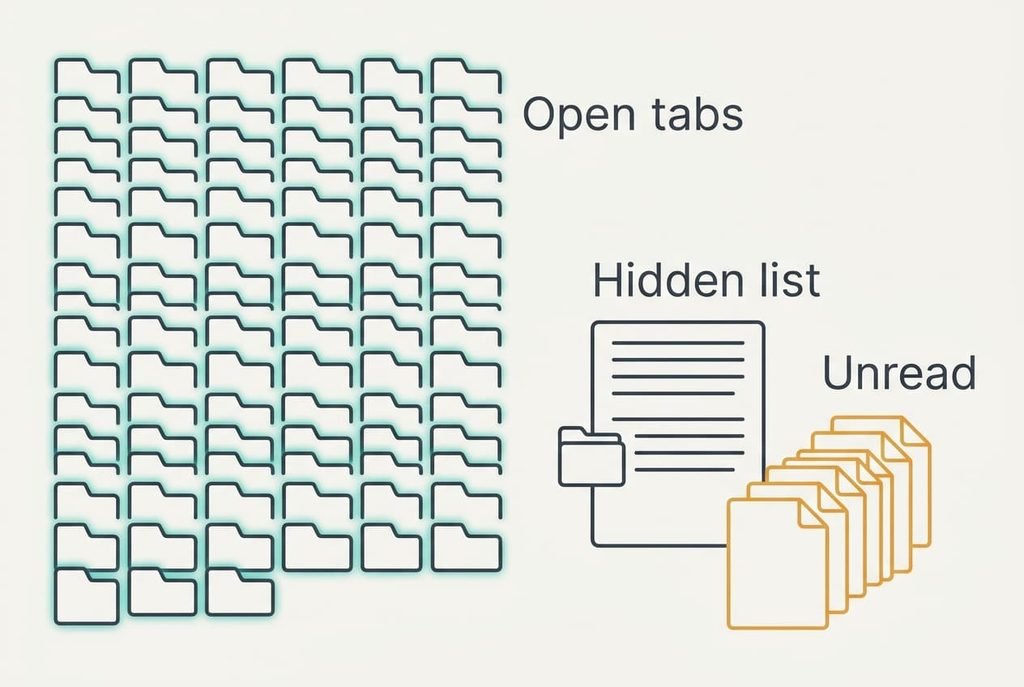
The first week feels tidy, and a different cost shows by month three. The nudge an open tab gave every time you glanced at it has gone, because a list sits quietly in a folder until you open it. Callum’s pile held 31 saved pages by week eight, and 12 of them were untouched.
Each route charges something different. The paid service takes a fee and some layout. A notes list takes a few minutes whenever you add a page. Scroll positions and drafts are what the folder takes.
Expect roughly four in ten saved pages to go unread at first, because a hidden list asks for a decision that a visible tab never did. Book a weekly slot for it before the first week ends, and treat that slot like any appointment you’d keep.
A saved page that sits for three weeks is usually one you’ve stopped wanting.
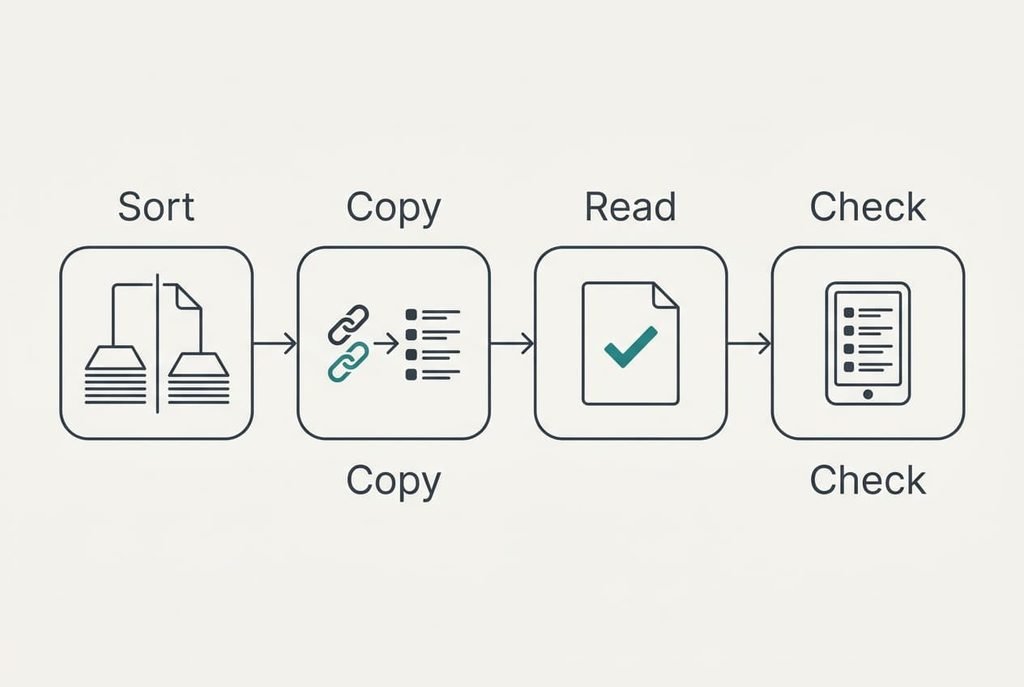
Moving Over in Three Weeks
Begin by sorting your open tabs into two piles on paper: jobs for today and pages to read later. Close anything that fits neither pile at once. Copy the addresses from the reading pile into whichever list you chose, adding a few words of reason as you go. Keep the jobs open, since those pages are work rather than reading. In the second week, read two saved pages a day and tick each one off. If the list begins to feel heavy, delete anything older than three weeks that you haven’t wanted. In the third week, reopen the list on a different device to see what it keeps. Close the old tabs only after that check works, and keep the paper sheet until the month is over in case a pile needs a second look.
When to Stay With Open Tabs
If your tabs are jobs you’ll finish today, keep them open. A form half filled in, a page you’re copying from and a dashboard you glance at all need the live page, and a list can’t hold any of them. The same holds if you keep fewer than ten tabs. A small number costs nothing in speed and sits in plain view.
Tabs also win when you read in one long sitting each evening. A pile that gets cleared nightly never turns into a backlog, and moving it adds a step without removing a problem.
Alternatives to keeping dozens of browser tabs open suit a reader whose pile grows faster than it shrinks. If that describes you, keep tabs for today’s jobs and move only the reading to a list. Doing that splits the pile along a line you can see at a glance.
Saving Your Reading List Before You Close Anything
Copy every address from your open tabs into one plain file before you close a single page, then open that file after a restart. Pick three addresses at random and follow them. If each one loads, the list is safe.
If a page needs a sign-in, note that beside its address.
Count the lines in the file, then check the total against the tabs you had. Callum’s came to 47 and the file held 47. A shortfall means a window was hidden behind another. Write a few words of reason against each address now, while the tab is still open to jog your memory.
Alternatives to keeping dozens of browser tabs open work best after a calm half hour with the file. Set an alert in your diary for four weeks ahead and count how many saved pages you’ve actually read by then. That figure tells you whether the new habit has stuck. If it hasn’t, the old tabs are still one restart away.
Questions Readers Keep Asking
Will my open pages carry over if I close the tabs?
Only the addresses. A saved list keeps every link and the title, but it drops the scroll position and any text you typed. A video loses its place too. Copy the addresses first, then note a few words of reason against each one. A page behind a sign-in will ask you to log in again when you open it.
Does a different way of saving cost less?
Usually, in relative terms. A notes list and the browser’s own folder cost nothing but time, and a read-later service charges a fee for clean copies. Attention is the real charge, because a hidden list asks you to decide when to read. If you clear your tabs nightly, the tabs may be the cheapest option.
Is it worth the disruption for someone with a dozen tabs?
Probably not. A dozen tabs is a pile you can see at a glance, and moving it costs an evening for little gain. The switch pays off past about thirty tabs, or when the browser slows and pages reload. Below that, close the pages you’ve finished and leave the rest.