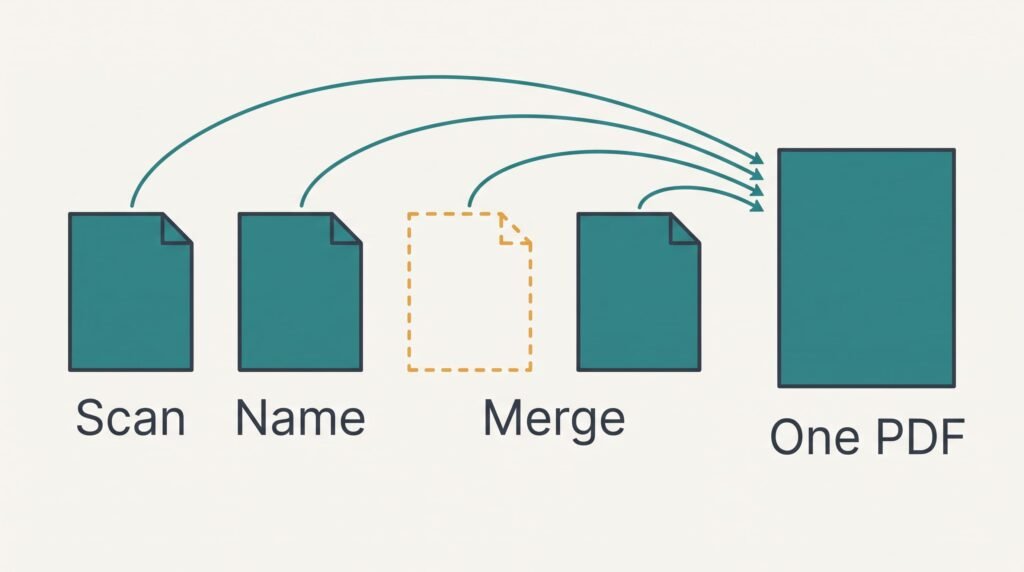
You can combine scanned pages into one PDF in about 15 minutes, provided you name the pages before you merge them. When you finish, one file holds every page upright and in sequence, at a size that suits your next move. The single fork is where the file is headed: 150 dots per inch suits sending and 300 suits keeping. Treat the minutes and megabytes below as assumptions for a home flatbed or a phone camera. Time one page on your own kit before you trust them. All examples use 12 A4 pages, and the sequence of the steps outranks any one setting.
Before You Combine Scanned Pages Into a PDF: The Check People Skip
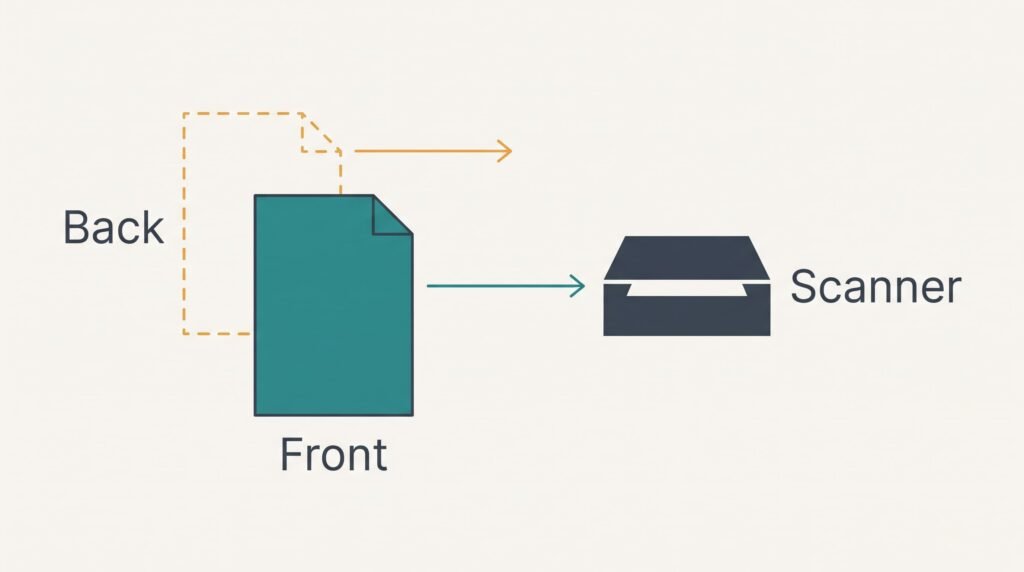
Most people skip checking the back of every sheet, though a missed back is the usual reason a finished file is wrong. Do it before you scan. Six sheets printed on both sides make 12 pages. Scan only the fronts and you hold a tidy PDF of 6 pages that looks complete and isn’t. Flip the stack and note which sheets carry anything on the reverse, even a single line.
Decide the resolution now as well, because it fixes the weight of everything that follows. An A4 page at 300 dots per inch has about 8.7 million pixels. At 150 it has about 2.2 million, a quarter as many. Assume a text page saves as roughly 0.8 MB at 300 and 0.25 MB at 150. Twelve pages then weigh about 9.6 MB or 3 MB.
A set of 25 pages at 300 reaches 20 MB, which is where many mailboxes start refusing attachments. Check your own limit. To combine scanned pages into one PDF without surprises, work out these sums first. At 150, a 10-point line of text stands about 21 pixels tall, which reads well.
Six Steps to Combine Scanned Pages Into One PDF
1. Count the sheets and pencil a page number on the back corner of each one. Look for a gap or a repeat in the sequence, and for any page that has slipped upside down. The numbers matter because a shuffled stack becomes invisible once the pages are files. No tool can restore an order you never recorded. Confirm it: the last pencil number equals the page count you worked out, which is 12 here.
2. Scan every page with identical settings and the same orientation. Look for the one setting the scanner displays: 150 or 300 dots per inch, in greyscale for text. Colour triples the data without helping a printed letter. Mixed settings produce pages of different sizes, and the viewer then jumps as you scroll. Confirm it: each file reports the same pixel size as the others, such as 1,240 pixels across at 150.
3. Name the files with two-digit numbers, from page-01 to page-12. A tool that sorts by name puts page-10 before page-2 when the names carry no leading zero. It compares one character at a time. Confirm it: the folder lists 01 to 12 in order without a gap or a repeat, and the first name is the cover.
4. Add the files to the PDF tool in the order the folder shows them. Read the list the tool displays before you press anything. The tool takes its order from that list. A wrong order costs you a full redo of the merge, with every page re-added by hand. Confirm it: the tool reports 12 pages and the first one is the cover.
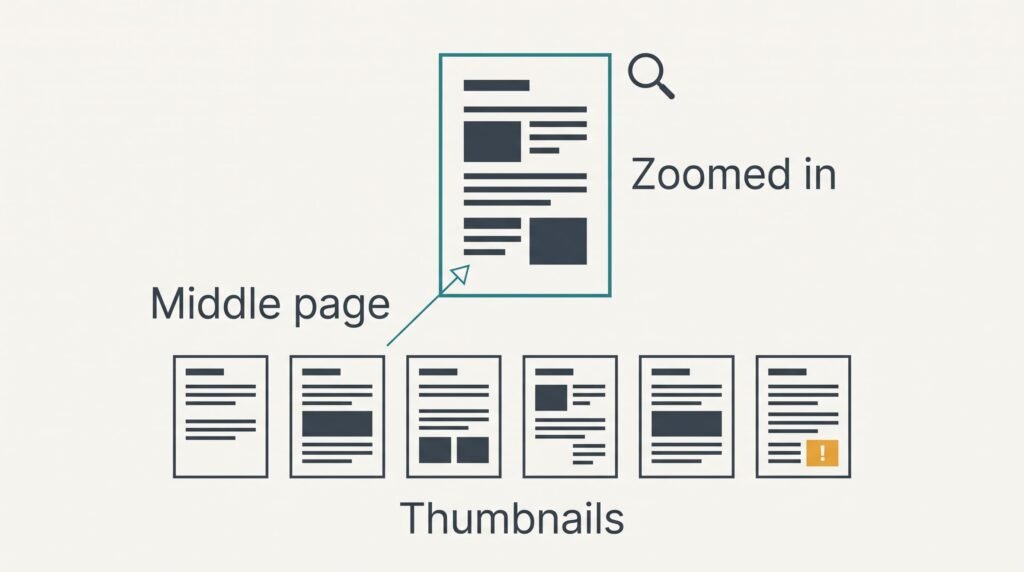
5. Turn any sideways or upside-down pages upright and remove blanks you didn’t mean to keep. Look at the thumbnails, because a page lying on its side makes every reader turn it. Removing a page is permanent in the saved copy, which is why the original scans stay untouched until the end. Confirm it: every thumbnail is upright and the count still matches.
6. Save under a new name and keep the individual scans. Look at the file size against your mailbox limit. Saving over a file, or discarding the scans, leaves you no way back if a page turns out wrong a week later. Confirm it: the size is about 3 MB at 150 or 9.6 MB at 300.
Test the Finished PDF Before You Send It
Check it while the paper still sits within reach, because later a wrong page means digging the sheets out again. The real check is to jump to page 7 and confirm it’s the page marked 7, rather than simply opening the file.
Opening proves nothing, since a shuffled PDF opens without complaint.
Next zoom to 100% on the smallest print in the document and read one line. If that line is legible, the rest will be. If you can, open the file on a second device such as a phone. A page rotated by the tool may display differently there. Compare the page count with your pencil total, then compare the size with your limit. Once all these checks pass, you can combine scanned pages into one PDF for good: send the small copy and file the master.
Where Combining Scanned Pages Goes Wrong
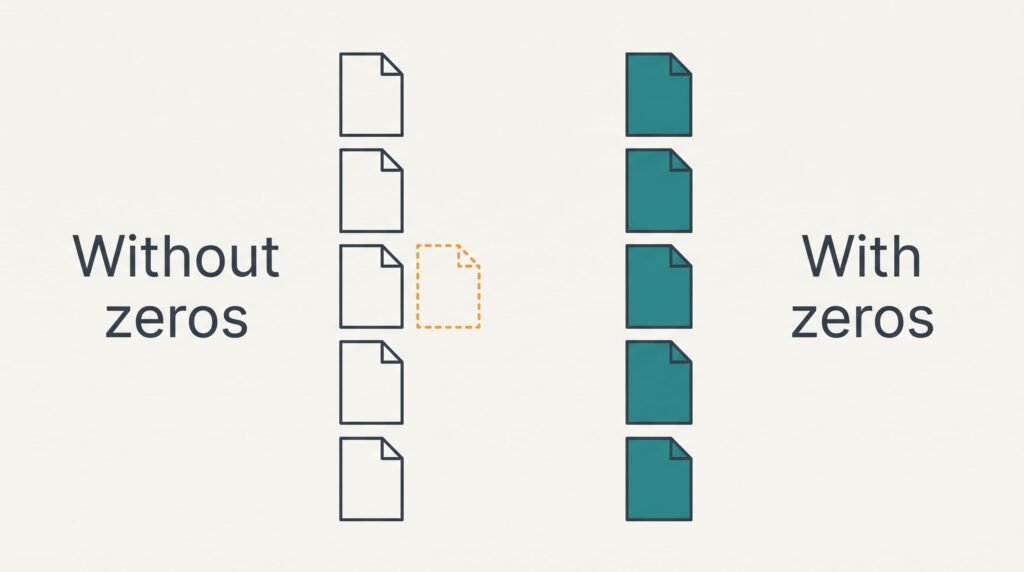
Pages in the order 1, 10, 11, 12, 2 are the commonest stall. The names had no leading zero, which made the tool compare them one character at a time. Rename the files from 01 through 12 and add them again. Budget about three minutes for the repair, with renaming as the slow part.
Nothing in a finished file can be reordered by renaming afterwards.
A file that’s too big is the second stall. Save a duplicate at 150 dots per inch and send that one. Compression in the copy is permanent, which means the 300 master must stay as it is. Assume the copy falls from 9.6 MB to 3 MB, a drop to one third for text that stays readable.
Text you can’t select or search is the third. Every page is a picture, and a picture holds no words. If you need to search the file, run recognition on a copy only, and attach whichever version suits the reader.
One Step Not Worth Taking
Running text recognition on a bundle you’ll only print or send once is easy to defend and rarely helpful, because it adds work and a new way to go wrong. Recognition misreads small print and handwriting, and the hidden text it adds can hold misreads that nobody sees on the page. Assume it adds 3 minutes to the job, a fifth of the total, and more if you stop to correct errors.
Reserve it for files you’ll search later. For 12 pages that someone only has to read, the pictures are all they need. If you do want searching, run it on a duplicate and store the plain PDF beside it. A bad read then costs you nothing. Anyone who wants to combine scanned pages into one PDF quickly should leave the extra layer for the day it’s needed.
Count the sheets and check both sides. Then scan at one setting and name the pages with two digits, because that last step carries most of the load. The merge itself takes two minutes once the files sort correctly, and the page-7 check takes a minute more. Run this routine on your next document. Keep the individual scans until the finished file has passed, and write the setting you used on the first page in pencil. Then nobody repeats the sums.
Questions Readers Keep Asking
How long does it take for 12 pages?
About 15 minutes at the assumed timings: roughly 7 minutes for scanning and naming, and the rest for combining and checking. Add a minute for every ten extra pages. Your first run will be slower than the next, because the naming habit takes a document or two to settle.
Will combining delete my original scans?
Most tools write a new file and leave the scans alone, but some offer to replace them. Say no to that offer. Hold on to the originals until the finished PDF has passed the page-7 test and the size check. After that, delete only what you could scan again in a few minutes.
Can I use photos from a phone camera instead of a scanner?
Yes. Place the page flat under even light and shoot from straight above, which keeps the edges parallel. A photo 4,000 pixels wide and 3,000 high that fills the frame with an A4 page gives about 250 dots per inch. That lands midway between the two settings above. Name and combine the photos the same way.