Setting up a password manager properly takes genuine time and attention upfront – realistically an hour or more if you’re migrating years of accumulated passwords – but it’s a one-time investment that pays off considerably in both security and convenience for as long as you maintain the habit afterward. This guide covers the setup steps and verification checks that make a password manager actually secure, not just technically installed.
Before you start
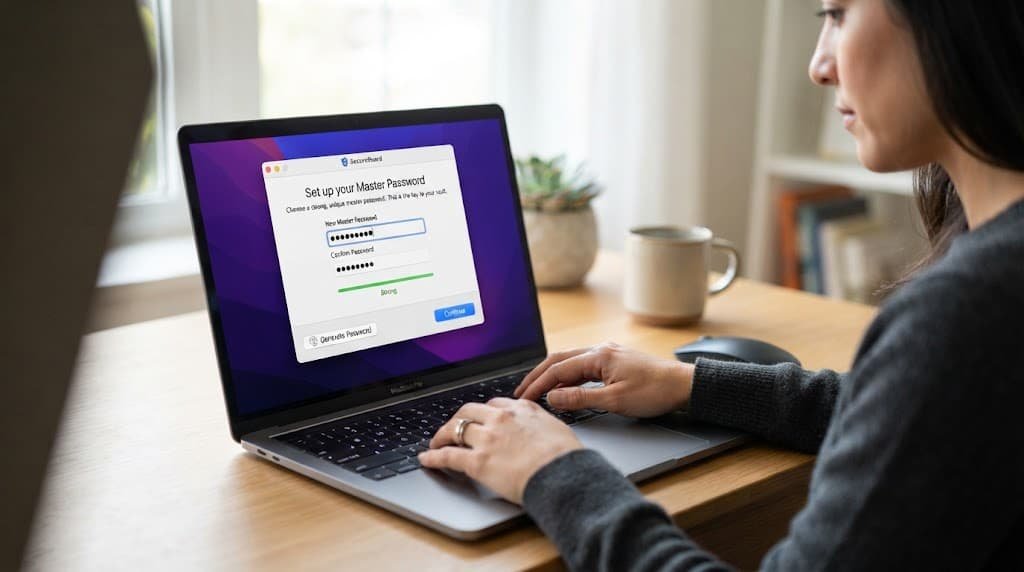
Choose a genuinely strong master password specifically, since this single password protects everything else stored within the manager – a long, memorable phrase you’ve never used anywhere else is generally more effective than a shorter, complex-looking password that’s harder to remember reliably under pressure.
Decide where you’ll securely record this master password as a backup, separate from the password manager itself, since losing access to your master password with no backup can mean losing access to every stored password simultaneously. A physical, securely stored written copy is a reasonable approach many security guidance sources recommend specifically for this one critical password.
Set aside a genuinely uninterrupted period specifically for the initial setup and first migration session, since rushing through master password creation or skipping the two-factor setup step to save a few minutes tends to create gaps that are considerably more inconvenient to fix later than the small time investment would have cost upfront.
Setting up the manager itself
Install the password manager on your primary device first, and complete the initial account creation process, entering your chosen master password carefully and confirming it exactly as prompted, since a typo at this stage that goes unnoticed can cause access problems later.
Enable two-factor authentication on the password manager account itself, if the option is offered, since this specific account protects everything else you’ll store within it, making it one of the single most valuable accounts to add this extra protection layer to.
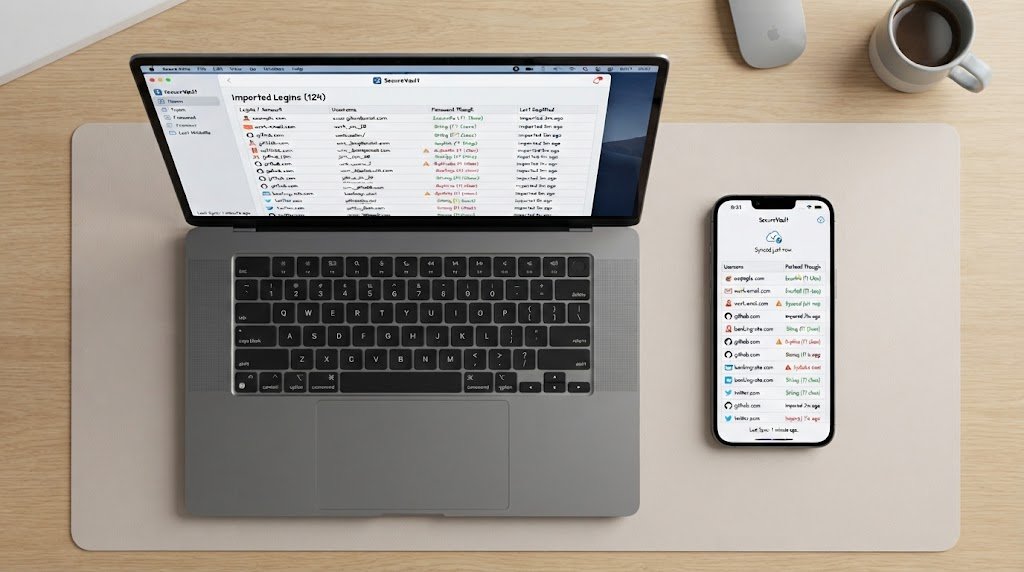
Install the manager on your other regular devices next – phone, tablet, any additional computers – so that stored passwords sync and remain accessible wherever you actually need them, rather than being trapped on a single device.
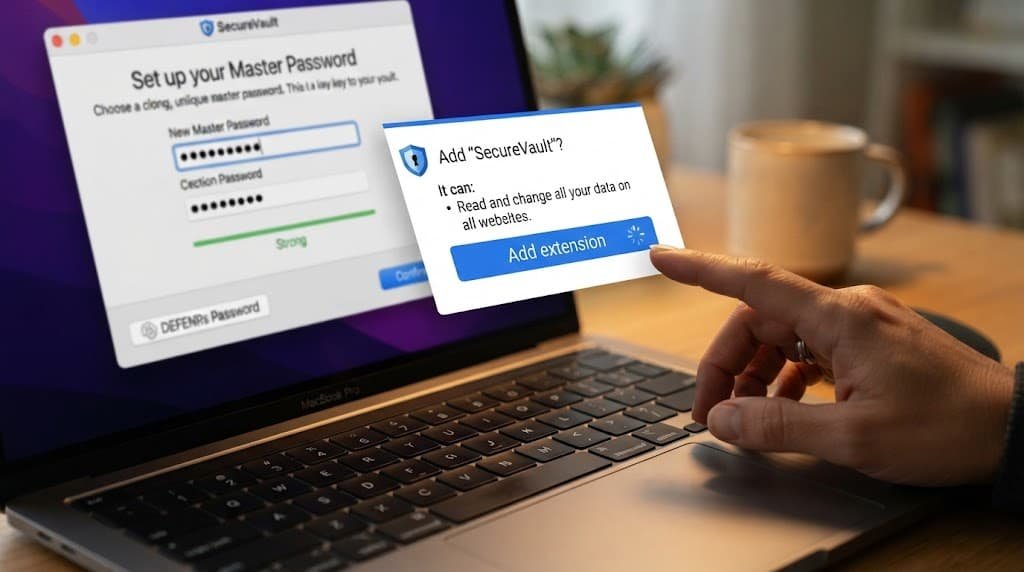
Install the corresponding browser extension specifically, if your manager offers one, since this is typically what enables smooth autofill during everyday browsing rather than needing to manually copy and paste passwords from a separate app each time. This extension is a genuinely different component from the mobile or desktop app itself, and skipping it often means the manager feels considerably more cumbersome in daily use than it actually needs to be.
Migrating your existing passwords
Start with your most critical accounts first – email, banking, and any account that could be used to reset access to other accounts – rather than attempting to migrate everything simultaneously, since prioritising the highest-value accounts first means the most important protection is in place even if the full migration takes longer than expected.
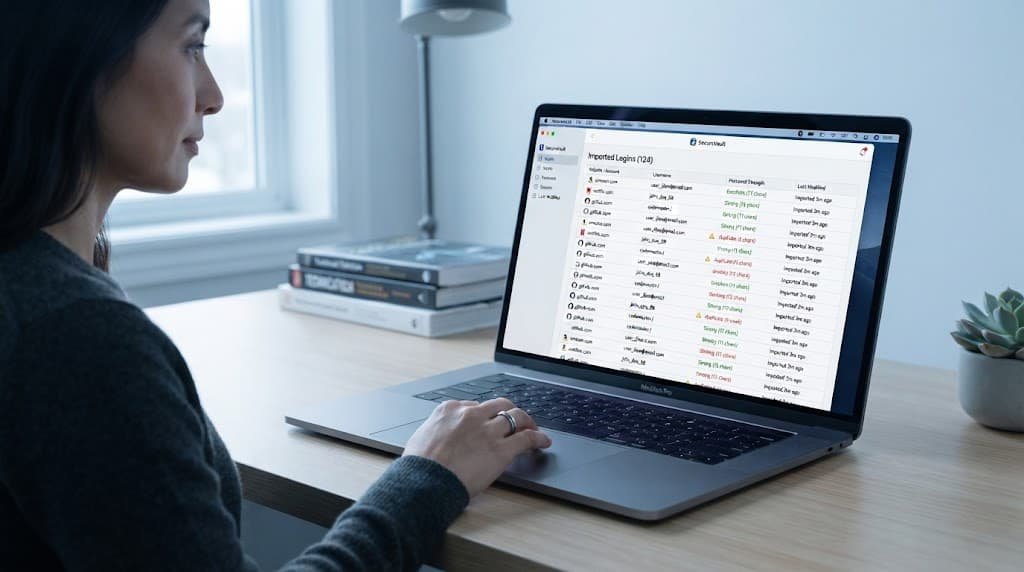
Many password managers offer an import feature that can pull saved passwords directly from your browser’s existing storage, which saves considerable manual entry time – checking whether your specific manager offers this before manually re-entering every password individually is worth doing first.
As you migrate each account, take the opportunity to replace any weak or reused password with a genuinely strong, unique one generated by the manager itself, rather than simply transferring the same old passwords into new storage – migration is the natural moment to actually improve your password hygiene, not just relocate it.
After importing from your browser, delete those same passwords from the browser’s own separate storage once you’ve confirmed they’re safely present in the manager, rather than leaving duplicate copies in both places indefinitely. Maintaining passwords in two separate locations creates a genuine risk that one copy gets updated after a password change while the other silently doesn’t, leading to confusing login failures later when the two fall out of sync with each other.
Verifying it’s actually working
Log out of the password manager completely on one device, then log back in using only your master password, confirming you can access your stored passwords without needing to fall back on anything else – this confirms the fundamental setup is genuinely functional before you rely on it daily.
Test that autofill works correctly on at least one website you use regularly, since a manager that stores passwords correctly but doesn’t integrate smoothly with your actual browsing habits often gets abandoned in practice, undermining the entire point of setting it up carefully in the first place.
Confirm that syncing genuinely works across your devices specifically, by adding or updating a password on one device and checking it appears correctly on another within a reasonable time afterward. This particular check catches a sync configuration problem genuinely early, before you’re relying on the manager daily and discover mid-login that a recently updated password hasn’t actually reached the specific device you’re currently using at that moment.
What isn’t worth doing
Using the exact same master password you use for any other single account, purely because it’s easier to remember one password across everything, isn’t worth the risk it introduces.
If that specific password is ever compromised anywhere else – through a data breach at an unrelated service, for instance – it potentially exposes your entire password manager simultaneously, which defeats the core security benefit the manager was meant to provide in the first place. The master password genuinely needs to be unique to this one purpose alone.
Writing your master password directly into a note-taking app or a plain text file stored on the same device, purely for convenience during the setup phase, is similarly not worth the risk it introduces. This effectively creates an entirely unprotected copy of the one single password that guards everything else, sitting in a location with meaningfully weaker protection than the manager itself genuinely provides.
If you’ve delayed migrating everything
If you’ve set up the manager but still have several accounts with weak or reused passwords not yet migrated, prioritise finishing the migration for any account containing financial information or serving as a password-reset pathway for other accounts, rather than treating the remaining migration as equally urgent across every account.
This partial-completion state is genuinely quite common and not something to feel behind on specifically at all – a password manager protecting your most critical accounts today is meaningfully better than continuing to use weak passwords everywhere while waiting for a perfect, complete migration before starting to benefit from the improvement at all.
Questions readers keep asking
What happens if I forget my master password?
This depends on the specific manager’s recovery options, which is why securely recording a backup copy during initial setup matters so much – some managers offer account recovery through a separate verification process, while others are specifically designed so that losing the master password with no backup means permanently losing access to stored data.
Is it safe to store banking passwords in a password manager?
Yes, generally quite safe – reputable password managers use strong encryption specifically designed to protect exactly this kind of genuinely sensitive information, and using strong, unique passwords for financial accounts through a manager is typically considerably safer than reusing a memorable but weaker password across multiple sites.
How long does it typically take to migrate all my existing passwords?
This varies considerably based on how many accounts you have, but prioritising your most critical accounts first means meaningful protection is in place within the first sitting, even if fully migrating dozens of less critical accounts takes place gradually over subsequent days or weeks.
Can I use a password manager without an internet connection?
Generally yes, genuinely, for accessing already-stored passwords, since most managers keep a local encrypted copy readily available on your device specifically for offline access. Adding new passwords, syncing changes across devices, or accessing the manager for the very first time on a new device typically does require an internet connection to complete properly.