The router’s page of connected devices hides a column most people never read: the bytes each device has sent and received. To check what is using your home internet connection at night, read that column twice: at bedtime, then in the morning. That difference becomes a ranked list of overnight usage, built from about 20 minutes of your time plus one night. The deciding question is whether your router shows those counters per device, and the guide covers both outcomes.
Picture a UK flat on an 80 Mbit/s line, with five devices left on overnight. Every figure is made up, and your own readings will differ.
Before you check what is using your home internet
Gather four items before the first reading. A phone or laptop on your Wi-Fi does the reading. The router’s admin password, which you chose at setup, opens the router’s settings. Forgotten it? Stop here, because forcing entry with a factory reset throws away your network name and its key. A notes app that stamps times keeps the figures, and a quiet night with no guests and no planned updates keeps them clean.
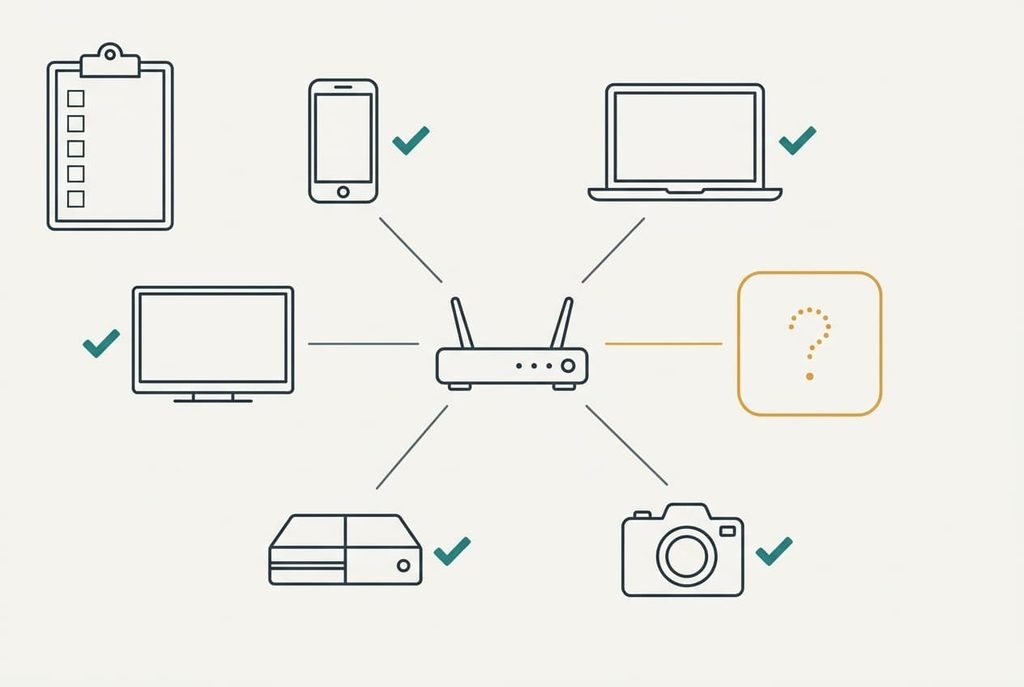
The item most people forget is a written list of every device that should be on the network. Without it, an unfamiliar entry looks suspicious and a familiar one looks innocent, and neither judgement rests on anything. Walk around the flat and note each phone and laptop. Then add the screens and any smart plugs. Our flat has five devices, and the list takes about five minutes.
A router that came from your internet provider may hide the counters. Look for the per-device figures before you give up an evening. If they don’t exist, skip ahead to the stalls section for the fallback, which needs no counters at all.
Check what is using the internet at home, step by step
1. Open the router’s connected-devices page and count the entries. You’re looking for a list of names or hardware addresses with figures beside them. Compare the count with your written list. The two should match, with perhaps one extra entry for a wired link. A mismatch is worth noting now, because it tells you which entries need identifying, and it might reveal a device you had forgotten you owned.
2. Match each entry to a device. Names often show the maker, and a hardware address is printed in the device’s own about screen. Do this before the counters matter, because an unnamed entry can’t be ranked later and a wrong match skews the whole result. It worked when every entry carries a label in your notes.
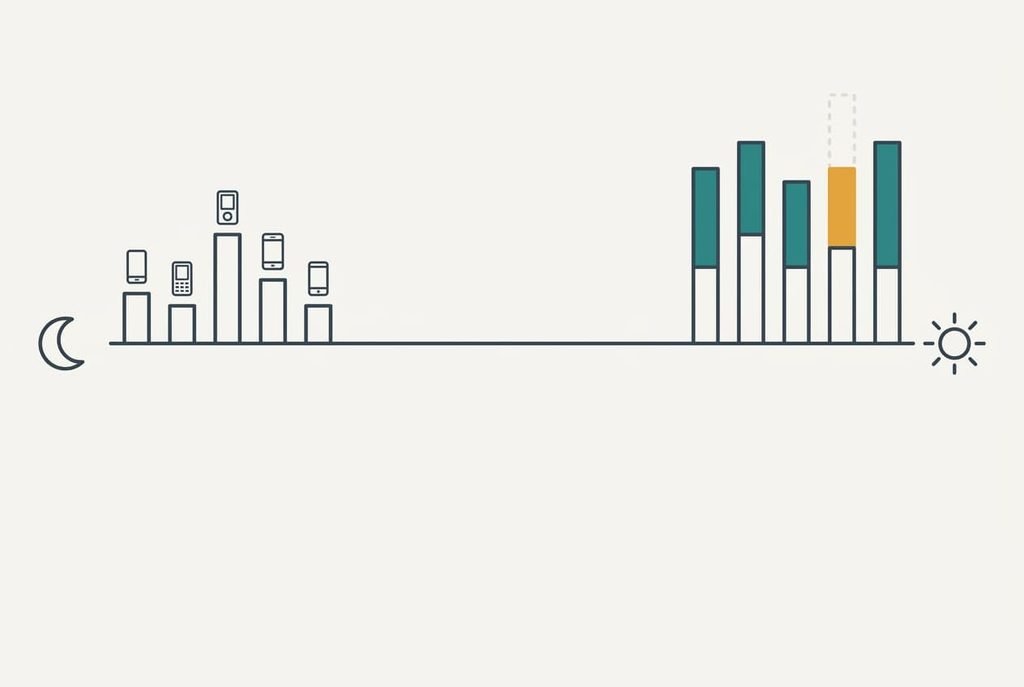
3. At bedtime, copy each device’s two counters (received and sent) into your notes with the time. Counters are running totals since the router last started, so a single reading means nothing alone. Our readings were taken at 22:30. The proof is two numbers per device on one line, with the time beside them.
4. Leave everything as it is overnight. Don’t restart the router, since that resets the totals, and don’t change any settings. The night is your measurement window. Here it lasts 8 hours, or 28,800 s. Make sure the router stays powered, and that nobody tidies the cables before you read. A quiet house gives the cleanest numbers.
5. In the morning, read the same counters. Subtract each bedtime figure from its partner. If a morning figure is smaller, the counter wrapped: some routers count in 32 bits, which tops out at 4.29 GB, so add 4.29 GB before subtracting. The TV read 3.90 GB at night and 2.00 GB in the morning, so 2.00 + 4.29 − 3.90 gives 2.4 GB.
6. Rank the differences and divide each by 8 hours for an average rate. Our console used 18.6 GB, which is 18.6 × 8 ÷ 28,800 s, or 5.2 Mbit/s all night. Mark anything over about 1 GB on a device that should be idle. Write the verdict beside the name for comparison with the second night, and keep the sheet for later.
Prove the list is right before you act
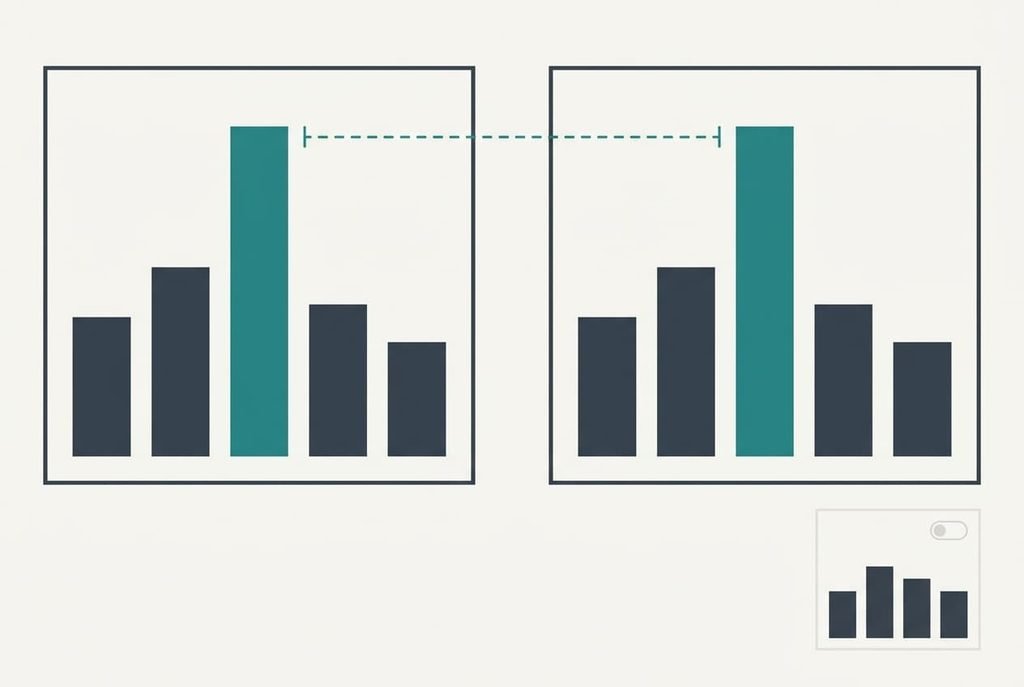
An untested ranking is only an assumption. Repeat the whole measurement on a second night, because a one-off cause won’t return and a nightly one will. A console update of 18.6 GB would arrive at line speed in about 31 minutes and then stop. It wouldn’t repeat. A background stream does repeat.
Passing means the same top device within roughly 10% of the first night’s total. A partial pass is the same device with a very different figure, which means the cause changes by night. A fail is a different leader, and then the measurement is picking up noise. To check what is using your home internet with confidence, change one thing between the nights and watch which line moves. Switch the console off on night two, and the total should fall by about its share.
A partial pass still shows you where to look next.
If a step stalls
If a morning figure is smaller than the bedtime one and the device didn’t wrap, the router restarted overnight. Its totals went back to zero, so the night is lost. Check the router’s uptime and repeat when nothing reboots it.
The night is lost, not the method.
If an entry has a strange name, the device may be using a private hardware address, which many phones switch on per network. Turn that feature off for your network, or match by the time the entry first appeared. Wired and Wi-Fi links of one laptop can also show as two entries.
If there are no per-device counters at all, take the elimination route to check what is using your home internet. With every device on, note the router’s total. Then switch devices off one by one and note the total each time. Each drop is that device’s share.
The step not worth taking
Running speed tests to see what the connection is doing feels sensible when you want to check what is using your home internet, because the line is what the whole question is about. A test is itself a download. On our 80 Mbit/s line, 15 s moves about 150 MB down and 37.5 MB up, so one test adds 187.5 MB to the very total you’re trying to read. Five tests add nearly 940 MB, which is more than the laptop used all night.
A test also runs when you choose, not when the real cause runs, so a clean result at 22:30 says nothing about 03:00. It tells you how fast the line is. It can’t tell you who is using it. Skip it until the counters have been read, and only then ask whether you need the speed. Whatever a test adds can’t be subtracted from the counters afterwards.
Take two readings. Subtract and rank them, then repeat the pair once. In our flat the console used 80% of the night’s 23.1 GB, and the second night showed whether it was a one-off update. Anything left after that is small enough to ignore. Do that, and the list will name the device within two nights. Before you block or unplug anything, finish the measurement, because acting on one night’s number is how a harmless update gets blamed for a cost it didn’t cause.
Questions readers keep asking
How long does it take to check what is using your internet?
About 20 minutes of attention: ten at bedtime to copy the counters and ten in the morning to subtract and rank. The overnight window itself needs nothing from you. A second night adds the same again, and I’d count it as part of the job, since a single night proves little.
Will resetting the router lose the readings?
Yes. A restart sends the running totals back to zero, so a morning figure smaller than the bedtime one is a warning sign. Copy your numbers before you touch the router, and don’t reset it between the two readings. If it restarts by itself, the night is lost. Start the measurement again.
What if the same device shows up twice?
That is common. A laptop on Wi-Fi and a cable can appear as two entries, and a phone using a private address can appear under a second name. Add the two lines together once you have matched them to the same device, and treat the sum as one line in your ranking.