About 25 minutes of setup turns a phone into one you can see on a map and ring at full volume, with a message waiting on its screen for whoever picks it up. The fork is how you will reach your account once the phone itself is gone, either through a laptop browser or through a second signed-in device. This guide takes the laptop route, because most households own one. To set up your phone to be findable, you prepare six small things and then test them once. Preparation matters because a loss at 18:00 can’t be fixed with settings changed at 18:05. Treat the distances and timings as samples and use your own.
What to Settle Before Setting Your Phone to Be Findable
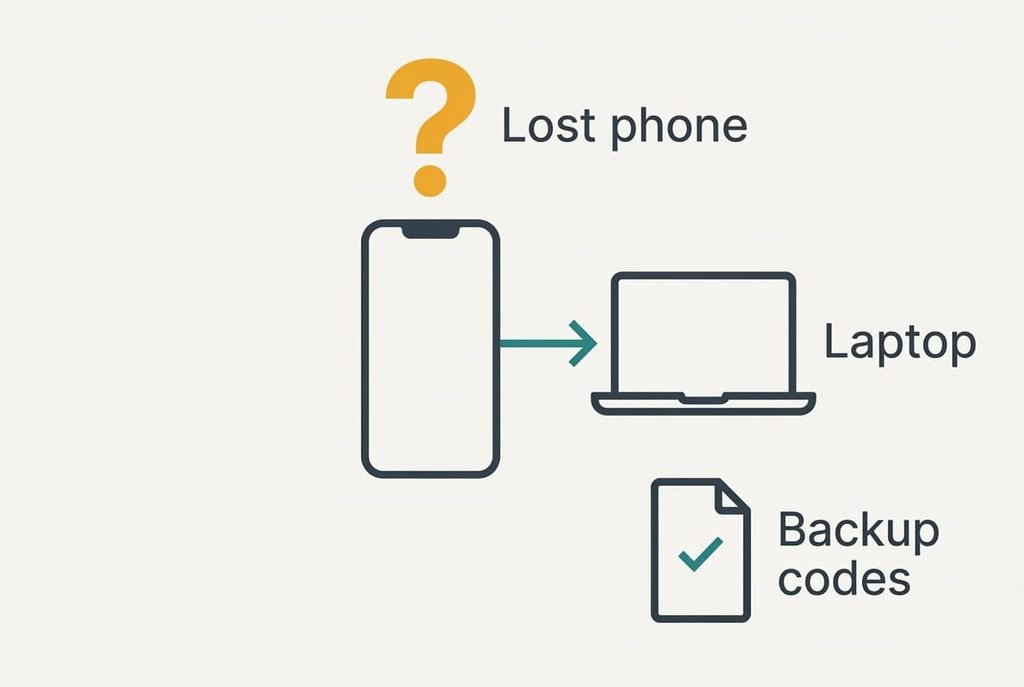
A locate feature has one weak point, and that is the sign-in. For a phone to be findable, you must reach the account from somewhere else, yet many accounts send their one-time code to the very phone you’ve lost. Settle a way in that doesn’t use the missing phone, such as printed backup codes kept safe at home or a second trusted device. Check it by signing out on the laptop and back in with a backup code alone.
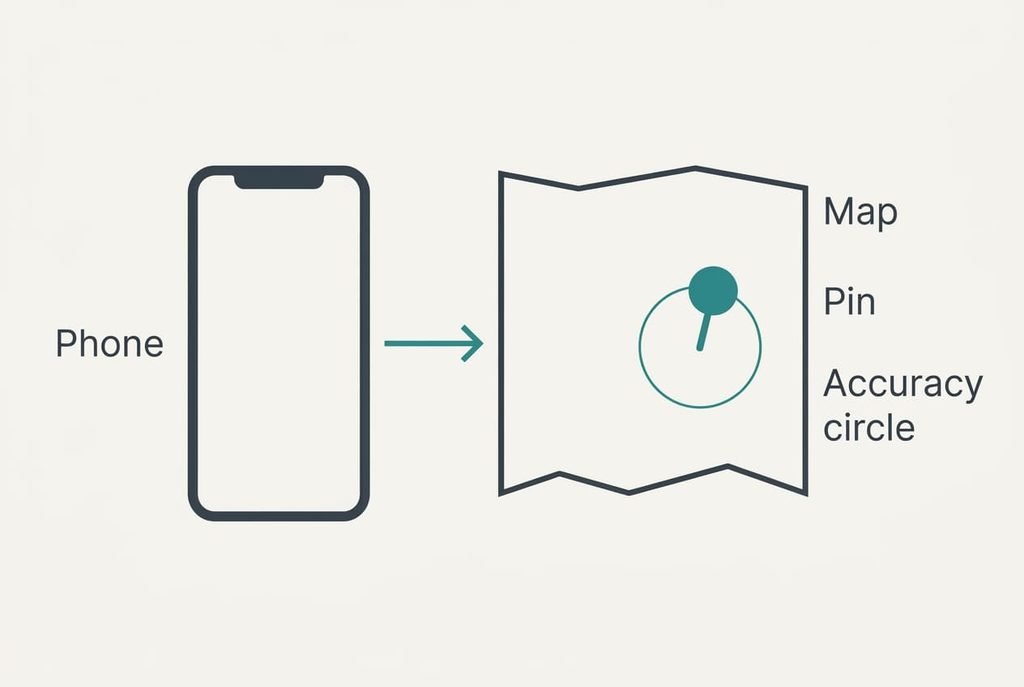
Next, learn to read a pin. Every pin carries an accuracy and an age. The accuracy is the circle around it, roughly 5 m outdoors when satellites help and about 30 m indoors when Wi-Fi does the work. The age matters more once the phone moves, because the search radius equals speed times the minutes since the fix. A bus moving at 30 km/h gets through 500 m a minute. A fix 20 minutes old therefore points anywhere within 10 km. On foot at 5 km/h, the same age gives 1.7 km. Trust a fix that is seconds old.
Six Steps to Keep Your Phone Findable
1. Look for your phone’s name in the device list on the account page, with a last-seen time under a minute. The account must know the phone exists, since nothing later works without that link. Proof: the entry shows the correct model and reads as online, and the time beside it keeps resetting when you refresh the page. If the entry is missing, sign the phone in again before you go further.
2. Look for the location permission that the locate service holds, and set it to precise and always on. Approximate sharing blurs the pin into a wide circle, perhaps 3 km across in our sample, which is too wide to find a bag on a bus. Confirm it by standing in your garden: the laptop’s pin should land within 30 m of you. A pin that sits in the next street means the permission is still set to approximate.
3. Look for the option that sends the last position when the battery runs low and switch it on. A dead phone gives no more fixes. This option stores one at the final moment, around 5% charge in our sample. The panel should say so in plain words beside the switch. If the wording is vague, read it twice. A switch that only works while charging doesn’t cover this case.
4. Look for the lock screen message field and write one short line of about 40 characters with a number that isn’t the phone’s own. A finder can read it without entering the PIN, and a call to the phone itself reaches nobody. Leave your home address out. Wake the screen and check that the line shows above the keypad, in a type size you can read at arm’s length.
5. Look for the screen lock type and choose a PIN of six digits or more. Four digits give 10,000 combinations and six give 1,000,000, a hundredfold increase that buys time for the search. Evidence: the keypad shows six dots after you wake the phone. Avoid birthdays and repeated digits, which a finder tries first.
6. Look for the loud-ring command on the web page, and find out whether it sounds while the phone is on silent. Indoors, an accuracy of 30 m can’t separate one room from the next. The ring covers the final metres. Put the phone on silent and press the command; full volume should sound within a few seconds.

Test That Your Phone Can Be Found
A setup only counts once it has passed a test, and one test covers almost everything. Switch the phone to aeroplane mode for five minutes, then look at the account page on the laptop. The page should show the phone as last seen five minutes ago and leave the pin where the phone was. That is what a real loss looks like. Read the age beside the pin before you read the pin itself.
Switch aeroplane mode off and refresh the page. The pin should update within a minute and the last-seen time should drop to seconds. If it does, a phone to be findable has passed the part that matters most. Carry the phone outside afterwards. After one more refresh, the accuracy circle should shrink towards 5 m as satellites take over.
Finish with the ring from step 6, and keep the phone within reach for it.
Where the Setup Usually Stalls
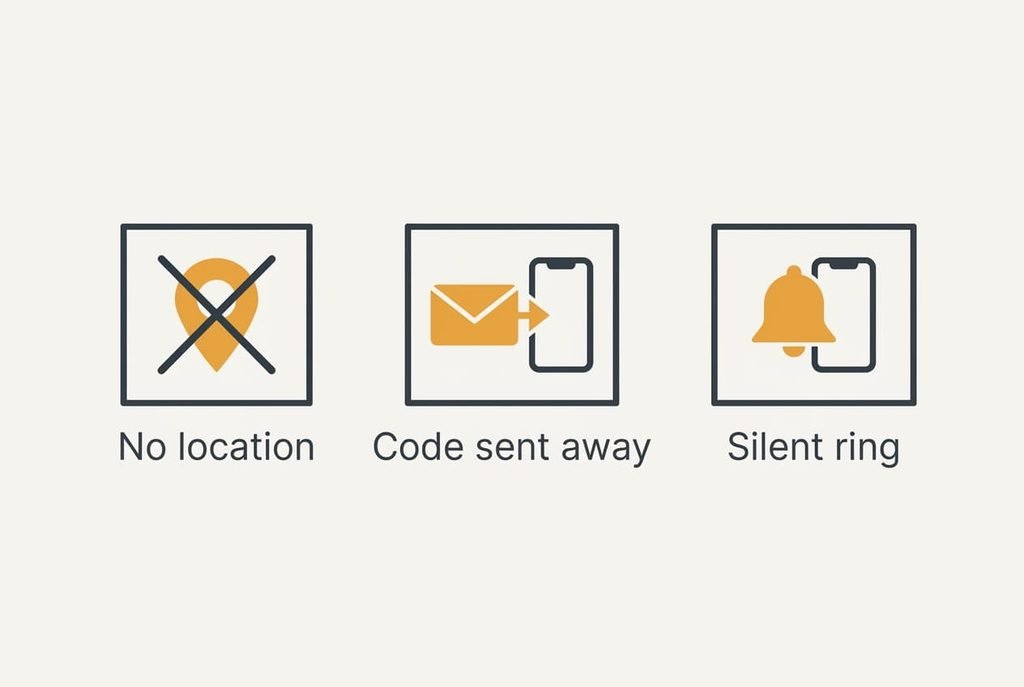
Three snags turn up often. The page may say that no location is available. A system update can reset location sharing to off, and a phone in a basement gets neither satellites nor Wi-Fi to place it. Check the permission from step 2 again, then carry the phone upstairs and wait a minute.
The account may ask for a code that was sent to the lost phone. That is the trap from the start of this guide, and it locks out anyone who skipped the backup codes.
Reach for the printed backup code at once.
The ring may stay silent. Many phones play it for only about two minutes. Sign in before you call it, and confirm that the ring-on-silent option from step 6 is on. A phone left in a coat pocket muffles the sound. Ring it twice for that reason.
The Step Not Worth Taking
Nobody needs a practice remote erase. Skip the test wipe, since an erase deletes everything on the phone, including photos you haven’t backed up, and usually ends the link to the account that you’ve just spent 25 minutes building. Rebuilding that link costs the same 25 minutes again, plus the hours a full restore can take. A phone to be findable gains nothing from a rehearsal that destroys what it protects. A real erase has a single justification, a phone confirmed in the wrong hands with sensitive accounts on it, and even then you should sign those accounts out first.
Keep the erase for the day the phone is truly gone, and treat it as a final resort that follows every ring and every message. In the meantime, the lock with its six-digit PIN guards the contents. A calm test with aeroplane mode tells you everything a wipe could, and it costs five minutes.
If the phone goes missing, sit at the laptop. Read the age of the pin before anything else. Ring it if the pin is fresh, then picture the message line a finder will see. Store the backup codes where you can reach them without the phone, and repeat the whole list once a year, since a system update can quietly undo a setting. Add a calendar reminder for that check, and tell one other person where the codes live.
Questions Readers Keep Asking
How long does the setup take?
Roughly 25 minutes in total: that covers the six steps plus the test, at about four minutes each. The slowest part is finding the backup codes, and the quickest is the lock screen line. Work through it in a single sitting, near your laptop, with the phone charged above half.
What do I lose if I erase a lost phone remotely?
Everything stored only on the phone, including photos that never reached a backup. Erasing also tends to end the link to the locate feature, which freezes the pin. Back up weekly, and you’ll lose very little if you must erase.
Does the same setup work for a tablet or a child’s phone?
Mostly, yes. A tablet follows the same six steps, though without a mobile signal it only reports when it joins Wi-Fi. A child’s phone adds a parent’s account on the laptop. Settle that sign-in first, and keep the backup codes with the parent.