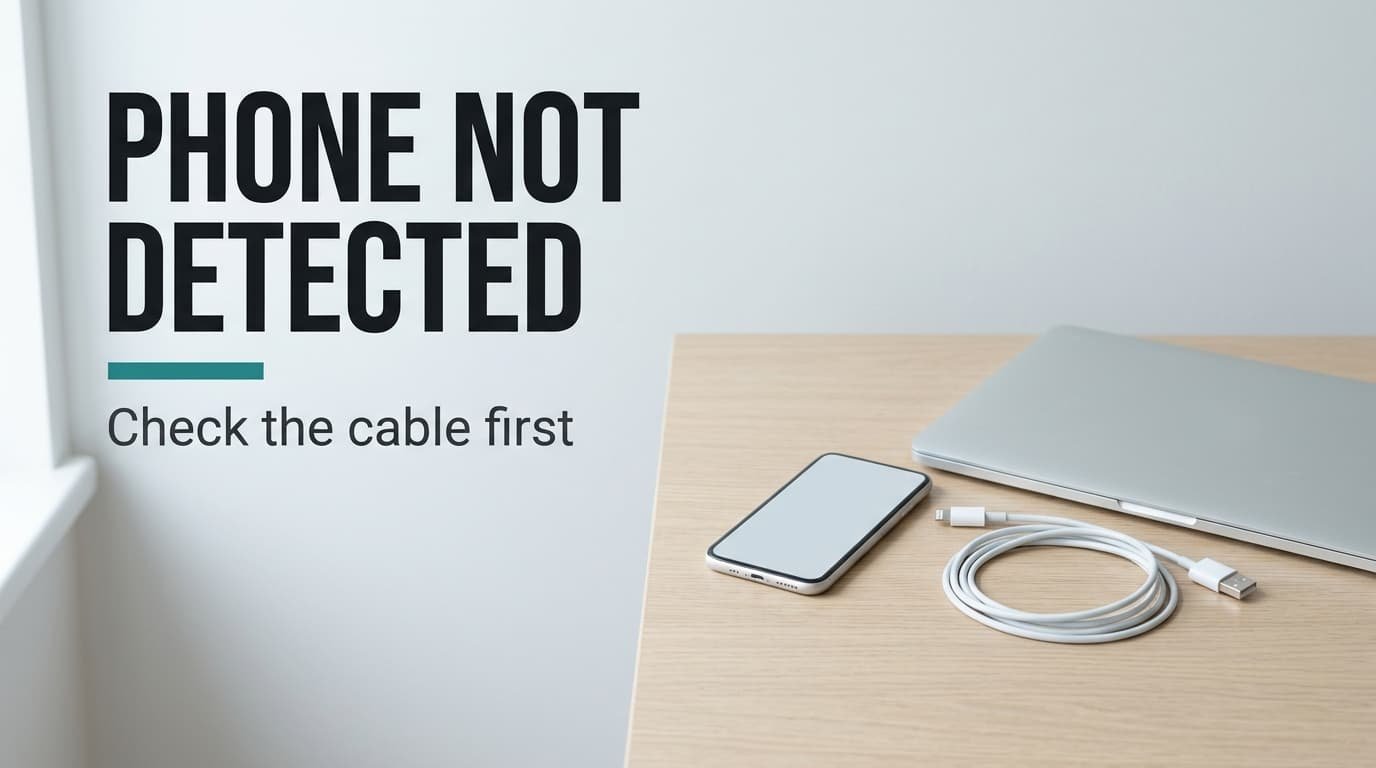
When a computer won’t recognise a phone when you plug it in, the cable most often turns out to have no data wires in it, and a data-carrying cable cures the problem immediately. Test that cause before you suspect the computer or the phone, because three other faults look identical on the screen. Our test home is a UK flat: a laptop with two USB sockets and a drawer of six cables. All figures here are round numbers picked to show the method, and your drawer will give different counts. None of the checks needs special tools, and the whole sequence takes about 20 minutes.
Why a Computer Won’t Recognise a Phone When You Plug It In
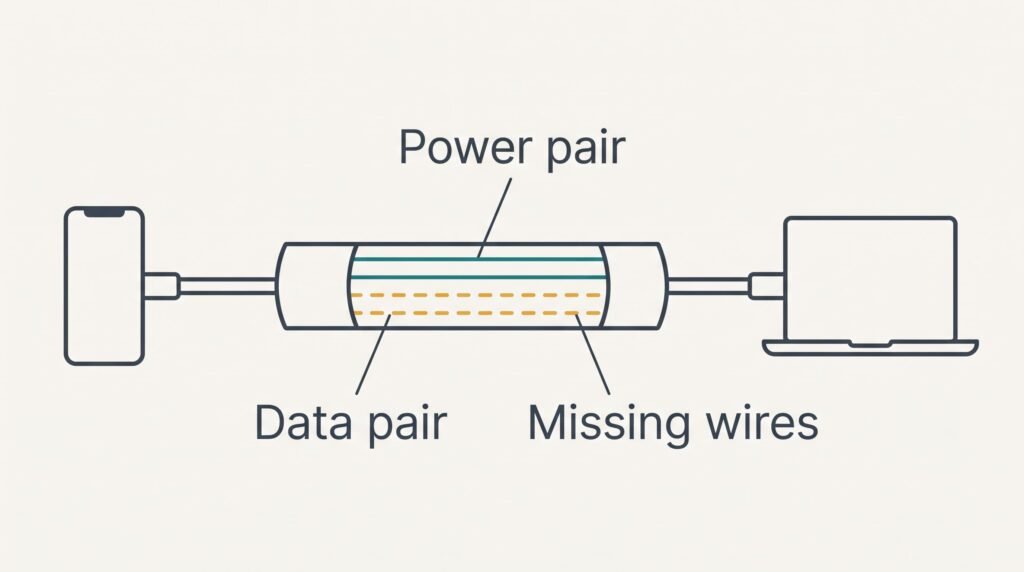
A basic USB cable holds four thin wires. Two carry power and the other two carry data. A phone that only needs charging uses just the power pair. It therefore charges happily through a cable that has no data wires at all. The computer can’t see the phone until the phone announces itself, and that announcement travels along the data pair.
A cable can charge fully and still carry no data. That is why a rising battery icon proves nothing about the connection. Cheap cables are often built this way to save material, and they look exactly like the ones that work.
A second gate sits on the phone. Most phones begin every new connection in a charging-only mode, and they wait for you to approve file access on their own screen. Until you do, the phone stays hidden even when the cable is sound.
The computer therefore needs the data wires, a plug that sits fully in its socket and your approval, all at once. Remove one of these and the phone vanishes from view.
The charging icon confirms only the first link in that chain.
Four Tests When a Computer Can’t Recognise a Phone You Plug In
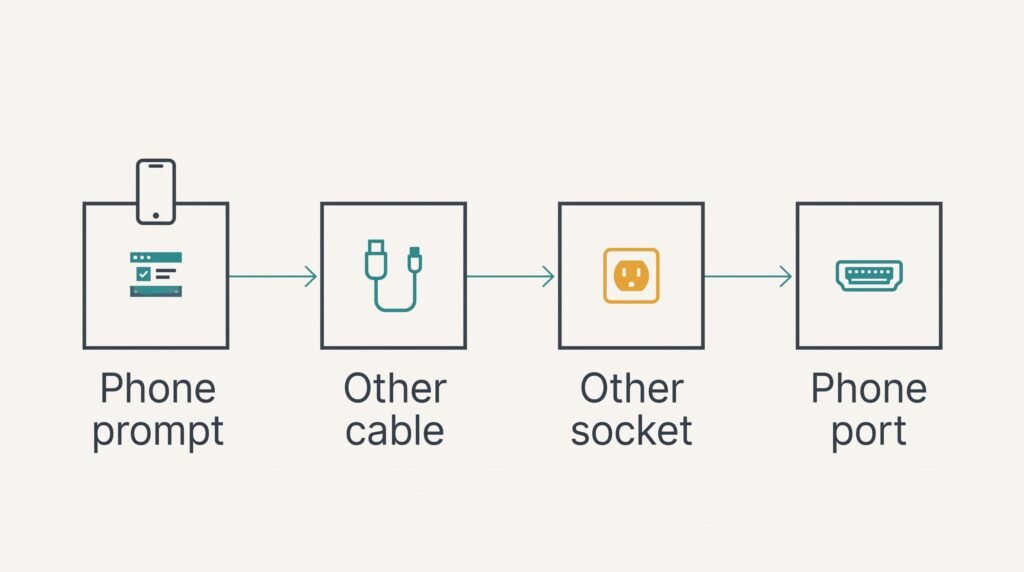
Take the tests below in sequence if a computer won’t recognise a phone when you plug it in, jotting each outcome beside the cable you used.
First look at the phone’s screen with the cable in. A prompt asking what the connection is for usually means the data wires work and the plug is seated. The cause is then the approval, which the second fix below covers. No prompt means you should move to the next test.
Next try each cable from the drawer with the same phone in the same socket, allowing half a minute per cable. If one cable makes the phone appear, the cable was the cause and the others lack data wires. If none does, either the cable isn’t the fault or all six are charge-only, which is rare.
Then move the working cable to the laptop’s other socket. A phone that appears there points to a faulty first socket.
Finally, shine a torch into the phone’s own port. Packed lint holds the plug a little loose, and a loose plug can still charge while the data wires lose contact.

The Four Fixes, in Order
A computer that fails to recognise a phone when you plug it in is irritating. Work through the fixes below patiently. Vary only one factor per attempt and test straight afterwards, which shows you what worked and lets you skip the rest next time.
Use another cable and another socket, which costs nothing. It addresses the missing data wires and the dead socket. Suppose two of the six cables in our drawer carry power only. The first cable you pick then carries data 4 times in 6, which is 67%, and a second try raises your odds further. Swapping a cable takes about half a minute. The whole drawer therefore costs three minutes. The loss is convenience, because the cable that works may be too short for the desk.
Approve file access on the phone, which is a setting. It addresses the charging-only mode. The phone drops back to that mode when you unplug it. You’ll repeat the approval on every new connection. The prompt tends to appear within ten seconds of plugging in. If you miss it for a minute it may vanish, and unplugging the cable brings it back. Nothing is lost by approving, because the approval lasts only until you unplug. Some phones show the prompt as a notification across the upper part of the screen instead of a pop-up. Look there too.
Clean the phone’s port, which takes about ten minutes. It addresses the lint that holds the plug loose. Use a wooden toothpick with short, gentle scrapes along the walls of the port. A metal pin can scratch the contacts, and then you’ve traded a small problem for a bigger one. Keep to wood or plastic, and check the port with the torch again afterwards.
Buy a cable that states it carries data, which costs money and comes last. It addresses the cable cause for good when nothing in the drawer works. Look for the word data in the listing and label the new cable at once, because it looks identical to the charge-only kind. What you lose is a small sum, and the drawer gains one more cable to sort. A length of about a metre suits most desks.
If None of That Worked
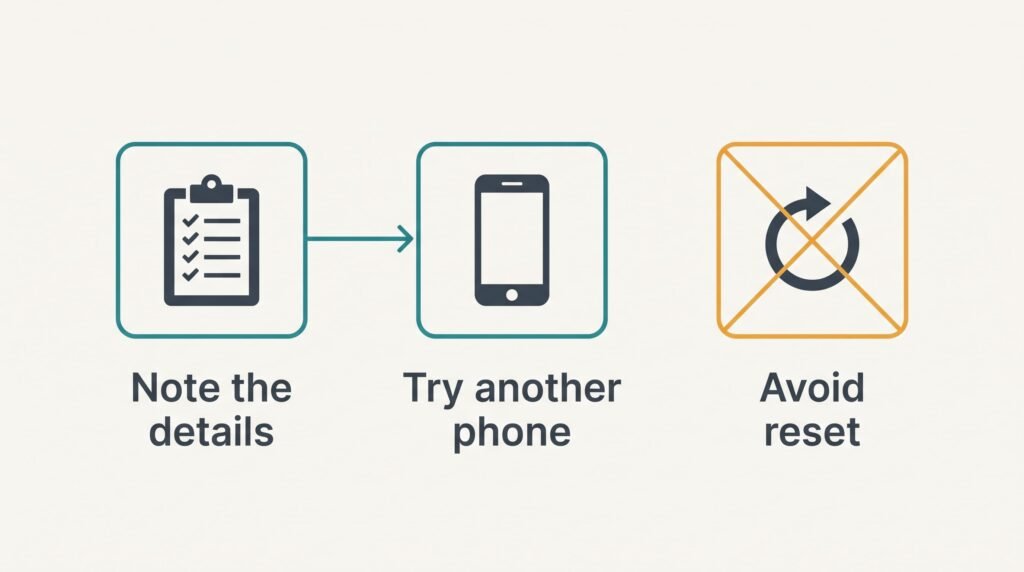
If the computer still fails to recognise a phone when you plug it in after all that, collect the facts before doing anything drastic. Note which cable and which socket you used, whether a prompt ever appeared, and whether another phone shows up on the same computer. That final comparison shows fastest which side is faulty. A second phone that appears points at your own phone, while one that fails points at the computer.
Look in the computer’s file manager as well as at the desktop, because a phone can be listed there without any pop-up. Contact the maker’s support only after those notes are written down, since they will ask for them. A short list also saves you a second call.
Leave the factory reset alone. It erases the photos you were trying to copy, and it can’t create a data wire that was never in the cable.
The Fix That Isn’t Worth Doing
Hunting for a driver on a download site is the remedy that feels technical and achieves least. A phone talks to a computer through standard software that is already built into the system. A downloaded package therefore rarely helps, and it can bring unwanted programs along while leaving the missing data wires exactly where they were.
Plugging in again and again fares no better, however many times you wiggle the plug or change the angle. Each attempt tests the same cable in the same socket with the same missing approval. The result can’t change.
Replacing the wall charger is another tempting move. A charger supplies power and nothing else. A new one can’t create a data connection that the cable never had, and the old one is rarely at fault. Neither move touches the real cause.
Four causes cover nearly every case. Two live in the cable and the phone’s mode, and the other two live in the ports. Work through the four tests in that order and you’ll have a cause within ten minutes. Whichever test gives a different result points you to the matching fix, and the remaining fixes can wait. Write the finding on the cable’s label so the drawer stays sorted.
Questions Readers Keep Asking
Can I fix a phone the computer can’t see at home?
Usually yes. A different cable and another socket come first. The approval prompt and a gentle clean of the port solve most of the rest. Take them in turn and record each result. You rarely need a repair shop, and nothing here needs tools beyond a torch and a wooden toothpick.
What is the most common cause?
A cable that carries power only. It charges the phone and looks sound, yet it has no data wires. Try every cable you own, and check the phone for an approval prompt each time. Together the cable and the prompt explain most of the cases that people report.
How do I know the hardware is failing?
Suspect the phone’s port when it charges only if the cable is held at an angle, or when a spare cable feels loose in it. Suspect a computer socket when no phone appears there but every phone appears elsewhere. Stop and seek repair if a port feels hot.