After a one-off setup, you can move files between a phone and your laptop across your home Wi-Fi with no cable and no outside account. Everything uses the Wi-Fi you already have, and nothing leaves your home network. Allow about 20 minutes on the first run, then under one minute afterwards. The fork is simple: if your router keeps devices apart, the method can’t work on that network, and step five shows it when the folder fails to appear. Our folder of photos and documents is an invented 1.2 GB. Phones and laptops offer the same few controls under different labels. No program is named, and the guide follows one path only.
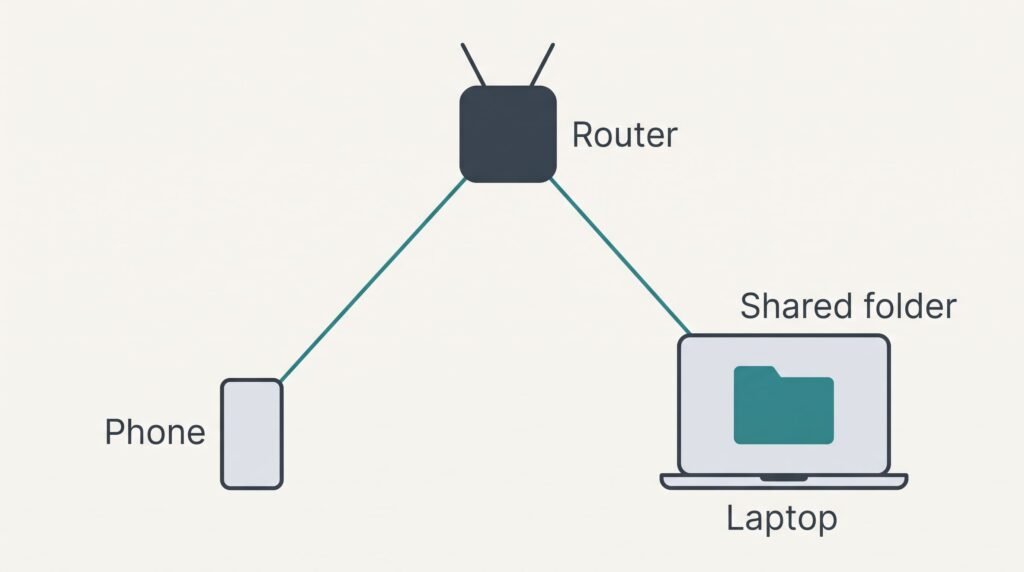
Before You Move Files Between a Phone and Your Laptop
Three things need settling. The laptop must have an account protected by a password, because the shared folder will ask for it. The receiving device needs at least 1.2 GB free, with a margin on top. Keep both devices charged, since a transfer that stops halfway leaves a half-written file behind.
What people skip is whether the router lets the two devices see each other. Many routers keep guest networks apart on purpose, and some keep every device apart. If yours does, the folder never appears on the phone, however carefully you follow the rest. Step one avoids the usual cause, which is a guest network. Step five proves whether the router allows the connection. Stop there if the folder doesn’t appear.
Know the cost of a transfer. Our link delivers 100 Mbit/s for real files. At that rate 1.2 GB, which is 9,600 Mbit, takes 9,600 ÷ 100 = 96 s. Three rooms from the router the speed falls to 30 Mbit/s, and the same folder needs 320 s.
Write down the laptop’s account name before you begin, because step three asks for it.
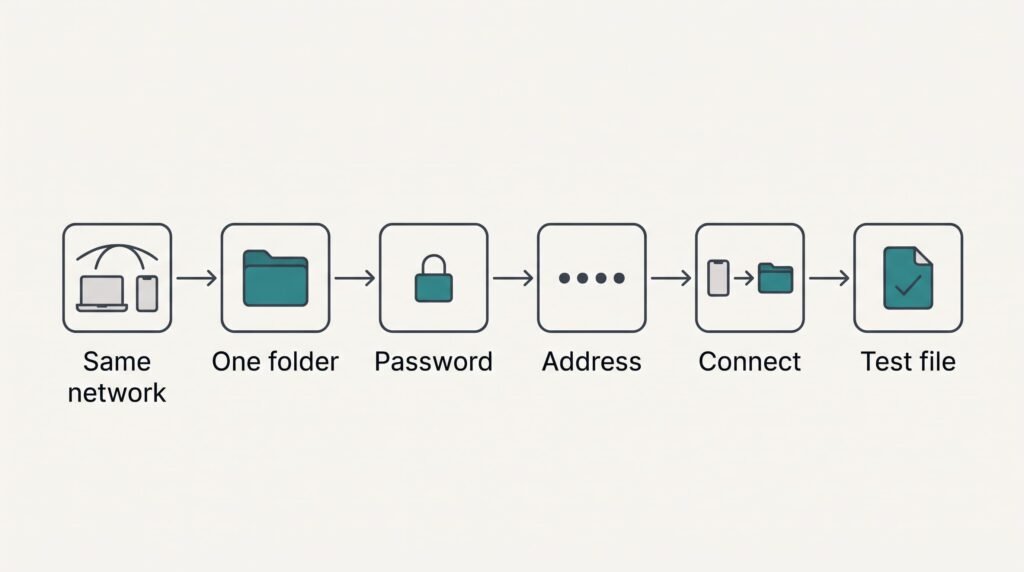
Six Steps to Set Up a Shared Folder on Your Home Network
1. Join both devices to the same network name. Look at the name on each screen and check that it matches exactly, including any ending that marks a second band. Sharing only works between devices on one network. Avoid any network labelled guest, because those usually keep devices apart. Compare the two addresses in each device’s network details: their first three groups of digits should agree, as in 192.168.0.24 and 192.168.0.51. If they differ, the pair sit on separate networks and nothing later will work.
2. Make one new folder on the laptop for transfers, and keep everything else out of it. Look for the sharing option on that folder rather than on a drive. A share on the whole drive would expose every file you own to anyone who learns the password. The laptop should now list the folder as shared and name only your account as allowed.
3. Attach your laptop account and its password to the share. Look at the access list and confirm that it asks for a name and password. A share open to everyone lets any device on the network read and change the folder. The check is simple: a second device should be asked to sign in before it sees anything.
4. Read the laptop’s address from its network details. The numeric address, four groups of digits, is steadier than the laptop’s name, because phones often fail to resolve names. You’ll know it’s right when you can write the address and the folder name on one line, ready for the phone.
5. Switch to the phone and look for the files app’s entry for connecting to a server or a network location. Enter the laptop’s address and the folder name, then sign in with the laptop account. The phone treats the laptop as a remote shelf, which is why it needs both. The shared folder should open and show an empty list.
6. Copy a test file of about 5 MB from the phone into the folder, then look on the laptop. At 100 Mbit/s the copy takes 40 ÷ 100 = 0.4 s. The file should appear with the same size on both devices. Anything slower than a second or two points to weak signal. Once the copy lands, you’ve started to move files between a phone and your laptop without a cable.
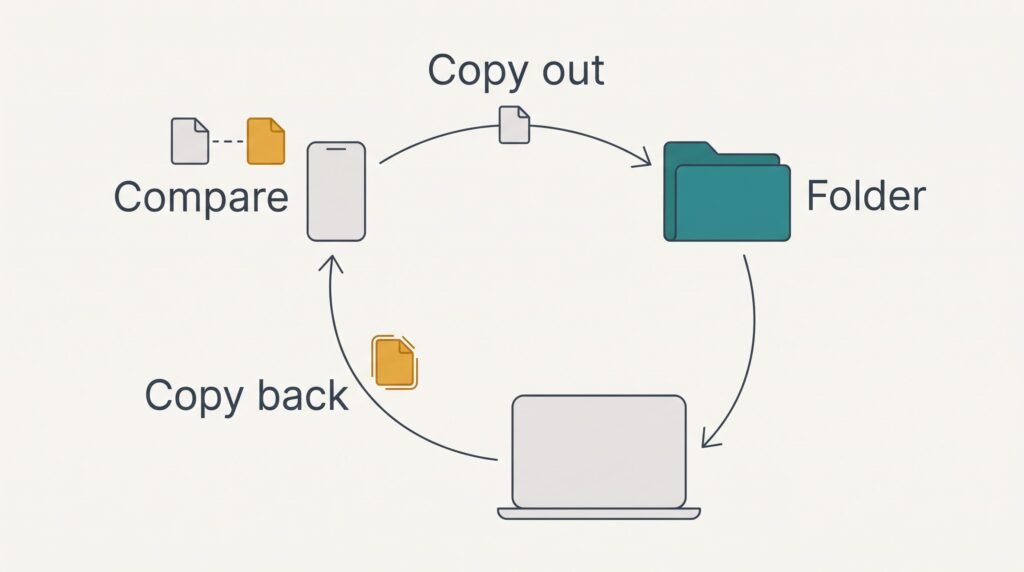
Test Files Between a Phone and Your Laptop Before You Rely on Them
Run one test: copy a photo to the laptop, copy it back under a new name, then compare the two sizes. The sizes must match to the byte. Open both on the phone, and both should show the same picture.
The new name matters. A file that shares a name with one already in the folder replaces it without asking, and the original is gone. Check the speed as well. The 5 MB test should finish in about a second. A copy that drags to ten seconds means weak signal or a distant router.
When a copy fails, change a single setting. Then repeat it. Pass the test once and you can send the whole 1.2 GB folder without watching it. Save the folder name and address in your phone’s notes so the next session starts at step five.
Where the Setup Stalls and How to Restart It
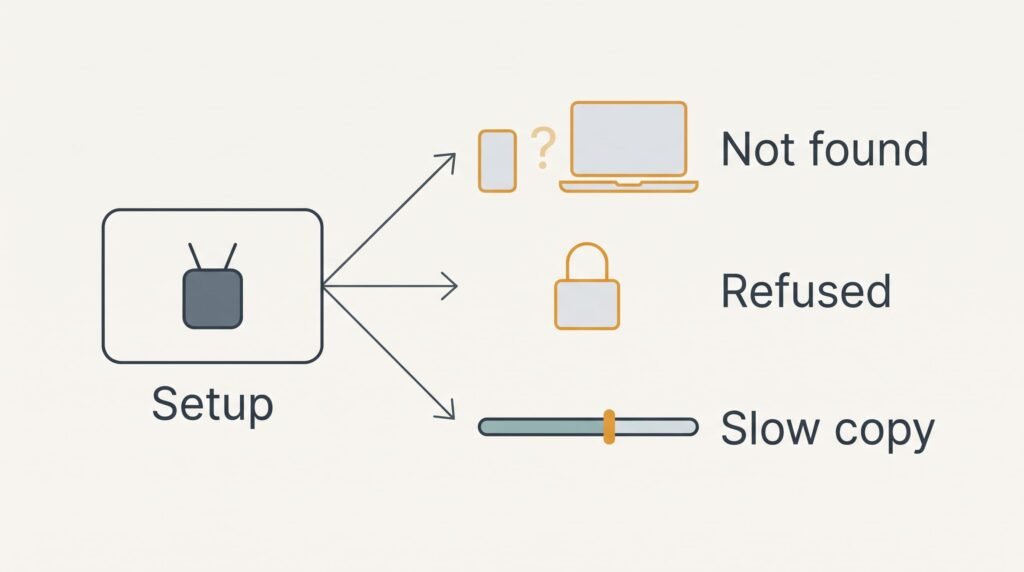
A phone that shows no laptop is the commonest snag when you move files between a phone and your laptop for the first time. The laptop’s network is probably marked as public, which blocks sharing. Change it to private and retry step five. If nothing appears, the router is isolating devices, and this method won’t work on that network.
The password is refused. The laptop wants its account name together with the password, and the phone often asks for them in separate boxes. Retype both slowly. A password with an unusual symbol sometimes arrives mangled. Try a short test password on a throwaway account if the refusals continue.
The copy crawls. At 30 Mbit/s that 1.2 GB folder needs 320 s instead of 96 s. Move closer to the router before you cancel, because cancelling mid-file leaves a broken copy that you must delete.
A Step Not Worth Taking
Skip removing the password to save typing. A share without a password is open to every device on your Wi-Fi, including a visitor’s phone and a smart speaker. You’d save about ten seconds a session and expose the whole folder. That is a poor trade even in a flat where you trust everyone, because devices join networks without being asked. A last tempting shortcut is sharing the whole laptop drive just once. Drives hold tax papers. They also hold saved passwords and old backups, and one share exposes all of it. Make a transfer folder instead, and empty it after each session.
Zipping the photos first gains little, since photos are already compressed when they’re saved, and the zip adds a step at each end for a saving of a few percent.
Renaming every file before the transfer is wasted effort too. The transfer keeps names as they are, and you can rename on the laptop afterwards in a single pass.
Keep the order in your head: network, folder, password, address, phone. Each stage proves itself before the next begins, and that’s why the chain can be trusted. When one stage misbehaves, you’ll know exactly where to look instead of retrying everything. Once it works, you can move files between a phone and your laptop in a minute, because the setup stays in place for months. A cable stays useful for one huge archive. Everyday photos and documents are faster through the saved location.
Questions Readers Keep Asking
How long does the first setup take?
About 20 minutes for most people, mostly spent finding the laptop’s sharing option and the phone’s server entry. After that, each session takes under a minute: open the saved location. Drag the files across, then wait. A 1.2 GB folder adds about 96 seconds of copying.
Could a copy overwrite one of my files?
Yes, if a file with the same name already sits in the destination. The copy replaces it without asking, and the older version can’t be recovered from the folder. Copy to a new name or a fresh sub-folder, and compare sizes on both sides before you delete anything.
What if my phone and laptop use different Wi-Fi networks?
They won’t see each other. Put both on one network, or let the phone share its own connection and join the laptop to it. Copies between the two devices then stay between them and don’t use your mobile data allowance, though the speed varies with the phone.