Scanning at the highest setting doesn’t make an old print sharper, and it can bury you in files. You end with one sharp digital master per print. A flatbed handles 100 prints of 10 × 15 cm in about 75 minutes. That fits one evening, or two if you stop to admire them. The only fork is what you’ll use the scans for: choose 300 dots per inch for screens or 600 for enlargements. The timings and file sizes here are assumptions for a typical UK home flatbed, so time a single scan on your own scanner first. Every print is assumed to be flat and unmounted.
Before you scan old paper photos: the check people skip
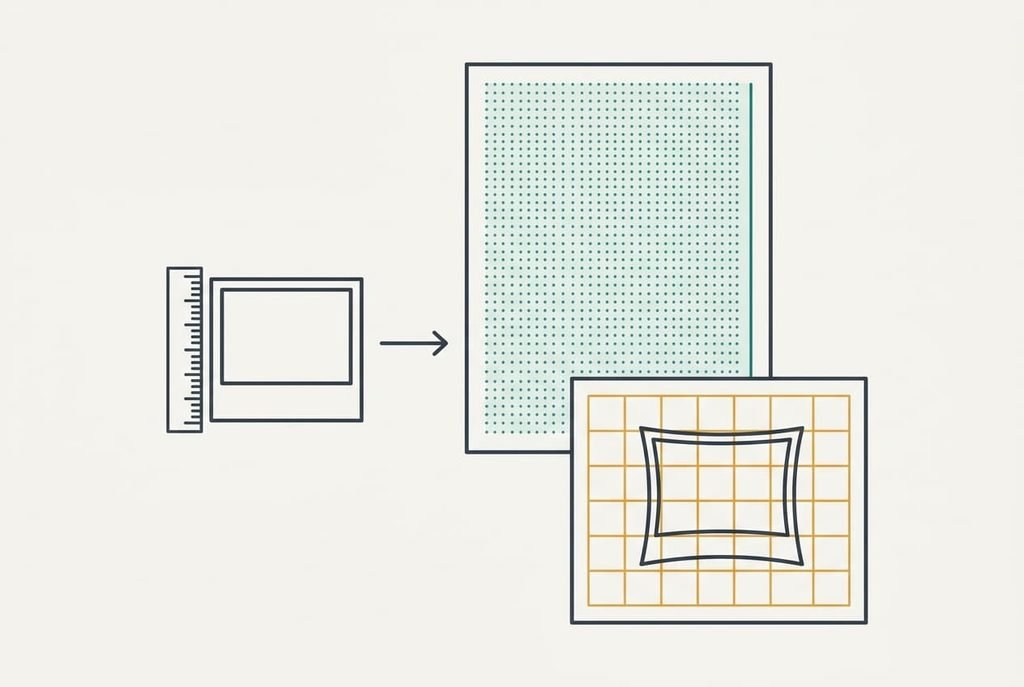
Most people skip deciding the largest size they’ll ever print or view, though the whole resolution choice follows from it. Make that call before you touch the glass. A 10 × 15 cm print measures 3.94 × 5.91 inches, and every figure below grows from those two numbers.
Say the biggest use is an A4 enlargement of 21 × 29.7 cm at 300 dots per inch. The page needs 2,480 × 3,508 pixels. Divide 2,480 by the print’s short side of 3.94 inches and you get 630 dots per inch, so 600 is the nearest sensible setting. It delivers 2,362 × 3,543 pixels, which prints at about 286 dots per inch.
Choose 300 instead and the same print gives 1,181 × 1,772 pixels. Stretched to A4 that’s only 143 dots per inch, and the softness shows from arm’s length.
If the biggest use is a laptop screen, 300 is plenty. Its 1,772-pixel long side already beats the height of a full-HD display.
A wrong guess here costs a second pass through every print.
Six steps to scan your old prints and photos
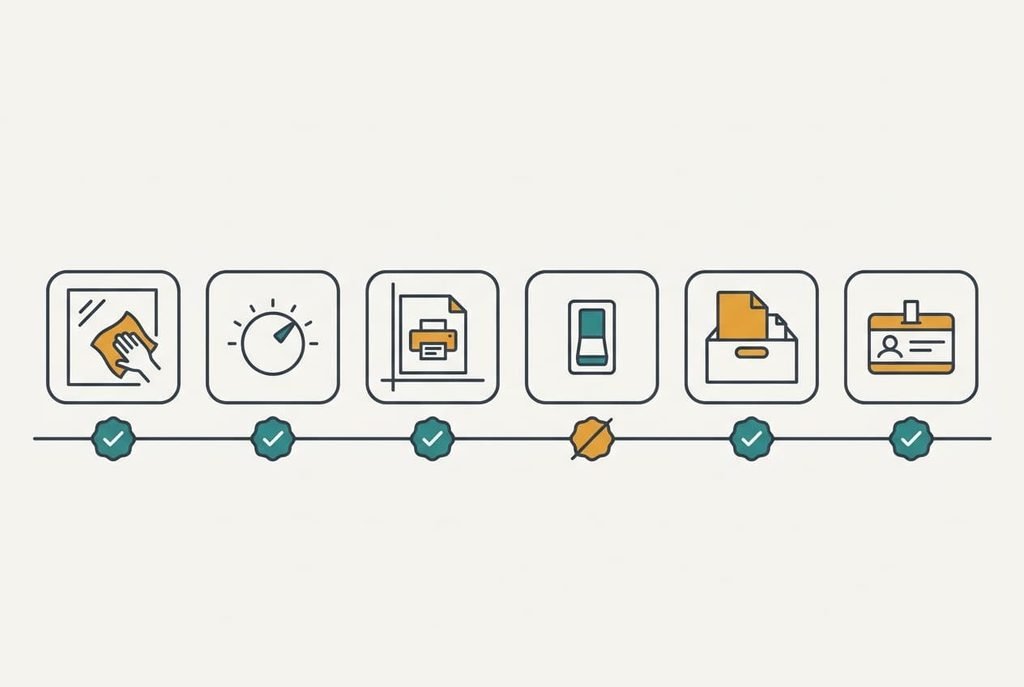
1. Clean the glass and the print before either touches the platen. Wipe both with a dry soft cloth. Never use a liquid, since moisture can lift the picture surface and that harm can’t be reversed. Look for lint by shining a torch across the glass at a low angle, because every speck you can see becomes a mark on every scan. The check: the glass shows no glints from the side, and the print’s face shows no grit when tilted.
2. Set the resolution from your decision, which means 600 for enlargements and 300 for screens. Going higher only adds data, since the print’s own grain sets the limit on detail. Leave the colour depth at its full setting, because the extra shades cost little space and help later corrections. The check: the scanner reports 2,362 × 3,543 pixels for a 10 × 15 cm print at 600.
3. Lay the print against the corner guide with the picture facing down. A crooked print costs you a crop later, which throws away edge pixels you paid for with scan time. The guide also keeps every print in the same spot, so the batch comes out consistent. The check: in the preview frame, the print’s edges run parallel to the frame lines, and a thin border of glass shows on every side.
4. Turn off any automatic colour or dust fixing. Automatic fixes bake a colour shift into the file, and you can’t undo it because the original data is gone. The check: the preview looks a little flat beside the print, and that flatness is what a clean master looks like.
5. Scan and save a lossless master first. Use TIFF, or PNG if the scanner has it. The cost is size: a 600 dpi master of one 10 × 15 cm print runs to about 25 MB, from 2,362 × 3,543 × 3 bytes. Make smaller JPEG copies afterwards for sharing and leave the master untouched. The check: each print ends up with a large master file and a small copy file.
6. Name the master by year and place, such as 1987 Brighton pier, then open it at full size. A name with the year first sorts itself into order. Scan the back only when there’s writing on it, which doubles the files for those prints. The check: you can find any print by name within ten seconds, without opening a single file.
Test the finished scan before you trust it
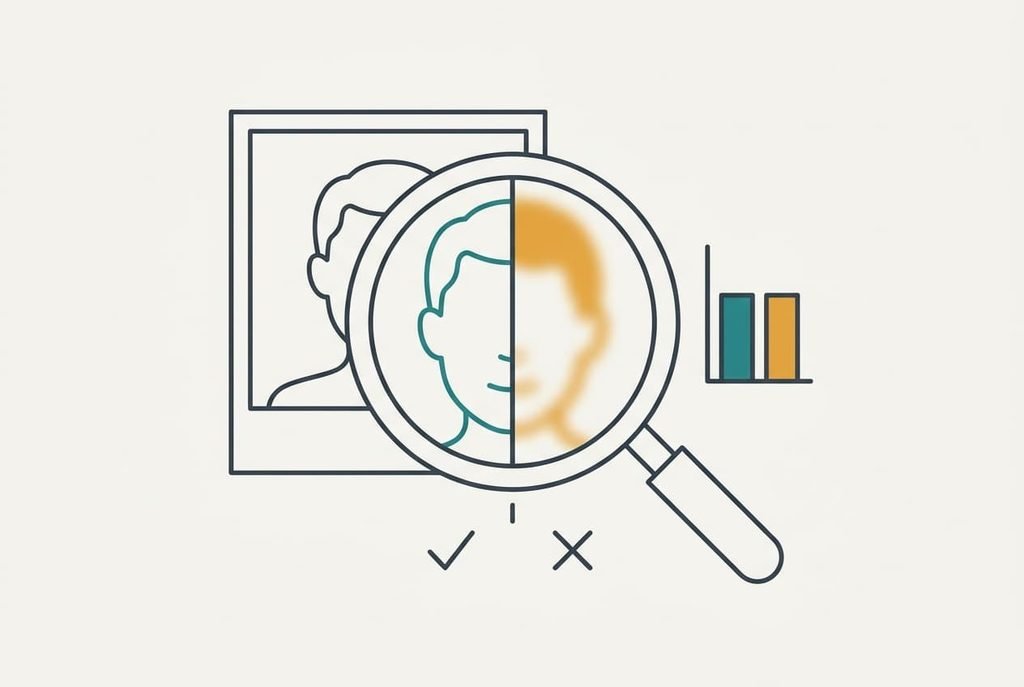
Run the test while the print is still on the desk, because afterwards a bad scan means pulling everything out of the album again. The test that matters is to zoom to 100% on a face or a printed word and check that the edge detail is crisp, and not whether the file is large. Size says nothing about sharpness, while edge detail says nearly everything.
Hold the print beside the screen. The colours should match within a shade, the whole picture should sit inside the frame, and the corners should look square. A soft face at 100% means the print itself was soft or the glass was dirty. A bigger scan won’t cure either problem.
Anyone who wants to scan old paper photos once and not twice should run this check on the first three prints before starting the stack. Three good tests cost five minutes. A bad batch of 100 costs the whole 75.
Where the job usually stalls
A print stuck to an album page is the commonest stall. Wondering how to scan old paper photos that cling to the page? Don’t try to free them. Peeling can tear the surface, so scan the whole page and crop afterwards. The page costs you some extra pixels, but you keep the print.
A scan with a straight line down it is the second. Turn the print through 90 degrees and scan again. A line that stays put on the screen belongs to the glass, so clean it. A line that turns with the print belongs to a scratch on the print, which no setting will remove.
Washed-out or pink colour is the third. Faded dyes cause it, and an automatic fix you forgot to switch off can do it too, so check the setting first. A faded print stays faded until you correct the master later.
The fixing can wait.
The step that isn’t worth taking
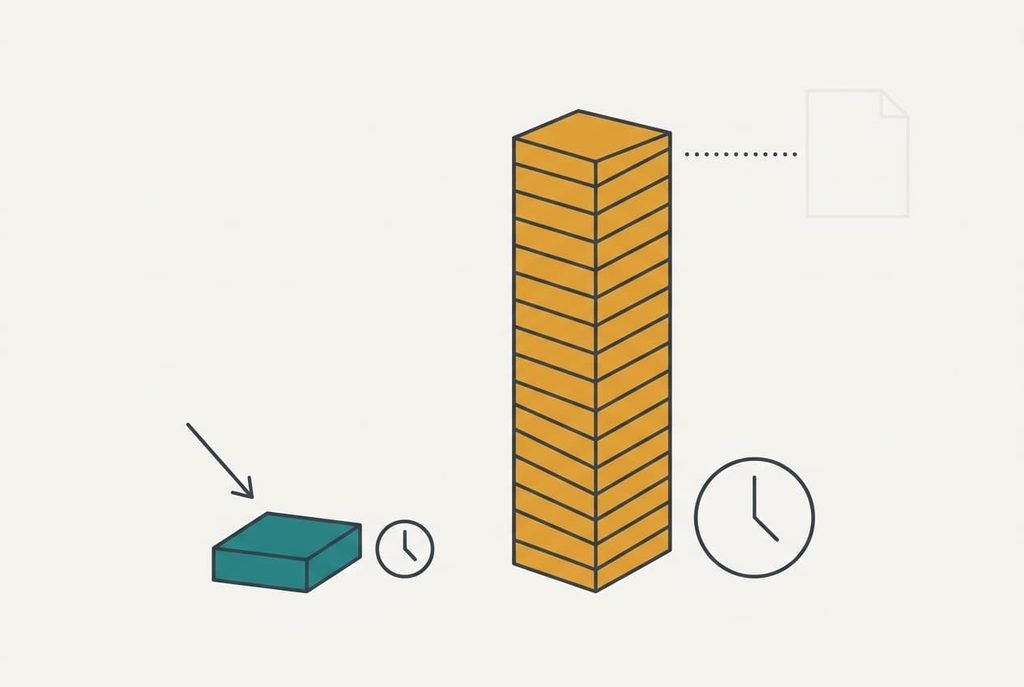
Scanning at 2,400 dots per inch sounds like the careful option, yet it adds nothing the print holds. A 10 × 15 cm print at that setting produces 9,449 × 14,173 pixels, roughly 134 megapixels, in a master of about 400 MB. Multiply by 100 prints and you need 40 GB for detail that was never on the paper.
The scan also takes longer, and the file opens slowly afterwards. Assume each pass lasts 4 minutes instead of 25 seconds. Then 100 prints take 7.2 hours and not 75 minutes, which is nearly six extra hours of watching a progress bar. Every speck of dust on the glass also spans four times as many pixels as it does at 600, so cleaning matters four times as much. Any sharper look on screen comes from enlargement alone, and you can enlarge the 600 dpi master later if you ever need to.
Keep the setting where your decision put it. How to scan old paper photos well comes down to fixing the size first, then the setting, then the first scan, in that order. Follow it and you’ll waste no space and lose no detail. Start with the three test prints tonight, check them at 100%, and only then open the shoebox properly. The decision takes two minutes. The test takes five. Label the box with the setting you used, so nobody repeats the sums later.
Questions readers keep asking
How long does a whole shoebox take?
About 75 minutes for 100 prints at the assumed 45 seconds each, which is 25 seconds of scanning plus 20 of handling. A shoebox of 400 prints takes five hours. Split it across several evenings, and you’ll make fewer mistakes than in one long sitting.
Will scanning damage the original print?
A flatbed light is gentle, but handling is what hurts. Hold prints by the edges and keep the glass clean so you don’t rub grit across the surface. Delete nothing until you’ve checked the master at 100%, because the print is still your only backup.
Can I use my phone camera instead of a flatbed?
Yes, but the result is softer and less even. Shoot straight above the print in daylight with no shadow across it, and expect about 8 megapixels of useful detail. It suits a quick catalogue of prints and falls short for enlargements.