You saved the page, and now you can’t find it. Imogen, a bookkeeper in Leeds, has 412 bookmarks in one flat list, and here is how to sort hundreds of bookmarks into eight folders of 25 or fewer, so any page turns up from one typed word. The job takes just over an hour, and nothing gets deleted along the way. One fork decides the route: file all 412, or file only the 150 she still uses and park the rest in an archive. We take the second, because eight folders of 25 hold 200 pages at most, and 412 will never fit.
Before You Sort Hundreds of Bookmarks
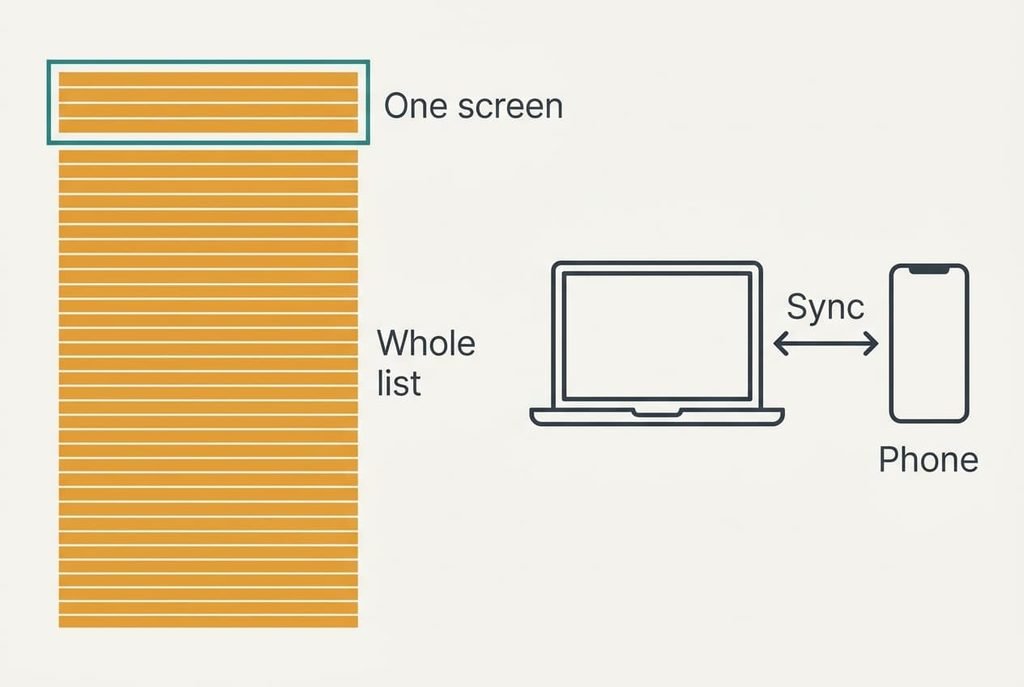
Most people skip one check, and it matters more than the rest. Find out whether your bookmarks sync to other devices, because a deletion on one device repeats on every other once the sync catches up. Moving a bookmark is harmless. Deleting one is the move that travels, which is why the plan below deletes nothing.
Before you sort hundreds of bookmarks, measure the job. A row in the manager is about 24 px tall, so 412 rows stand 9,888 px high, which is roughly 14 screens of 700 px. Scroll to the bottom and count the screens. One screen holds about 30 bookmarks, and 14 screens is a pile that needs a plan.
Work in the browser you use most, because the steps below suit one browser at a time. Set aside an hour in two sittings of about 35 minutes. A single long session tires you, and a tired reader starts to dump everything into the archive. Keep a notepad beside you for the eight folder names you’ll choose in step 2.
Six Steps From One Flat List to Eight Folders
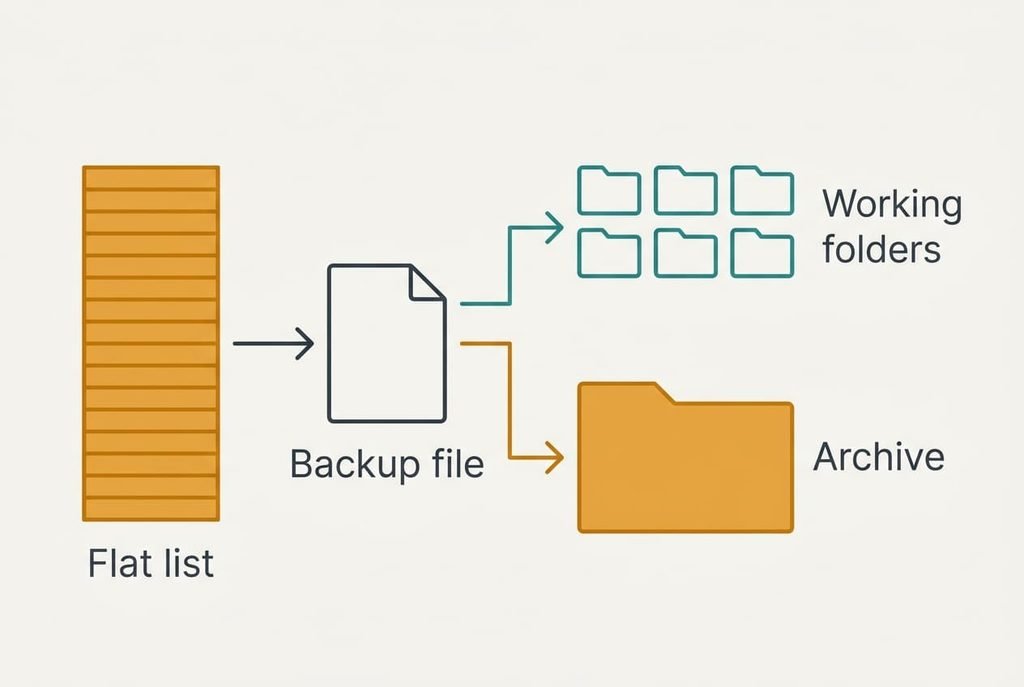
1. Save a backup of the whole list as one file, which takes about 5 minutes. Look for the export option in the bookmark manager and expect a file whose name ends in .html. Every later step moves or renames pages, so a copy lets you return to today’s state without guessing. Proof comes when the file opens in the browser and shows the same long list.
2. Create the archive and eight working folders in about 3 minutes. Give each working folder a one-word name that matches the word you would type when hunting. Money fits. A clever label gets forgotten, while the word in your head gets used. The check is simple: can you say in five words what each folder holds?
3. Triage all 412 at 4 seconds each, which is 1,648 seconds, or about 27 minutes. Read each title once. If it doesn’t tell you why you saved the page, send it to the archive, because a title you can’t explain is already lost. Nothing is deleted here. The pass is finished when the archive holds about 262 and the main list about 150.
4. File the 150 survivors into the working folders at 8 seconds each, which is 20 minutes. Stop at 25 per folder. A list of 25 rows fills 600 px and fits a laptop screen without scrolling, and a longer one brings the hunt back. Our average comes to 150 ÷ 8 = 18.75 a folder. Success looks like working folders that need no scroll.
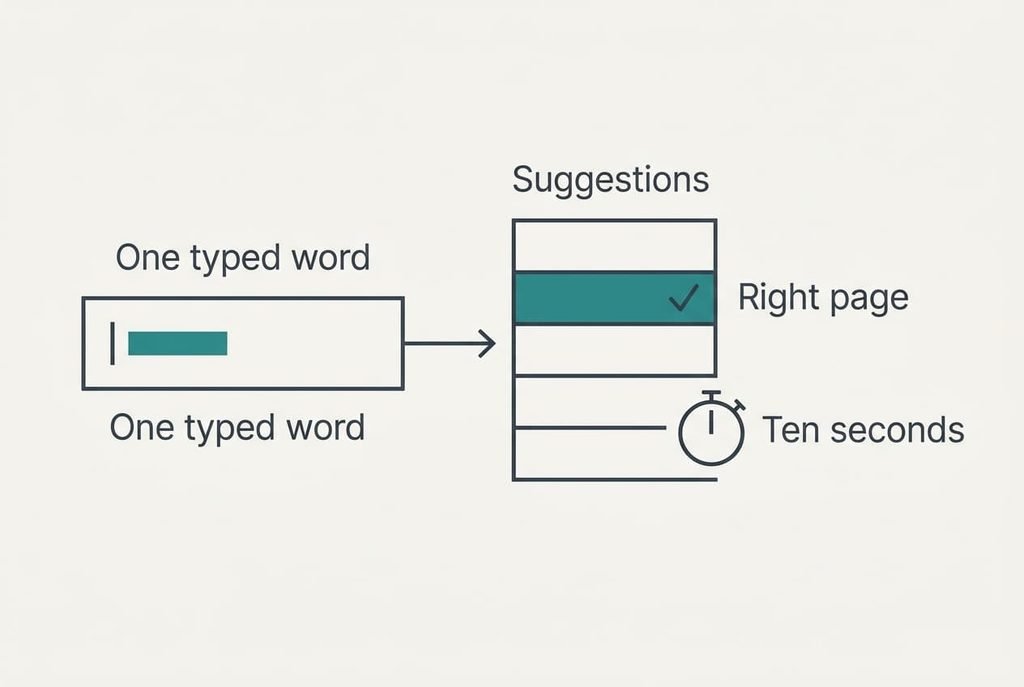
5. Rename the 40 pages you search for most, at 15 seconds apiece, so 10 minutes in all. Start each title with the word you would type, and keep it under 30 characters. The address bar matches words in the title and the address, yet a stock title such as “Home | City Bus Services – Timetables and News” opens with the one word you’d never type. Confirm it by typing the first word and watching the page appear in the suggestions.
6. Change the habit, which takes 2 minutes. Save each new page straight into a working folder from the save prompt, because the default drops it onto the bottom of the flat list again. Check it by saving one page now and seeing it land inside a folder.
How to Test the Finished Folders
The steps total 5 + 3 + 27 + 20 + 10 + 2 = 67 minutes, just over the hour promised.
Then run the real test. Pick ten bookmarks at random from your old flat list, or ask someone to read ten titles aloud. Find each one in ten seconds or less by typing a single word, not by opening folders. Nine of ten is a pass. Fewer than nine means the titles need work, so rename the failures with the word you actually reached for.
Finish with two counts. No working folder should hold more than 25 pages, and the archive should be the only long list left. If a folder is over, split it by a narrower word and test again. A fair measure of how you sort hundreds of bookmarks is retrieval speed, because tidy folders prove little if a page still takes a minute to find.
Stall Points When Hundreds of Bookmarks Refuse to Sort
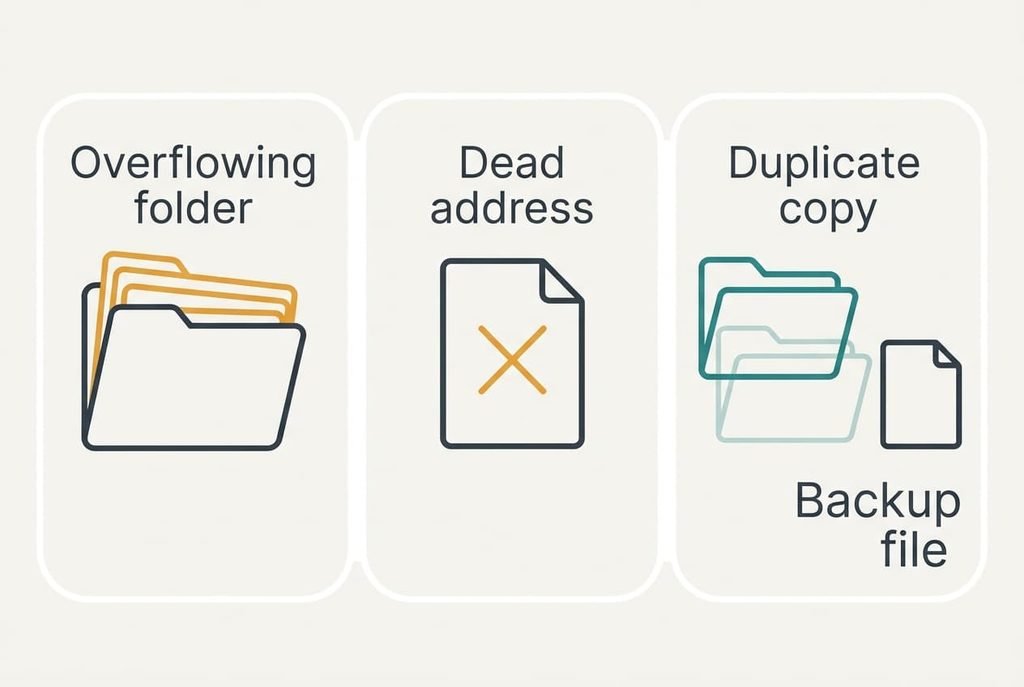
Folders overflow before the list ends. This is common in the second pass when one topic dominates, such as 40 recipes. Split it at once into two folders by a narrower word, because a folder past 25 brings the old hunt back.
A page opens to an error. Don’t repair it now. Send it to the archive and move on, since a dead address costs 4 seconds here and a dozen minutes if you chase it.
Restoring the backup duplicates everything. An import adds a duplicate of everything inside a new folder and doesn’t replace what is there. Import only if pages went missing, then compare the two sets and remove the copy folder you no longer need, which is a deletion that costs nothing as long as the other set is complete.
Whichever stall you meet, the backup file still holds the original list.
The Step Not Worth Taking
Skip checking every bookmark for a dead page. Opening 412 links at 10 seconds each takes 4,120 seconds. That is about 69 minutes, and it pays back almost nothing. The broken ones sit in the archive, where a failed click costs you 10 seconds once, and most of the live 150 get opened within a month anyway. Time is the only cost here, and there is no way to get it back.
Dead addresses are also the wrong target. An old page can still matter even when its address has moved, and you’d only know by reading it, which no quick audit does. Your hour is better spent on step 5, because 40 renamed titles at 10 minutes in all pay back more than any link audit, and each search that works spares you a scroll through a list that no longer exists.
An hour spent once is enough. When you sort hundreds of bookmarks into eight folders of 25 or fewer and park the rest, the flat list stops growing. For Imogen it ended as 150 live pages in eight folders and 262 in the archive, with nothing lost. New pages go straight into a folder, and the archive is there if you ever want something from the old pile. Glance through it once a year and the job needs no other upkeep.
Questions Readers Keep Asking
How long would 100 bookmarks take?
About 26 minutes. Triage takes 100 × 4 seconds, which is nearly 7 minutes, and filing 40 survivors takes about 5 more. Renaming 15 titles adds 4 minutes. Setup adds 10 minutes in all. A smaller pile needs fewer folders. Four or five will do.
Will sorting delete or overwrite anything?
No move or rename deletes a page, and your backup file keeps the original list. Only a deletion or an import changes the contents. With sync on, the moves repeat on your other devices, so give them a few minutes to match before judging the outcome.
What if I use two browsers?
Sort in the one you use most. Export the finished set and import it into the second, where it arrives as a new folder next to the old list. Check that the pages open, then remove the older set from that browser once you’re sure the new folder is complete.