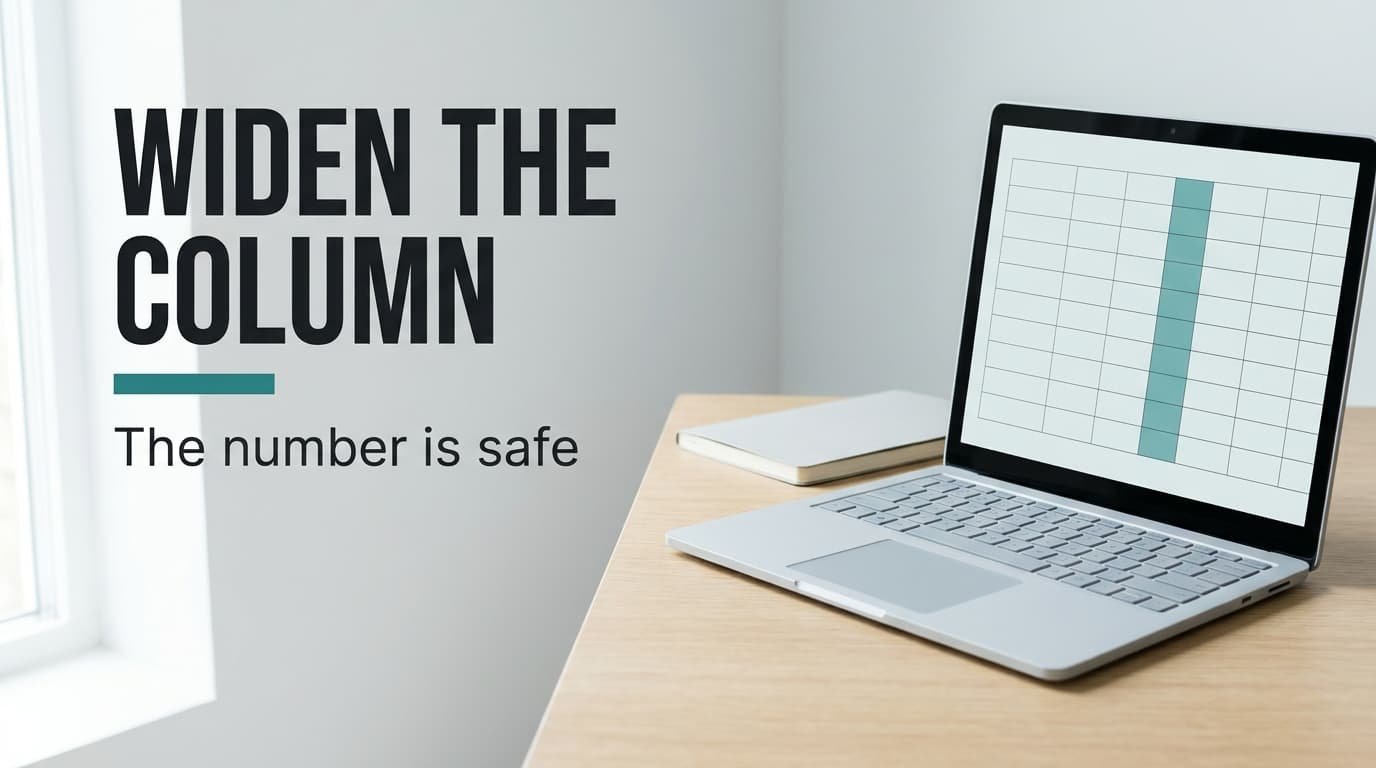
A default spreadsheet column is about 64 pixels wide, enough for roughly eight characters, and widening it is the usual cure when a spreadsheet cell shows hash signs instead of the number. The value underneath is untouched. Our model is a running club’s logbook in Leeds, where the treasurer totals distance in metres and finds that 1,234,567.89 won’t fit. The figures are illustrative, and your own sheet will differ. Plenty of people assume the file has been corrupted. The four tests below show what is really happening. Four fixes then climb from the cheap end to the irreversible end. Nothing here needs special software.
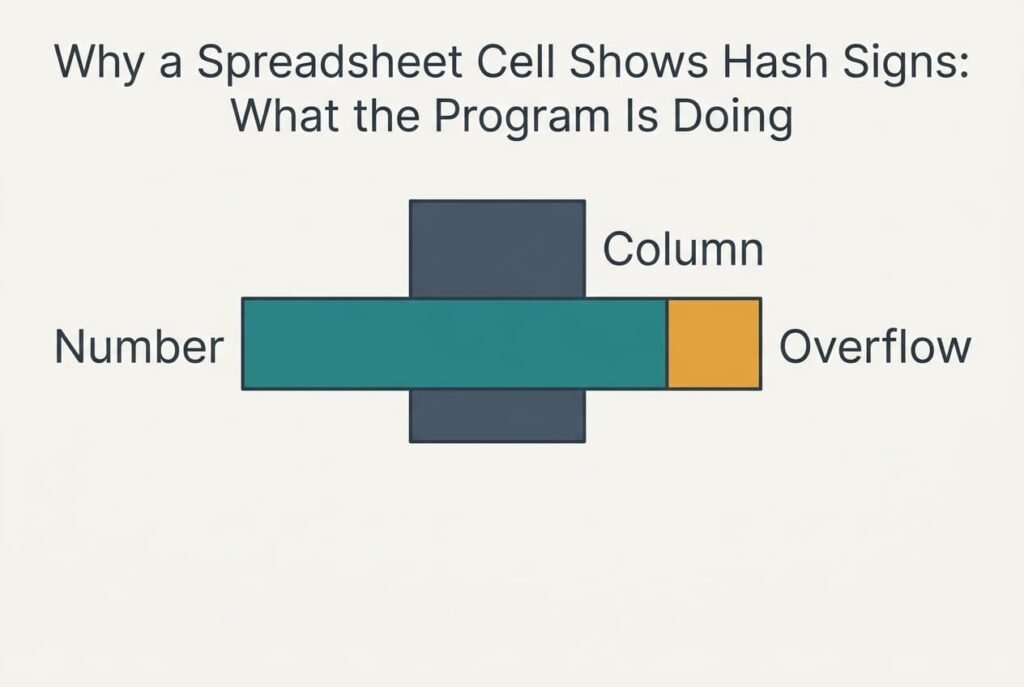
Why a Spreadsheet Cell Shows Hash Signs: What the Program Is Doing
A spreadsheet stores a number and shows it through a format. The format decides how many decimals appear and where the commas go, and the printed text then has to fit the column.
Ordinary text can spill into an empty neighbour. A number can’t, because the program prints hashes when a clipped number would look like a different number. Cut 1,234,567.89 to eight characters and you might read 1,234,56, which looks far smaller than the real total. That clipping rule is why a spreadsheet cell shows hash signs rather than a shortened number.
Our value needs 12 characters. At about 7 pixels a character plus 5 pixels of padding, that is 12 × 7 + 5 = 89 pixels. The 64 pixel column therefore falls 25 pixels short, or 39%. A long date does worse. “Wednesday 4 March 2026” runs to 22 characters and wants 159 pixels, which is 2.5 times the default width.
A third cause hides behind the first two. Dates count days from a fixed start, and a negative count has no date. Take 12 March as a start and 5 March as an end. The gap is −7 days, which leaves a date-formatted cell showing hashes at any width.
That makes three causes, and a single sheet can hold all of them.
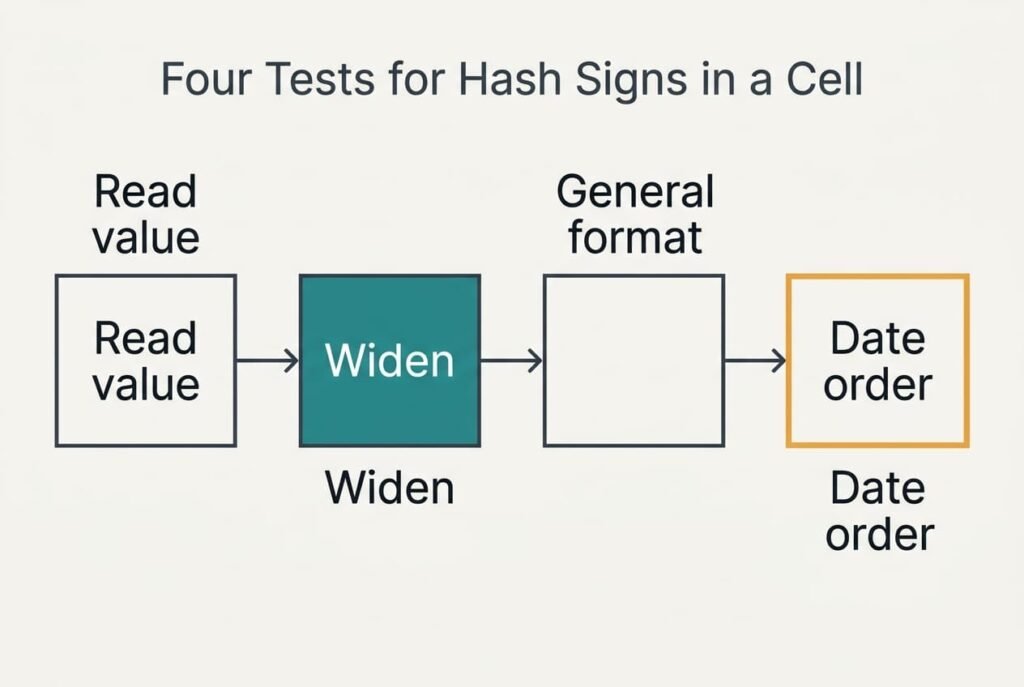
Four Tests for Hash Signs in a Cell
None of these needs buying anything. Together they take about ten minutes. Take them one by one, noting each result.
Test one: click the cell and read the line above the grid. A full number there means the value is safe and only the display fails. Garbled content in that line points to a damaged file, which is rare. Carry on to test two if the number is intact.
Test two: drag the column’s right edge until the column is twice its width. Digits that appear mean width was the cause. Hashes that remain point to the format or the sign. Carry on to the next test.
Test three: copy the cell into a spare one and set the spare to the plain General format. A readable number there shows the old format was too long. A minus sign tells you the value is negative, which matters for dates.
Test four: if the cell holds a date or a time from a subtraction, check the order. An end earlier than the start gives a negative result, and hashes at every width confirm it.
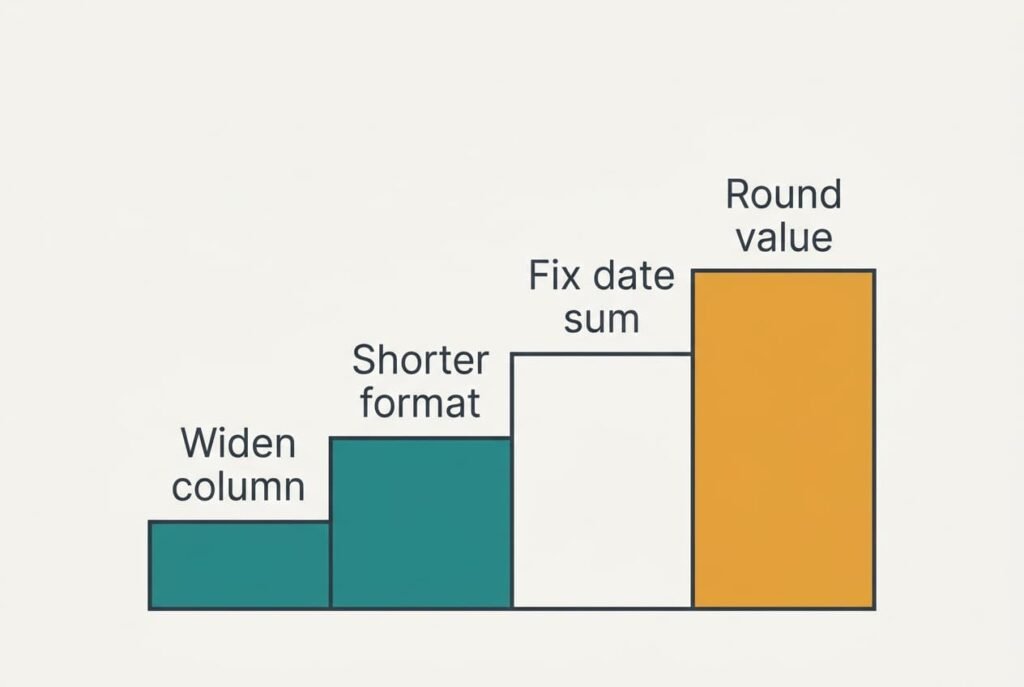
Four Fixes When a Spreadsheet Cell Shows Hashes, From Free to Permanent
Each fix answers one cause of why a spreadsheet cell shows hash signs. After every step, look at the cell again before adding the next.
Drag the column wider. This answers a narrow column and costs a few seconds. Our column goes from 64 to 90 pixels (26 more), which lets all 12 characters fit with a little room to spare. Test it with a bigger value afterwards, such as a total that has grown by one digit. You won’t be back here next month. The loss is page width. Ten columns of 64 pixels make 640, and one wider column adds 4%. A sheet set to fit an A4 page then prints about 4% smaller. Look at the print preview before sending it.
Shorten the number format. This answers a format that is longer than the column needs. Dropping the decimals and the commas turns 1,234,567.89 into 1234568. That is seven characters, and it fits at once. A gentler route shows thousands. The cell then reads 1,235 and the heading says so. Expect a minute per column. What you lose is visible precision. Readers of a printout no longer see the 0.89, although the stored value keeps it, and anyone who copies the figure by eye will copy the shorter version.
Repair the date sum. This answers a negative date, and tracing the formula needs about ten minutes. Swap the two references so the later date comes first and the −7 becomes 7. When the order matters to someone else’s work, ask them before changing it. Nothing is lost by the swap itself. Any cell that reads the result will move, though, such as a running total of days. Scan the cells that point to it. Check that the new figures still make sense.
Round the stored value. This answers a figure that must be narrower for good, such as one exported to another tool with a fixed field. The change is permanent. Each cell can shift by up to 0.5, and across 1,000 rows the total usually drifts by about 9, although the worst case is 500. Once the file is saved, the original digits are gone and no undo reaches them. Save a spare of the sheet before you start. I’d leave this fix until the others have failed.
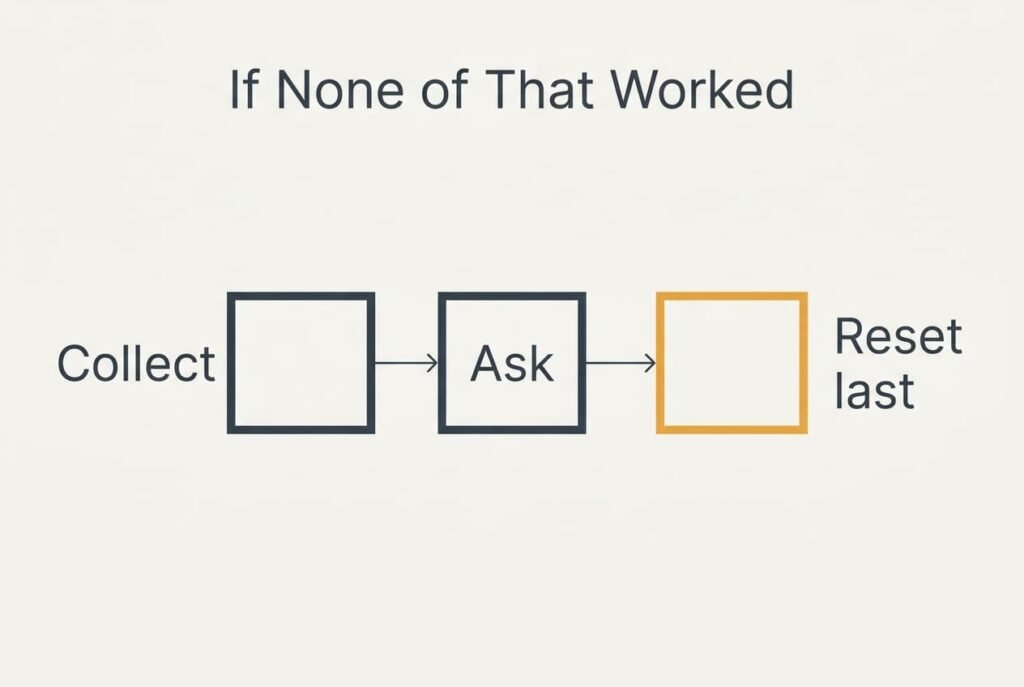
If None of That Worked
Collect evidence before changing anything more. Write down what the line above the grid shows, the name of the format, the width of the column and whether the file came from another program or an export.
A screenshot of the cell helps whoever you ask next.
Then ask the person who made the file. They may have set a custom format with fixed digits, or built the date column on a different calendar setting. Check the language and region of the file too, because a sheet that uses a comma as its decimal mark prints differently and can need more room. Opening the file in another spreadsheet program also tells you whether the fault lives in the file or in your own settings.
One warning about resets: clearing all formatting from a sheet removes colours and borders as well as number formats. Copy the sheet to a new tab first.
The Fix That Isn’t Worth Doing
Shrinking the font until the number fits is the usual first attempt, though it gives poor value. To squeeze 12 characters into room for 8, an 11 point font has to fall to about 7.3 points. That is hard to read on screen and harder on paper. The hashes also return when someone opens the file with a larger default font.
Typing an apostrophe before the number turns it into text, and the hashes disappear because text can spill sideways. But the cell no longer counts as a number. A sum over 1,000 rows then skips it silently, and nobody sees an error.
Neither trick explains why a spreadsheet cell shows hash signs, and both only cover the symptom. Reducing the zoom does nothing at all: the cell and the column shrink together, which leaves the number just as cramped.
Read the cell in the line above the grid. Widen the column, then check the print preview. Most sheets are fixed by those steps. Save a spare before any change that can’t be undone. Test again after a week or two, because a new export can bring a longer number. The hashes may well return whenever a bigger total or a longer date arrives.
Questions Readers Keep Asking
Can I fix hash signs at home?
Yes. In our model the first two fixes cover the common cases and cost nothing but a minute. The date sum takes longer. Only rounding is permanent. Save a spare of the sheet before using it. No repair or purchase is involved at any stage.
Why does the number show in the formula line but not in the grid?
The formula line shows the stored value, while the grid shows the stored value after formatting and fitting. The grid has far less room. When the formatted text is longer than the column, the program hides the digits rather than clip them, and the stored number stays complete.
Could hash signs mean my computer is failing?
Rarely. A failing screen or graphics chip shows damage in other programs too. Flickering would appear in every window, for example. Hashes confined to one cell point to its width or its content: a long format or a negative date. If the oddness spreads, check the display settings first.