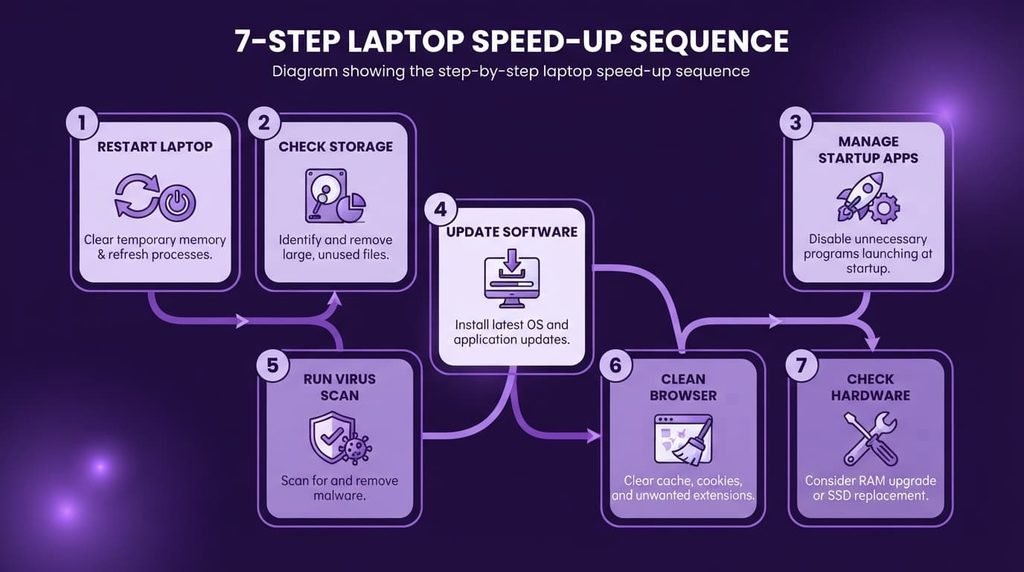
Speeding up a genuinely slow laptop works best as a sequence of specific steps addressing the most common causes first, rather than attempting every possible fix simultaneously without knowing which one actually helped. This guide covers the steps in the order that typically delivers the most improvement for the least effort, checking progress along the way rather than assuming every step is necessary for your specific situation.
Before you start
Restart your laptop completely before beginning any other troubleshooting, since a simple restart clears temporary memory and stops any background processes that may have accumulated since your last restart, sometimes resolving noticeable slowdown on its own without requiring any further steps at all.
Note roughly how the laptop currently performs during a typical task you do regularly, so you have a genuine baseline to compare against as you work through the following steps, rather than relying on a vague impression of whether things have actually improved.
Step one: check what’s actually running
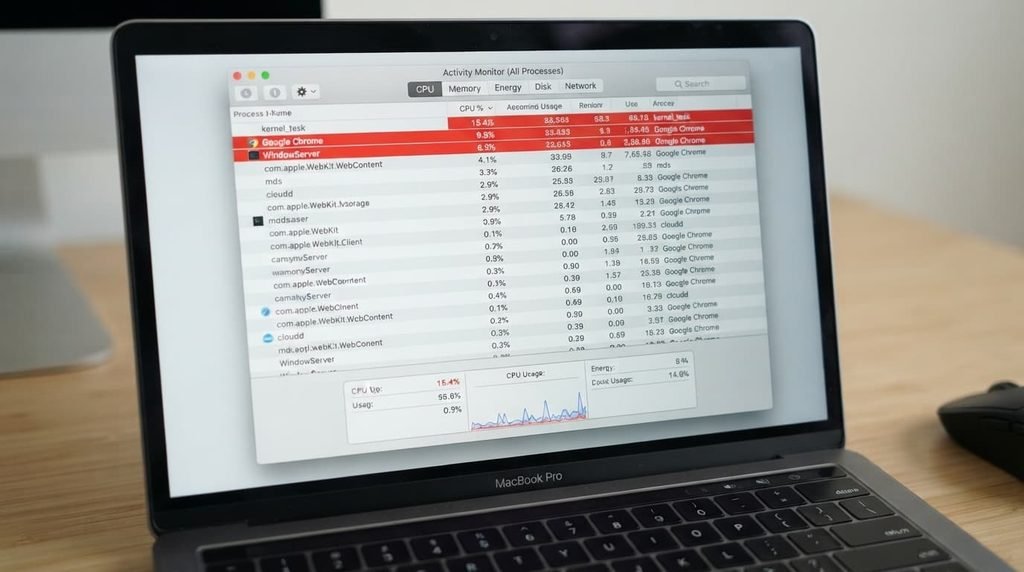
Open your task manager or activity monitor and sort processes by resource usage, identifying anything consuming a disproportionate amount of processing power or memory relative to what you’d expect it to need for its apparent function.
Close or end any process you don’t recognise or genuinely need running continuously, being cautious specifically about ending anything you’re not certain about, since some background processes are genuinely necessary for normal system operation even though their names aren’t immediately obvious.
Step two: review your startup programs
Open your system’s startup program settings and review everything currently configured to launch automatically when your laptop turns on, since an accumulated list of unnecessary startup programs is one of the most common causes of both slow startup and ongoing background resource use.
Disable any startup program that doesn’t genuinely need to launch immediately every time, keeping only what you actually rely on starting automatically, since each additional startup program adds both to your boot time and to ongoing background resource consumption throughout your session.
Step three: free up storage space
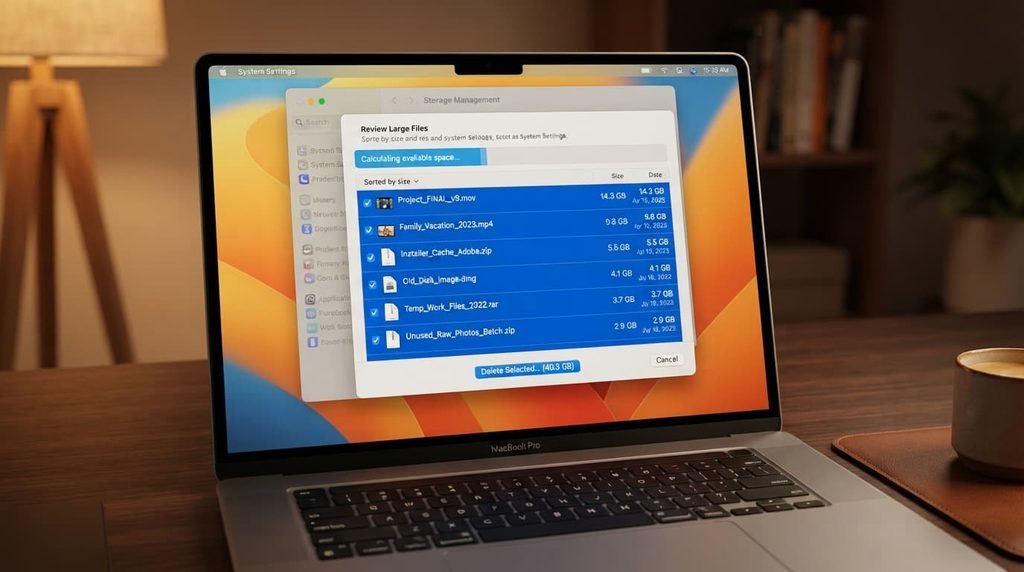
Check your available storage space specifically, since storage running low can measurably slow overall performance even before a drive is technically full, as covered in more detail elsewhere.
Remove genuinely unnecessary large files first – old downloads, duplicate media, applications you no longer use – since removing a few large items typically frees more meaningful working space than removing many small ones, for considerably less time spent searching through files.
Step four: check for pending updates
Check for and install any pending operating system or driver updates specifically, since updates sometimes include performance fixes for known issues, and running outdated software occasionally introduces compatibility problems that manifest as general slowdown.
Restart your laptop again after installing any updates, since some updates only fully take effect after a restart, and skipping this step can mean you don’t actually experience the improvement the update was meant to provide.
Step five: reassess and decide on next steps
Compare current performance against your initial baseline from before you started, using the same typical task you noted earlier, to genuinely confirm whether the steps above have made a meaningful, noticeable difference.
If performance has genuinely improved to a satisfactory level, you’re likely done for now – if it remains notably slow despite completing every step above, this points toward either a hardware limitation your laptop genuinely can’t overcome through software steps alone, or a more specific issue worth investigating individually rather than through this general sequence.
Step six: check for malware if the issue persists
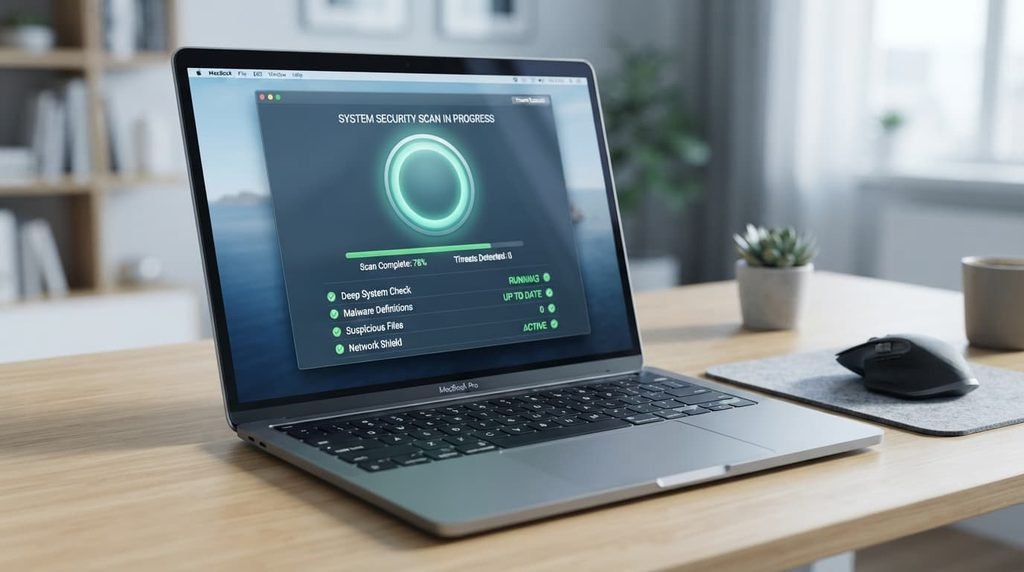
Run a reputable security scan specifically if performance remains poor after completing the steps above, since malicious software occasionally runs hidden background processes that consume resources without appearing obviously unusual in a general task manager review.
This step is placed later in the sequence deliberately, since the causes covered in the earlier steps are considerably more common than malware specifically, and working through the more likely causes first avoids unnecessary time spent on a less probable cause before ruling out the more common ones.
Step seven: consider your browser specifically
Close unnecessary browser tabs and extensions if your slowdown is specifically noticeable while browsing rather than throughout your entire system, since an accumulated number of open tabs and installed extensions can meaningfully consume memory and processing power in a way that’s easy to overlook as a specific, addressable cause.
Clear your browser’s cached data periodically too, since accumulated cache data can occasionally cause specific slowdown or unusual behaviour within that browser specifically, distinct from your system’s overall general performance.

What isn’t worth doing
Immediately reinstalling your entire operating system as an early step, before working through the sequence above, isn’t worth the disruption it causes for most typical slowdown situations.
A full reinstall is genuinely disruptive, requiring you to reconfigure settings and reinstall programs afterward, and jumping to this drastic step before trying the considerably less disruptive options above risks losing meaningful time on a step that often isn’t actually necessary to resolve typical slowdown.
If you’ve only completed some of these steps
If you’ve worked through the first few steps and noticed some improvement but haven’t completed the full sequence, this partial progress is genuinely useful and worth continuing from where you left off, rather than feeling you need to restart the entire process from the beginning.
This matters because each step above addresses a genuinely distinct potential cause, so partial completion still provides partial, real benefit specifically for whichever causes those completed steps happened to address, even if some slowdown from other causes remains until you continue through the rest.
Questions readers keep asking
How long should this entire process typically take?
Most of the steps above take a matter of minutes each, so working through the full sequence typically takes well under an hour total, though the exact time depends on how much storage cleanup is genuinely needed and how many updates are pending.
Do I need to do this entire process again regularly, or just once?
Reviewing startup programs and checking storage periodically, rather than only when slowdown becomes noticeable, helps prevent the same issues from gradually reaccumulating, though you don’t need to repeat every single step on a fixed schedule if your laptop continues performing well.
Should I follow every step even if I suspect I know which specific cause applies to me?
You can reasonably skip directly to the step most likely to address your specific suspected cause, though working through the earlier steps briefly first is still worthwhile, since they’re quick to check and occasionally reveal a contributing factor you hadn’t initially suspected was also playing a role.
Is it safe to close processes in the task manager without causing a problem?
Generally yes for processes you don’t recognise as essential, though it’s worth being cautious about anything explicitly labelled as a core system process specifically, since ending those can cause immediate instability – when genuinely uncertain about a specific process, researching its name before ending it is a reasonable precaution.
What if none of these steps make a noticeable difference?
This suggests either a genuine hardware limitation your laptop’s specifications simply can’t overcome through software adjustments, or a more specific issue not covered by this general sequence, both of which are worth investigating individually rather than continuing to repeat these same general steps.