A deleted file leaves your phone on the schedule of its bin. That’s why your phone storage is full after deleting everything: the bin keeps each item for a fixed number of days, and it counts as used space until then. Check the bin before you delete anything else. Our case is a UK phone with 128 GB. All figures are rounded, so use your own once you’ve checked. The total hides where the space sits, so read the breakdown instead. The first fix takes under a minute, and nothing here needs an extra app.
Why your phone storage is full after deleting everything
A phone doesn’t free space when you press delete. It moves the item into a holding bin and starts a countdown, usually 30 days, so a mistake can be undone. Until the countdown ends, the item counts as used space.
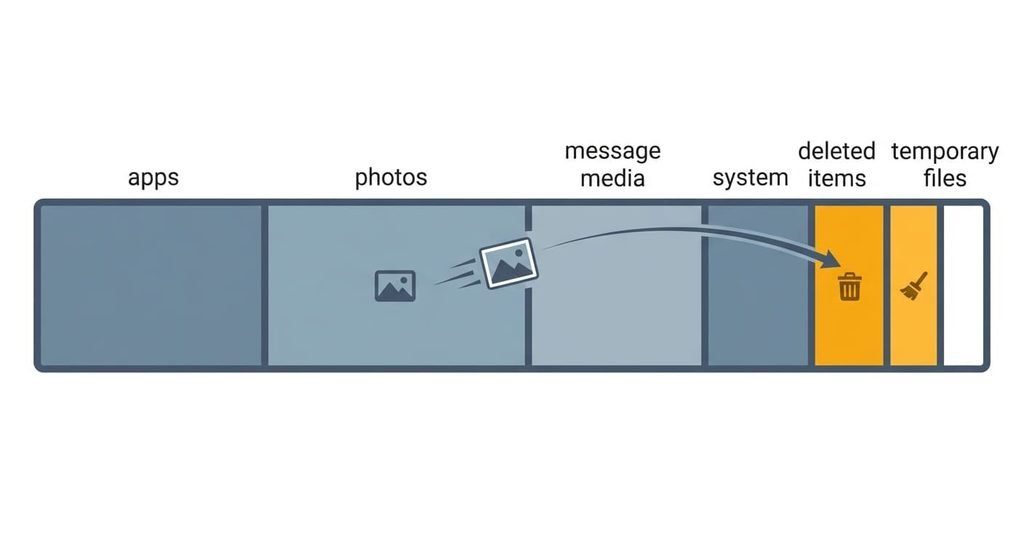
Take the example. The storage screen reads 124 GB used out of 128 GB. After your deletions the breakdown looks like this. Apps take 38 GB. Photos and video take 50 GB. Message media holds 12 GB and system data 14 GB. The bin holds 6 GB, and temporary files hold 4 GB. Together that’s 124 GB. You removed 6 GB of videos, and all 6 GB went to the bin. The total didn’t fall at all, because the label changed from photos to deleted.
Two more items hide in the sum. Temporary files are the caches apps keep to load faster, and they regrow after every clean-up. System data takes in leftover update files. So when your phone storage is full after deleting everything, the arithmetic often shows 6 GB in the bin and 4 GB in temporary files, 10 GB you haven’t touched. At 4 GB free, the phone also struggles to install updates.
Four checks when your phone storage is still full after deleting everything
Each check reads one line of the storage screen. Open it first and write down the category sizes, because later steps compare against them. Do all four in one sitting, since the numbers move as you work.
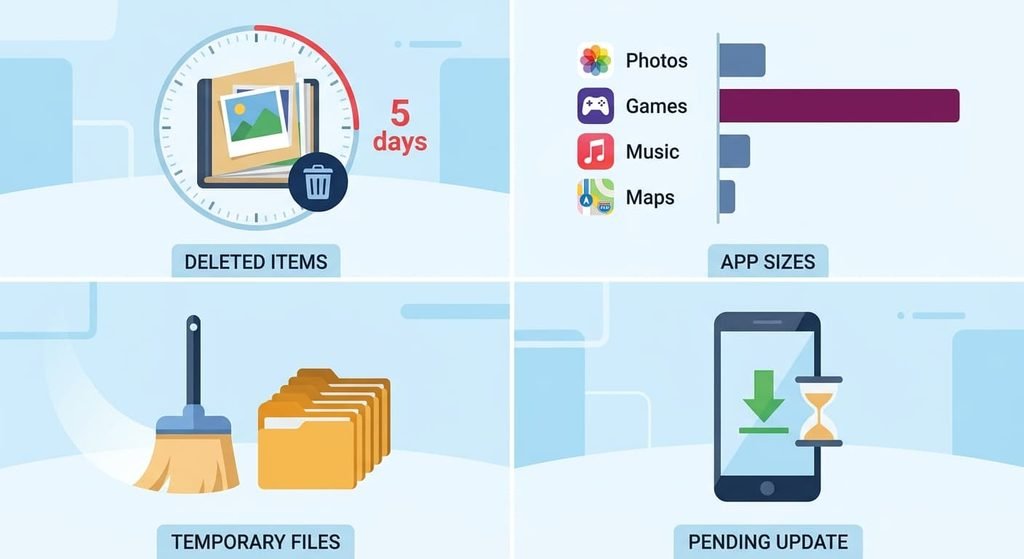
Start with the bin. Open the photo app’s deleted-items album and read the size and the days left. Here it holds 6 GB with 28 days to go. Many phones show the days left per item, so note the oldest one.
Next, sort the app list by size. Compare each large app’s own size with its documents-and-data figure. A message app at 12 GB of media is a common finding. The app’s own screen splits its program size from its stored data.
Then look at the temporary-files or cache line. Anything near 4 GB on a 128 GB phone means the caches have grown back. That’s 3% of the whole 128 GB.
Finally, open the system-update page. A downloaded update waiting to install can sit in system data for weeks. Note its size, which is often several gigabytes.
The four fixes, in order
Whenever your phone storage is full after deleting everything, change one item, then reread the storage screen before the next step. I’d start with the bin, because it’s the largest quick win.
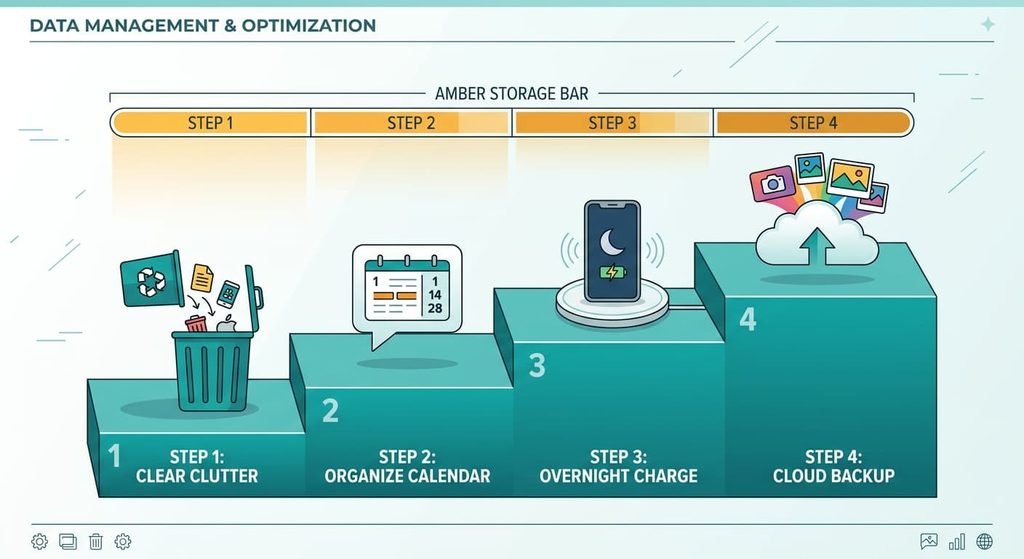
Emptying the deleted-items bin costs nothing and takes a minute. The 6 GB leaves at once, so used space falls from 124 GB to 118 GB and free space rises from 4 GB to 10 GB. The loss is that you can’t recover those videos afterwards, so scroll through the bin first. Check that nothing there is the only copy of something you care about, or copy the bin’s contents to a computer first, which takes minutes.
Shortening how long the message app keeps media takes two minutes in the app’s settings. Switching from keeping media forever to keeping it for a year cuts the 12 GB of message media to about 7 GB. Used space drops to 113 GB. The loss is that old photos and clips in chats leave the phone, so export the threads you want to keep before you switch. Message apps keep a copy of every clip you receive, so the saving grows with the number of group chats you’re in.
Restarting and leaving the phone on its charger overnight costs time and nothing else. Plug it in and join Wi-Fi first, so any pending update can finish too. The phone clears temporary files and finishes cleaning up after the update, and temporary files fall from 4 GB to about 1 GB. Used space reaches 110 GB. The gain doesn’t last, since caches regrow at roughly 0.2 GB a day and the 3 GB comes back in 15 days.
Moving the photos to a paid cloud plan and offloading the originals is the purchase. It cuts photos and video from 50 GB to about 20 GB and takes used space to 80 GB. The cost is a monthly fee, and the first upload takes a night or two on Wi-Fi. The loss is that a full-size original needs a connection to open, so choose this only when the three free steps leave the phone still full. Keep a local copy of the few hundred pictures you care about most.
If none of that worked
If the storage screen still reads close to full after all four fixes, capture the category sizes on screen, then the app list sorted by size. Add the date and the free space figure to a note. Mention which fixes you tried and the figures after each, because support teams answer numbers faster than the words “it’s full”. A system-data bar that stays huge after a restart points at a stuck update file or an operating-system fault, and neither one is yours to clear.
Send both screenshots to the manufacturer’s support with one question: is a stuck update file taking up system data? Their answer decides whether a reinstall of the system software is needed.
Keep the screenshots until the phone is fixed, and ask whether the storage chip’s reported size has dropped on an older phone.
The fix that isn’t worth doing
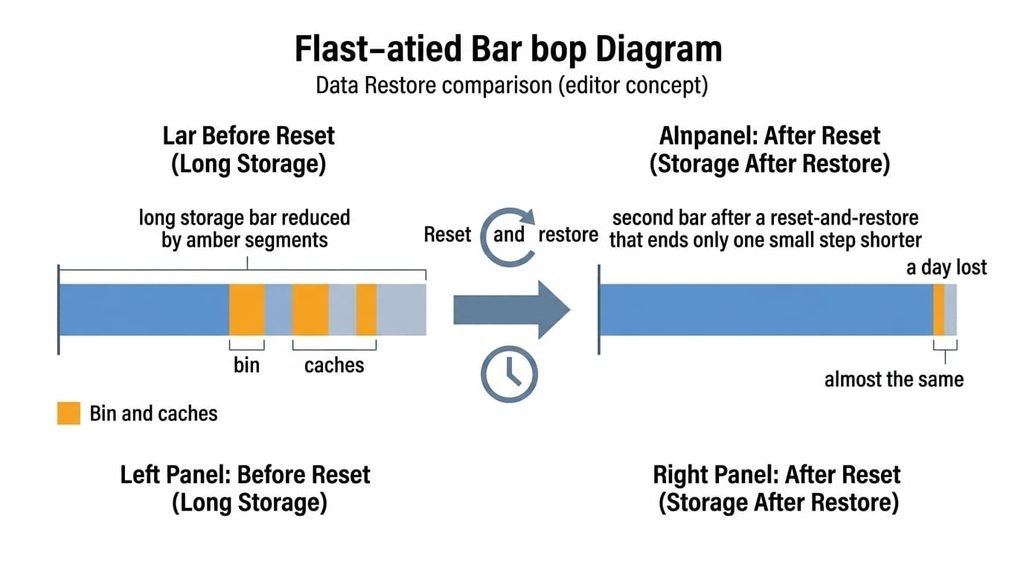
Resetting the phone to factory settings feels decisive when your phone storage is full after deleting everything. It cleans only what the first and third fixes already clean. After a restore from backup, the phone holds apps at 38 GB, photos at 50 GB, message media at 12 GB and system data at 14 GB. That’s 114 GB used.
Free steps reach 124 − 6 − 3 = 115 GB, one gigabyte away. The reset costs a day of waiting and a round of sign-ins. A restore also re-downloads the 38 GB of apps, which strains a mobile connection, so join Wi-Fi before you start. A reset also hides the cause. If the phone fills up again, you won’t know which of the bin and the caches did it, and you’ll have lost the one set of numbers you had.
A reset removes only the bin and the caches.
Run the storage screen before you wipe anything. Empty the bin first. Then trim the message media, and let the phone clear its temporary files overnight. Move the photos to cloud space only if it still reads full. Treat the reset as the last step, for a phone that misbehaves in other ways too or when support asks, and take a backup first.
Questions readers keep asking
How long do deleted items stay in the bin?
Usually 30 days, though it varies by app and phone. During that time they count as used space. Emptying the bin by hand frees the space at once, but the items can’t be recovered afterwards, so look through it first and keep anything you need.
Does clearing the cache free much space?
A little, for a short while. In the example temporary files hold 4 GB, so clearing them frees about 3 GB. They regrow at roughly 0.2 GB a day, so the gain lasts around two weeks before the space is used again. Treat it as upkeep, not a cure.
Is it cheaper to delete or to pay for storage?
Deleting costs nothing, and the first three steps free 14 GB in the example: 6 GB from the bin and 8 GB from the other two. Cloud space costs a monthly fee, but it frees 30 GB at once. Use the free steps first, then pay only if the phone still fills up.