Every laptop runs on borrowed time between one security fix and the next, and the real argument is over who decides when the fix lands. Take Tom in Glasgow, who invoices clients from a home laptop and has lost a client call to a surprise restart. Choose automatic updates for a laptop you rarely tend, and choose manual ones for a laptop that must never restart mid-task. The deciding property is who picks the moment, and how reliably that moment arrives. The two modes install identical fixes, so the choice never changes what you get. It only changes when you get it and what an interruption costs. Every figure below belongs to Tom’s invented year, so count your own restarts first.
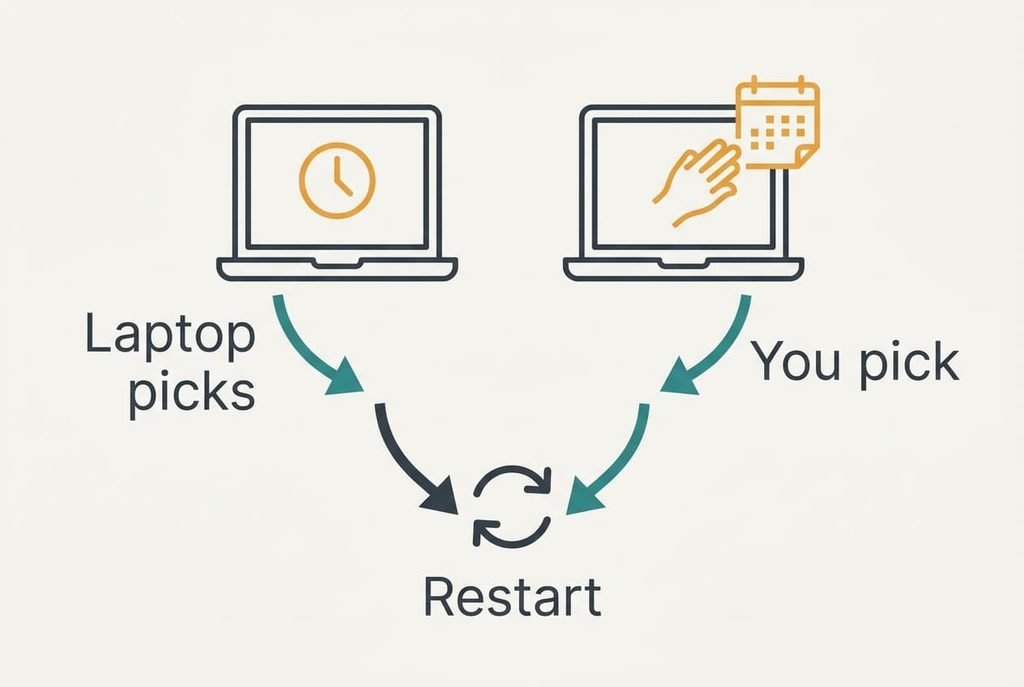
Why Automatic Updates or Manual Updates Comes Down to Timing
Both options install the same fixes. The difference lies in the clock, since automatic updates pick a quiet hour for you, and manual ones wait for you to pick. A fix leaves the maker on one day, and your laptop either takes it within a day or two or takes it whenever you remember.
The one property that separates them is who chooses the moment of the restart, because an update that is half-installed can’t be used and a laptop that restarts during a call drops it. A restart is the visible cost of any update. The new files can only replace the old ones while those are idle, so the laptop has to stop what it is doing for a short while.
Automatic mode hands the decision to the laptop. It looks for a gap when the lid is open and the machine is idle, and it installs there. You pay nothing in attention, and in exchange you accept an occasional restart you didn’t schedule.
Manual mode keeps the decision with you. You choose a Sunday evening and nothing restarts at any other time. The cost is a small monthly job, and a fix that isn’t installed gives no protection, however good the intention.
The fix arrives either way, and the only open matter is when.
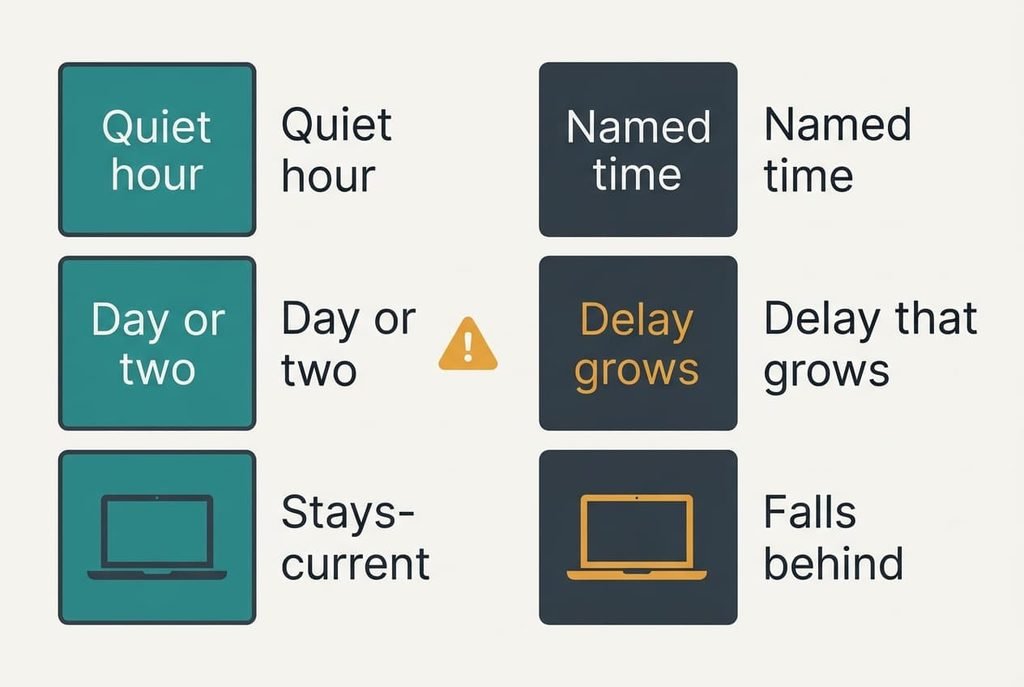
The Two Modes Compared Row by Row
Tom’s laptop over twelve months supplies the rows below, with one fix cycle a month and a restart of about 25 minutes whenever an update lands at a bad time. None of them rests on a price or a speed.
| Point | Automatic | Manual |
|---|---|---|
| Who picks the moment | the laptop, in a quiet hour | you, at a time you name |
| Delay before a fix arrives | a day or two | as long as you wait |
| Risk of a restart mid-task | low but real, 2 in 12 months | none |
| Effort per month | none after setup | about 10 minutes |
| Laptop left alone for a month | stays current | falls one full cycle behind |
| An update that misbehaves | reaches you before the warnings do | you can wait for reports |
That final row surprises people. Waiting a few days lets other users find a faulty update first, so manual mode can be the safer choice when a release is bad. That advantage exists only if you do install the fix within the week, so the row favours a habit and not a person. Choosing automatic updates or manual updates means deciding which of these rows you can least afford to lose.
Where Automatic Updates Beat Manual Ones
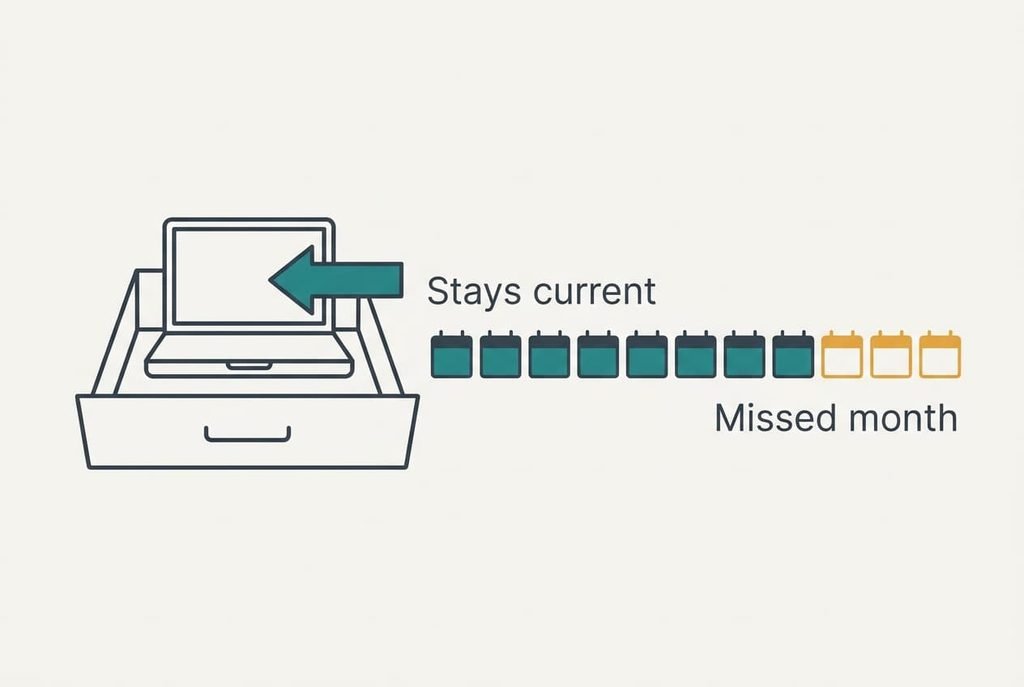
Automatic mode wins when attention is the scarce thing. Tom’s laptop spends most weeks closed in a drawer, and in a typical month he opens it on only six days. With manual mode he would need to remember an update on a day he happens to open it, and he wouldn’t always do so.
The arithmetic shows the gap. Across twelve cycles a year, a manual user who remembers in 9 of them leaves 3 months without the fix. That’s one month in four with a known hole, and the hole is the very thing a fix exists to close.
The cost is the restart. In Tom’s year, 2 of the 12 updates landed on a workday, and each cost roughly 25 minutes, so the year cost him 50 minutes. A 10-minute monthly job would have taken 120 minutes over the same year.
Automatic mode also copes with a laptop that sits unused for weeks. It catches up the moment you open the lid, whereas a manual laptop waits for a reminder you never wrote.
Where Manual Control Wins
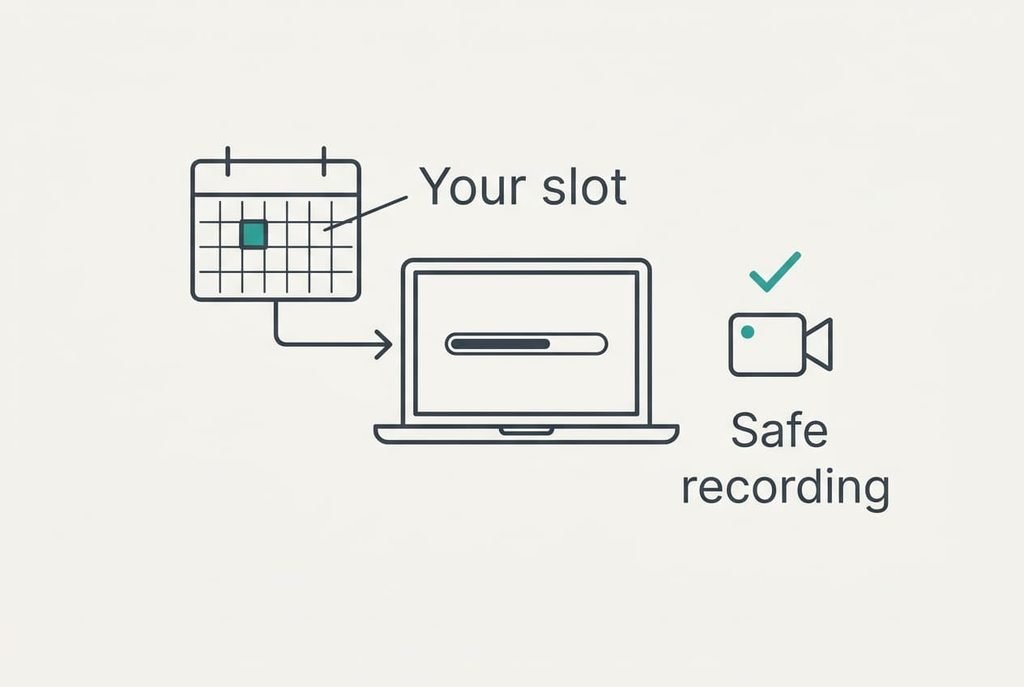
Manual mode wins when a restart at an awkward moment is expensive. Tom records a short video for a client every second Friday. A restart halfway through would lose the take and about 25 minutes, and a client waits at the end of it.
Choosing the moment removes that risk. He sets a recurring slot, say Sunday at 20:00, and installs the month’s fixes there. The slot takes about 10 minutes, and he knows nothing restarts on a Friday.
Manual mode also lets you hold off after a bad release. If other users report that a recent update broke printing, you can wait for the repair, then install both together. Some laptops even let you defer an update for a fixed few days, so a fix can slide past a deadline without being ignored.
The price is discipline. Without a calendar reminder the slot slides. Then 9 of 12 becomes 6 of 12. Set the reminder before you set the mode. Automatic updates or manual updates differ mostly in who remembers, and the mode is only as reliable as the habit behind it.
When Neither Mode Is Yours to Choose
A laptop managed by a workplace usually has its update rules set elsewhere, so your choice is cosmetic. That holds equally for a machine so old that its maker no longer ships fixes: automatic mode installs nothing, and manual mode has nothing to install. A shared family account is a third case, because the person who taps “later” isn’t always the person who suffers the delay.
In every case, spend your effort on the layers around the machine. Keep the files you can’t replace in two places, and keep the work account separate from your own. Replace the old machine before it handles anything you can’t afford to lose.
Check which case applies by looking at the laptop’s update screen for a line that says the settings are managed. If it appears, ask the person who manages the machine when updates install. If the screen does show managed settings, treat the choice as someone else’s job and stop worrying about it.
Which Mode to Pick
Two branches cover most home laptops.
If the laptop handles money or accounts and you can’t promise a monthly slot, choose automatic mode. Keep a quiet window set, and save open work before the lid closes. The few unplanned restarts cost less than a missed fix, and the saving grows the longer the laptop sits idle.
If you record or present, or work to fixed deadlines and keep a calendar habit, choose manual mode with a standing monthly slot. Put the slot in your calendar the same day. Install the fixes in that slot, and note any month you skipped so the gap shows.
Test the choice for one quarter and count the surprise restarts and the missed months. Keep the tally in the same note as the calendar slot so the two stay together. A quarter is long enough to show a pattern and short enough to switch cheaply. Automatic updates or manual updates is a question the count answers better than any opinion. If either figure rises, switch the mode. Then test again.
Questions Readers Keep Asking
How much effort does manual mode really take?
About 10 minutes a month for the update itself, plus a calendar entry that takes a minute to create. The harder part is the habit. If you’ve forgotten a slot twice in a quarter, automatic mode will save you more than it costs.
Can an update ever make the laptop worse?
Occasionally. A fix can break a feature, and the fault is usually repaired in days. That’s why manual mode with a short wait suits a laptop you rely on. Keep a fresh backup of your files, so a bad update never puts them at risk.
Is automatic mode safe for a laptop I travel with?
Yes, if you set a quiet window and keep the laptop on mains power overnight. Updates that start on battery in a taxi can run out of charge midway. Close your work before you leave it idle, since a restart can arrive within minutes.