People blame the clicker when slides stop moving halfway through a talk, yet the clicker is seldom at fault. The weak link is how it reaches the laptop in front of you. When you’re picking a presentation clicker for meetings in a small room, settle the connection before you look at range and buttons. Our sums assume a room of 5 × 4 m in an office in Leeds, a shared laptop on the table and a talk of 45 minutes with six colleagues listening. The numbers are assumptions; use your own when you run the sums at home.
What Decides a Clicker for Presentations in Small Rooms
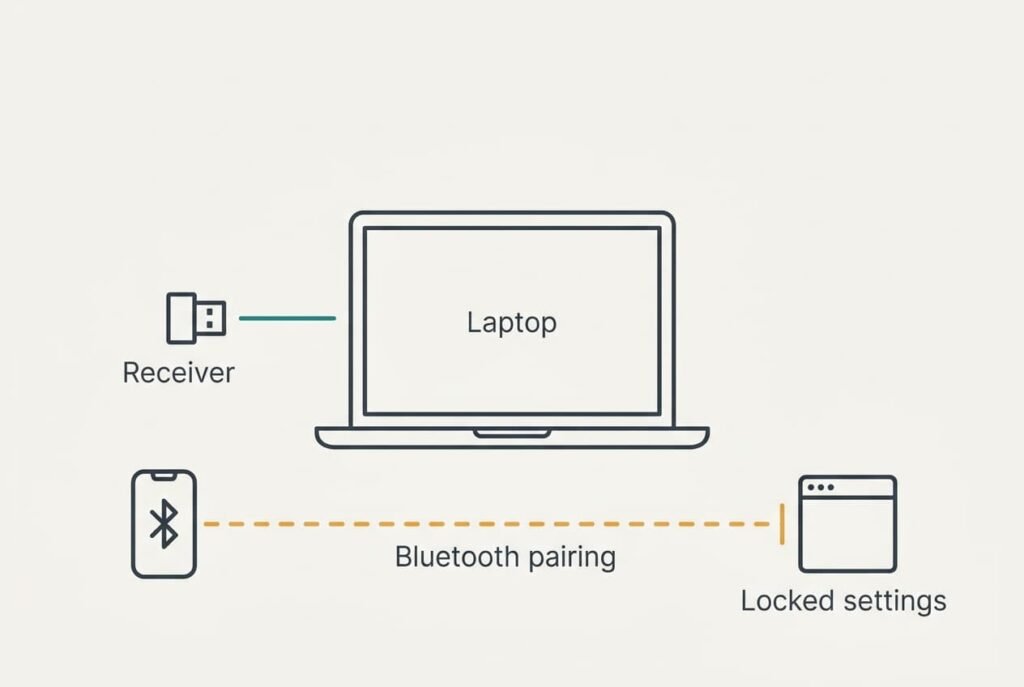
A clicker issues just two commands: forward and back. The laptop must agree to listen before it obeys either one. There are two ways to get that agreement. A small plug-in receiver makes the laptop treat the clicker as a keyboard, and nothing needs approving. Bluetooth asks the laptop to pair, which needs access to its settings.
Small meeting rooms usually have a shared laptop, and the company often locks its settings. Suppose our office has three rooms and two of them have a locked laptop. A Bluetooth-only clicker then fails in 2 of 3 rooms, which is 67%, and no battery or button layout can repair that. The receiver brings its own snag, because it needs a free port. A thin laptop with two sockets, one busy charging, may have a single socket left in the wrong shape for the plug. The property to settle before anything else is whether the room’s laptop accepts the way the clicker connects, and every other check builds on that answer.
Four Checks for Choosing a Presentation Clicker for Meetings
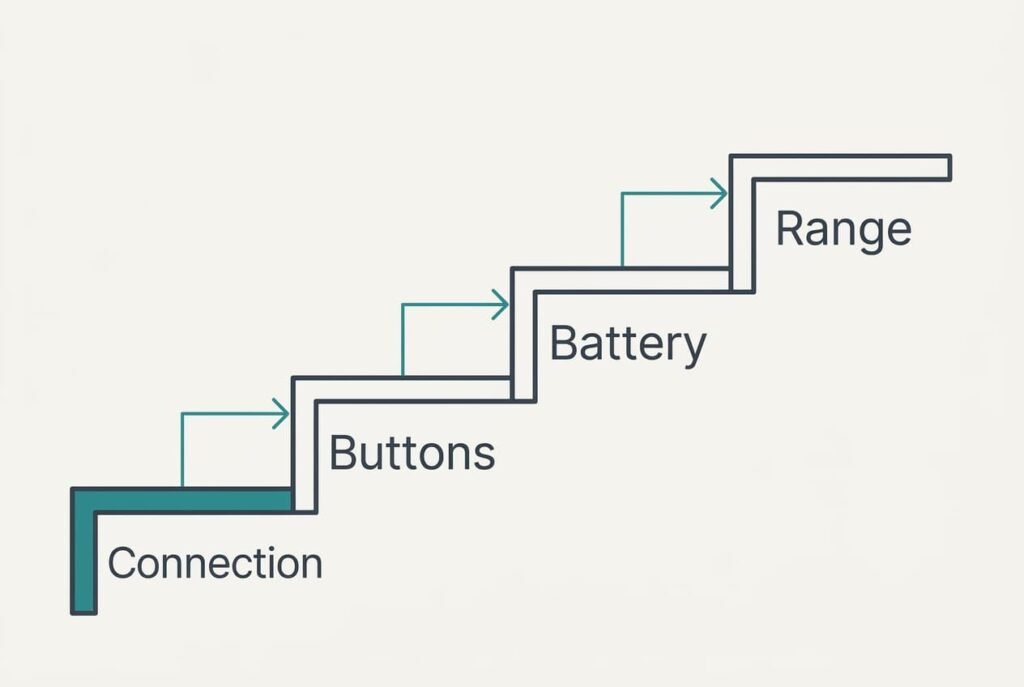
Check each in turn, and discard a model the moment it fails.
1. The connection method. It decides whether you can start within seconds of walking in. Look at the laptop you will really use: count its free ports and note their shape, then find out whether you may pair a device on it. A locked shared machine points to a receiver, while your own laptop leaves both options open. Get this wrong and six colleagues watch you fiddle with settings before the first slide appears. Ask the office manager before you buy, since one email settles it.
2. The buttons. Your thumb needs to find them without help from your eyes. Hold the clicker below the table edge and locate next and back by touch alone. Three buttons are plenty, with next under the thumb and back clearly apart from it. Cramped buttons send you back a slide by accident, and the audience watches you scroll forward again. A raised edge or a different shape on the back button makes it easy to find without looking.
3. The battery and the auto-off. The second half is the part that gets skipped. Say a button cell gives 100 hours of use. With 4 talks a week of 45 minutes each, that’s 3 hours a week and about 33 weeks from the cell. A clicker that stays awake all day drains the same cell in 100 ÷ 24 ≈ 4 days. Skipping it costs you a flat clicker on Monday morning, with the meeting due at nine.
4. The range. It measures how far away a press still arrives. In a 5 × 4 m room you stand 4 m from the laptop at most. Ten metres of range is therefore already generous. Test it from the far corner, turned away from the laptop. Too little range appears as a slide that lags now and then, which is irritating but seldom ruins a talk. That’s why it ranks last.
Specs That Sound Better Than They Are
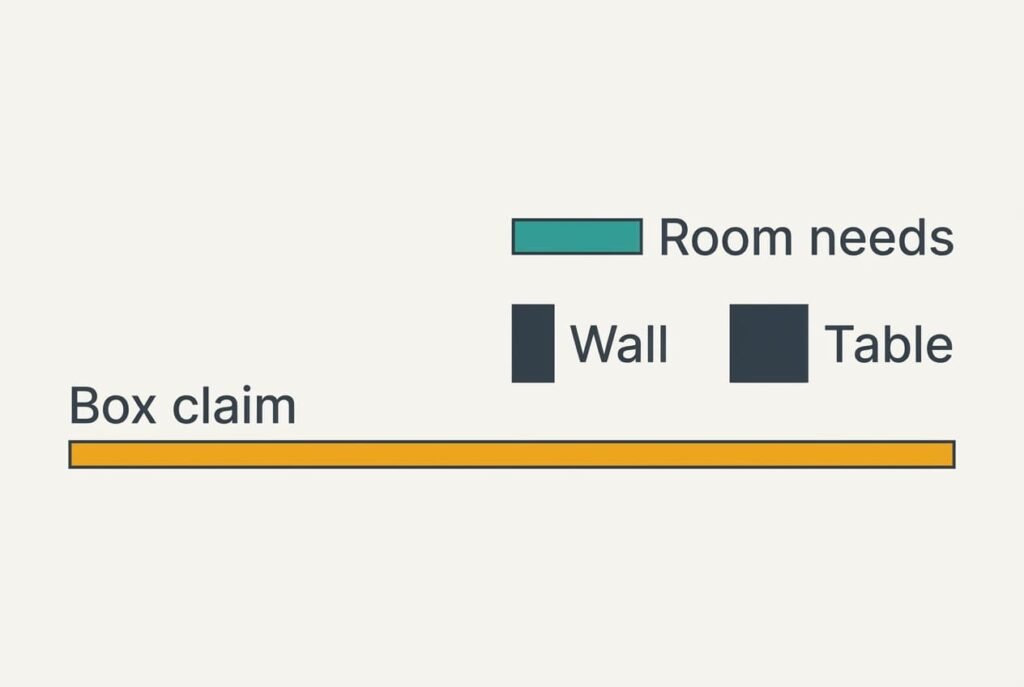
Some numbers are printed large because they sell. The loudest is a range of 30 m or more on the box. It sounds like a margin of safety, yet it describes open air without obstacles, whereas your room has walls and a table, and your own body stands between the clicker and the receiver. Even a true 30 m would be 7.5 times the 4 m you need, which means the figure can’t separate two models for a presentation clicker for meetings in a small room.
A built-in laser pointer is the second favourite. On many projectors and wall displays the dot is faint or invisible, and it adds a button you can press by mistake. Ask yourself whether you’ll use it before it sways the choice.
“Works with any laptop” is the third. It usually means any laptop that allows pairing or has the right port, which is the first check again. Ask which connection the clicker uses, and check that answer against your room.
Three Readers and What Moves for Each
A manager who borrows rooms every week meets locked laptops often. The connection stays first for this reader, and a receiver wins. The battery matters least, since a spare cell can live in the desk drawer.
A trainer who brings a personal laptop can pair at leisure. For this reader the buttons climb to second place, because a two-hour session means thousands of presses, and a presentation clicker for meetings that run long needs a cell that can be recharged or swapped.
A team lead who presents once a month cares most about the auto-off. The clicker sits in a bag for weeks between talks, and a model that never switches itself off will have drained its cell by the next one.
When to Walk Away
Walk away from a clicker that needs software installed before it works. A locked work laptop won’t let you install anything, and the clicker becomes a plastic stick. You can’t even test it beforehand, because the installer needs rights you don’t have. In our office that rules it out in 2 of 3 rooms.
Skip any listing that doesn’t say whether the clicker uses a receiver or Bluetooth. A connection that isn’t stated can’t be judged, and sending it back takes more effort than the device deserves. While shopping for a presentation clicker for meetings, you should find that one line of text with ease.
Leave out models with a sealed cell and no auto-off. Once that cell is flat, the whole clicker goes in the bin, and you’ll have bought it twice within a year.
Buttons you can’t tell apart by touch will cost you in front of an audience.
A Two-Minute Check Before You Commit
Bring the clicker into the meeting room, or to a laptop that matches the one there. Connect it and count the seconds until the first slide moves. Press next five times in a row and confirm that every press lands. Walk to the far corner, turn away from the laptop and press again. Look for the auto-off time in the leaflet or on the packaging; a clicker that states none probably has none. Last, hold it under the table and find the back button by feel. Time the whole routine on your phone and note any step that needed a second attempt, since a hiccup now becomes a pause later.
Keep it if all five tests pass. Return it while the packaging is still clean and unmarked if the connection or the auto-off fails. A fault that shows in the first two minutes will not fade with use, and a meeting room won’t offer a second try in front of colleagues.
Questions Readers Keep Asking
How much range does a clicker need?
Measure the longest distance between where you stand and the laptop, then double it. In a 5 × 4 m room that comes to about 8 m, and any model rated for 10 m or more passes. Extra range adds no benefit in a small room. The connection deserves your attention instead.
How much should a clicker cost compared with a phone app?
A phone app is free, but it needs your phone out and a network signal, plus a steady hand. A clicker justifies itself only when it removes fuss in front of people. Spend little, and move what you save toward a receiver and an auto-off rather than extra buttons.
How long should a clicker last before I regret buying it?
Several years, if the cell is replaceable and the clicker switches itself off. Regret arrives early when you change laptops, because a receiver built for one port shape may need an adapter. Choose the connection that your next laptop is most likely to keep.