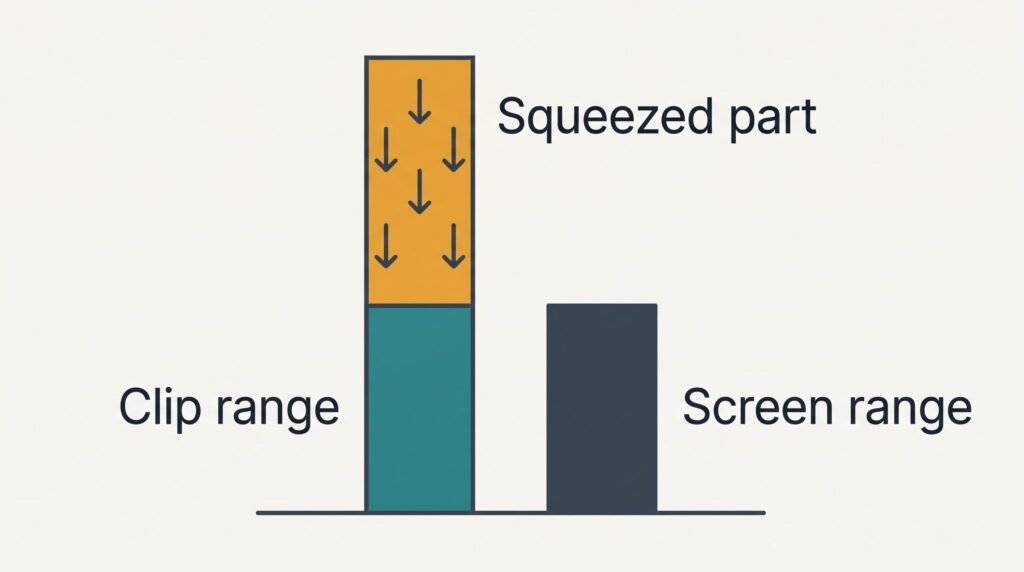
Why does HDR video look washed out on some screens? The file holds more brightness than the screen can show. The player has to squeeze the difference into the range on offer. That squeeze flattens the brightest parts, and your eye reads the flatness as pale and dull. All the figures that follow come from an invented sunset clip played on a modest screen. Your own clip and screen will give different ones. We follow one frame from file to display. After that comes an analogy that we break. The limits and the wrong beliefs close the page, and all you need to follow along is a screen and a patient eye.
What Makes HDR Video Look Washed Out, in Short
In short, HDR stores more brightness than screens show, and the player compresses the excess so the picture fits. Ordinary video is graded around 100 nits, a nit being a unit of screen brightness. HDR video is graded for far more. Our sample clip peaks at 1,000 nits and our sample screen at 300, a figure equal to 30% of the clip’s peak. The player has to decide what happens to the other 700 nits. Neither the clip nor the screen is at fault. The mismatch between them is the whole problem, and the player’s job is to hide it as gracefully as possible.
That summary misses three points. It never mentions how the squeeze is chosen, and it can’t explain why the same file looks fine on another screen. It also skips the pale look of a screen that ignores the HDR flag altogether. Such a screen reads the numbers as ordinary video. Brightness values land at the wrong levels and the wide palette is read as the standard one. Colours then turn paler. The sections below fill the gaps with a single frame.
Following One Sunset Frame From File to Screen
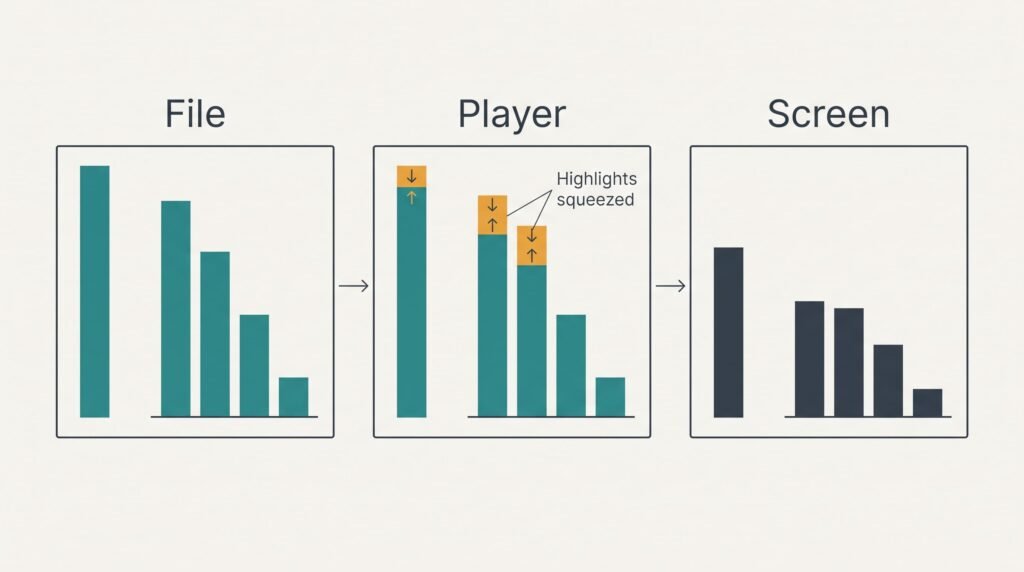
Take one frame of an invented sunset over a harbour. The grader set four brightness values in nits: the glint of the sun at 1,000, the bright sky beside it at 400, a face in the foreground at 90 and the dark water at 4. The file stores these as code values on a curve built for a huge range, with a flag saying that the clip is HDR.
Next the player asks the screen what it can do. Our sample screen replies that it peaks at 300 nits, and the player has three options.
Clipping is the crudest. Everything above 300 is cut to 300. Glint and sky both land on 300, and the gradient of the sky next to the sun vanishes into one flat patch. Face and water stay as they were.
Tone mapping is the usual choice. The player leaves everything below 100 nits alone. Faces and water live there. It then squeezes the span from 100 to 1,000 nits, which is 900 nits wide, into the 200 nits between 100 and 300. Each value above 100 becomes 100 + (value − 100) × 200 ÷ 900. The glint reaches 300 and the sky becomes 100 + 300 × 0.222 = 167. The face at 90 and the water at 4 don’t move.
Before the squeeze, the sky was 400 ÷ 90 = 4.4 times brighter than the face. Afterwards the ratio is 167 ÷ 90 = 1.9. Highlights keep their order and lose most of their separation, and that flatness makes HDR video look washed out on a modest panel.
That ratio is the whole story of the pale look.
A third option applies to a screen that ignores the flag. The player sends the numbers as ordinary video, and the screen reads them on the wrong curve with the wrong palette. The picture comes out dull and pale, which is worse than either squeeze.
A Loud Recording on a Small Speaker, and Where It Breaks
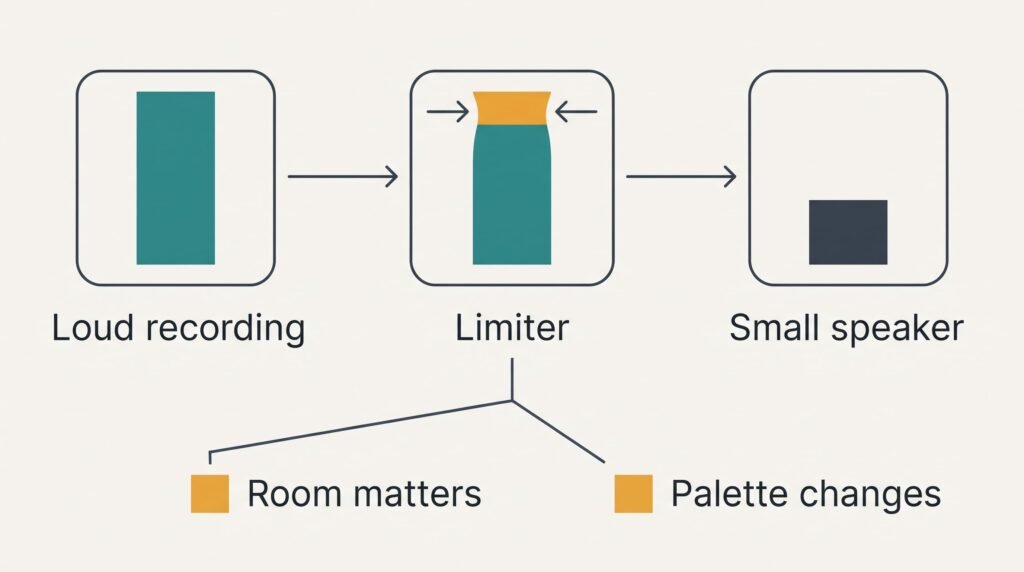
Picture an orchestra recorded for a large hall and played through a small speaker. The loudest passages would distort. An engineer therefore adds a limiter that turns down only the peaks. Quiet passages stay as recorded. Tone mapping treats the bright part of a picture in the same way. The region below 100 nits is left alone, and the peaks are turned down.
The analogy breaks twice. Ears judge loudness over several seconds, whereas eyes judge brightness against whatever surrounds the screen. A 300 nit panel in a dark room looks fierce, and the same panel in a sunny room looks timid. Sound also has no palette. A squeeze that lowers brightness changes how saturated a colour looks, and a loudness limiter never does anything like that.
When HDR Video Looks Washed Out Even on a Good Screen
Raising the brightness setting rarely helps. A brighter setting can’t restore squeezed highlights, because the extra light lifts every value together, including the dark water. In our sample the sky-to-face ratio stays near 1.9 whatever the slider says, and the black level climbs too. The picture gets louder without getting richer, which is the opposite of what most people hoped the slider would do.
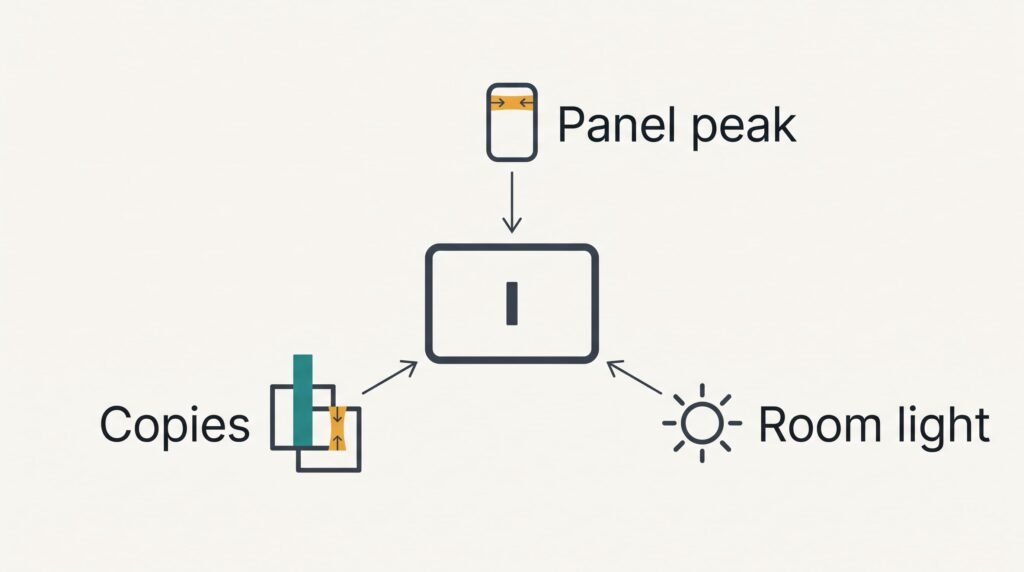
Peak brightness belongs to the panel, and a screen that tops out at 300 nits has no way to show 1,000, however the player is set up.
Room light adds a second limit. Daylight on the glass reflects off the screen and lifts the darkest parts. A dim picture in a bright room then loses depth.
Copies carry a third limit. Any screenshot or screen recording of an HDR clip is saved after a squeeze that you didn’t choose. The copy keeps that flat look on every screen it later meets.
What People Get Wrong About HDR
Many people think HDR makes the whole picture brighter. The belief forms because advertisements show glowing highlights. In fact the average level stays close to ordinary video, and only the brightest parts get more room.
Another view is that a washed-out picture means a broken file. That grows out of the same clip looking fine on a phone. A viewer who sees HDR video look washed out on a second screen blames the screen, or the file. The squeeze is the cause, and nothing is broken.
The third is that an HDR switch adds range to any video. It forms because televisions and apps offer a toggle, and the toggled picture looks different. A switch can stretch an ordinary picture, yet it can’t invent detail that the file never held. Stretched detail looks like contrast and carries none of the original information.
How to Decide Whether You Want HDR
Whenever you notice HDR video look washed out on one screen, compare both versions on your own screen, provided a player offers an ordinary version and an HDR one. Play the same scene in each. Choose HDR when the highlights show more detail and the picture looks richer. Choose the ordinary version when the HDR one looks flatter or paler.
In our sample, a screen peaking near 300 nits gains little from HDR, while one near 1,000 nits gains most. A dim room helps either screen, and a bright room hurts both. Repeat it after dark as well as in daylight, because the room changes the answer.
Your own eyes settle it better than any specification list, because the squeeze is partly a question of taste as well as arithmetic. If the ordinary version wins, the pale look simply disappears, and nothing has been given up. Nobody needs HDR for its own sake. A picture that looks right on your screen in your room is the right choice, whichever label the file carries. Write down which version won in each light, and the next clip takes seconds to judge.
Questions Readers Keep Asking
Can a brighter setting fix it?
Not by itself. A brighter setting lifts every value, including the shadows. In our sample the sky stays only 1.9 times brighter than the face. The panel’s peak is the real limit. A dimmer room often helps more than the slider does.
Do I need HDR at all?
Only if your screen can reach well beyond the 100 nits of ordinary video and you watch in a dim room. On a modest screen the ordinary version often looks better, because it avoids the squeeze. Nothing is missing from it.
How is HDR different from ordinary video?
Ordinary video is graded around 100 nits with a standard palette. HDR is graded for far more brightness and a wider palette, and it carries a flag that tells the screen so. A screen that can’t show that range must squeeze the picture to fit.