The drive from a retired laptop often spends years in a drawer with the family photos still on it. Nobody wants to throw it away unread. A small case can turn it into a USB device again, and that case has to match the drive’s connector. When you’re shopping for an enclosure for an old laptop drive, settle the fit before you read a word about speed or looks, because a case that doesn’t fit is a case you’ll post back. Our sums assume a laptop from about 2014 in a flat in Bristol, a drive holding 120 GB of photos, and a newer laptop to copy them onto.
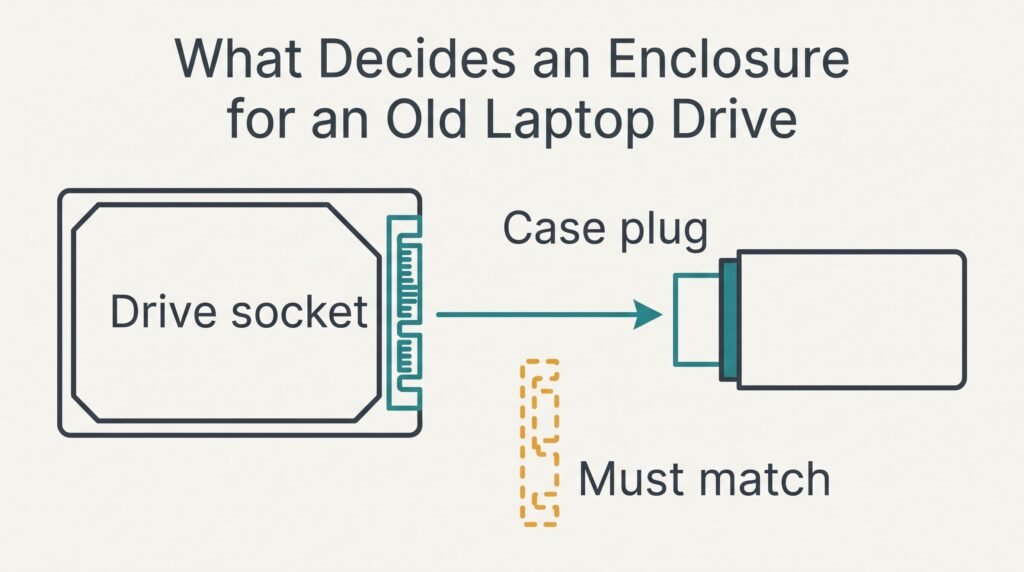
What Decides an Enclosure for an Old Laptop Drive
Your drive is a bare part with one socket on its edge. The enclosure is a case with a matching plug inside, plus a small chip that presents the drive to the computer as a USB device. The connector on the drive settles which cases can work at all. Laptops of different years used different connectors, and two shapes that look close can still refuse to meet. Pushing harder bends pins rather than making contact.
In our example the Bristol drive carries a label with its size and interface printed on one side. That label is the quickest source, and a search for the model number on it confirms the detail within a minute. If the print has worn away, study the socket, noting how its contacts sit. Compare what you found with the words in the listing. A listing that names the connector is promising. One that says only that it takes laptop drives has told you nothing, because every drive in this story came out of a laptop. A mismatch can’t be cured later by luck. That’s why the connector comes before everything else when you’re choosing an enclosure for an old laptop drive.
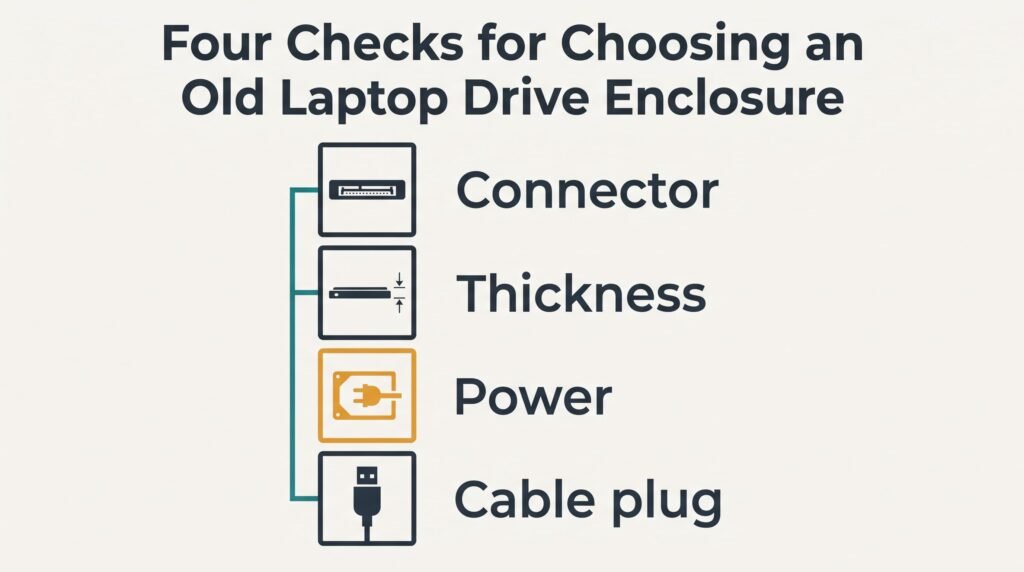
Four Checks for Choosing an Old Laptop Drive Enclosure
Work down this list in sequence, and discard a case at the first failure.
1. The drive connector. It decides whether the drive and the case can join at all, which puts it above every other point. Take the label on the drive, or the socket if the label is gone, and check each detail against the listing. A wrong match only shows once the box is open, and by then you’ve paid for postage both ways.
2. The drive thickness. A drive has a height in millimetres, and the case has a bay with a limit. The label usually gives the figure, and a ruler gives it when the label doesn’t. Suppose the drive measures 9.5 mm and the listing allows 7 mm. The drive stands 2.5 mm too tall, and the lid won’t close. A thinner drive in a deeper bay only rattles a little. A bay for the larger size is therefore the safer reading.
3. The power draw. Most buyers never look at this one. A spinning drive pulls its largest current while the platters speed up, and a case without a power lead takes all of it from the USB port. A laptop port may cope, while a port on a monitor or a television may not. Check whether the listing mentions a second cable or an adapter. A port that can’t supply enough makes the drive click and then vanish from the screen. It returns a moment later, and the copy stops halfway.
4. The cable plug. The cable ends in a plug for your computer, and it must suit the port you’ll use every time. Look at the sockets on your laptop today and note their shape. A cable fixed to the case can’t be replaced when it frays. Swapping a detachable one takes seconds. A wrong plug is fixed with an adapter, though that is one more small thing to lose.
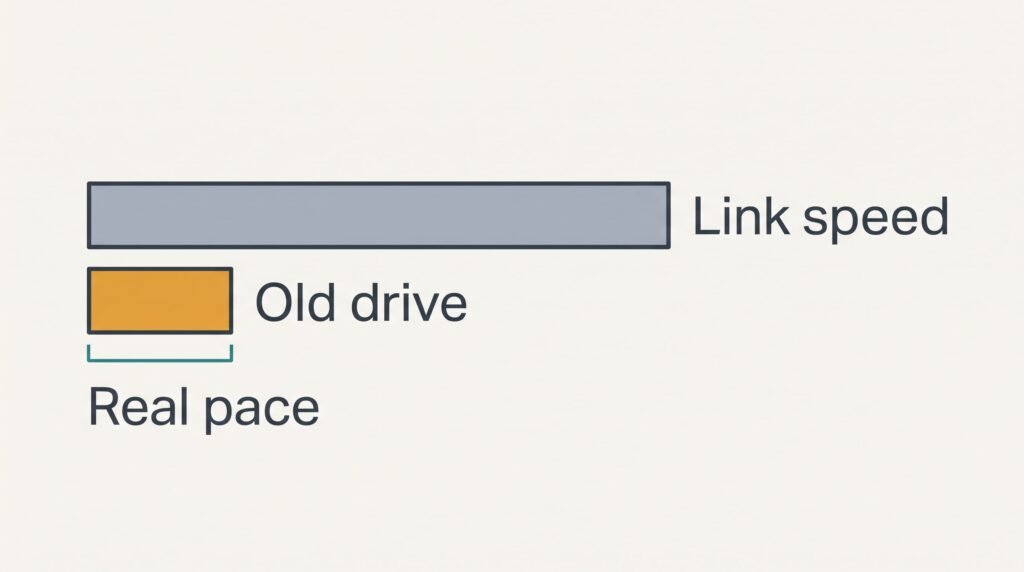
Specs That Sound Better Than They Are
Makers print certain figures in large type for one reason: shoppers react to them. The loudest here is the top transfer speed on the box. That figure describes what the link could carry with a very fast drive inside it. Your drive sets the pace, and an old spinning one stays slow whatever the case promises. Few shoppers question it, since a big number looks like a safe bet.
Take our sample drive, which reads at about 80 MB/s on a good day. Copying 120 GB, or 120,000 MB, takes 1,500 seconds, which is 25 minutes. A case with a link ten times faster still gives 25 minutes, because the drive is the limit.
A metal body is the second favourite, advertised as a way to carry heat away from the drive. For a copy that lasts under an hour it changes little. Ask whether you’ll run the drive for long stretches before that claim sways the choice.
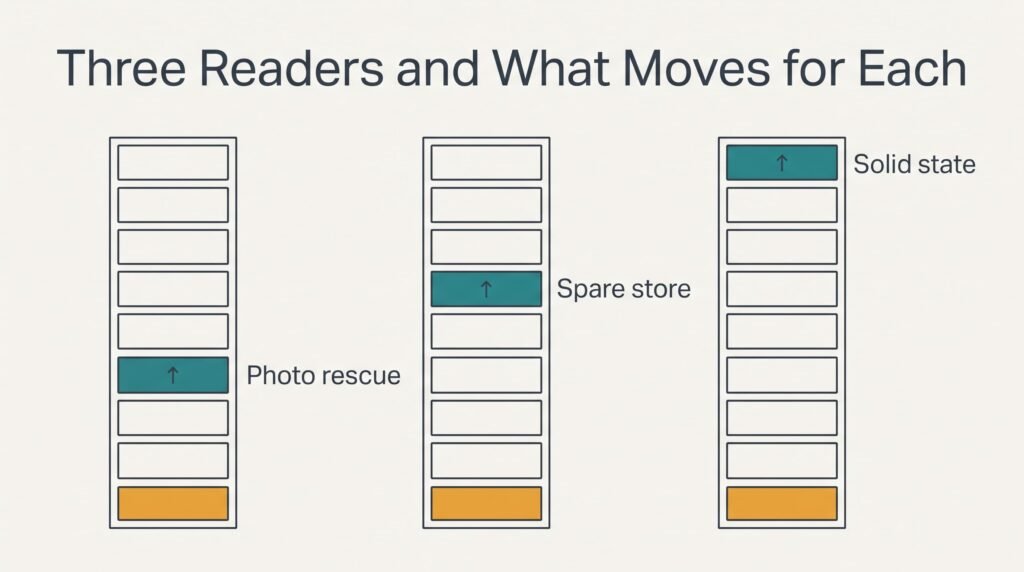
Three Readers and What Moves for Each
A reader who wants the photos off once and never wants the case again should stay with the first three checks. Power matters most for this person, because a copy that stops halfway wastes an evening. Speed hardly matters, and a plain case does the job.
Someone keeping the old drive as a spare store has a longer relationship with it. A detachable cable climbs the list, since an enclosure for an old laptop drive may be moved between desks for years. The drive carries plenty of wear too. Anything precious deserves one more copy on a different device.
A reader whose old laptop held a solid-state drive faces different sums. It draws less current, which moves power down the list. Link speed now counts, because that drive can outrun a slow link.
When to Walk Away
Rule out a listing that omits the connector it accepts. A case that can’t state its own socket can’t be matched with your drive, and you’d be buying on hope. Returning it costs you days of waiting for a refund, and the drive still has nowhere to plug in.
Pass over any listing that states no limit for drive thickness. The lid either closes or it doesn’t, and the reviews rarely say which. A drive sitting proud of the bay leans on the lid, and the plug inside takes the strain.
A fixed cable with no word about power is another warning. It suggests the maker never considered a drive that needs extra current at start-up, and the search for an enclosure for an old laptop drive shouldn’t end with a case built around newer parts.
A case sealed with glue instead of screws can never be reopened for a second drive.
A Two-Minute Check Before You Commit
Slide the drive into the case on the day it arrives. Hold on to the box and the packing for now. Connect it to the laptop you’ll really use and count the seconds before the drive appears on the screen, which should be short. Then copy a folder of about 1 GB and watch the progress bar for any pause or repeating click. Finish by pulling the cable out and pushing it back in, to confirm that the drive returns without a restart. Listen to the drive as well, because a steady hum is normal and a repeating tick is not.
Keep the case if the copy runs smoothly to the end. Send it back, packing intact, if the drive fails to appear or drops out mid-copy. A case that passes also tells you the supply is strong enough. Trouble that appears within two minutes tends to stay, and a return window won’t wait until you feel sure.
Questions Readers Keep Asking
Does the case need to be fast for an old drive?
No. A spinning drive from an old laptop reads far below what a modern link can carry. A quicker case adds nothing you’d notice. Judge the fit and the power draw instead. Speed becomes worth a look only when the old drive is solid-state, because that kind can outrun a slow link.
How much should I spend compared with a new external drive?
Spend a small fraction of what a new external drive costs. The case is only a shell, and its purpose is to give the old drive a second life or to rescue what’s on it. If the case costs close to a new drive, buy the new drive, since the old one carries years of wear.
How long will the case last before I regret it?
The case itself can serve for many years, since it has no moving parts of its own. Regret tends to come from the drive inside, which has already worked for a long time. Treat the setup as a way to copy files off, and keep anything precious in at least two places.