Before you pick a Chromebook for a spare desk, work out how much memory is left once your usual tabs are open, because that figure outranks everything else printed on the box. Gareth, a retired teacher in Norwich, plans to use the desk for email and online banking. A weekly video call and a set of photo albums come on top. A dozen tabs are always open on his screen, and he wants the machine to last for years. What follows ranks four checks, then names the specs that overstate what they do. Each number is an assumed sample. No maker or sum of money appears.
What Decides a Chromebook for a Spare Desk
A Chromebook runs almost everything inside its browser. The browser’s appetite therefore becomes the machine’s appetite. Every open page claims some memory, and a video call claims far more. Once the pages no longer fit, the system drops the tabs you’re not looking at and rebuilds them when you click back. That shows up as a stall or a blank page.
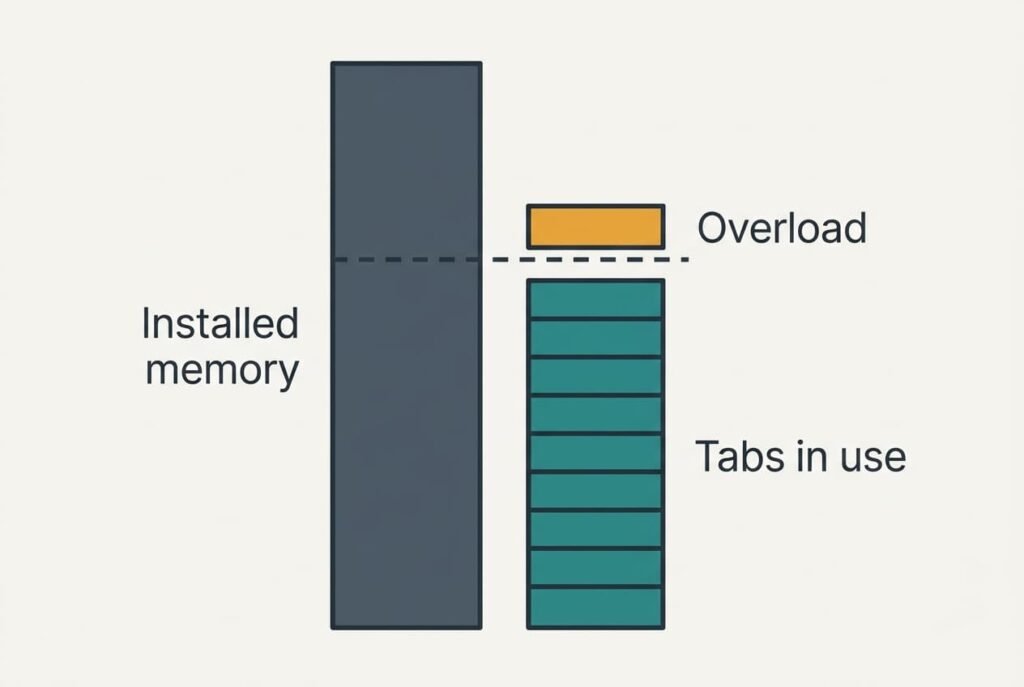
The memory still free once your usual tabs are open separates a smooth model from a sluggish one. These round values are assumed. The system holds 1.5 GB and an ordinary tab holds 0.2 GB. A document tab holds 0.5 GB and a call holds 1.0 GB. Gareth’s session has twelve ordinary tabs. It adds one document and one call.
The tabs come to 12 × 0.2 = 2.4 GB. Add 0.5 GB for the document and 1.0 GB for the call. The system’s 1.5 GB brings the demand to 5.4 GB. Against a 4 GB model that is 135% of everything installed. Against an 8 GB model it is 68%, with 2.6 GB left over. Divide 5.4 by 0.7 to get 7.7 GB, and the 8 GB model is the first size that clears the line.
Four Checks Before You Pick One, in Priority Order
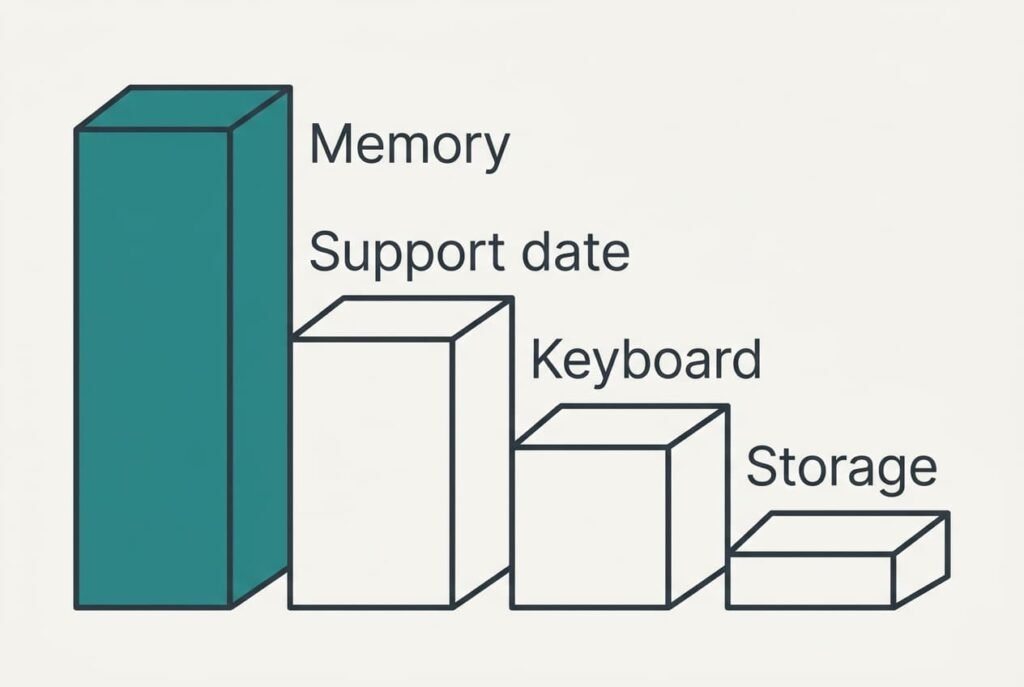
1. Memory headroom leads, because a Chromebook for a spare desk is won or lost there. Total your own session with the values from the previous section, then divide by 0.7 to find the size you need. Many thin laptops fix the memory to the board, which means the figure at purchase stays for life. An error here shows up as pages that reload while you’re reading them. The whole machine then feels older than it is.
2. The support end date takes second place, and it’s the line most buyers never look up. After that date the maker no longer ships security fixes for the model. Picture model P with 4 years of support left at a relative cost of 1.00. Model Q costs 1.25 and has 7 years left. P works out at 0.25 per supported year and Q at 0.179, which is 29% lower. Search the maker’s support page with the model number printed on the listing. An error here leaves a sound machine out of support while it still handles your banking.
3. Keyboard and screen rank third because you touch them for hours. Gareth types about 1,500 words a day, which at 40 words per minute is 37.5 minutes of keystrokes. Test the keys with a 100-word paragraph, which takes 2.5 minutes, and confirm the layout matches the UK one you’re used to. Glance at the screen from your usual seat. A mistake here leaves the desk empty while the old laptop keeps coming out.
4. Storage comes last, since cloud space can take the overflow. Assume a 32 GB model hands 10 GB to the system and apps, which leaves 22 GB. Gareth’s 3,000 photos at 4 MB each fill 12 GB. That leaves 10 GB free, a 45% margin on the usable space. Check that the listing quotes usable space rather than the raw chip size. If you misjudge it, a download has nowhere to go.
Which Specs Are Oversold for Everyday Browsing
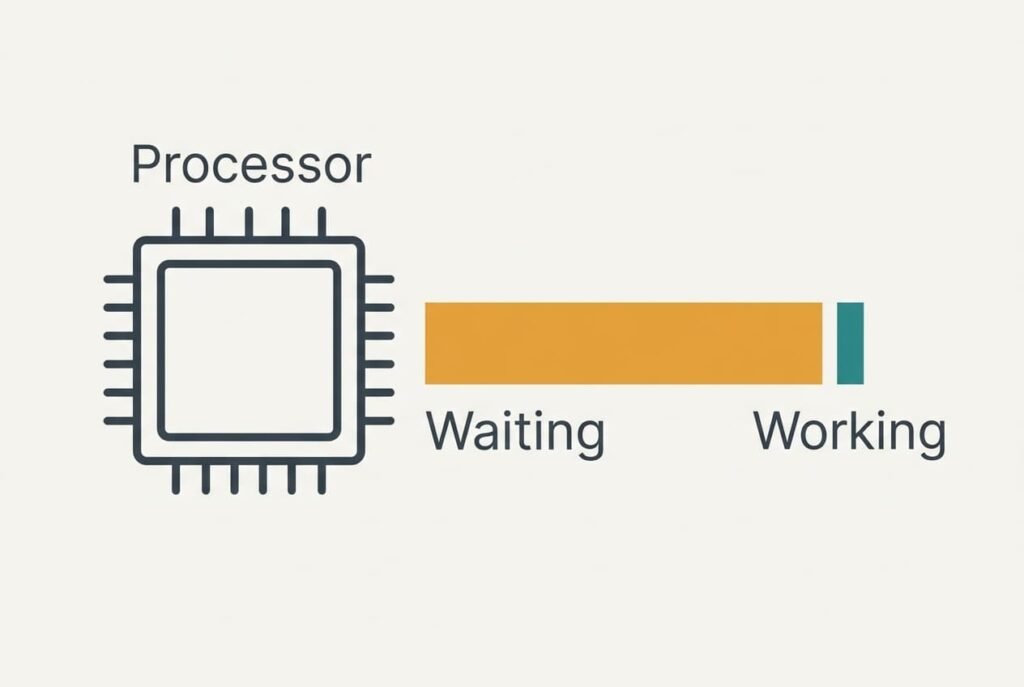
A handful of box figures get more credit than they’ve earned. A faster processor tier comes first. Processor names are easy to compare, which is why they’re promoted. Gareth’s tabs sit idle most of the time, and the processor spends those moments waiting for him. On this kind of work memory runs out long before processing speed does. Two models with the same memory will feel much alike to Gareth even when their processor tiers differ.
A long battery quote is next. It’s measured with a dimmed screen and light use, and the spare desk has a socket within reach. Twelve hours on the label changes nothing in that position, and a shorter figure would change just as little.
Touchscreens and hinges that fold flat deserve a closer look too. A touchscreen helps a reader who draws, and a hinge helps one who tilts the screen to share it. Gareth does neither. The hinge adds moving parts for him, and the touchscreen adds weight to the lid.
Which Chromebook Suits Which Reader, and What Moves
A reader sharing a Chromebook for a spare desk with a teenager’s homework might keep twenty ordinary tabs open. Those take 4.0 GB, and the remaining items lift the total to 7.0 GB. An 8 GB model then runs at 88%. Memory becomes the whole decision, and the next size up leads the shortlist.
A reader who checks email once a day with four tabs needs 0.8 GB plus the system’s 1.5 GB, which is 2.3 GB. Dividing by 0.7 gives 3.3 GB. A 4 GB model is enough, and the support end date moves to first place.
A reader who writes long letters moves the keyboard to second place and treats the 100-word paragraph as the main trial.
Reasons to Leave a Chromebook on the Shelf
If the listing shows no support end date and the maker gives no way to find one, walk away. Nothing printed in the listing can repair a gap you can’t close after buying. Gareth’s saving of 29% per supported year only exists when the date is known. A Chromebook for a spare desk is a purchase you’ll live with for years, and that date is the clock on it.
A listing that conceals the memory size is also rejected, since sellers rarely hide the big number.
Treat a used unit with care, because it can still be tied to a school or company account that locks the next owner out. Have the seller confirm it has been released from any account, and read the returns terms before paying. A locked unit can arrive in a box that looks new and then refuse to sign you in.
A Two-Minute Check for a Spare Desk Chromebook
Start with the date, since a Chromebook can only be assessed against a figure. Open the device’s About page and read the support end date, then count the years from the day of purchase. Next, open your usual tabs. Play a video at the same time and watch whether the pages hold. Type your 100-word paragraph, then add up the files you want offline and set them against the usable storage. Plug in the one cable or card you use daily and confirm the socket fits it. If the listing leaves any answer out, ask the seller before paying. When you’re buying online, run the whole test inside the returns window.
Memory and the date narrow the field. The keyboard and storage then choose between whatever is left. Note your totals next to each listing during the comparison, because details from the shelf fade quickly once you’re home. A figure on paper beats a feeling in a shop, and it gives you something to hold the seller to.
Questions Readers Keep Asking
How much memory does a Chromebook need?
Add up your own tabs, then divide by 0.7. Gareth’s session totals 5.4 GB and needs 7.7 GB, which points to the 8 GB model. A reader with four tabs needs about 3.3 GB and is comfortable with 4 GB. Your own sum is the only guide that fits your habits.
Is it worth paying more for a later support date?
Compare it per year of support rather than as a lump. If one model costs 25% more and has 7 years left against 4, it works out 29% cheaper for each supported year. Pay more for a later date only if you’ll keep the machine that long, and never for speed you won’t use.
What happens when the updates stop?
The machine still starts and runs, but it no longer receives security fixes. Over time some sites and apps may refuse the old browser. Banking is the first place you’d notice trouble. Plan the replacement before the date arrives rather than after.