Allow twenty minutes to set up a voicemail greeting that gets useful messages from every caller, and you finish with a 15-second greeting that tells callers what to leave. A caller who follows it says who they are and why they rang. That’s around 15 words and 6 seconds of speech. The fork comes first. Your phone either lists messages on its screen or makes you dial in to hear them, and the steps below cover both. They suit an ordinary UK mobile. Menu names vary by handset and network. Match each step to what your own screen shows.
Before You Set Up a Voicemail Greeting: One Check Most People Skip
Have a mailbox PIN and a script of about 40 words ready, with a stopwatch beside you. The stopwatch earns its place because a greeting feels short to the writer and long to the listener.
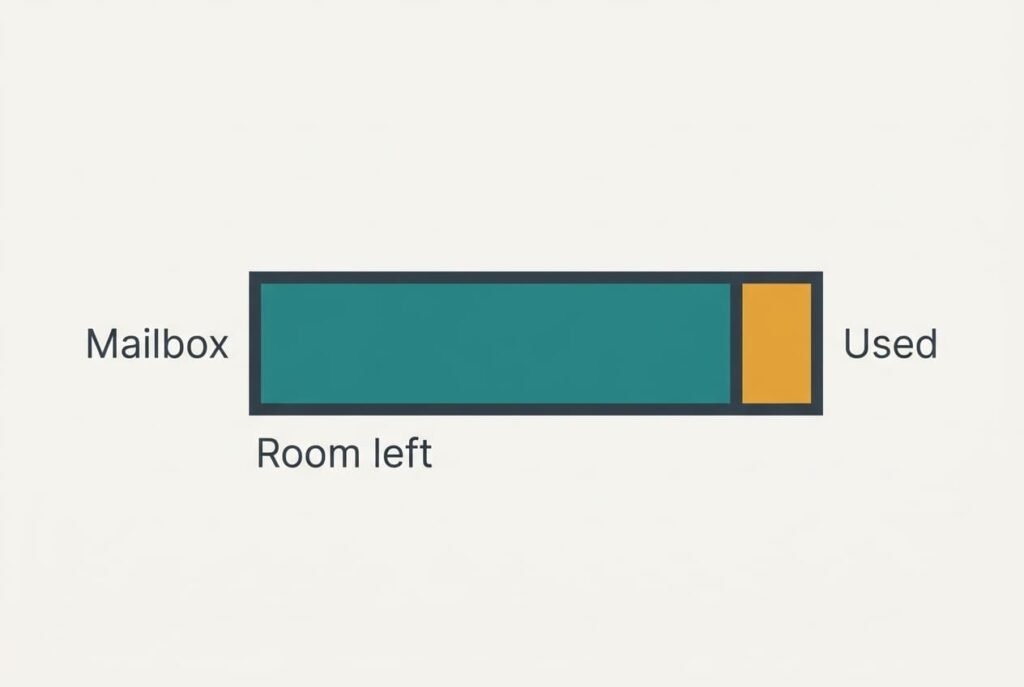
Check how many messages your mailbox can still hold before you record anything. A full mailbox turns callers away with a recorded refusal, and no greeting survives that. Assume yours holds 20 messages and you receive three a week. It fills in 20 ÷ 3 = 6.7 weeks. A mailbox nobody empties goes silent after about seven weeks.
Next, find out whether the messages appear in a list on the phone or only arrive as a notification with a number to dial. The first kind is called visual voicemail. The second kind sends you to a call. Both accept a personal greeting, but the recording step sits in a different place for each, and knowing your type saves ten minutes of searching.
Last, pick a quiet room. A running tap or a television behind you will be heard by every caller who reaches the greeting.
Six Steps to Get a Voicemail Greeting Set Up Properly
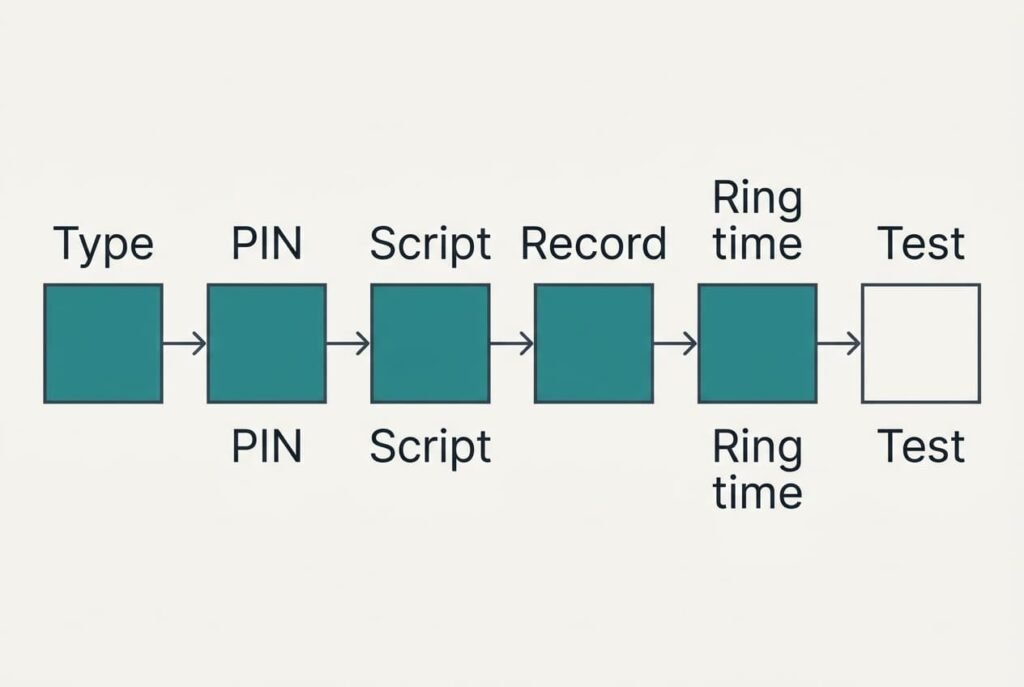
1. Identify your type of voicemail by looking at the phone app. A list of messages with play buttons means visual voicemail, and a lone notification means dial-in. The reason is that the later steps point to different screens. The test is that you can name your type without checking again.
2. Set or change the PIN, and look for a prompt that asks you to choose digits you haven’t used elsewhere. Without a PIN of your own, anyone who learns your number might be able to dial in and listen to your messages. Changing the PIN replaces the old one at once. Note the new one somewhere safe. Open the mailbox once and confirm it accepts the new digits.
3. To set up a voicemail greeting well, write the script before recording. Aim for 40 words, because speaking runs near 2.5 words a second and 40 ÷ 2.5 = 16 seconds. Cut until it reads in 15. Say who you are, add when you’ll call back and ask for the caller’s name and number. Reading it aloud with the stopwatch tells you it fits.
4. Record the greeting in the quiet room, looking for the option that says personal or custom rather than default. Speak slowly and smile a little, since a warmer voice invites a calmer message. A new recording replaces the previous one, and the old one usually can’t be recovered. Play it back once and check that no word is clipped at the start.
5. Set how long the phone rings before voicemail picks up. Look for a delay in the unanswered-call settings and choose about 20 seconds, an assumed figure. A shorter delay sends callers to voicemail before you’ve found the phone, while a longer one makes them wait for nothing. Changing it alters where unanswered calls go. Leave the forwarding number as it is. Proof comes from a call placed on another handset that rings for the time you chose.
6. Leave yourself three test messages and delete them. The point is to prove that the mailbox accepts messages and that deleting one frees the space. Deleted messages are gone for good on most networks. Test only with your own calls. Finish with a mailbox that shows zero messages.
Testing the Finished Greeting With One Call
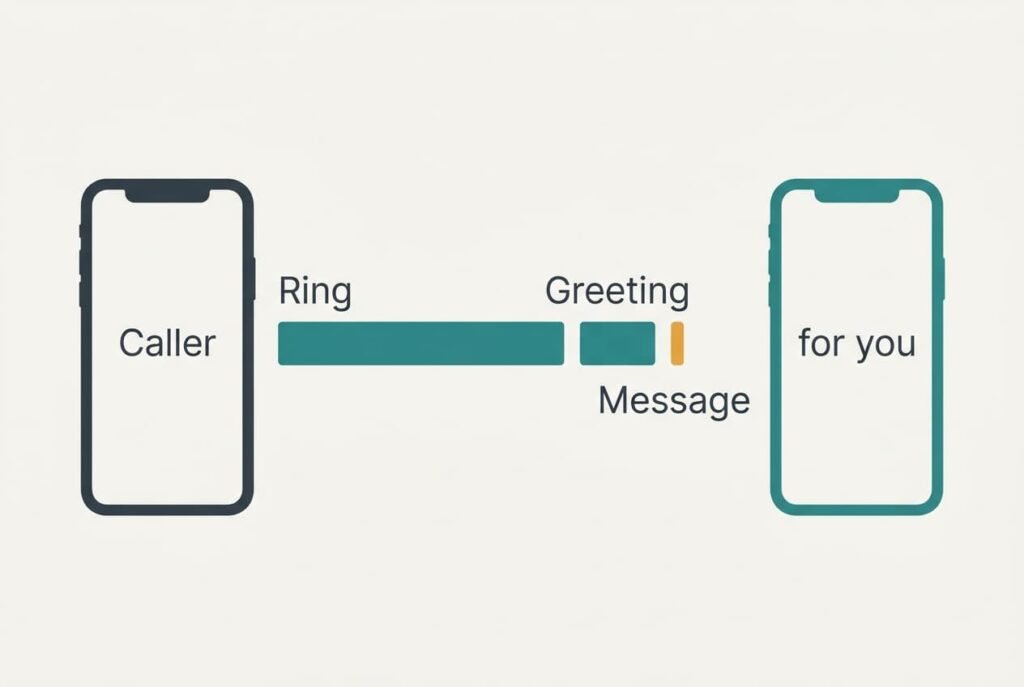
Call your own number from a different phone and let it go to voicemail. To set up a voicemail greeting you can trust, run the call the way a stranger would. Start the stopwatch as you dial, then stop it as the greeting begins. A reading close to 20 seconds, with a little extra for connection, means step 5 worked.
Listen to the greeting through the speaker of the second phone. Check that the voice is clear and that the greeting ends within about 15 seconds. Leave a message of roughly 10 seconds that says who you are and why you’re calling, then hang up.
Now return to your own handset. A notification should arrive soon after, and the message should play without crackle.
Write down every result beside its check.
When all four behave, the greeting is live. The full test takes about three minutes. If one fails, the next section names the likely cause.
[IMAGE 4 HERE – replace this box with the generated image]
If the Setup Stalls: Three Common Snags
The old greeting still plays. You probably saved the recording as a draft or left the default greeting selected. Open the greeting list, mark the new one as active and repeat the call. You’ll see it work when the first words you hear are your new ones.
The phone rings for ever or never reaches voicemail. A forwarding setting for unanswered calls may be off, or a silent mode may be stopping the handset from signalling a missed call. Switch the forwarding back on and repeat the stopwatch call. Expect the greeting to start at the delay you chose, within a second.
No alert arrives for a new message. Notifications for the phone app may be switched off, and on some handsets the voicemail alert is a separate switch. Turn them on, leave a fresh message from the second phone and wait two minutes. If the message plays but no alert came, the notification switch was the culprit and the greeting itself is fine.
The Step That Isn’t Worth Taking
To set up a voicemail greeting that works, skip the long version with a joke plus your opening hours and other numbers to try, because it costs more than it earns. Callers decide in the opening seconds whether to talk, and a speech of 30 seconds or more, which is about 75 words, sends many of them away before the beep. You’d also have to re-record whenever one detail changed, and each re-recording replaces the last for good.
Promise only what you can keep. A greeting that says you’ll call back within the hour turns every late reply into a broken promise. Name a time you really manage. There’s no need to read out your own number either, because the caller’s screen already shows it.
A short greeting does everything that matters. It names you and gives a callback time, then tells people what to leave.
Anything else can wait for the message itself.
Set it once and run the stopwatch call, then leave it alone. Review it only if your number or your routine changes. Pin the script to the wall by the phone so a re-recording takes five minutes, and every few months glance at the mailbox count so it never fills unnoticed, and delete messages you have already dealt with. With a 15-second greeting and room in the mailbox, callers know what to say and you know whom to ring back first.
Questions Readers Keep Asking
How long does the whole setup take?
Plan on 20 minutes. Writing the script and recording take roughly 10, and the test call adds three. The rest goes on finding where your phone keeps each setting, and a second attempt is much faster because you’ll remember the places.
Will recording a new greeting delete my messages?
No, but it does replace the old greeting for good. Your saved messages stay in the mailbox. If you like your current greeting, play it through a second phone’s speaker and record it on a voice memo before you overwrite it. You can then copy it back.
What if I use a work phone with two lines?
Each line usually has its own mailbox and its own greeting. Repeat the steps for the second line, and give each a script that names the right line. Test them separately, because a setting on one mailbox rarely carries across to the other.