You can sign a PDF on your phone and send it back in about 10 minutes, and the other side receives one clean file with your signature on the right line. One fork sets the route: a flat page takes a drawn signature, whereas a form with boxes takes typed answers first. This guide follows the flat page, because it’s the common case. The form variant sits in the closing questions. No printer or scanner is needed, and the result opens the same way on any device. Read the minutes and megabytes as assumptions for a three-page tenancy renewal on a recent handset, and time one page yourself before trusting them.
Before You Sign a PDF on Your Phone: The Copy People Skip
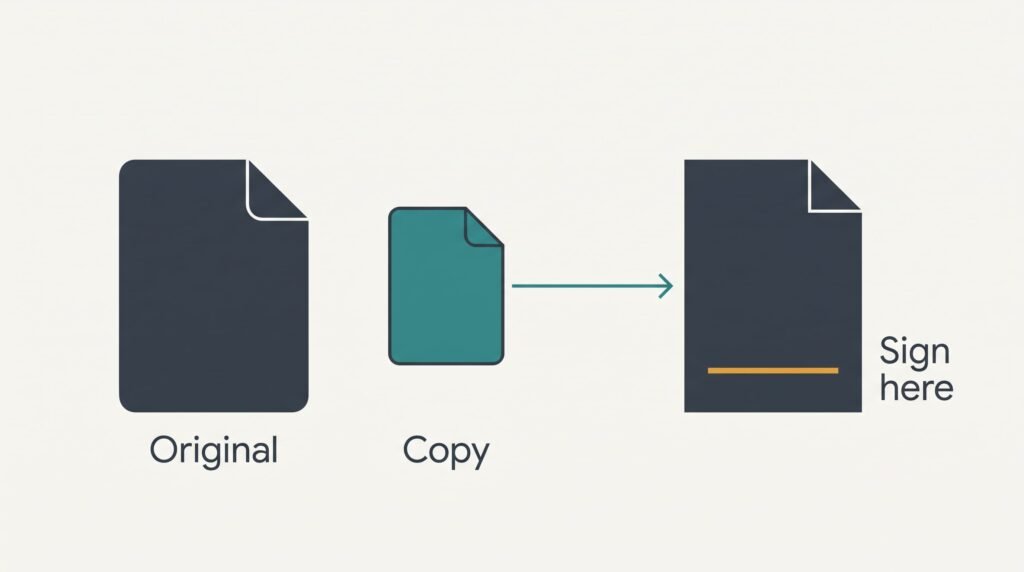
Most people skip saving a copy under a new name, yet signing alters the file and one stray tap can overwrite the only original. Maya in Leeds has a renewal file of 3 pages and 1.8 MB. She saves a second version with -signed on the end of the name, and the folder now holds two files totalling 3.6 MB.
Check how the file reached you as well. A file opened straight from an email preview can be a temporary copy that vanishes when the app clears its stored data. Move it into your documents folder before anything else, which takes about 30 seconds.
Then find out which fork you’re on. Tap a blank line near the foot of page 3. A box that lights up with a blinking cursor means the file is a form. Read the variant in the questions below. Nothing happening means a flat page, and the steps here apply.
Lastly, ask the sender whether a drawn signature is acceptable. Some offices want a typed name instead, and that rule is theirs to set. One short message now prevents a rejected file tomorrow.
Six Steps From Open File to Sent Copy
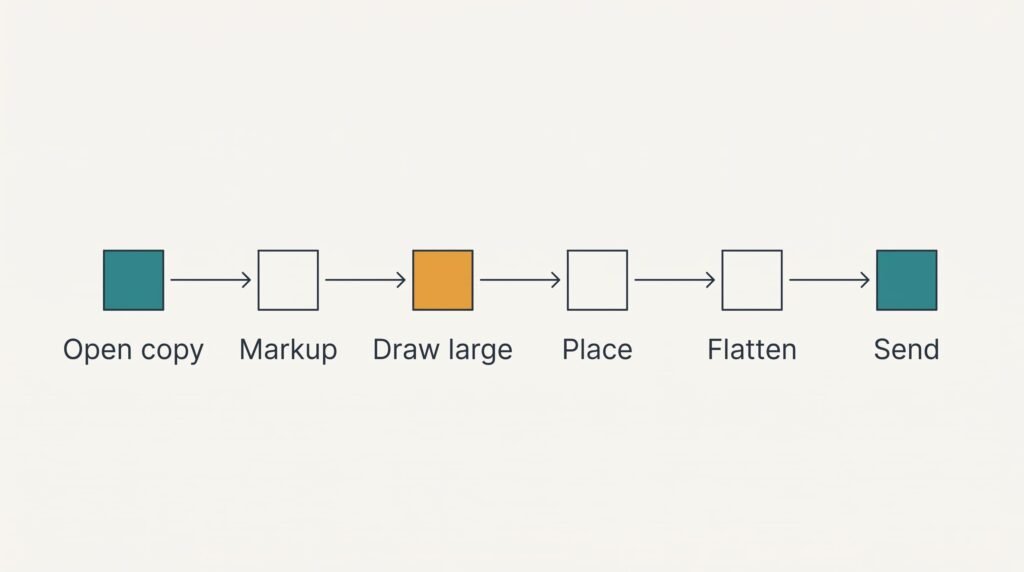
1. Open the copy rather than the original. Check the filename shown above the page: it should carry the -signed ending. Every mark you make lands in whichever file is open, and an original with your signature on it can’t be undone from your side. Success is a visible match between the name on screen and the name in the folder. This takes about 1 minute.
2. Switch the viewer into its markup mode. Search the toolbar for a pen symbol or a sign option, because a plain preview can’t place anything on the page. A viewer with no toolbar is read-only, and a different app is needed. You’ll have it when a colour palette or a signature panel appears. Budget 2 minutes, mostly for finding the control.
3. Draw your signature large. If you sign a PDF on your phone with a tiny stroke, the mark turns to a smudge once the page is viewed on a bigger screen. The panel’s preview should show a smooth line that fills most of the box. Maya draws hers 6 cm wide and 1.5 cm tall, which takes up 75% of the 8 cm line. This takes about 2 minutes.
4. Place it so its baseline rests on the printed line. Zoom to 200% first: on a screen about 6.5 cm wide the 8 cm line then spans roughly 5 cm, giving your thumb room to drag precisely. A mark across printed text can be refused. Success is the typed name beneath the line staying readable. Type the date beside it, for about 2 minutes in all.
5. Save the markup into the page itself. Find the choice that merges the signature with the document; it’s often called flatten or save. Some viewers keep a signature as a loose layer that disappears in other apps. Reopen the saved copy and see that the stroke is still there. This takes 1 minute.
6. Attach the signed copy from the folder rather than from the viewer’s share button. Read the attachment name once more: it should end in -signed, and its size should sit within 0.2 MB of 1.8. Anything far off means you’ve grabbed the wrong file. About 2 minutes, making 10 in all.
Test the Signed File Before You Send It
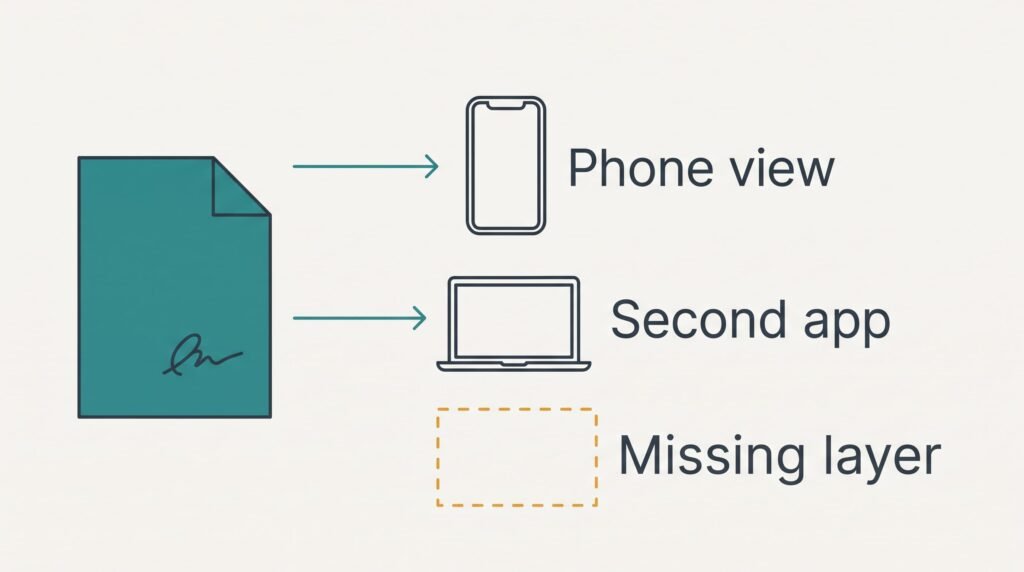
Because a signature can show on your phone and still be missing from your reader’s copy, open the saved copy in a second app and check page 3 for the signature. A laptop or a different viewer will do. This catches the loose-layer problem from step 5.
Whenever you sign a PDF on your phone, zoom to 200% on the signature itself afterwards. The stroke should have no gaps, and the date should sit beside it. Pages 1 and 2 should look untouched. Skim them for stray marks left by a slipped finger.
Finally, compare sizes. A good copy stays close to 1.8 MB. A drop to a few hundred kilobytes means the viewer squeezed the images, and the page may look soft to a reader. Redo the save and choose the option that keeps the original quality.
This test takes under two minutes.
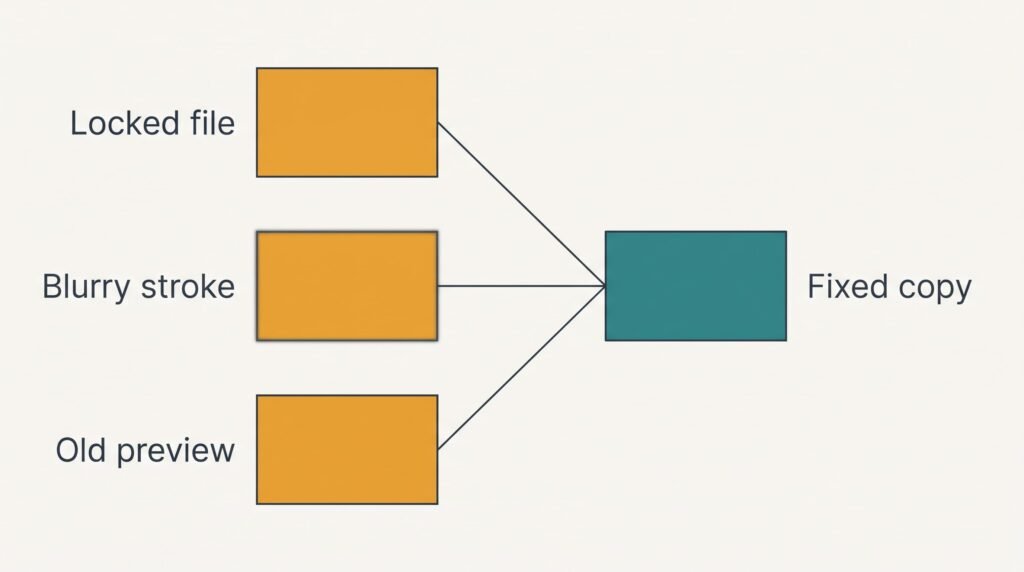
Where a PDF on Your Phone Gets Stuck
The toolbar never appears. The file is protected, and the viewer shows a lock or a read-only note. Ask the sender for a version without the lock and allow a day for the reply, because nothing on your side can open that lock. Some files also carry an editing password, which the viewer asks for as soon as you try any markup.
The signature looks blurry when zoomed. It was drawn too small, and the viewer stretched the stroke. Delete the mark and draw it again at 6 cm wide. Drawing larger costs no extra time, and the repair takes about 2 minutes.
Your email app shows the old copy without a signature. The app is previewing a stored thumbnail. Remove the attachment and attach the file again from the folder, then check the name before sending. The delay is about a minute.
Nothing is lost in any of these cases, because the original still sits untouched in its folder.
One Step Not Worth Taking
Don’t print the page to sign a PDF on your phone and scan it back. That detour adds roughly 15 minutes and costs sharpness, and what you hold is a picture of a page instead of text that a reader can search. A phone has everything the job needs. The phone route saves those minutes and keeps the file crisp.
Photographing a signature on paper and pasting the picture in is another detour. The photo arrives with a pale rectangle that covers the printed name, and trimming it takes longer than drawing a fresh stroke would. A cropped photo also carries the paper’s grain and shadows, which a reader sees as a grey patch. Two minutes of drawing beats ten minutes of cropping.
One exception remains: a sender who writes that they accept only ink. Then print the page and sign it by hand. Scan it at a high setting so the stroke stays clear.
Keep the original and the signed copy until the sender confirms receipt. Delete nothing before the reply, because an unsigned original is the only way back if the sender asks for changes. Rename the signed one with the date so it turns up easily twelve months on, and set a diary note for two working days ahead. If no reply has arrived by then, a short message quoting the filename is enough to ask whether it landed.
Questions and Answers
How long does it take?
About 10 minutes for three pages once you’ve done it a couple of times. The first attempt takes closer to 20, because finding the markup controls is the slow part. A second visit goes much faster, and a drawn signature can be reused.
What if the PDF has fillable boxes?
Tap each box and type the answer, then use the form’s own signature field if there is one. If the file has no signature field, add a drawn signature as in step 3. Save a copy before typing, because typed answers change the file just as markup does.
Can I overwrite the original by mistake?
Yes, if you sign the file you opened. That’s why step 1 is a copy. If it happens anyway, ask the sender to resend the original. The signed version can be signed again later, but nothing restores an unsigned one from your side.