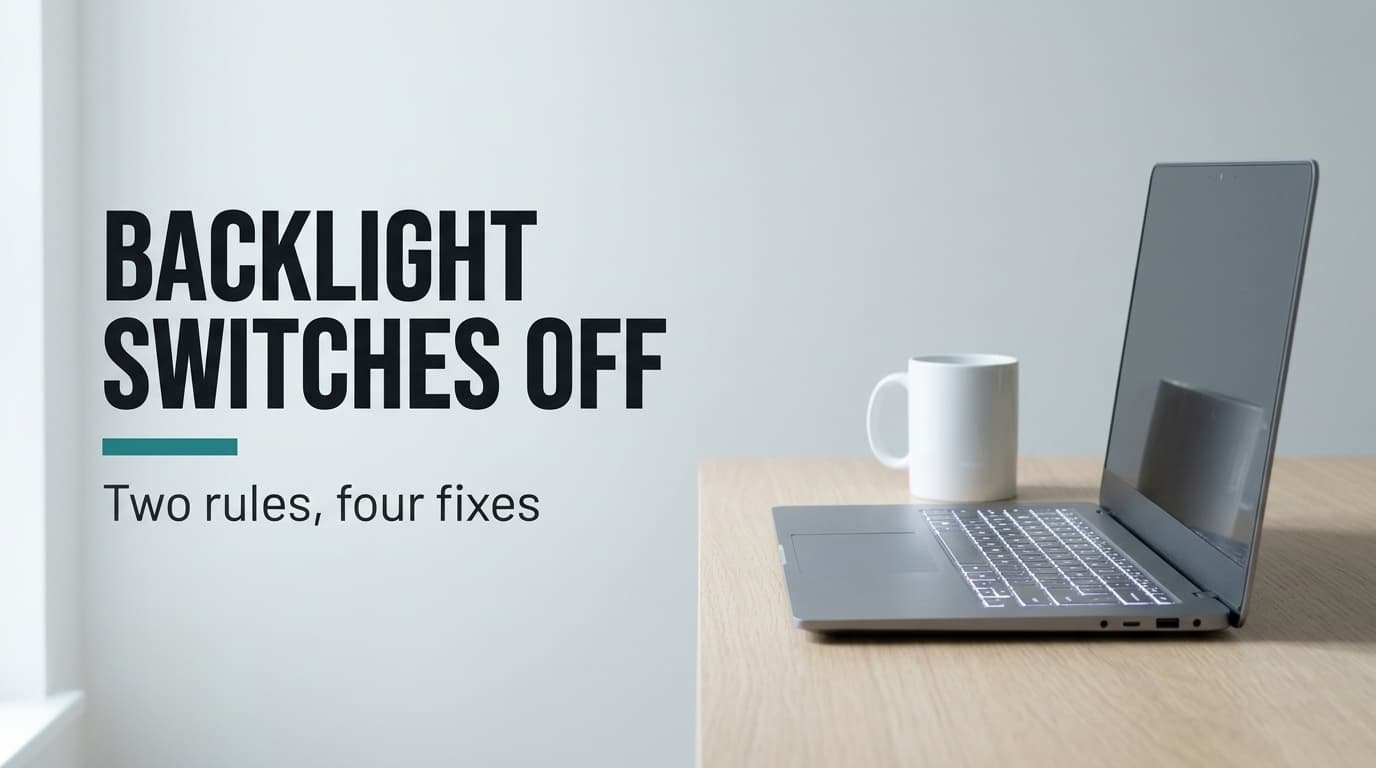
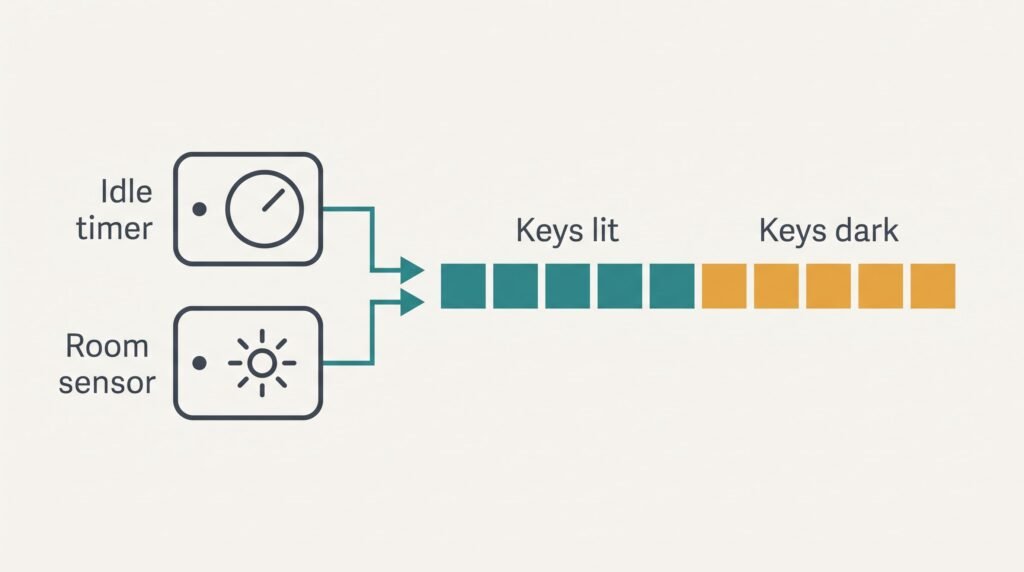
A backlight that goes dark halfway through a sentence is nearly always obeying a rule, and the likeliest rule reacts to room light, which you can test by shifting the laptop out of the sunny patch. Why does my keyboard backlight switch itself off while I’m still typing? Two separate rules decide when the keys stay lit. One is an idle timer. The other watches the room through a small sensor. Our example is a laptop used at a Sheffield desk beside a window that gets brief spells of sun. Below are how the rules work, three tests that tell them apart and four fixes that start at nothing and end at a repair.
What Makes a Keyboard Backlight Switch Itself Off
Firmware runs the light, and it applies two rules together. One is an idle timer: when no key is pressed for a set time the light goes out, and the next press revives it. Our sample timer is 15 seconds, which means a pause to read a paragraph already counts as idle.
The other rule reacts to room brightness. A sensor beside the screen reports the light level in lux, and above a set figure the keys are readable unaided. The glow is then pointless, and the firmware cuts it to save power. Because a single threshold would make the light flicker, the firmware keeps a gap between the off level and the on level. Our sample switches off above 250 lux and returns below 180 lux, a gap of 70 lux. A sunny spell lifts the desk to 340 lux and the light drops out. When a cloud passes, the reading falls to 200 lux, which is still above 180. The light stays off for the whole cloud, and the typist assumes it’s broken.
Neither rule needs a faulty part to misfire.
Three Tests That Separate the Rules
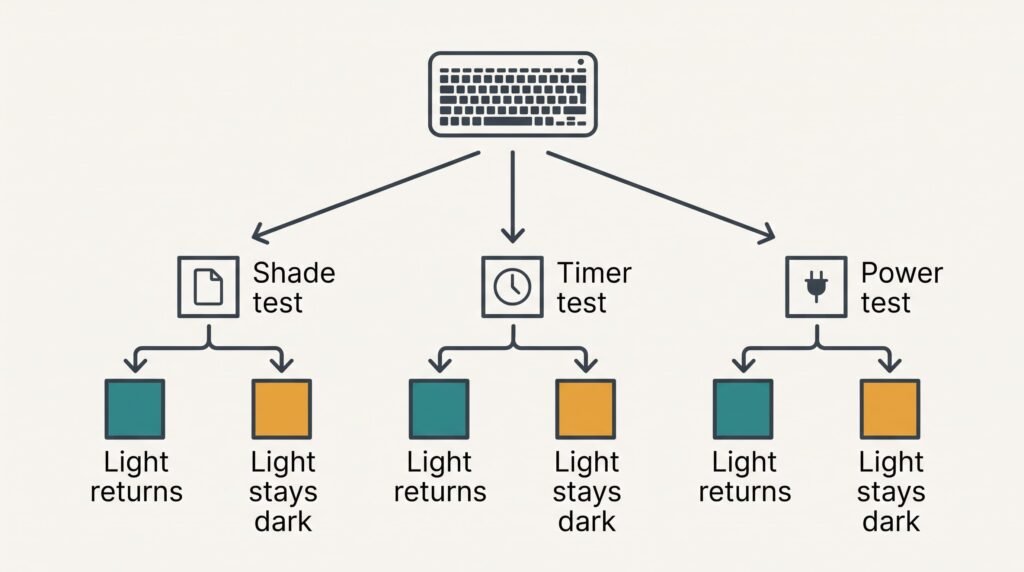
Do these checks ahead of any change. Each result tells you which rule makes the keyboard backlight switch itself off in your case, and each outcome is worth noting down.
Start with the shade test. Hold a sheet of paper over the spot beside the camera where the sensor usually sits. If the keys light up inside a couple of seconds, the room-light rule is the culprit. If nothing happens, it isn’t the sensor.
Next comes the timer test. Type a line and stop, then count aloud while you watch the keys. When the light dies near the 15 seconds you set and comes back with the next key press, the idle timer is responsible. A match within a few seconds settles it.
The power test goes last. Repeat both tests once with the charger plugged in and once without. A light that misbehaves only on battery suggests a saving rule that shortens the timer, perhaps from 15 seconds to 5. A light that dies while a key is held down in a dark room with the charger in sits outside both rules, and the fixes below won’t reach it.
Four Fixes for the Keyboard Backlight That Cuts Itself Off
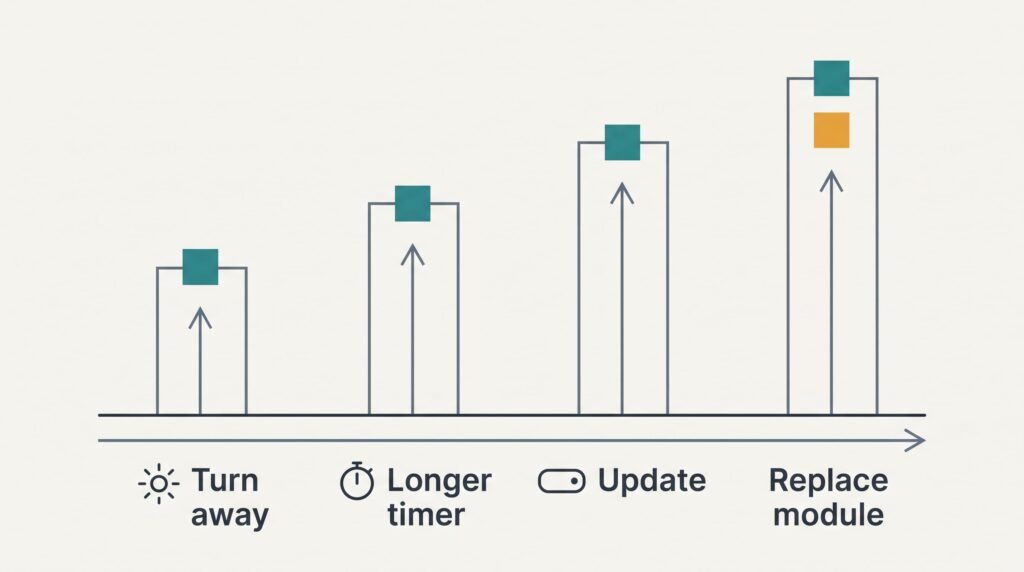
Each fix answers one of the rules that make the keyboard backlight switch itself off, and each entry names its cost and the loss that comes with it. Go through the fixes one by one and quit once the light behaves.
Swing the laptop out of the sunlight and spend nothing. This answers the room-light rule. In our sample, sliding the laptop 60 cm back from the window drops the reading from 340 to about 150 lux. That’s below the 180 lux return point and the keys stay lit. You give up the view and some daylight on the page. Begin here whenever the shade test worked, because a pass in that test makes this the likely cure. The result arrives in seconds, and nothing needs buying.
Lengthen the idle timer in the keyboard settings when the timer test matched. Raising 15 seconds to 60 means a pause to read a paragraph no longer counts as idle. The change takes two minutes. It does cost some battery, since the glow stays on longer. At a sample draw of 0.4 W, two extra hours a day use 0.8 Wh, about 1.6% out of a 50 Wh pack, which most typists don’t mind. Pick a figure just above your longest reading pause. If you rarely pause beyond 40 seconds, then 45 seconds is enough. It saves more battery.
Update the keyboard utility and the system firmware when both tests look normal yet the light still misbehaves. A wrong threshold or a mistimed saving rule is the kind of defect an update corrects. Allow half an hour. The cost is small, though a fresh install can reset your preferred lighting level, Note it beforehand. Your files stay untouched. If the utility offers an automatic lighting mode, check whether it was on before the update, because that mode normally follows the sensor.
Have the keyboard module replaced only when the light dies as you press one area or flickers with each key. That pattern suggests a worn ribbon or a failing board, and no setting reaches it. Ask the seller about warranty before the case is opened. A shop can name the figure before starting, and it’s worth setting that against the age of the laptop. A repair under warranty costs nothing, while one outside it costs real money. You also lose the laptop while it’s in the shop for days, and the change can’t be undone.
If None of the Four Fixes Worked
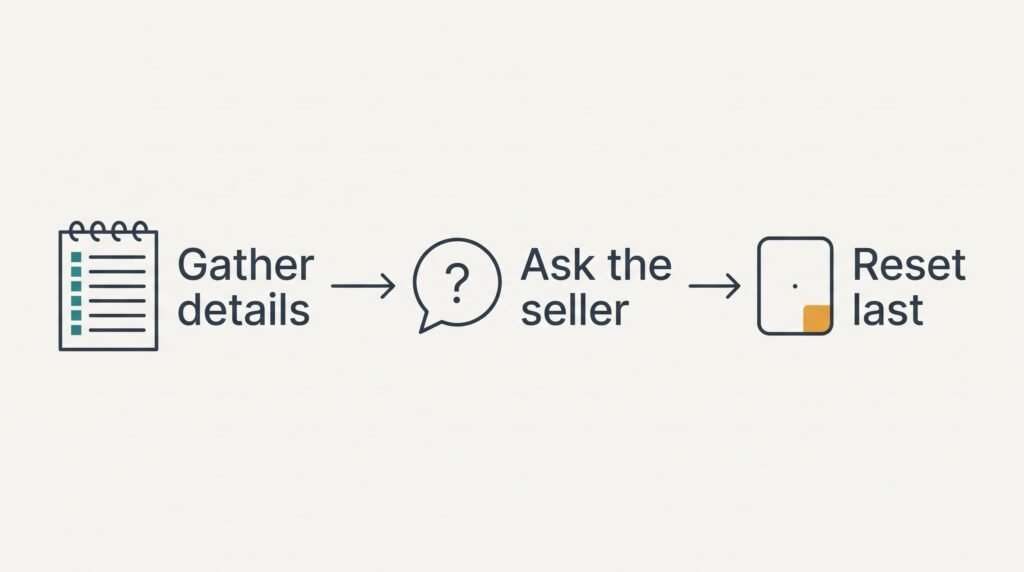
Gather the details before opening a support ticket. Note the model name, the number of seconds the light lasts and the outcome of each test. Add whether the fault shows on the charger or only on battery. In our example the note reads: 15 seconds, fails beside the window, fine in the evening. These details spare the person on the other end several questions and often save a day of messages.
Ask the seller directly whether this model has a sensor rule that makes the keyboard backlight switch itself off, and what its threshold is. An answer that names one shows a documented design and not damage.
Resetting the keyboard settings to defaults comes last, because it wipes your shortcuts and light levels. Photograph each settings screen beforehand and you can restore every setting.
The Fix That Is Not Worth Making
Many people reach for a strip of tape over the sensor, hoping to silence the room-light rule for nothing. It rarely pays. That sensor often drives the screen brightness as well. The display then stops following the room and sits too bright at night or too dim by day. Adhesive can also leave a mark beside the camera that is hard to remove.
The tape also does nothing about the idle timer.
In our sample it would remove the 250 lux cut-off but leave the 15 second timer in place. The light would still die during every long read. Paper does the same testing without a trace. If the paper test fixed the light, a small move of the laptop or a longer timer gives the same result and takes nothing away. Tape costs you twice: a worse screen and the same fault.
Give the sensor a clear view and the keys a few evenings to prove the change. If the light still drops out with the sensor shaded and the timer long, the keyboard hardware is the culprit, and a repair comes next. Quote the date and the model name when you ask, since both shorten the conversation. Most people find the cause after one evening of testing.
Questions Readers Keep Asking
Can I fix it at home?
Usually, yes. It’s rarely a hardware job. Turn the laptop away from a window or lamp, then lengthen the idle timer and update the keyboard utility. All three cost little or nothing. Only a light that dies when you press one area or flickers with each key needs a repair.
What causes it?
Two rules in the firmware. An idle timer turns the light off after a pause, and a room-light sensor turns it off above a set brightness. A gap between the off and on levels keeps the light dark until the room falls well below the cut-off.
Does it mean the keyboard is failing?
Rarely. Failure shows as a light that dies when you press one area. It may also flicker with each key or stay dark in a dim room with the charger plugged in. A light that returns when you shade the sensor or press a key again is following a rule, and that isn’t a fault.