Why does my memory card show less space on the computer than on its label? Nearly always the label and the computer count a gigabyte differently, so convert the figure before you suspect a fault. A card sold as 128 GB reads as about 119 GB, and no space has gone missing. This piece follows an invented photographer in the UK who owns one 128 GB card and a camera that saves 25 MB pictures. Swap in your own readings for every number, and run each sum again before you trust it. No brand appears here, and no price, since neither changes the arithmetic.
What makes a memory card show less space than its label
Two gigabytes exist. The maker counts one in thousands, so 1 GB means 1,000,000,000 bytes. The computer counts in steps of 1,024, so its gigabyte is 1,073,741,824 bytes. A label of 128 GB therefore holds 128,000,000,000 bytes. Divide by 1,073,741,824 and the computer shows 119.2. The same sum turns 32 GB into 29.8, 64 GB into 59.6 and 256 GB into 238.4, so every card shrinks by the same share.
The card isn’t missing 8.8 GB, because the two sides measure with different rulers, and that gap is 6.9% of the label. A larger card loses more in absolute terms, which is why a 256 GB card looks like a worse offender than a 32 GB one.
The picture count shows it plainly. At 25 MB a picture, the maker’s units give 128,000,000,000 ÷ 25,000,000 = 5,120 pictures. The computer’s units give 119.2 GB ÷ 23.84 MB, which is also 5,120.
Both ways of counting agree, so no picture capacity has vanished.
A small further amount goes on the file system itself, usually a few hundred megabytes for the tables that record where each file lives. That’s separate from the unit gap, and it’s the only real loss.
Three tests to show how much space a memory card has
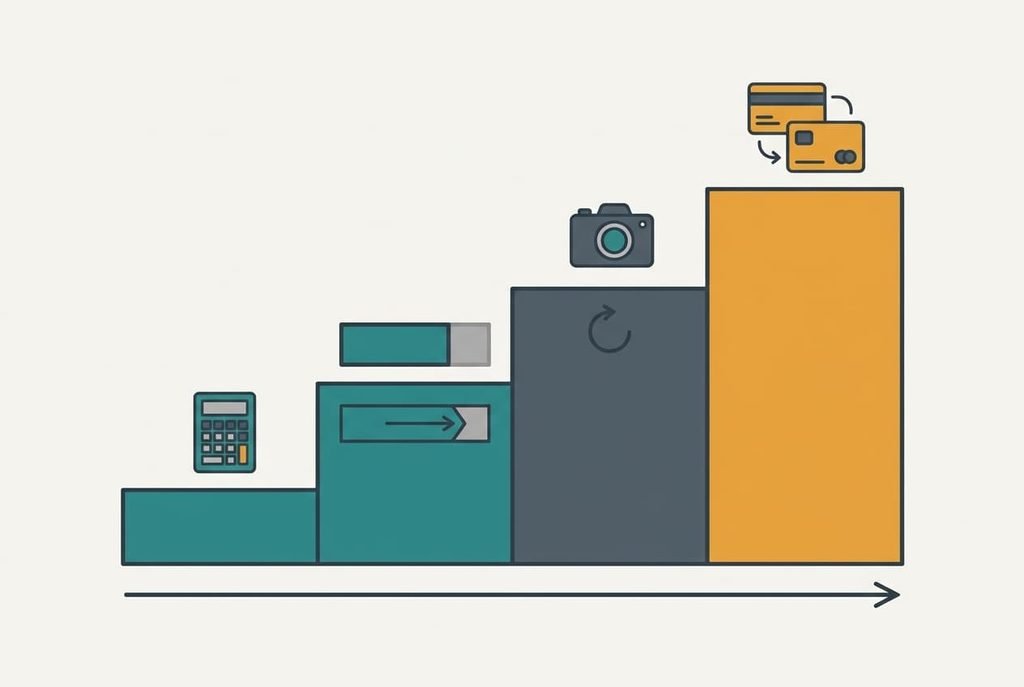
1. Convert the label. Multiply the printed number by 1,000,000,000, divide by 1,073,741,824, then set the answer beside what the computer reports. A card within about 0.5 GB of the result is normal. When it matches, stop there. Nothing needs repairing, and every later step would only add risk. Write the converted figure down, since later tests refer to it.
2. Compare two devices. Read the capacity on the computer and on the camera. If both give 119 GB, the units explain it. If one gives 119 and the other a much smaller figure such as 32, a leftover small partition is hiding the rest of the card. Note both readings before you change anything, because the difference between them is your evidence.
3. Look for unallocated space. Open the computer’s disk-management view and find the card. A grey block labelled unallocated beside the main volume means the card was formatted smaller than it is. If the volume fills the whole card, no space is hidden. The first two tests then settle the question.
Four fixes, from free to irreversible
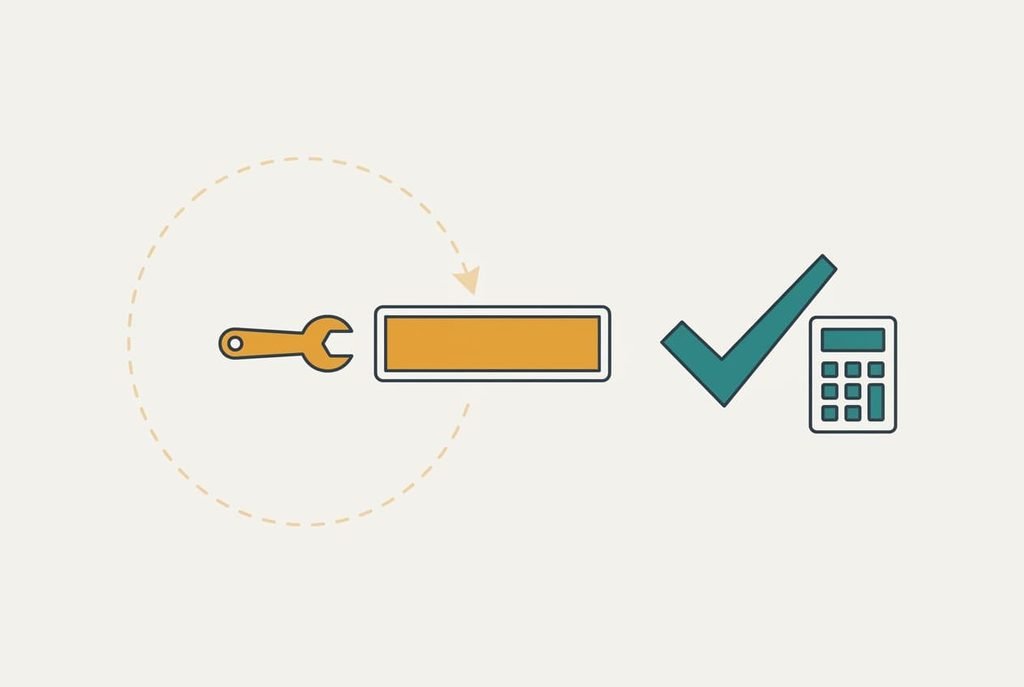
Accept the conversion, which maps to the unit gap. It’s free and takes a minute with a calculator. The loss is only a habit: you stop expecting 128 GB and plan around 119 GB, which still holds 5,120 pictures. The card’s properties list the capacity in bytes too. On our card that figure sits just under 128,000,000,000, and the small shortfall is the file system’s own tables. Note the real figure somewhere, so nobody hunts for the missing 8.8 GB again.
Extend the volume over any unallocated space, which maps to a small leftover partition. It’s a setting in the disk-management view and costs nothing but five minutes. Our photographer’s tool showed a 32 GB volume followed by 87 GB of unallocated space, which is exactly what a camera that once formatted the card for an older standard leaves behind. Copy the pictures off first in case the card refuses. It loses nothing on success, though a failure can lose everything, which is why the copy comes first and the extension second.
Copy the files off and format the card in the camera, which maps to a clumsy format. This is the time cost. At 90 MB/s, 40 GB takes about 7.4 minutes to copy each way, so allow 30 minutes with checking. The camera also rebuilds the folder layout it expects, which avoids odd errors later. It picks a sensible cluster size, whereas a quick computer format might pick 128 KB. With 10,000 tiny files of 4 KB, that’s 1.24 GB wasted against 0.28 GB at 32 KB, a saving of about 0.96 GB. Formatting erases the card, so open a few copied pictures before you start.
Replace the card, which maps to a card that reads far below its label on every device. Does your memory card show less space by a large margin, on every device? Then the card itself is the suspect. Try it with a full write and read-back before relying on it. Filling 119 GB at 90 MB/s takes about 22 minutes, and reading it back takes another 22, so the whole check costs under an hour. A file that comes back changed marks the card as unreliable. Replacement is the irreversible choice, and it loses any data on the old card that you haven’t copied, so keep the old card untouched until the pictures are safe elsewhere.
If none of the fixes worked
Does the memory card show less space even after the fixes? Collect three things before you ask anyone for help. Write down the capacity shown on the computer and on the camera, the file system the card uses, and the exact wording on the label. Photograph both sides of the card, including any printed class marking. Add the camera’s own storage screen too, since it shows the figure the card reports with no computer in between. Pass those details to the seller or the maker, along with a plain account of what you’ve tried. A card that reads 32 GB on every device after being sold as 128 GB poses another kind of problem altogether.
Do not reformat as a first reaction. Formatting erases everything and cannot undo a faulty card. Copy the pictures first, then format. A reset that deletes your only copy turns a small mystery into a real loss.
The fix that isn’t worth doing
Running a capacity-restoring tool sounds like the direct answer, so people reach for it first. These tools claim to bring back the missing 8.8 GB. They can’t, because the gap is a counting difference and not a deficit. At best the tool rewrites the partition and wipes the card. At worst it hides a fake card by writing past its real size, and your pictures vanish later.
Another dead end is formatting again and again in the hope that the number grows. Every format leaves the capacity where it was and adds a little wear.
A third is deleting folders you don’t recognise to free the missing space. Those folders are usually the camera’s own index, and removing them frees a few kilobytes while making the camera complain on the next start.
Look again at the sum.
Why does my memory card show less space than its label? Run the conversion before anything else. A figure that matches 119 GB needs no repair. A figure far below it on every device points to a partition or a bad card. The three tests above tell you which. The label counts in thousands while the computer counts in 1,024s, and that single fact explains most reports.
Questions readers keep asking
Can I fix a card that shows less space at home?
Often yes. If the gap is only the unit difference, there’s nothing to fix. If a small partition hides the rest, extending the volume usually restores it, and so does formatting in the camera. Copy your pictures off first, since both steps carry some risk.
What causes the gap in the first place?
Mostly the two ways of counting a gigabyte, which accounts for about 6.9%. A small extra amount goes to the file system. A far larger gap, such as 32 GB shown under a 128 GB label, points to a leftover partition or a card that was never what it claimed.
When does a gap signal a hardware fault?
When the card reads far below its label on every device, or its size changes between readings. Those signs suggest a failing or counterfeit card. Copy off what you can, stop using the card for anything important, then request a replacement from the seller.