Your laptop sends tidy replies, and then a message from your phone arrives with different spacing and a stray line about the device. Fixing it takes roughly twenty minutes of calm work, and you end with an email signature looking the same whichever device you reply from. Everything hinges on whether your mail app stores one signature for the account or a separate one on each device. Step two reveals which, and the other five steps are built around that answer. Our sample is an invented four-line signature with a made-up number. Swap in your own words and keep the method.
What to Settle Before an Email Signature Looking the Same Can Work
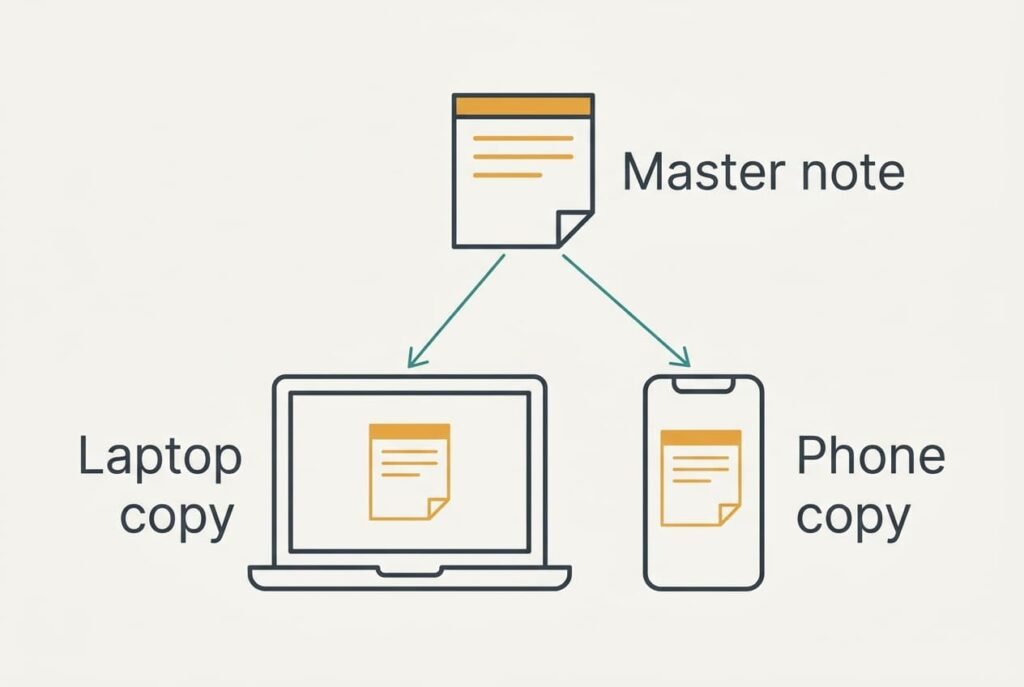
Many mail apps store a signature on the device, not on the account. That’s why a change on the laptop leaves the phone untouched, and why the two drift apart over the months. It also explains why keeping an email signature looking the same takes two edits. Settle three things before you touch any settings.
Start with what the signature must say. Four lines is plenty. Use your name and role, then a phone number, then a short closing line. Keep each line under about 40 characters, because a phone screen wraps anything longer. Our sample has “Practice Manager, Northfield Garden Design” on one line, which runs to 42 characters and breaks awkwardly. Splitting it into two lines of 16 and 24 characters fixes that.
Then write the text somewhere neutral, such as a notes file. Copying a signature straight out of an old email is what to avoid, and it drags hidden formatting along with it. A font you never chose can hitch a ride, and so can a link. A plain-text original keeps every device honest and gives you a single master copy to edit later.
Finally, put both devices within reach.
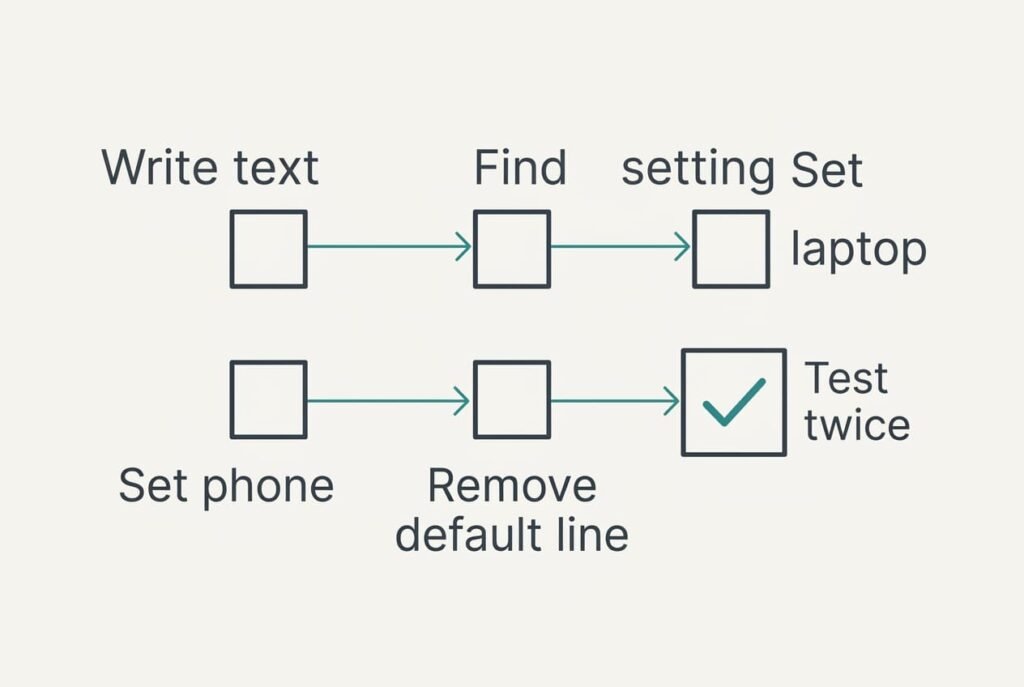
1. Write the plain text in your notes file and count the characters in each line. You’re looking for four lines, none above 40 characters. A long line wraps on a narrow screen, and a wrapped line looks like a mistake to the reader. Counting by hand takes under a minute for four lines. The step is done when a single glance at the note shows every line fitting inside the limit.
2. Open the signature setting in the mail app on both devices and see where it lives. Look for whether it belongs to the account or to the device, and whether the phone adds a default line of its own. The answer tells you how many places need editing, If the setting is hidden, look in the account section rather than the general one. The step is done once you’ve written down one place or two, plus the wording of any default line.
3. Replace the signature on the laptop with your plain text. Delete what is already there before you paste, otherwise old formatting survives underneath and spoils the result. Then send a test message to yourself and look at it in the sent folder. The step is done when the four lines break exactly where your note breaks them, with no blank line above or below.
4. Repeat the job on the phone, using the same note. Pasting avoids retyping, and retyping is how a stray comma or a longer dash creeps in. Send a second test from the phone and put it beside the laptop’s. The match is proven when the first and last lines are identical, word for word. The middle lines should wrap in the same places.
5. Remove any default phone line, such as a note that the message came from a mobile device. It tells the reader nothing useful and sits where your phone number belongs. Phones often add it again after an update. Check it twice over a week. The default is gone when a test message holds no line you didn’t write yourself.
6. Send both tests to a second address, ideally on a different mail service, and open them on both devices. Services draw fonts and spacing in their own way. This catches what your own account hides. Use a webmail page too, since it is the third place a recipient may read it. The step is done when all four screens show four lines that look alike.
How to Know the Signature Is Really the Same
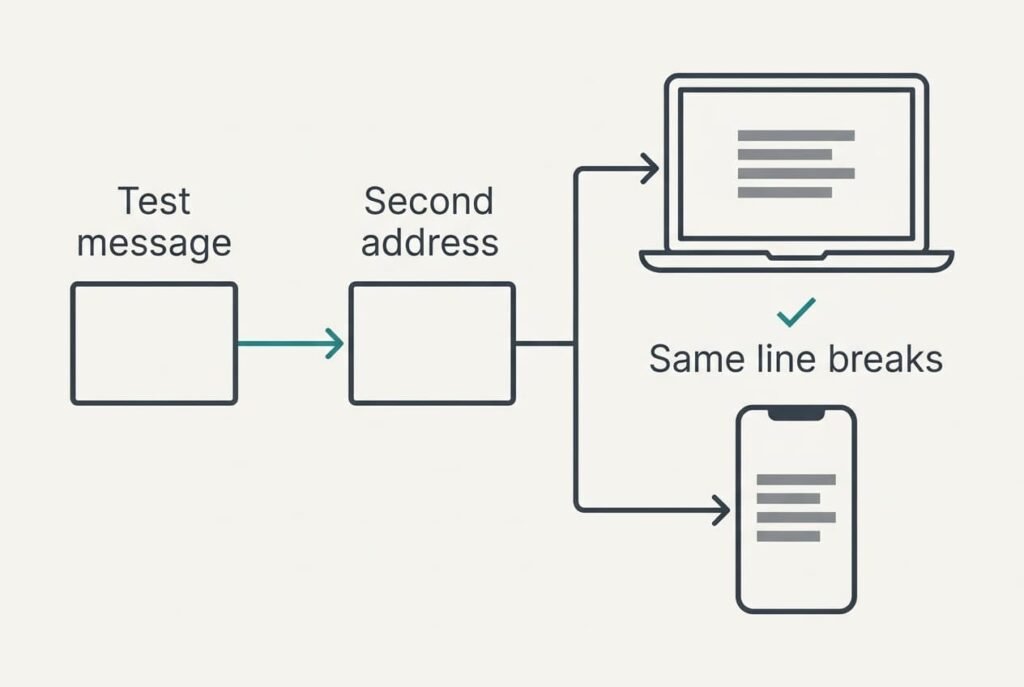
A signature isn’t finished when the settings screen looks right, and once the steps are done you should send one test to a second address and open it on both devices. A signature can look correct while you write it and still change shape on delivery.
You pass when the four lines break in the same places on both displays and the phone number is a plain line of text. A small difference in font size is a partial pass, because each service sets its own. Then repeat step three and clear the formatting before pasting. A signature that gains a blank line or loses its last line is a fail, and so is one that turns blue and underlined. Return to step four and paste again from the note, and the note itself stays untouched. Pass the test twice in a row, and an email signature looking the same stops resting on luck.
When a Step Goes Wrong
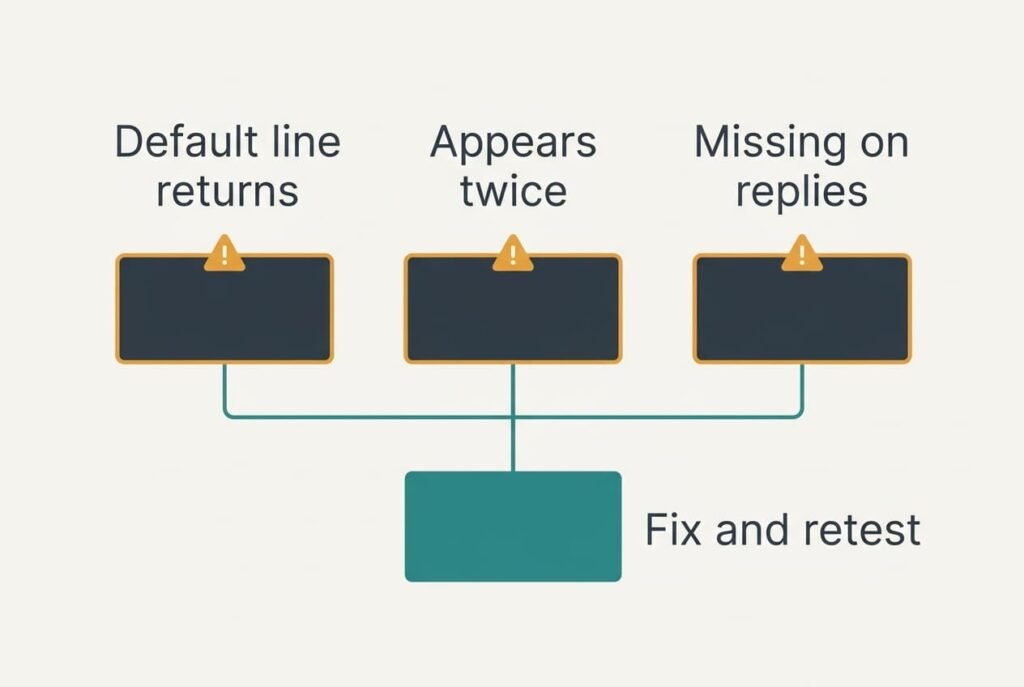
The usual stall is a default phone line that returns after you delete it. Some apps restore it whenever you switch accounts or install an update. If it keeps coming back, replace it with a single space rather than an empty field, because an empty field tells the app to use its default.
Another stall is a signature that appears twice in a reply. The app adds it to the quoted text as well as to your new words. Look for a setting that places the signature below the new text, or delete the second copy by hand each time.
A third stall is a signature that never appears on replies. Many apps apply it only to new messages. Check whether the setting has a separate switch for replies and forwards, and turn it on for both. Send a reply to yourself afterwards, since a switch that looks on can still be off.
The Logo Step That Isn’t Worth Taking
Advice online often pushes a logo or a photograph into the signature. That’s the step to leave out. Images in a signature often arrive as a blank box or an attachment, because many mail services hide pictures from senders they don’t know. A picture 600 pixels wide also shrinks to about 60% of its size on a phone, which leaves any text inside it unreadable. Each message then carries an extra file of 30 to 80 KB, and a thread of twenty replies carries twenty copies. A person reading on a slow connection waits for every one. A signature that keeps an email signature looking the same should never cost the reader anything.
Plain text sidesteps all of it. It reaches every device in the same shape, and that’s what an email signature looking the same on every screen really needs.
Keep the logo for a website or a letterhead, where you control the page and the reader never has to load anything.
Once your four lines look alike on every screen, store the note where you can find it again. When your role or number changes, edit the note, then paste it into both devices in one sitting. That habit takes two minutes and stops the drift that started this guide. Send yourself one message from each device each year to confirm that nothing has changed, and keep a dated copy of the old text beside it in case you need to compare.
Questions Readers Keep Asking
How long does this take?
Around twenty minutes on a first attempt, with most of that spent hunting for the setting on each device. Once the plain text is ready, pasting it into each device takes a minute. Later changes take two minutes if you edit your note before anything else.
Will changing the signature on one device overwrite the other?
Usually not. Many mail apps store a signature on the device, and each one keeps its own copy. That’s the reason you paste into both. A few services share one signature across devices, and step two shows which kind you have.
Does the same method work for a work account with a logo?
The method works, but you may be unable to change the signature if your employer sets it centrally. Ask whoever manages the account for the approved text and use that as your note. If a logo is required, send a test to a second address and open it on a phone before trusting it.